插入圖片
在草圖中提供此功能
使用匯入的圖片做為草圖的基礎。將圖片上載到您的文件中,然後在草圖中開啟該圖片。使用圖片做為導引來建立草圖幾何。支援的圖片類型包括:PNG、JPEG 與 BMP。
「插入圖片」草圖工具可讓您使用匯入的圖片做為草圖的基礎。將圖片上載到您的文件中,然後在草圖中開啟該圖片。使用圖片做為導引來建立草圖幾何。支援的圖片類型包括:PNG、JPEG 與 BMP。
在特徵工具列上按一下「草圖」特徵來建立一個新的草圖。在圖形區域中選擇一個平面。
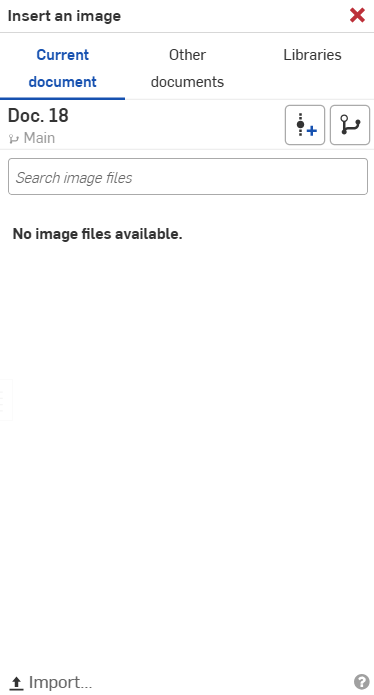
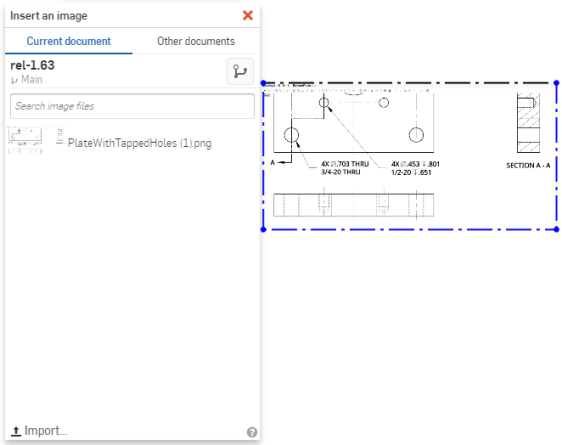
按一下草圖工具列中的「插入圖片」草圖工具。這樣會開啟「插入圖片」對話方塊。您可以在其中使用搜尋圖片欄位來搜尋圖片檔案。您也可以選擇已存在於清單中的圖片,或按一下 [匯入] 按鈕。
在「開啟舊檔」對話方塊中搜尋與選擇圖片,然後按一下 [開啟] 按鈕。這樣會將圖片匯入至對話方塊中。當圖片出現在對話方塊中時,按一下圖片檔案。游標會變更為一個加號。按一下並從左上角拖曳至右下角。放開游標時,圖片即放置在草圖之中。
- Click
to open the Insert image dialog:
- Choose to insert an image from the current document, other documents, or from an image library. If there are no image files listed, use the Import link at the bottom of the dialog.
Current document - Select an image (or use the Search bar to find one) from the currently active document. You can also Create a version or view the Version graph of the document.
Other documents - Select an image (or use the Search bar to find one) from other documents in your company.
Libraries - Select an image (or use the Search bar to find one) from an image library. Select a library from the dropdown menu, then select an image.
- Click Done at the bottom of the dialog box, then click and drag in the graphics area to position the image. The aspect ratio of the image is maintained and indicated by a dashed line as you drag.
A horizontal constraint is applied to the lower edge of the box by default.

The image becomes semi-transparent as you move it, for better visibility during placement.
To rotate the image, first delete the horizontal constraint applied by default, then fix one corner of the image and drag another.
您可以在圖片上繪製草圖。第一次標註草圖幾何尺寸時同時也會縮放圖片。
Image libraries are special folders that contain images. Each company can have one image library that is owned by an administrator (with given share permissions for the company). Additionally, individuals can each set up one image library for their own personal use, with no special permissions required.
Creating an image library
Image libraries are created and stored in Onshape folders. From the Documents page:
-
Create a folder. (Company libraries must be created in the root folder.)
-
Right-click on the folder in the Projects and Folders list and hover over Set library in the context menu to access the extended menu options.
-
From the extended menu options, click My images. This sets the folder as your image library.
Once the folder is set as your image library, right-click on the folder and hover over the Image library option to access the following additional context menu options:
-
Update my library - Update your image library. (Useful when changes are made to a document inside the image library.)
-
Unset my library - Unset the selected folder as your image library. (This removes the folder's designation as the user/company library without deleting the folder or its content.)
-
Export my library - Export your image library via download.
-
Validate library thumbnails - Check and update your image thumbnails.
-
Set as <company> library - Set the selected folder as your company-wide image library.
Supported file formats
-
JPEG
-
PNG
-
GIF
-
BMP
- 最大的圖片尺寸是取決於您裝置的 GPU,可以在 https://webglreport.com 中查出。請確定圖片的寬度與高度是等於或小於 Max Texture Size 像素的限制。
- 要旋轉圖片,請移除水平的限制條件,固定一個角落然後拖曳另一個角落。
- 要移動圖片,請移除所有限制條件,然後按一下並拖曳圖片至想要的位置。
- 您可以在圖片上繪製草圖。
- 標註草圖幾何的尺寸也會縮放圖片,但只有套用的第一個尺寸會縮放圖片。要重新調整圖片比例,請移除額外的限制條件,然後調整剩下的一個尺寸。
- 當您顯示/隱藏草圖時,圖片也同時被顯示或隱藏。
- 此功能會遵照 alpha 色板,所以如果是透明的,則在 Onshape 中同樣維持。
- 您可以在一個 Part Studio 之間複製/貼上圖片 (如同草圖圖元),或從一個 Part Studio 到另一個 Part Studio 複製/貼上圖片。
- 您可以使用環境選單與編輯圖片的指令來選擇另一個圖片檔案或上載新的檔案。
- 如果圖片的來源改變,可以使用分頁環境選單中的 [更新] 選項來更新圖片。這樣同時會更新所有使用這個圖片的文件。