企業設定 - 連接


僅為這個計畫提供
在 iOS 上對連接的支援僅限於讓已加入連接的使用者在共享對話方塊中使用連接分頁。關於使用共享對話方塊的詳細資訊,請參考共享文件,關於新增使用者的詳情,請參考新增使用者到連接中。
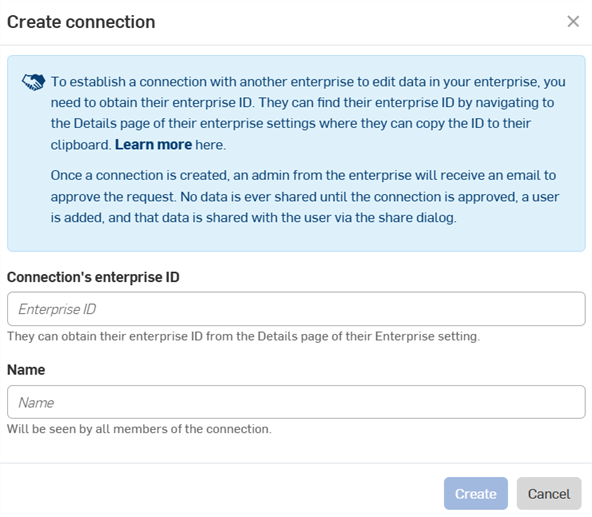
建立連接來與外部企業共享資料。Government Enterprise 帳戶僅能與另一個 Government Enterprise 帳戶連接。目前無法在 EDU Enterprise 帳戶中使用「連接」。
管理員可以在不同的企業之間建立連接,然後將特定的使用者加入至連接中。資料僅會與這些連接的使用者共享。在建立連接之後,經加入至連接的使用者會在「共享」對話方塊中看到「連接」分頁。
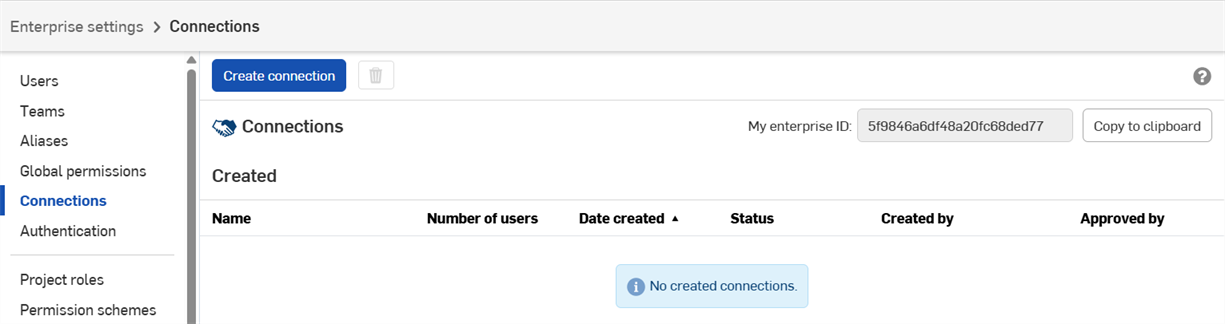
若要檢視您企業的連接,請開啟您的企業設定,然後按一下螢幕左側的連接。 您建立的連接會出現在視窗的上方。從外部企業而來的連接會出現在底部。
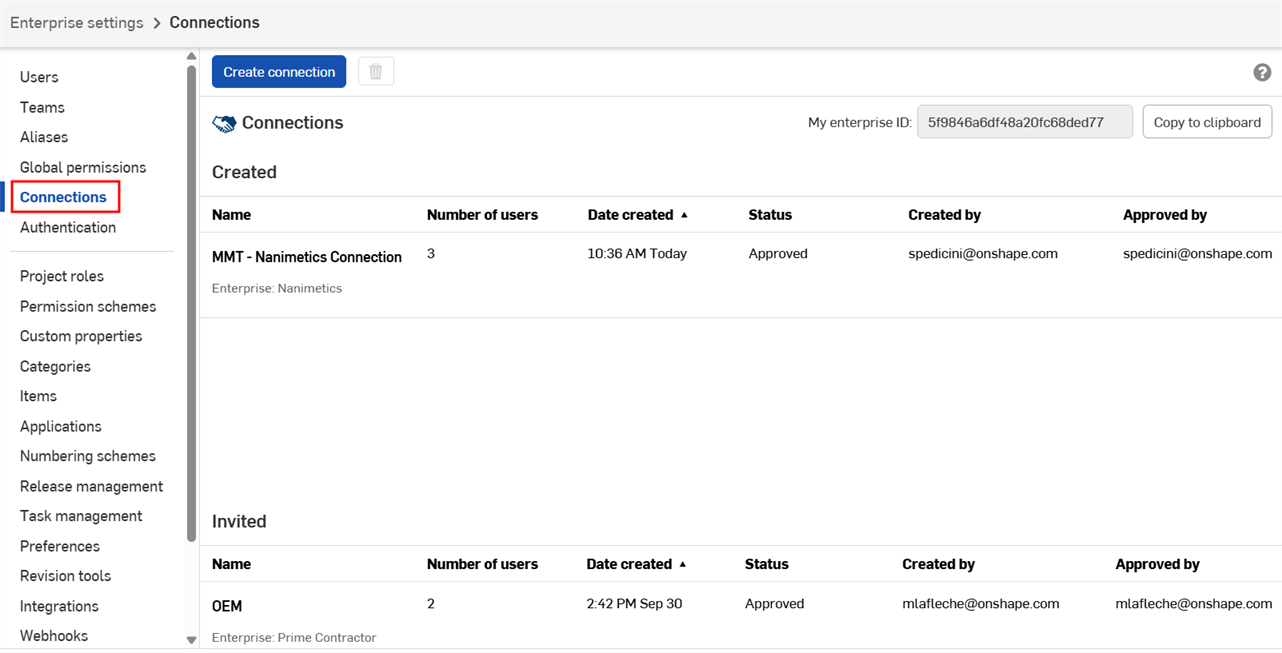
連按兩下連接來開啟它。
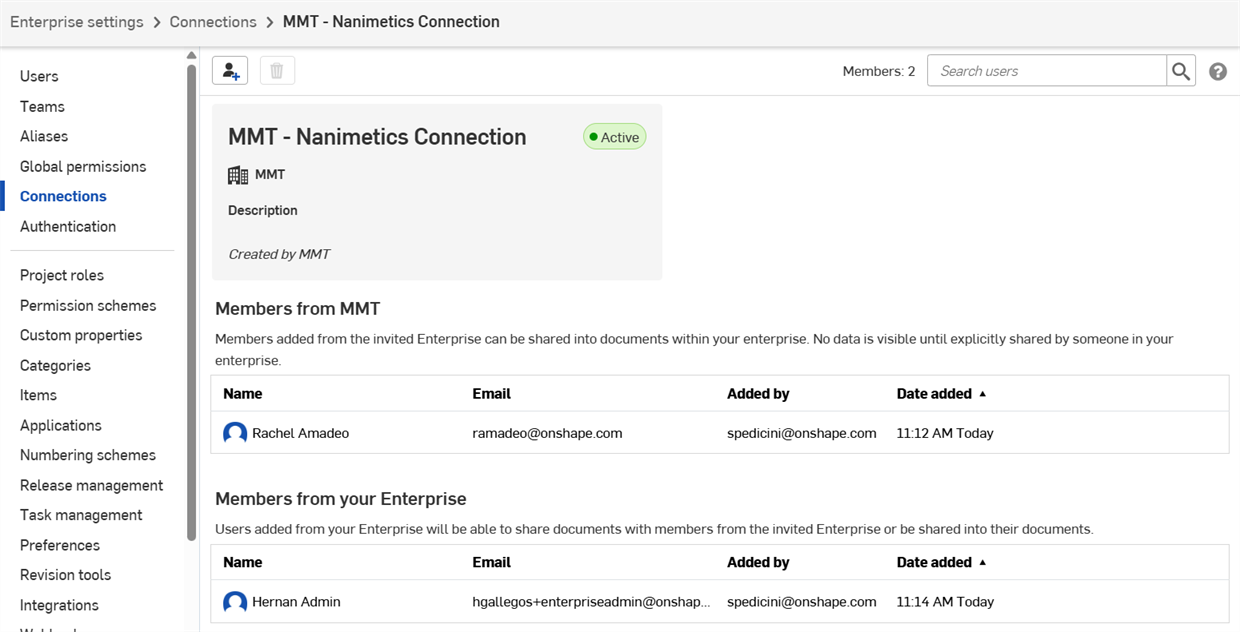
並不會為連接的使用者顯示另一企業的分析資料、使用處與發行管理的資訊。
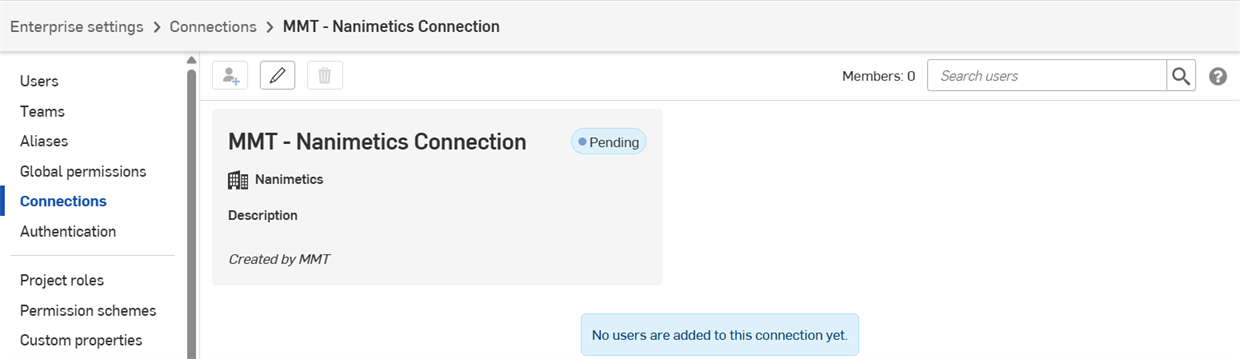
 接受連接
接受連接
- 在您的企業設定中,按一下螢幕左側的連接。
- 邀請會出現在頁面的下方。若要接受邀請,請按一下核准按鈕 (或按一下拒絕來拒絕邀請)。
![待決連接的 [接受] 或 [拒絕] 按鈕](../Resources/Images/enterprise/connections-external-pending-01.png)
- 在對話方塊中按一下接受 (或 拒絕) 以確認您的選擇。 連接的狀態會從待決中變為已核准。
加入使用者至連接中
兩家企業的管理員都必須指定那些使用者可以共享資料。若要將使用者加入至連接中:
- 在您的企業設定中,按一下螢幕左側的連接。
- 連按兩下連接以開啟它。
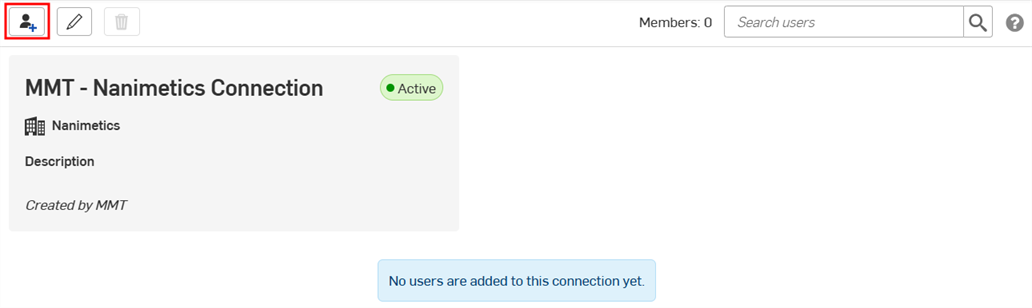
- 按一下新增使用者 (
 )。
)。
- 輸入要加入使用者的名稱或電子郵件地址,然後按一下加入。
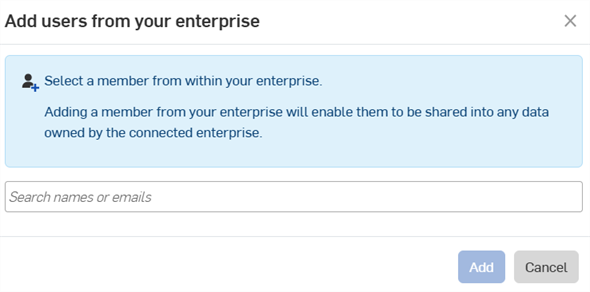
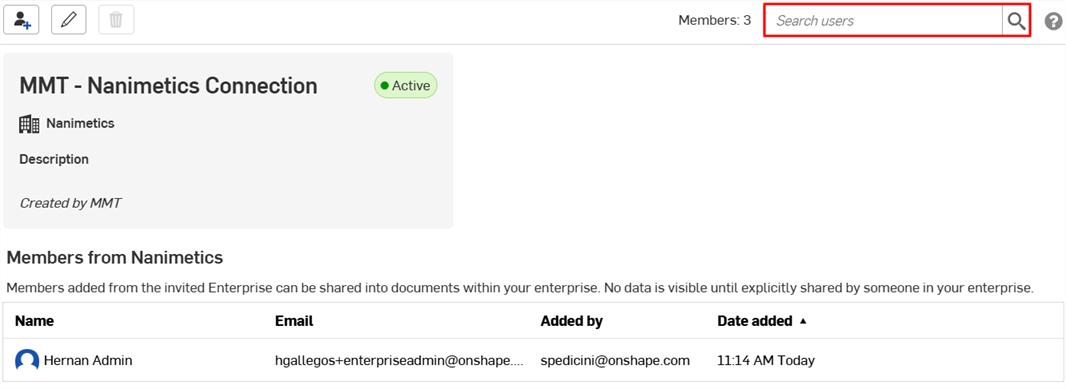
活躍的使用者會列在「連接」頁面中。
一旦雙方企業管理員都在連接的每一端加入了至少一個使用者,連接分頁會出現在這些使用者的共享對話方塊中。詳情請參考共享文件。
從連接中移除使用者:
- 在連接視窗中按一下使用者名稱。
- 按一下移除 (
 )。
)。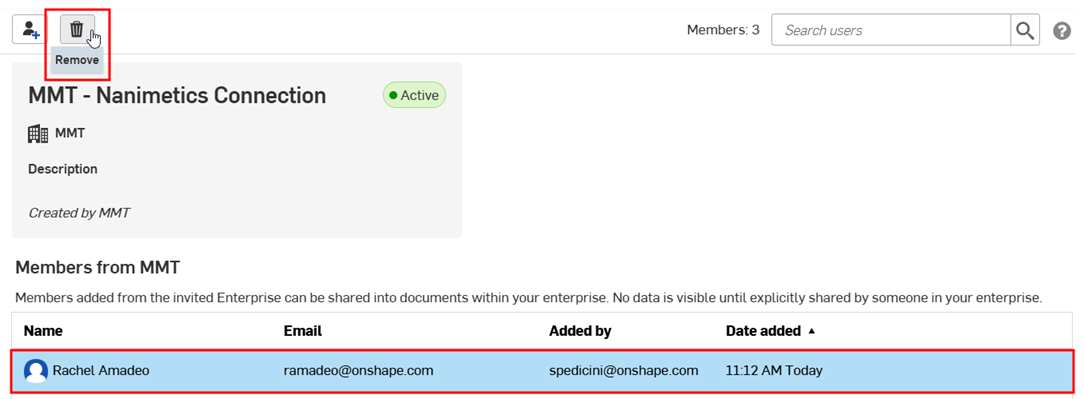
- 再次點按移除來確認。
您也可以使用「連接」視窗中的搜尋使用者欄位來找出活躍的使用者。
編輯連接
只有建立連接的管理員可以編輯連接。
- 在您的企業設定中,按一下螢幕左側的連接。
- 連按兩下連接以開啟它。
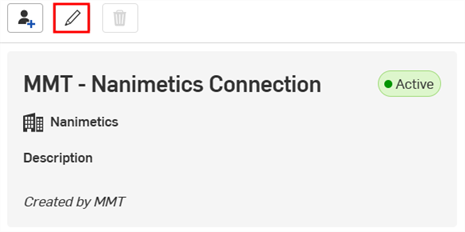
- 按一下編輯連接 (
 )。
)。
- 變更連接名稱或說明,或是複製在編輯連接對話方塊中的「連接的企業 ID」。
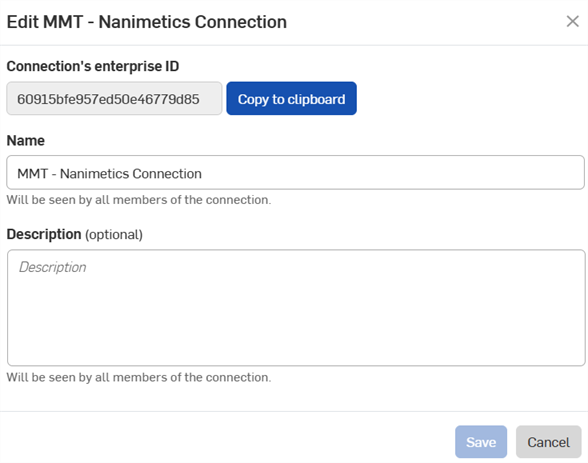
- 按一下儲存。
刪除連接
只有建立連接的管理員可以刪除連接。
- 在您的企業設定中,按一下螢幕左側的連接。
- 按一下連接來選擇它。
- 按一下刪除 ()。
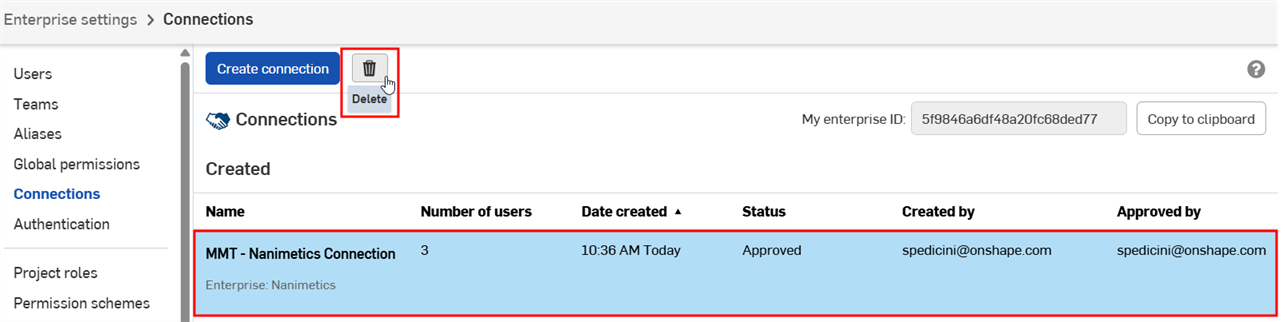
- 再次按一下刪除來確認。
連接橫幅與圖示
These badges indicate connections outside the current enterprise:
-
 - User is from an external enterprise connection.
 -
 - Enterprise is an external connection.
 -
 - Content is shared with an external enterprise.
Documents, folders, or publications that are shared with an external connection display a badge or banner in the toolbar, Share dialog, Share details panel in the Documents list page, and Comments panel.
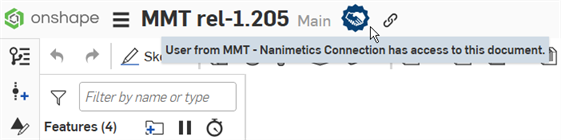
Badge indicates document is owned by current enterprise, shared with external enterprise
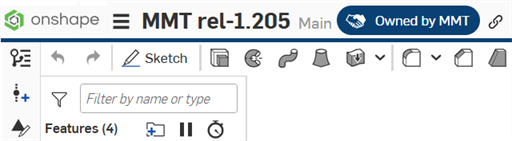
Badge and blue horizontal bar indicate document is owned by external enterprise, shared with current enterprise
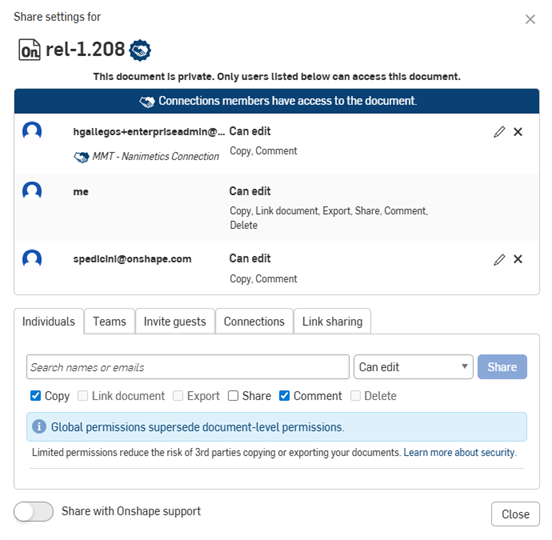
Connections banner and icons in the Share dialog