Educator/EDU Enterprise 介面


這個主題說明 Educator 與 EDU Enterprise 使用者的介面。
 文件頁面
文件頁面
在第一次登入至 Educator 訂閱時,所有的使用者都會到達文件頁面中。EDU Enterprise 使用者可以在其帳戶設定的「喜好設定」分頁中變更其預設的登陸頁面。
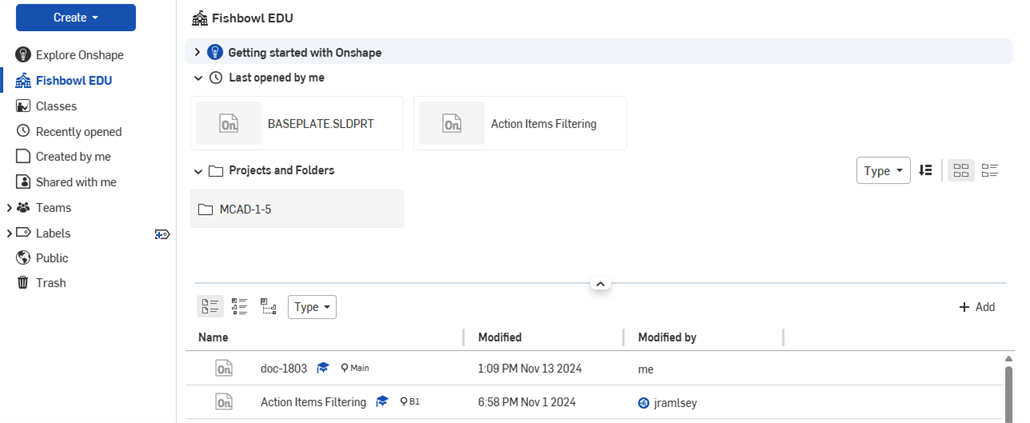
若要查看文件的詳細資料,請選擇文件,然後按一下「詳細資料」圖示  來開啟「詳細資料」面板:
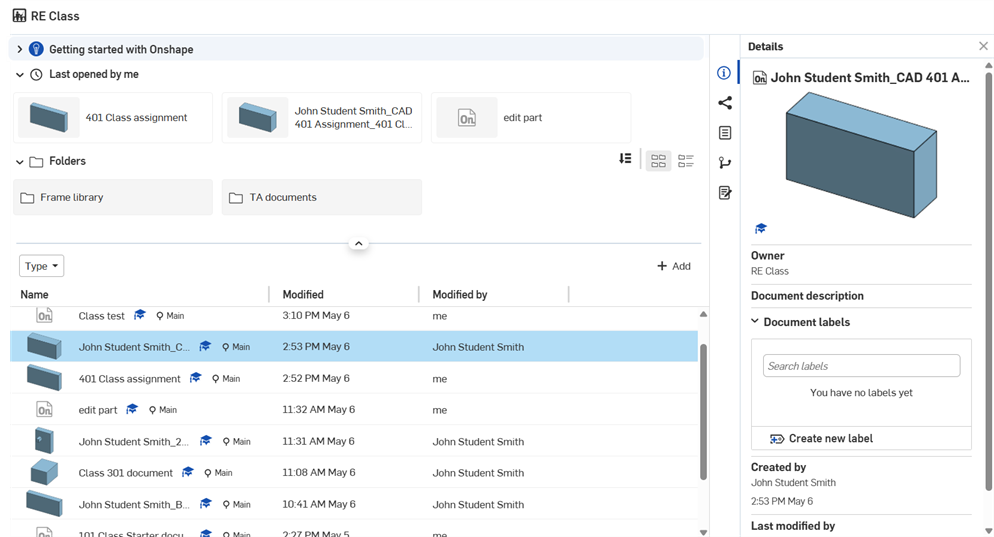
檢視班級
按一下文件頁面左側中的班級篩選器來查看您可存取班級的清單。
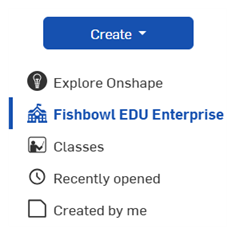
教育工作者
教育工作者可看到其建立所有班級的清單。關於建立班級的詳細資訊,請參考 Educator 計畫中的班級。
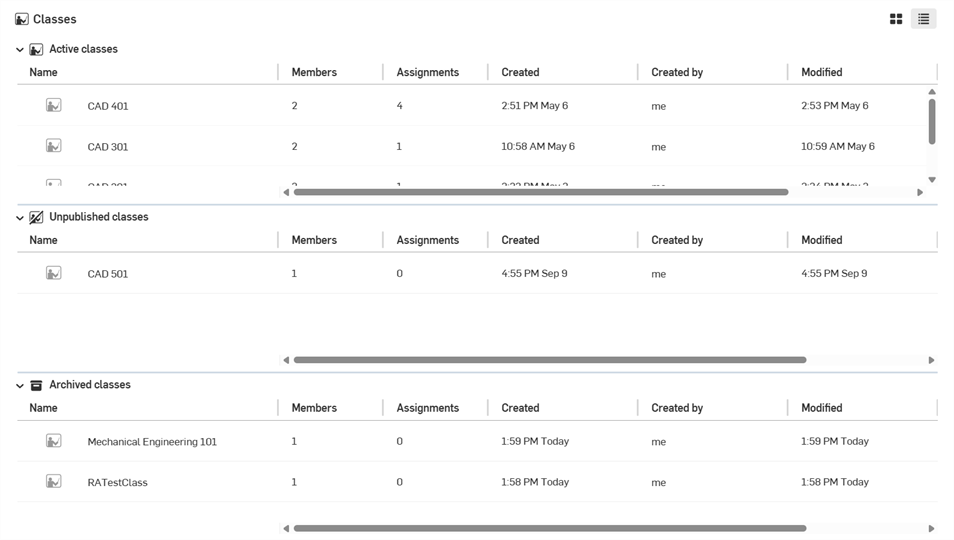
-
按一下右上角的「方格檢視」圖示 (
 ) 來以格狀檢視班級: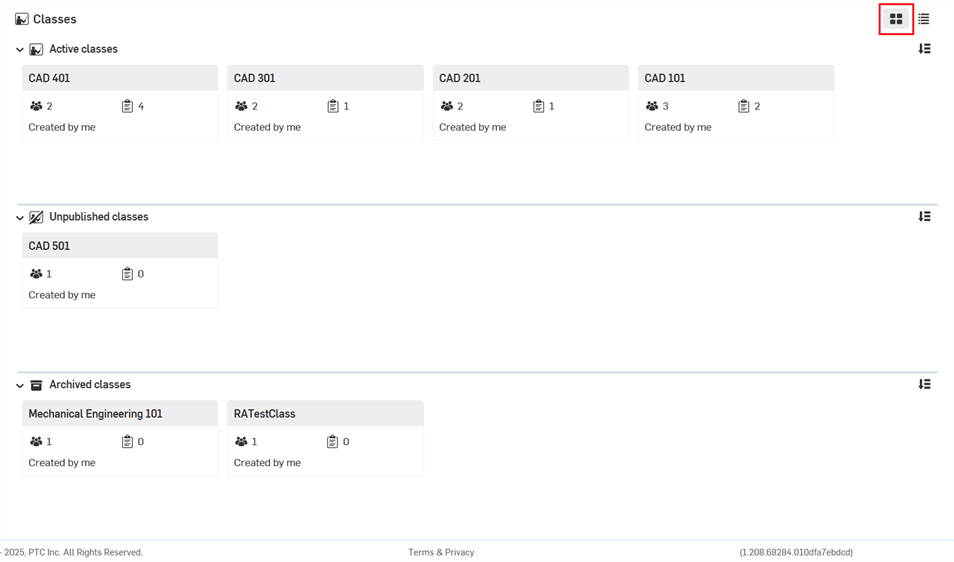
-
In grid view, classes can be additionally sorted. Click the Sort button (
 ) at the top right to sort the classes by Created on date, Name: A -> Z, Name: Z -> A, and Last modified date: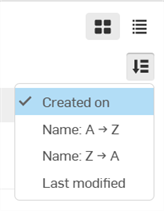
-
在清單中的班級上按一下來存取為該班級所建立作業的清單。
-
按一下右側的詳細資料圖示 (
) 來查看某一特定班級的詳細資料:
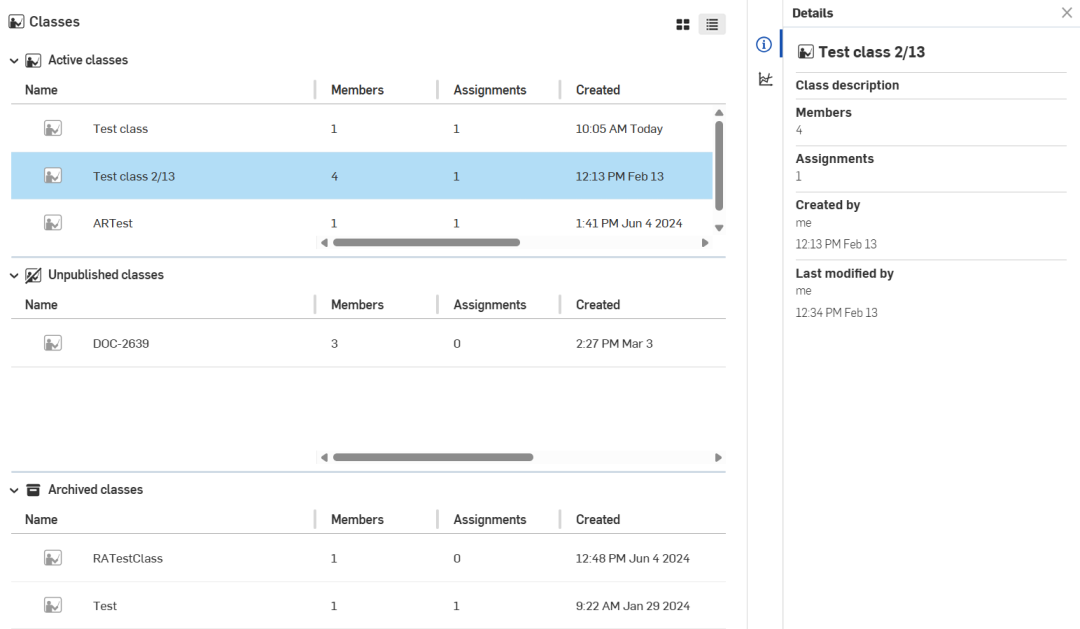
在 iOS 和 Android 裝置上,目前僅為教育工作者提供對班級的「唯檢視」模式。
在班級中將教育工作者的身分指派給學生
在某些情況下,可能需要為班級授予學生「教育工作者」的身分。例如,學生是助教 (TA)。
-
以管理員身分登入 (教育工作者)
-
在課堂設定 > 使用者之下,確定您要授予「教育工作者」權限的學生是課堂的成員。
-
從班級頁面中,按一下成員頁籤。
-
按一下邀請使用者按鈕:

-
在新增使用者對話方塊中,輸入學生的電子郵件地址,然後從右側的下拉清單中選擇教育工作者。接著按一下 邀請:
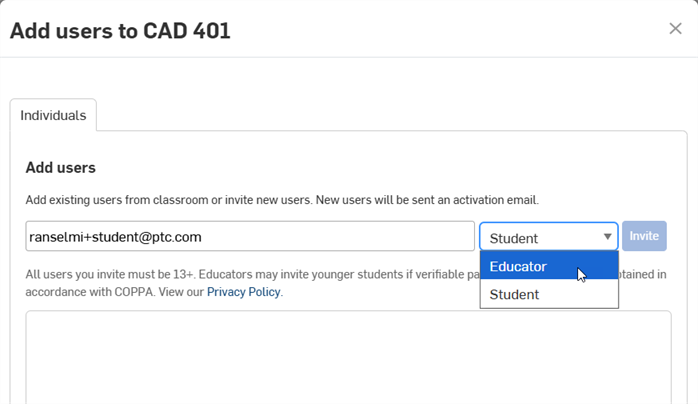
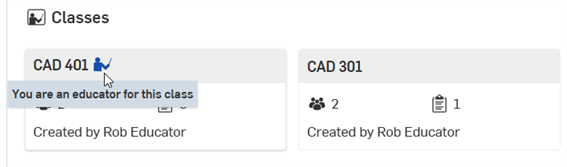
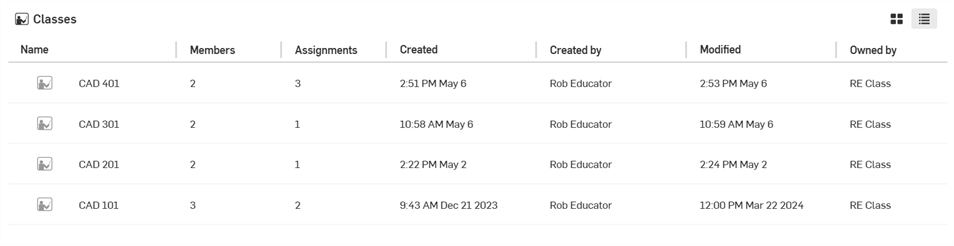
當學生登入並檢視「班級」頁面時,會在其有「教育工作者」身分的班級右側出現一個指標,這在「方格檢視」和「清單檢視」中都會出現:
 檢視與完成作業
按一下「文件」頁面左側窗格中的 [班級] 篩選器來查看您可存取班級的清單。按一下一個班級來檢視目前作業的清單。
教育工作者
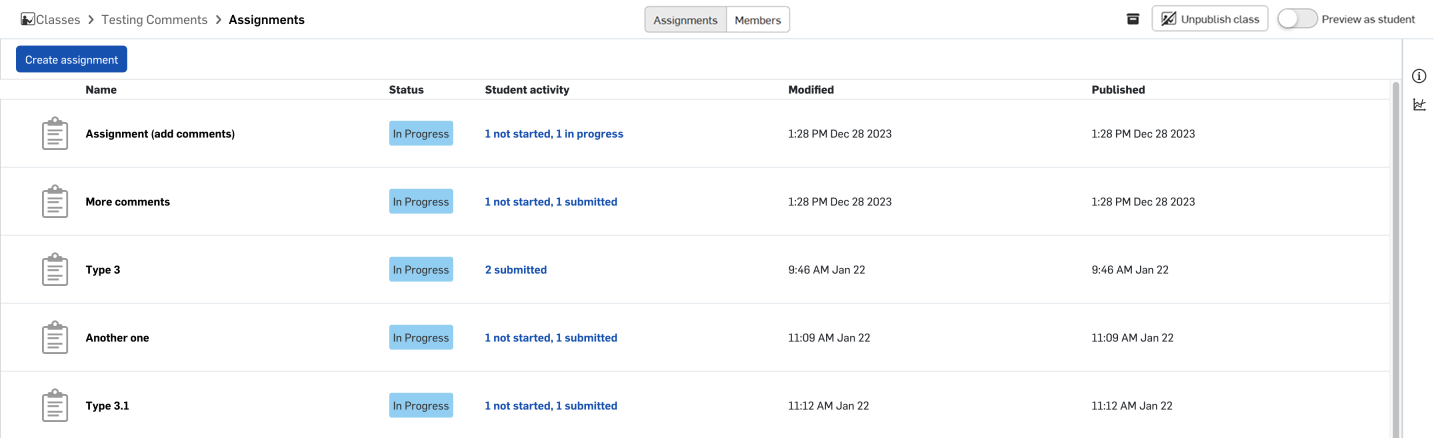
按一下「文件」頁面左側窗格中的 [班級] 篩選器,然後選擇一個班級來查看已為該特定班級建立的作業清單。清單中包括作業名稱、表示作業或版本有無任何評論 (新的或現有的) 的圖示、作業的狀態、針對該作業學生活動的說明、作業本身上次的修改日期與公佈作業的日期/時間。
-
作業 - 顯示班級作業、其狀態、上次修改時間、與是否有發佈的清單。
-
成員 - 顯示分配到班級中的教育工作者與學生以及作業的清單,並有教育工作者與學生的名稱、電子郵件、使用者類型、以及其加入時間的清單。可以從清單中移除成員。
-
封存班級 (
 ) - 從課堂中轉移班級與所有的作業而不完全地刪除。請參考封存班級。
 -
解除發佈班級 (
 ) - 讓先前加入班級且可看見班級的使用者 (學生與教育工作者) 看不到班級。請參考解除發佈班級。
 -
以學生身分預覽 - 讓教育工作者可從學生的觀點檢視班級與作業的頁面。
當啟用時,無法看到草稿與已關閉的作業,並會顯示一個訊息說明您目前是以學生的身分預覽作業或作業清單:
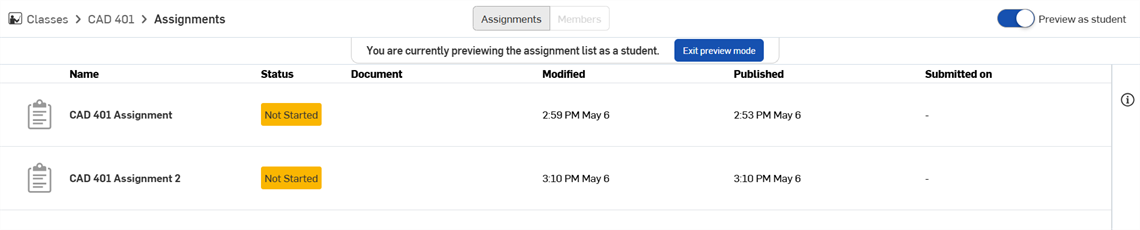
若要退出預覽的模式,按一下退出預覽模式按鈕,或按一下以學生身分預覽的切換。.
在 iOS 和 Android 裝置上,目前僅為教育工作者提供對班級的「唯檢視」模式。
關於建立與管理作業的詳細資訊,請參考 Educator 計畫中的作業。
學生
按一下「文件」頁面左側窗格中的 [班級] 篩選器,然後選擇一個班級來查看已為該特定班級建立的作業清單。清單中包括作業名稱、表示作業或版本有無任何評論 (新的或現有的) 的圖示、作業的狀態、學生活動的說明、作業本身上次的修改日期、公佈作業的日期/時間以及繳交作業的日期/時間 (如果適用的話)。
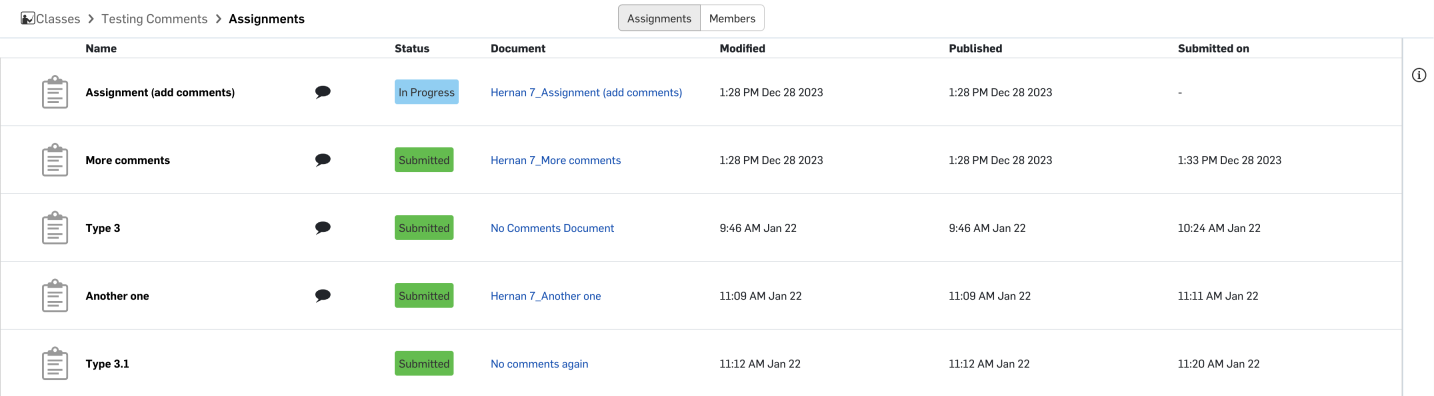
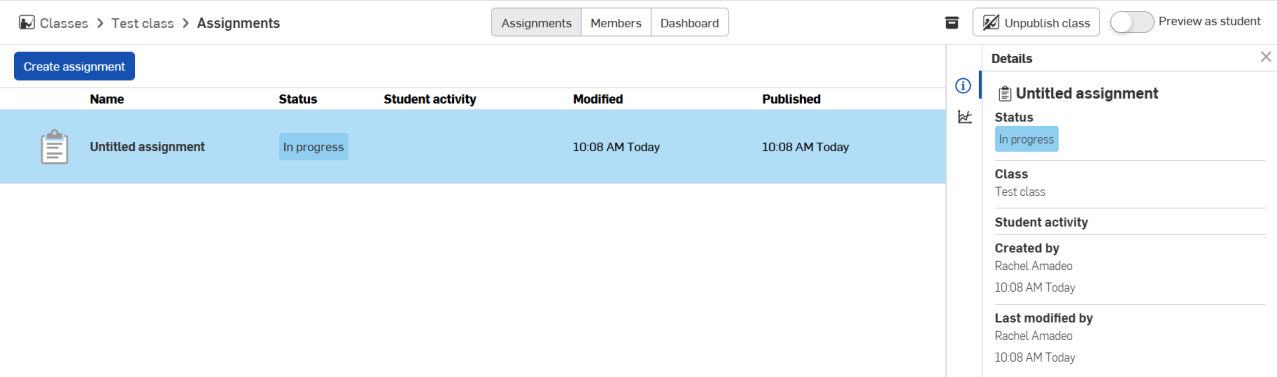
按一下最右邊的「詳細資料」圖示 來查看關於所選作業的更多詳細資訊,如上方中第二個圖片所示。
開始一個作業:
-
按一下第一個欄位中的作業名稱。
-
按一下 開始作業。
若要回到作業清單中,請按一下 回到作業中。
在按下 開始作業 時,會自動將文件與建立作業的教育工作者共享。不過,直到您在文件工作區中按下 繳交,否則系統不會將工作視為完成的。
-
在開啟的文件工作區中完成您的工作。
-
當對您的工作感到滿意時,按一下標題列中的 繳交 來送交作業以供檢閱/評分。
若要檢視更多的班級與作業,請按一下瀏覽視窗左上角的 Onshape (或學校) 標誌。
在文件連結上按一下以從文件欄位中存取該文件,並在新瀏覽器分頁中開啟文件: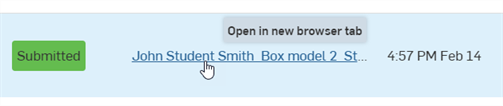
檢視文件
按一下瀏覽器視窗左上角的 Onshape 標誌來回到主頁面,也就是文件頁面。
當為班級發佈作業時,學生的班級文件會位在根資料夾中 (例如,下圖中強調顯示的文件)。詳細資訊請參考 Educator 計畫中的作業。
這些文件是與教育工作者共享的。
Making personal copies of documents
When a user is scheduled for removal from an Education Enterprise, Onshape shows a message at sign-in with the date that user's access ends. On that date, the user is removed from the Enterprise and can no longer open its documents.
A user who is scheduled for removal, or who has been given the Make personal copies Global permission by an Enterprise administrator, can copy any document they have copy access to into their personal Onshape account. A user who is scheduled for removal must do this before the removal date.
Copies can be made as many times as needed. Onshape does not track which documents were already copied, so each request creates a new copy.
-
In the Documents list, select a document or use Ctrl- or Shift-click to select up to 10 documents at a time.
-
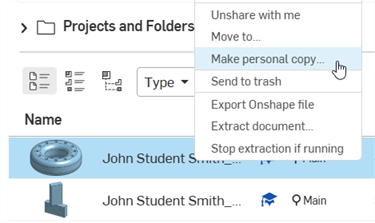
Right-click and select Make personal copy:
-
In the dialog, confirm the documents, click Make personal copy to create the copy:
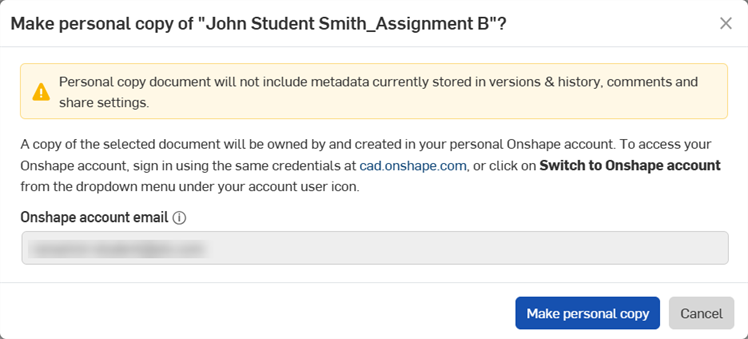
Onshape creates a copy of each document and transfers ownership of the copy to the user's personal Onshape account. Copies are created in the background, so they might not appear right away. When copying is complete, Onshape emails the user.
To open the copies, the user signs in at https://cad.onshape.com/signin, with the same credentials, or clicks Switch to [Onshape account] in the My account menu at the top right.
A personal copy has the same content as a standard document copy, but its Versions and history, Comments, and Share settings are not retained.
Users can copy up to 10 documents per request and up to 100 requests per day.