Sheet Metal Loft
Create a sheet metal part that transitions between two profiles.
To create a sheet metal loft:
- While in a Part Studio, click the Sheet metal loft button (
).
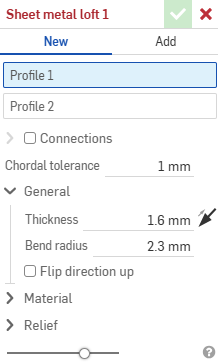
- Select New to create a new sheet metal part, or select Add to add the loft to an existing one.
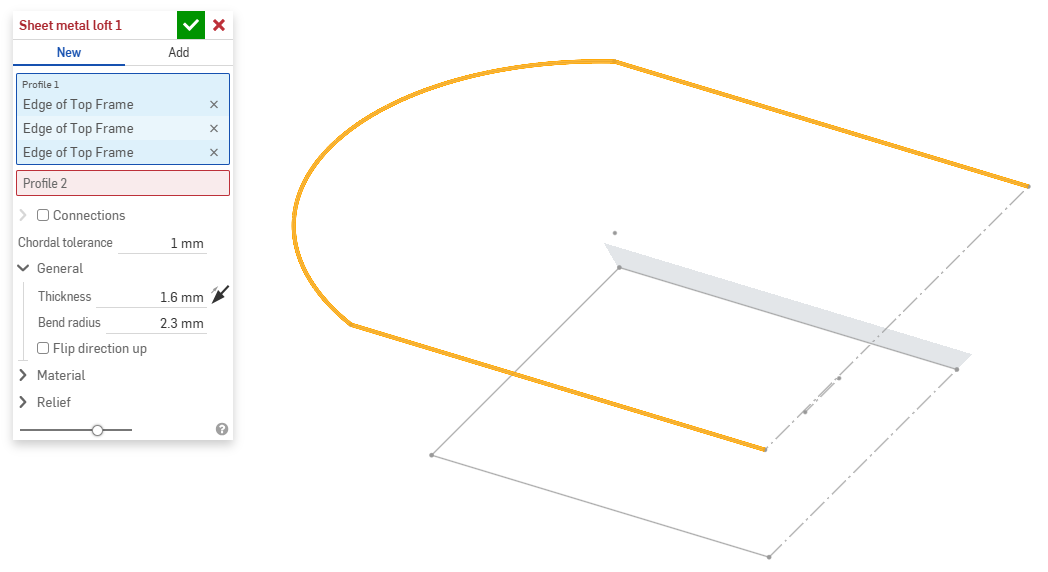
- With focus in the Profile 1 field, select the starting profile (region, face, edge, or point).

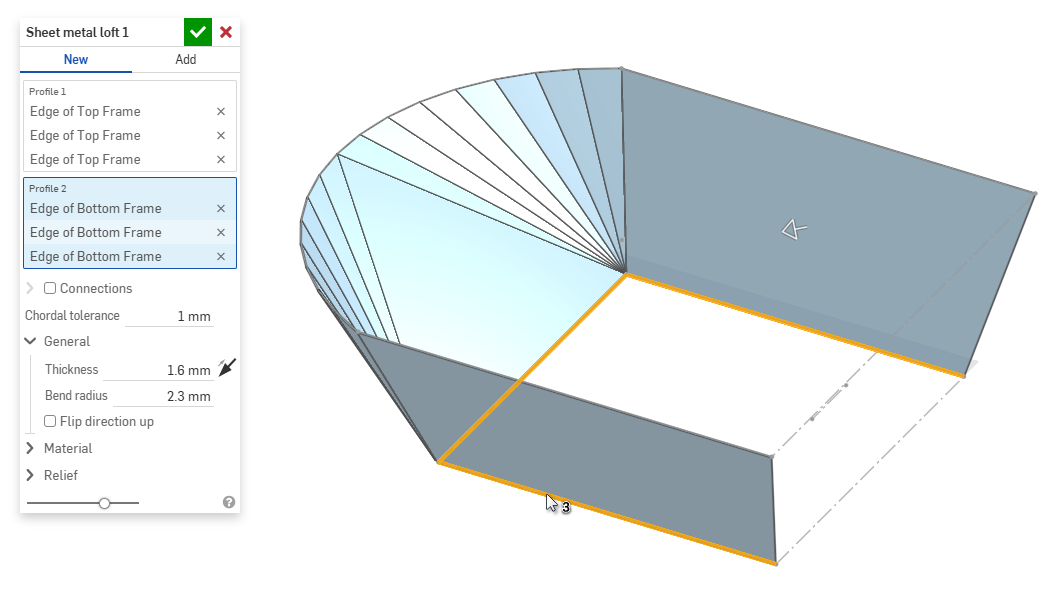
- With focus in the Profile 2 field, select the ending profile. Onshape creates a sheet metal model between the two profiles.

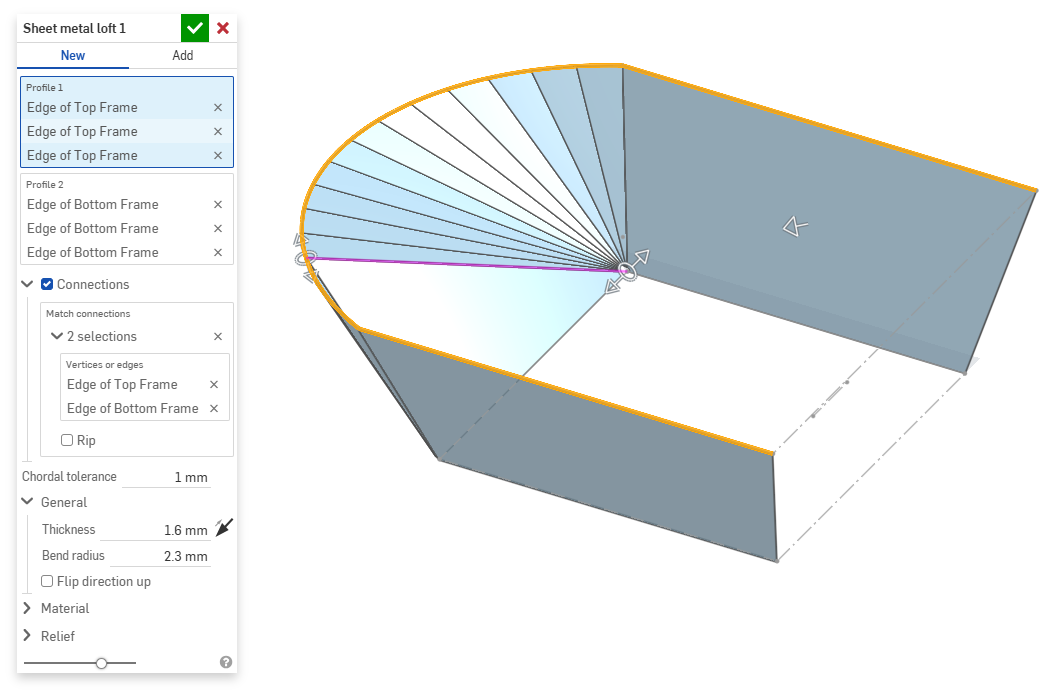
- Click the Connections checkbox for more control on the twist of the resulting model. Onshape estimates the proximity within the existing vertices/edges if no matches are specified.
- Select a vertex or edge from the loft and drag the manipulator(s) to adjust the connection.

- To divide the model into separate parts at the connection, select Rip.
- Select a vertex or edge from the loft and drag the manipulator(s) to adjust the connection.
- Use the Chordal tolerance field to set the maximum distance the tessellated geometry can vary from the underlying surface.
- When creating new sheet metal models, you can also expand the following sections to further refine the model:
- General:
- Thickness - Thickness of the sheet metal. Click the arrow to reverse the direction.
- Bend radius - Inside radius of the bends created.
- Flip direction up - Select to reverse the orientation of the sheet metal model and flat view. This is useful when defining whether bends are up or down relative to the model.
- Material (options in this section are identical to those provided in the Sheet metal model feature):
- Bend calculation - Determines how the bends are calculated. Options are:
- K Factor (default) - Uses the ratio of the neutral axis to the material thickness.
- Bend allowance - Uses the length of the neutral line arc between the tangent points of a bend.
- Bend deduction - Uses the difference between the sum of the flange lengths (from the edge to the apex) and the initial flat length.
The Bend calculation selected here is used as a column in the sheet metal table. Each bend may be customized and directly edited from the table. See Sheet metal table and flat view for more information.
- Default bend K Factor - The fraction of material thickness on which the neutral axis lies on a bend. (Default is 0.45.)
- Rolled K Factor - The fraction of material thickness on which the neutral axis lies on a section of rolled wall. (Default is 0.5.)
- Bend calculation - Determines how the bends are calculated. Options are:
- Relief (options in this section are identical to those provided in the Sheet metal model feature):
- Minimal gap - The smallest gap between the sheet metal edges defining a rip.
- Corner relief type -
- Square - Sized
Flat view:
3D view: 
- Rectangle - Scaled
Flat view:
3D view: 
- Round - Sized
Flat view:
3D view: 
- Round - Scaled
Flat view:
3D view: 
- Closed
Flat view:
3D view: 
- Simple
Flat view:
3D view: 
- Square - Sized
- Corner relief scale - The scale of the corner opening (for Scaled openings), a value between 1.00 and 2.00.
- Bend relief type - The shape of the bend relief:
- Rectangle - Scaled

- Obround - Scaled

- Tear

- Rectangle - Scaled
- Bend relief depth scale - A value between 1.00 and 5.00. Once you enter a value it becomes the default across all documents.
- A value of 1 results in an obround bend relief perfectly touching the bend and a rectangular bend relief matches the depth of the obround.
- Any value past 1 adds depth via the formula:
(depth scale -1) * bendRadius
- Bend relief width scale - A value between 0.0625 and 2.00. Once you enter a value, it becomes the default across all documents. The width of the bend relief is calculated via the formula:
thickness * width scale.
- General:
- When adding to an existing sheet metal model, click the Merge scope field, then select the part to add to. The merge scope can only accept bodies of a single active sheet metal model.
When a sheet metal model is active (in the process of being created or edited), additional tools are available:
-
凸緣 - 為每條所選的邊線建立牆面,使用彎折來連接所選的邊線。 -
摺邊 - 在現有的鈑金零件上為所選取的邊線/面建立摺邊。 -
薄板頁 - 將一個薄板頁加入至鈑金凸緣中。 -
Bend - Bend a sheet metal model along a reference line, with additional bend control options. -
Form - Create form features on existing sheet metal models. Forms can be selected from the current document, other documents, or a predefined library of sheet metal forms. -
Loft - Create sheet metal models that connect two profiles. -
製作接合 - 將兩個牆面的相交處轉換為一個接合特徵,可以是一個彎折 (以圓柱幾何接合牆面),或是一個裂口 (兩個牆之間的小間隙)。 -
轉角 - 修改轉角類型與止裂比例。 -
彎折止裂 - 修改彎折止裂 (在彎折結束與自由邊線交會處做出的小切除)、深度與止裂寬度。 -
Modify joint - Make changes to an existing joint, such as converting a bend to a rip. Currently available through the flat view table. -
Corner break - Break the corner on existing sheet metal parts by applying a fillet or chamfer. Select a corner edge or vertex and specify corner break type and distance. It is recommended to use this feature after all flanges and joints of the Sheet metal model are finalized. -
Sheet metal table and flat view - Open and close the Rip/Bend tables and the visualization of the sheet metal model flat pattern. Use this table to convert rips to bends and vice versa. -
完成鈑金模型 - 關閉 (停用) 鈑金模型;建立特徵清單中的特徵。
iOS and Android support for the sheet metal loft feature is limited to viewing and editing lofts created from the desktop (browser) platform.
When a sheet metal model is active (in the process of being created or edited), additional tools are available:
-
凸緣 - 為每條所選的邊線建立牆面,使用彎折來連接所選的邊線。 -
薄板頁 - 將一個薄板頁加入至鈑金凸緣中。 -
製作接合 - 將兩個牆面的相交處轉換為一個接合特徵,可以是一個彎折 (以圓柱幾何接合牆面),或是一個裂口 (兩個牆之間的小間隙)。 -
轉角 - 修改轉角類型與止裂比例。 -
彎折止裂 - 修改彎折止裂 (在彎折結束與自由邊線交會處做出的小切除)、深度與止裂寬度。 -
Loft - View and modify sheet metal models that connect two profiles. -
Corner break - Break the corner on existing sheet metal parts by applying a fillet or chamfer. Select a corner edge or vertex and specify corner break type and distance. It is recommended to use this feature after all flanges and joints of the Sheet metal model are finalized. -
完成鈑金模型 - 關閉 (停用) 鈑金模型;建立特徵清單中的特徵。