 Altium 365 整合

僅為 提供。
在 PCB Studio 中提供此功能
Altium 365 整合會將使用者的 Altium 帳戶與其 Onshape 帳戶連結。在整合之後,使用者可以瀏覽 Altium 工作區,並將 Altium 電路板直接匯入至 PCB Studio 中而無需使用檔案。在匯入 Altium 電路板後,可以使用與在 IDF 等檔案格式匯入電路板中所用的相同工具在 Onshape 中建立電路板。
Altium 365 整合是雙向的。可以在 Onshape 中變更電路板板框形狀或零組件位置,再重新匯入至 PCB Studio,接著推送回 Altium 中。
與 IDF 檔案不同,從 Altium 匯入到 PCB Studio 中的電路板會使用印花來顯示電路板的銅箔、阻焊層和絲印層。存在於 Altium 中的任何相關 3D 零組件模型會被匯入與加入到 PCB Studio 零組件對應資源庫中。
 Altium 要求條件
若要將 Altium 365 與 Onshape 一起使用,需要滿足以下條件:
-
Altium 帳戶 (登入)
-
存取 Altium 工作區
-
對電路板 Projects 的編輯權限
在 Altium 中的協同合作是透過 Altium 的 MCAD CoDesigner 擴充功能來完成的。
設定 Altium 365 以與 Onshape 一起使用
必須先在每個 Altium 工作區中啟用 Onshape PCB Studio Connector App, PCB Studio 才能存取該工作區。需要有 Altium 工作區管理員的權限才能完成這個程序。
-
登入至 Altium。
-
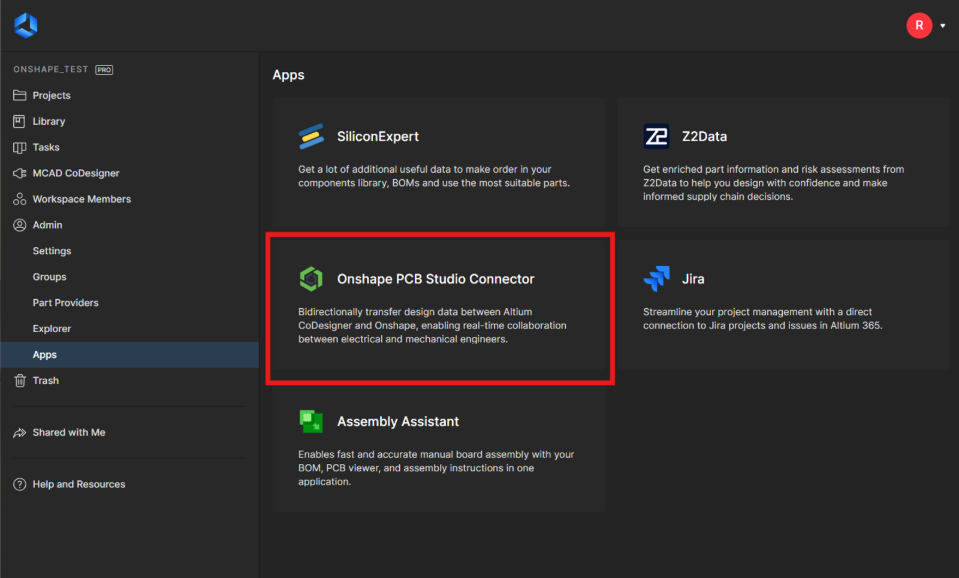
從左側功能表中選擇 Admin > Apps。
-
選擇 Onshape PCB Studio Connector 應用程式:
-
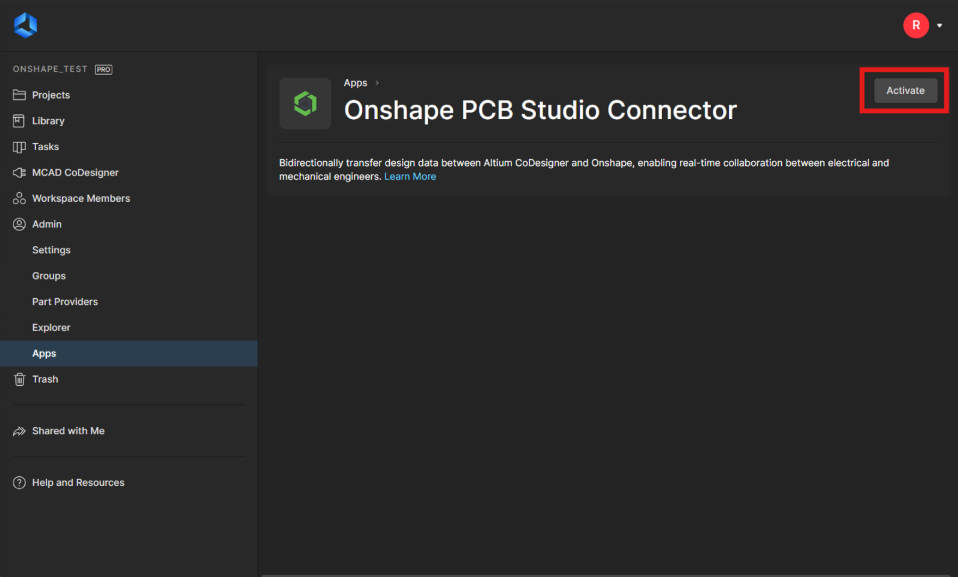
按一下 Activate:
-
在確認對話方塊中再次點按 Activate 來將應用程式加入至 Altium 工作區中。如果需要,可以隨時回到相同的螢幕中並按一下 Deactivate 來移除整合。
將 Altium 365 帳戶與 Onshape 整合
可能會由您企業或公司的管理員來管理 Altium 365 整合。如果您為一個企業或公司管理 Altium 365,請參考企業設定 - 整合。
整合您的 Altium 365 帳戶以在 PCB Studio 頁籤中存取 Altium 工作區專案:
-
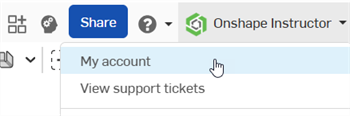
按一下您 Onshape 視窗右上角的帳戶使用者 > 我的帳戶:
-
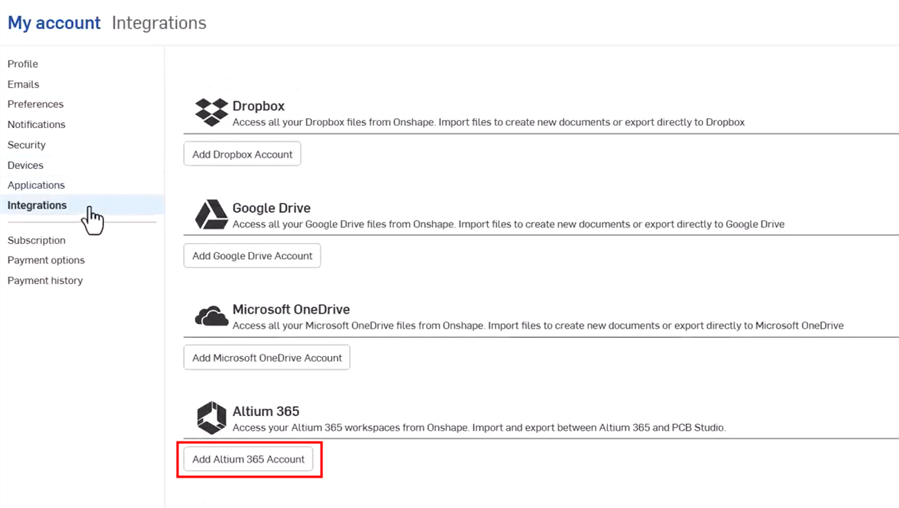
按一下頁面左側清單中的整合:
-
按一下 加入 Altium 365 帳戶 按鈕。
-
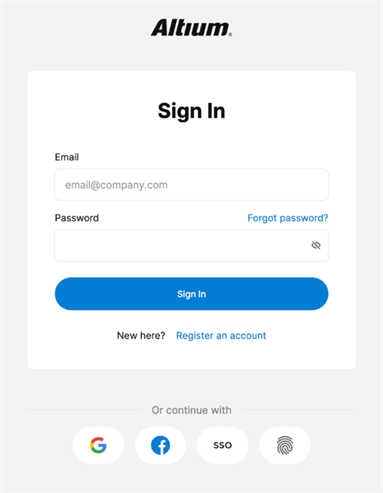
如果您尚未登入,會顯示 Altium sign in 頁面。輸入您的憑證然後按一下 Sign In 按鈕。您的 Altium 電子郵件不需要與您的 Onshape 電子郵件相同。
-
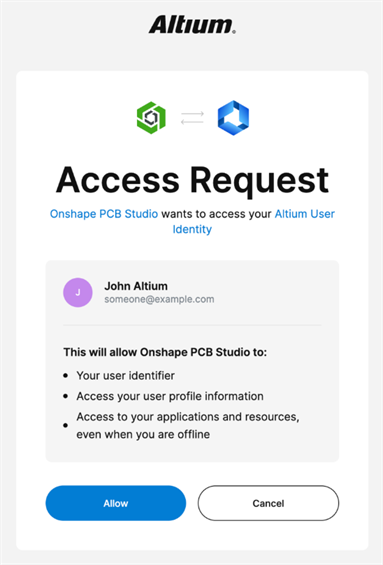
Access Request 對話方塊出現。按一下 Allow 按鈕來接受將 Onshape PCB Studio 連接至 Altium User identity 的請求:
系統會將您重新導向回 Onshape 整合頁面中,其中已將 Altium 整合加入:

按一下 移除 來移除整合,或按一下 重新整理 來更新。
將 Altium 工作區專案下載至 PCB Studio 頁籤中
在您將 Altium 365 帳戶與 Onshape 整合之後 (如上方所說明的):
-
從文件頁面中,建立一個新的文件 (建立 > 文件)。
-
建立一個新的 PCB Studio 頁籤。請參考在 Onshape 中建立 PCB Studio。
-
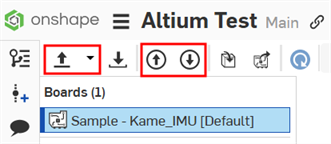
在 PCB Studio 頁籤左上角會有下列 3 個圖示:
-
Import ECAD Files (
 ) - 從 Altium 365 雲端服務中匯入您的電路板。使用下拉功能表按鈕 (
 ) 來選擇 Import from Altium 365。
 -
Push board to cloud service (
 ) - 將電路板推送至 Altium 365 雲端服務。
 -
Pull board from cloud service (
 ) - 從 Altium 365 雲端服務中提取電路板。
按一下下拉功能表按鈕 (
),然後選擇 [Import from Altium 365]: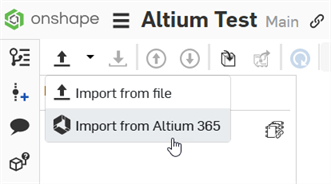
-
-
系統會開啟一個對話方塊,其中顯示您為成員的所有 Altium 工作區。在需要的工作區上按一下 (在下方的範例中只有 1 個:onshape_test)。或者按一下 取消 按鈕來退出對話方塊而不選擇工作區。
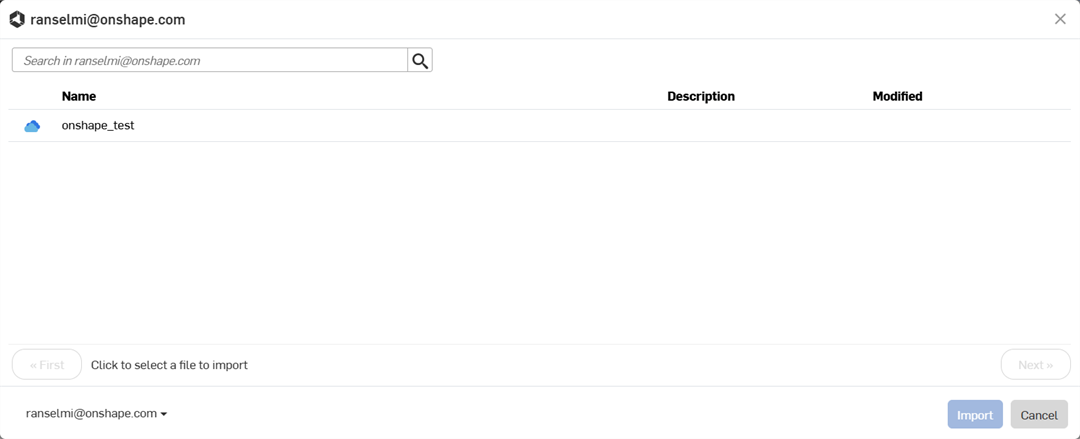
-
系統會開啟一個對話方塊,顯示工作區中的所有專案。在專案上按一下以從清單中選擇它。 按一下清單下方的下一步按鈕來導覽至工作區中的下一個專案頁面,或按一下第一頁按鈕來導覽回到第一個頁面。
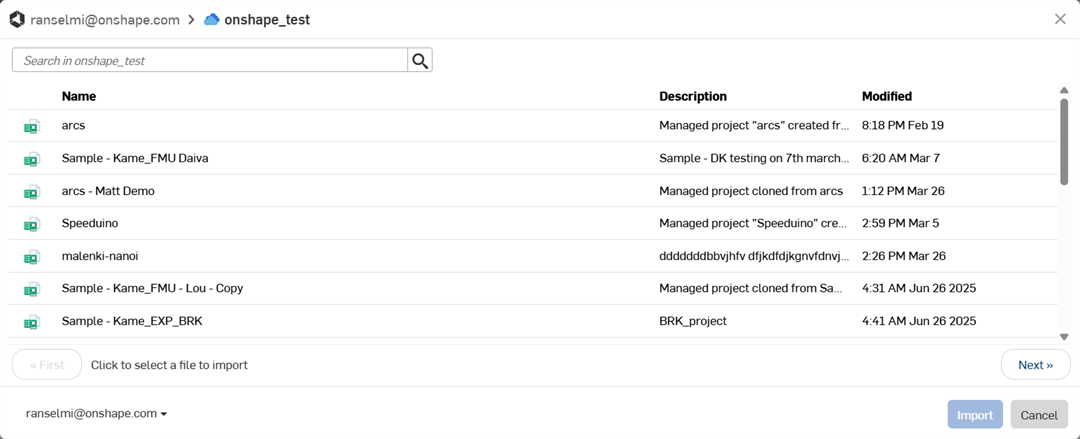
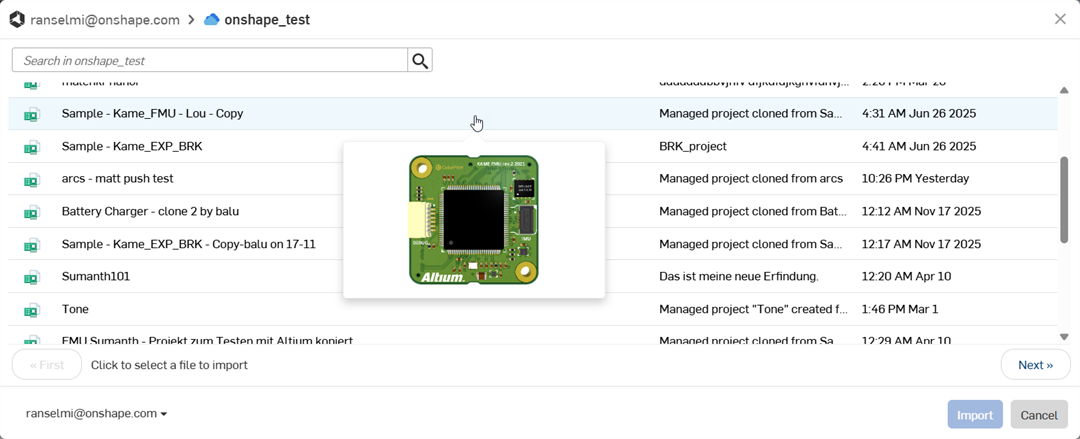
當您移動游標至專案上暫留時,會在遊標下方會顯示縮圖,提供專案的視覺呈現:
在選取了專案之後,會有一對話方塊開啟,顯示所有專案的變更。按一下以選擇專案的變更。接著按一下 匯入 按鈕。或者是按一下 取消 按鈕來退出對話方塊而不選擇一個專案變更:
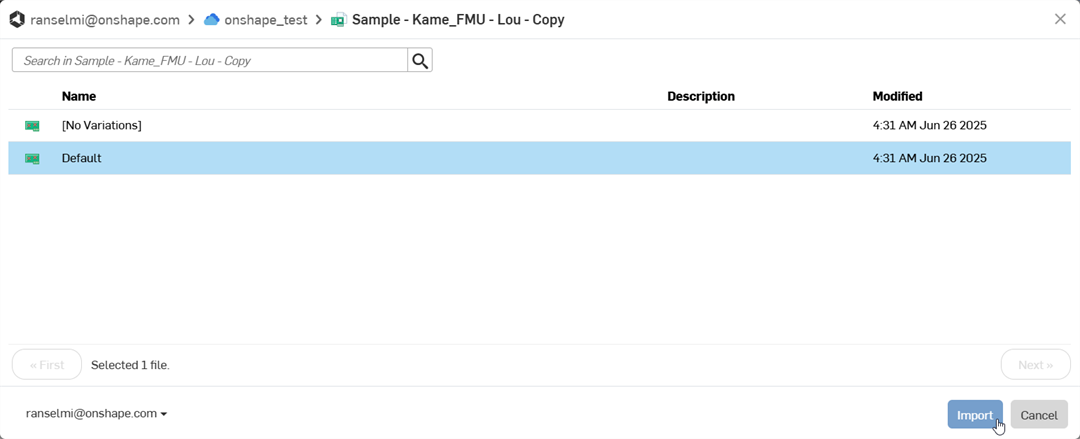
-
如果需要下載數個詳細的模型零組件,即使初始專案已顯示在螢幕上,也可能需要額外的時間。會透過後台行程下載這些零組件。在將所有零組件帶入之後,按一下工具列右上角的 更新 圖示 (
 ) 來將資料庫文件更新為最新的版本: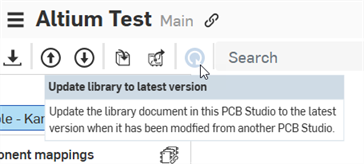
在匯入之後,會將專案下載至 PCB Studio 頁籤中:
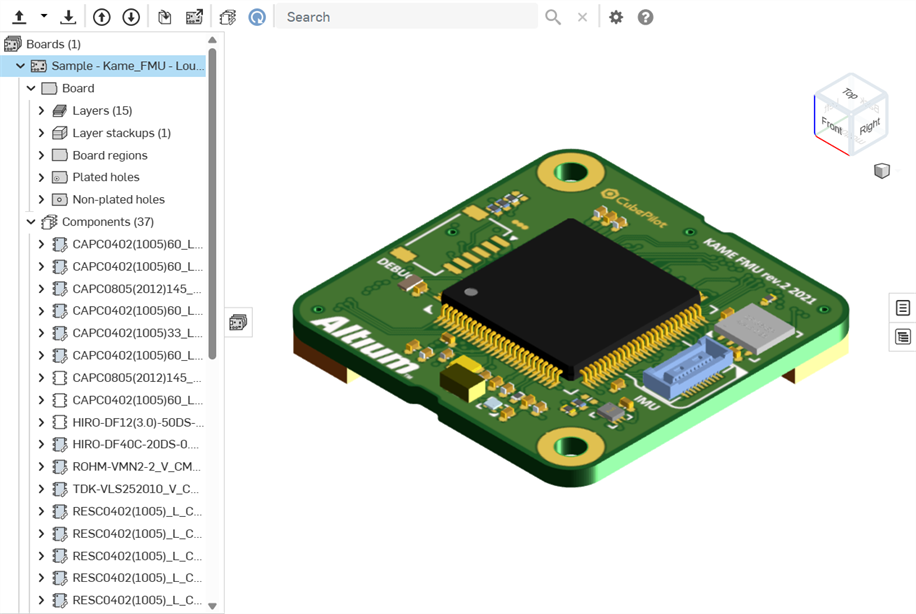
此時,您可以從這個 PCB Studio 電路板建立一個組合件。請參考將 CAD 資料轉譯至 ECAD。
推送電路板至 Altium/從 Altium 提取電路板
當您在 Onshape Part Studio 與組合件中編輯電路板,然後與 PCB Studio 同步之後,就該將這些變更推送回 Altium 中:
-
按一下Push board to cloud service按鈕 (
)。
-
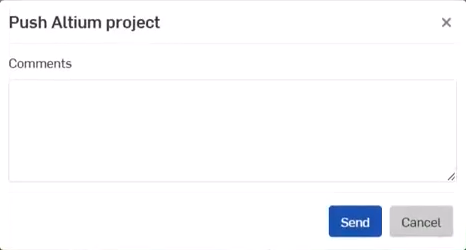
Push Altium project 對話方塊開啟。在 Comments 欄位中加入評論以為 ECAD 使用者提供訊息。這是在 Onshape 中編輯電路板時對電路板所做任何變更的資訊。
-
按一下 Send 按鈕。或者是按一下 取消 按鈕來退出對話方塊而不推送電路板至 Altium 中。
-
在 Altium 中,ECAD 使用者會:
-
看到訊息與對電路板做出的所有變更
-
可以決定是否要將這些變更套用到電路板上
-
對電路板做出其他的變更
-
按一下 Push to MCAD 按鈕:
-
加入給 MCAD 使用者的訊息
-
按一下 Send 按鈕
-
-
-
在 PCB Studio 中,MCAD 使用者會按一下 Pull board from cloud service 按鈕 (
)。會將電路板從 Altium 提取到 PCB Studio 中,並會以 ECAD 使用者在 Altium 中所做的變更進行更新。
這個過程可以重複任意次數,直到 MCAD 使用者和 ECAD 使用者最終確定電路板為止。
注意
-
在將 CAD 資料轉譯至 ECAD 時,會在文件的單獨頁籤中建立額外的電路板封裝圖形 。會將這些封裝圖形對應到電路板模型的表面上。
-
銅版印刷和網版印刷的資訊是單向的。會將這些資訊從 Altium 帶到 Onshape 中,但不會從 Onshape 送回到 Altium 中。
-
PCB Studio 支援從 Altium 365 匯入軟硬結合 PCB:
-
在 Altium 中,請確定彎折線與整個區域相交。
-
在同步到 Onshape 之後,印花沒有顯示在彎折區域中:
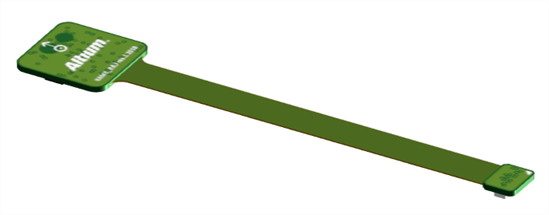
同步到 Onshape 之前 (印花以綠色顯示在 PCB Studio 頁籤中)
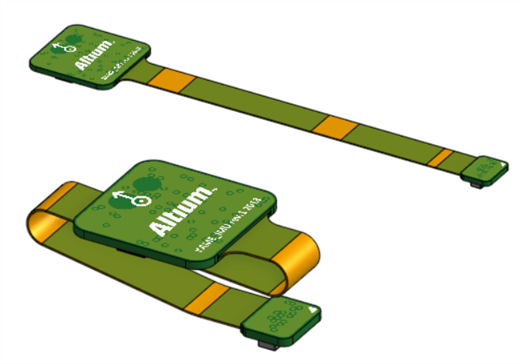
同步至 Onshape 後,在組合件中:展平 (上圖);摺疊 (下圖)。橘色彎折區域中沒有印花 (在組合件頁籤中)。
-