進階搜尋可讓您在啟用的資料夾之中搜尋文件、零件、Part Studio、組合件、或工程圖。
若要進一步了解進階搜尋,請參考此處的技術簡報文章:Where Are My Parts? (需要有 Onshape 帳戶)。

 影片範例
影片範例
影片字幕
使用文件頁面中的搜尋來根據名稱或屬性找出文件之中的文件或物件。搜尋方塊會搜尋部分或完整名稱的相符。點按零件的名稱以開啟其 Part Studio。
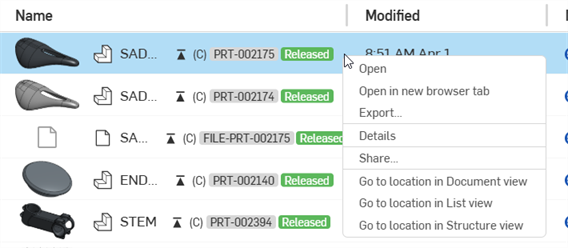
搜尋結果會分別以獨特的圖示顯示零件、Part Studio、組合件、工程圖、匯入項目、與整個文件。在 Onshape 物件名稱旁是相符的工作區或版本的名稱。在使用清單檢視顯示搜尋結果時,會以相關性來顯示清單。選擇欄標題來根據「名稱」、「修改者」或「修改日期」│排序結果。
搜尋僅在目前啟用的篩選器中尋找。例如,如果「最近開啟的」篩選器是啟用的,Onshape 僅會在最近開啟的文件中搜尋。選擇清單中的第一個篩選器來在所有您可存取的文件中搜尋。如在之前影片中所討論,第一個篩選器取決於您的許可類型。
進階搜尋可讓您搜尋其他的 Onshape 組成屬性。您可以根據「類型」、「類別」、「說明」、「零件編號」、「狀態」、「修訂」與其他的準則來篩選。選擇您所要找出物件的類型:文件、零件、Part Studio、組合件、工程圖或所有類型。如果您只對零件感興趣,請使用進階搜尋,然後將「類型」改為「零件」。
您也可以根據其他屬性搜尋。搜尋「說明 」可讓您找出其說明是與搜尋字詞相符的物件。
若要使用自訂的屬性來搜尋,請按一下「新增準則」下拉清單,然後選擇一個屬性。
最後您可以使用「結果來自」的功能來決定 Onshape 的搜尋範圍。您可以在工作區、版本或兩者之中找出與搜尋準則相符的項目。 您也可以在最新或所有版本及工作區中搜尋。例如,如果您知道自己要尋找某個零件的最新版本,您可以將搜尋範圍縮小到「版本」和「最新」,以符合您的條件。
由於 Onshape 是根據瀏覽器的,因此搜尋準則與篩選器都有獨特的 URL。請將結果頁面加入瀏覽器書籤,以儲存常用的搜尋準則和篩選器來供日後使用。
使用進階搜尋
使用文件頁面上方的搜尋列來找出啟用資料夾內的特定 Onshape 項目。
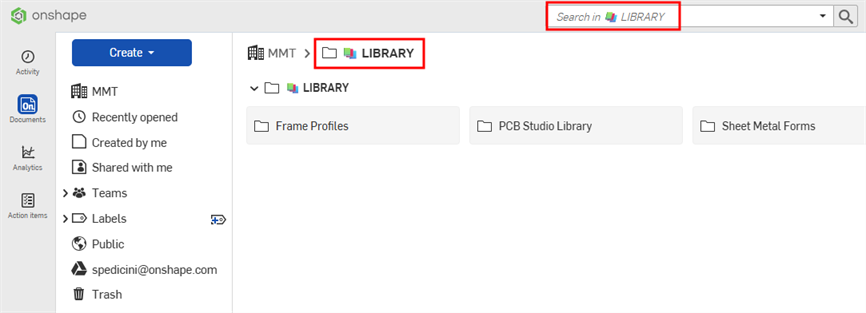
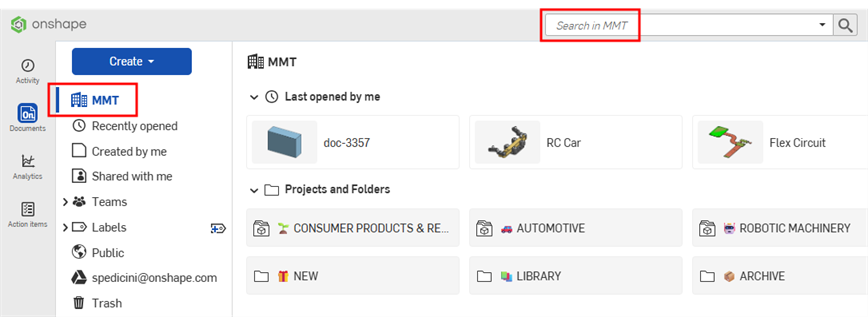
若要搜尋您公司中所有的資料夾,按一下資料夾導覽路徑中的公司名稱,然後在搜尋列中按一下。
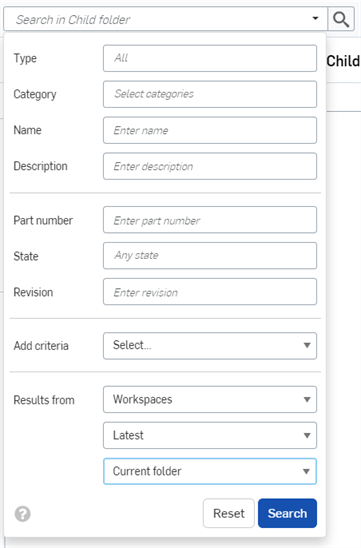
若要執行一個進階搜尋,按一下搜尋列中的下拉箭頭,然後輸入其他的搜尋準則:
「搜尋」可接受多個字詞與非字母數字的字元,像是標點符號字元。例如,"universal handle" 與 "universal-handle"。
- 類型 - 選擇要搜尋的類型。您可以搜尋文件、零件、Part Studio、組合件、工程圖、Feature Studio、Variable Studio、專案、資料夾、與公佈。「全部選取」來搜尋所有類型。
- 類別 - 選擇一個搜尋的類別。您可以搜尋組合件、文件、工程圖、Feature Studio、零件、Part Studio、公佈、或 Variable Studio。您可以在這個欄位中選擇多個選項。
- 名稱 - 輸入所要搜尋項目的類型名稱 (文件、零件、Part Studio、組合件、公佈或工程圖的名稱)。
- 說明 - 可以指定說明給每種類型。請輸入所要搜尋 Onshape 個體的某些或全部說明。
- 零件編號 - 如果您要搜尋零件、組合件或工程圖,可以輸入零件編號來搜尋。
- 狀態 - 如果您要搜尋零件、組合件或工程圖,可以輸入要搜尋的狀態,像是進行中、待決中、已發表、或已過時。
- 修訂 - 如果您要搜尋零件、組合件或工程圖,可以輸入修訂版編號來搜尋。
- 新增準則 - Free、Standard、與 Education 帳戶的使用者可以使用這個欄位來搜尋預設的欄位,包括「擁有者」、「建立者」、「廠商」等等。Company 與 Enterprise 帳戶的使用者可在啟用了自訂屬性時,指定自訂屬性的準則。
如果選取了一個準則,對話方塊中的下一行會出現另一個「新增準則」欄位,所以您可以在搜尋中選擇多個準則。
某些準則會需要額外的輸入項。例如,選擇一個日期準則會出現一個日曆,以讓您選擇日期。選擇「非修訂版管理」的準則會出現「真」或「假」的選項。
- 結果來自 - 從工作區、工作區與版本、或版本中取得結果;可以僅是最新的版本與工作區或是全部。在目前資料夾與所有子資料夾中搜尋,或在排除子資料夾的目前資料夾中搜尋。
當您輸入其他的搜尋準則時,會將完整的查詢自動移入至搜尋列中。
按一下重設來清除搜尋列與欄位。
在搜尋列與任何進階搜尋欄位中使用萬用字元 (*) 指標來包含字串的一部分以縮小搜尋範圍。例如,在「零件名稱」欄位輸入 *600* 來只找出字串中任何有 600 的零件 (對搜尋一系列的零件是相當有用的)。
了解搜尋結果
搜尋結果清單指明所找出識別碼 (零件名稱、零件編號、文件名稱等) 的所在位置。例如,使用下方的搜尋準則 (紅色箭號表示使用了萬用字元):
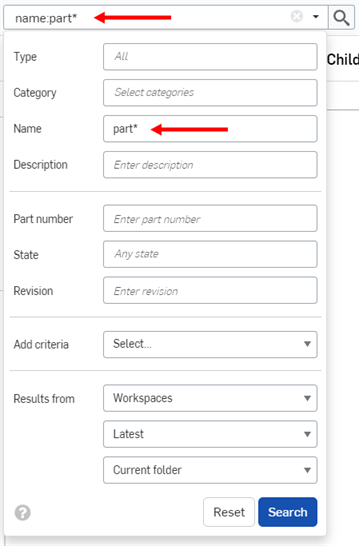
搜尋結果顯示如下:
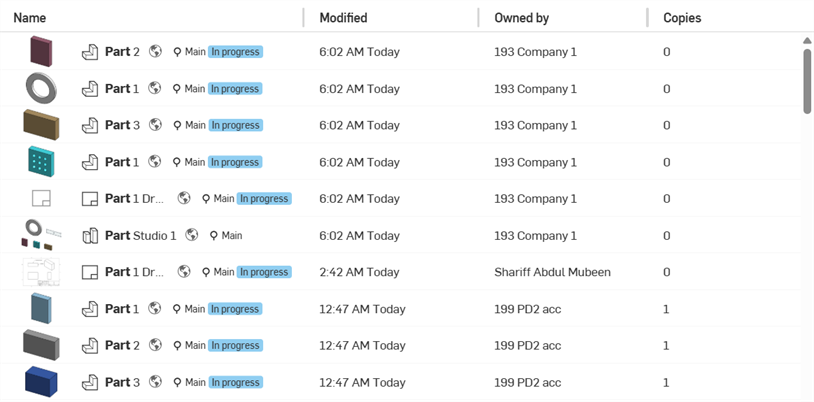
若要排序搜尋結果,請按一下「名稱」或「修改日期」欄標題來依該欄排序。在點按欄標題之後,欄名稱旁會出現一個箭號,表示結果是根據該欄排序的。
每個搜尋結果會以名稱之前的圖示指明符合搜尋準則的項目類型,接下來會有項目名稱。項目名稱右邊是工作區或版本圖示,文件名稱與工作區名稱 (若搜尋準則指定的話,也會有版本名稱),零件編號與發行管理狀態。
例如:

 - 位在 Part Studio 1 中名為 Part 2 的零件 (如「文件」頁面右側的「詳細資料」窗格中所示):
會在項目名稱右側顯示下列的資訊 (在上圖中以紅色輪廓線框出),依序為:
- 顯示的圖示會表明項目是不是一個工作區
 、版本
、版本  、修訂版
、修訂版  或最新的修訂版
- 工作區或修訂版名稱出現在括弧中

- 以灰色強調顯示的零件編號
 (請注意,僅當項目是在發行管理工作流程中時才會出現)
 - 項目的狀態 (已發行、待決中、進行中、已拒絕、已淘汰或已捨棄)
選擇一個搜尋結果,然後按一下「詳細資料」圖示  來開啟「詳細資料」窗格,您可於其中找到該項目的詳細資料說明。
文件上的標籤僅於「詳細資料」窗格中提供。
當您將游標移動暫留至非文件的搜尋結果時 (例如零件),在出現的工具提示中會顯示分頁名稱:
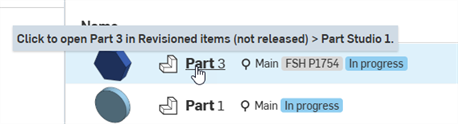
當搜尋結果包括了修訂版資訊,或搜尋的圖元有新定義的屬性時,「詳細資料」飛出視窗會分別包括一個「修訂歷程記錄」圖示  與一個「屬性」圖示
  :
:
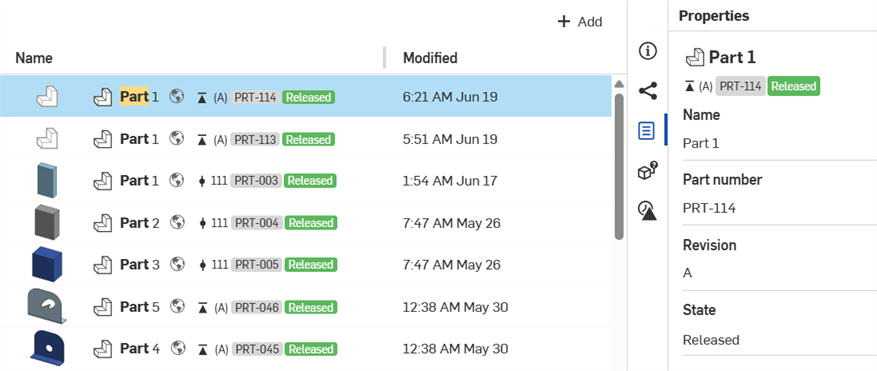
搜尋結果適境功能表