 Render Studio 界面 - 环境面板

仅适用于
可用于:Render Studio
“环境”面板位于页面右侧,显示场景环境的可编辑参数列表。可用的面板参数会根据所选环境而变化。
单击“环境”面板图标 ( ) 打开面板:
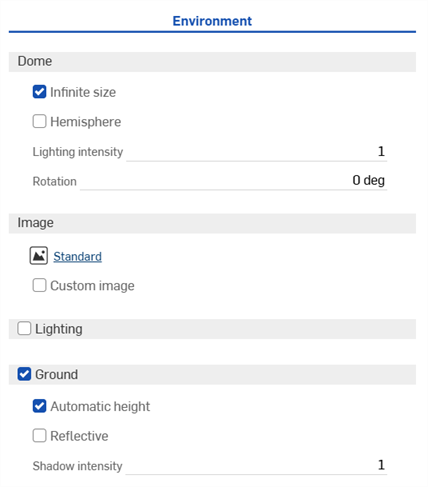
 环境面板参数
环境参数概述如下:
-
圆顶
-
无限大小 - 将环境设置为一个无限大的圆顶。在这个环境中,地平线非常远,以至于相机在场景中的位置没有影响,只有相机的观察方向有影响。这适用于外部场景。当不使用无限环境时,必须提供相机到地平线的距离(地平线距离)。这更适合于室内场景或包含的外部场景,在这些场景中,不仅仅是相机的方向,相机的位置也会影响环境的视野。
-
地平线距离 - 从环境中心到地平线的距离。
-
-
半球 - 将环境设置为半球。半球环境的地面位于从照明环境投影的半球底部。当您希望场景固定在地面上而不是漂浮在环境中时,这是很有用的。启用后,将三脚架高度设置为您的规格。
-
三脚架高度 - 拍摄环境图像时相机距离地面的高度。这用于将环境圆顶的下半部分投影到平坦的地平面上。
-
-
照明强度 - 环境图像中包含的照明强度的乘数。小于 1 的值会降低环境光照的亮度,而大于 1 的值会增加环境光的亮度。
-
旋转 - 环境圆顶绕竖直轴旋转。
-
-
图像
-
库环境 (
 ) - 如果未被自定义图像覆盖,则用于照亮场景的库环境。标准是默认环境。
 -
自定义图像 - 使用用户提供的 HDRI 环境图像替代环境圆顶。图像应采用 360/180 度的纬度/经度,最好采用 .hdr 或 .exr 格式。有关更多信息,请参见为场景添加自定义“环境”。
-
图像 - 自定义 HDRI 照明环境图像。
-
-
-
照明(仅限 Render Studio 高级版)
-
允许直接在环境中放置各种形状的区域光源,并能够移动和调整其大小。启用“照明”后,展开的环境图像将显示为 3D 图形区域的 2D 表示形式。
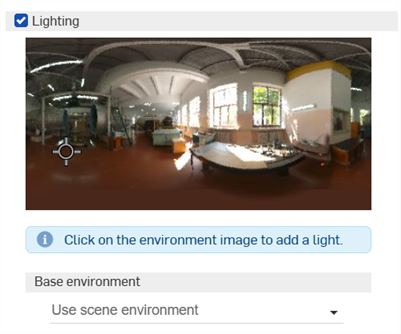
放置灯光后,选择它的中点。选择后,即可更改其形状。单击并拖动可将灯光移动到环境中的任意位置。您可以根据需要添加任意数量的灯光。
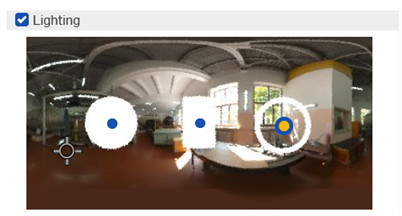
3 种光形状的示例:圆盘(左)、矩形(中)、环形(右)
相机方向指示符(十字准线标记)用于指示视口中心的位置(相机指向的位置)。这有助于您直观地确定灯光相对于图形区域中的模型应放置的位置。当用户在图形区域中导航模型(从而导航相机)时,此标记会动态更新。
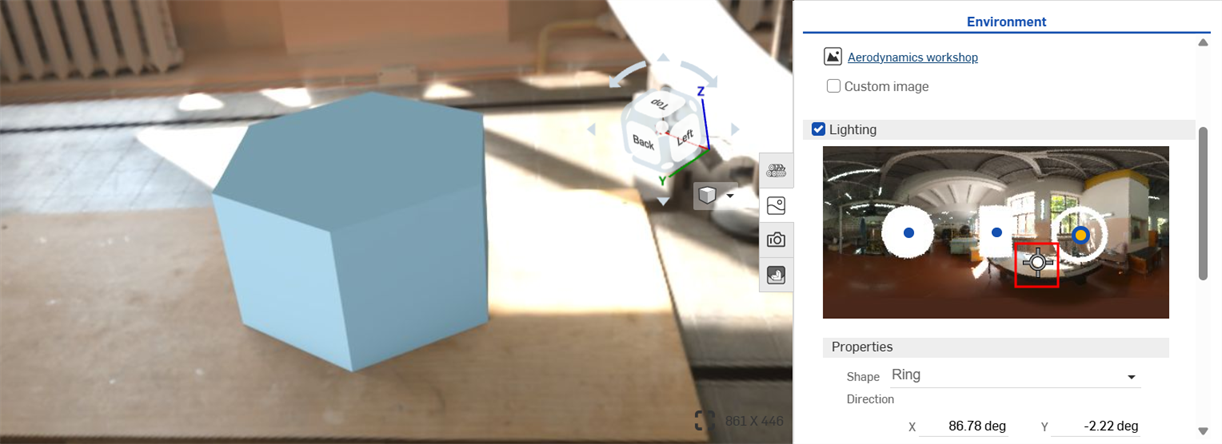
右侧展开的环境照明图像中的十字准线中心标记,指示左侧图形区域的中心位置。
-
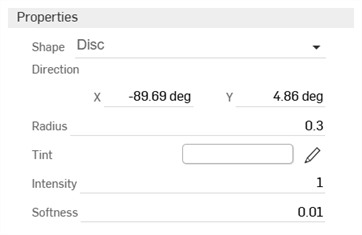
属性
-
形状 - 光的物理形状:圆盘、矩形或环形。单击环境放置灯光。
-
方向 - 光在环境中的位置。地平线和场景的右侧为 0 度。输入以度为单位的 X 和 Y 值。
-
半径(仅限圆盘或环形形状) - 圆盘或环形光中心线的半径。
-
宽度(仅限矩形形状) - 矩形光的宽度。
-
高度(仅限矩形形状) - 矩形光的高度。
-
厚度(仅限环形形状) - 环形光的宽度,以其半径为中心。
-
色调 - 发射光的颜色。单击铅笔图标可编辑颜色选择器中使用的颜色。可以通过单击颜色区域、输入十六进制颜色代码或 RGB 值,或者在选择器的底部选择样本来直观地选择颜色。
-
强度 - 发射光的无单位强度。
-
柔和度 - 决定光的边缘是软边还是硬边。较高的值会软化光的边缘。较低的值会使光的边缘变硬。
-
-
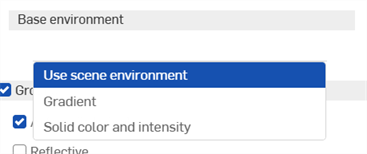
基础环境
-
使用场景环境 - 使用场景的环境,通常从“环境库”中选择,并在其上添加灯光。
-
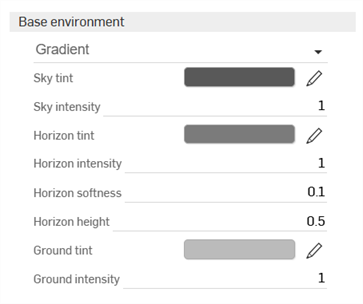
渐变 - 添加渐变光。光被添加到背景环境中。
-
天空色调 - 天空发射光的颜色。单击铅笔图标可编辑颜色选择器中使用的颜色。可以通过单击颜色区域、输入十六进制颜色代码或 RGB 值,或者在选择器的底部选择样本来直观地选择颜色。
-
天空强度 - 天空发射光的无单位强度。
-
地平线色调 - 地平线发射光的颜色。单击铅笔图标可编辑颜色选择器中使用的颜色。可以通过单击颜色区域、输入十六进制颜色代码或 RGB 值,或者在选择器的底部选择样本来直观地选择颜色。
-
地平线强度 - 地平线发射光的无单位强度。
-
地平线柔和度 - 确定地平线的边缘是软边还是硬边。较高的值会软化地平线的边缘。较低的值会使地平线的边缘变硬。值为 0 会移除地平线。
-
地平线高度 - 地平线在环境中的位置。值为 0.5 时地平线将置于中心位置。值越高,天空中的地平线越高。较低的值会将地平线向下移动。
-
地面色调 - 地面发射光的颜色。单击铅笔图标可编辑颜色选择器中使用的颜色。可以通过单击颜色区域、输入十六进制颜色代码或 RGB 值,或者在选择器的底部选择样本来直观地选择颜色。
-
地面强度 - 地面发射光的无单位强度。
-
-
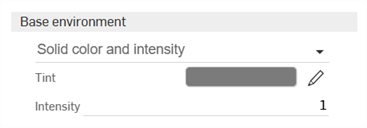
纯色和强度 - 为灯光添加纯色色调和可调节强度。该光会被添加到背景环境中。
-
色调 - 环境发射光的颜色。单击铅笔图标可编辑颜色选择器中使用的颜色。可以通过单击颜色区域、输入十六进制颜色代码或 RGB 值,或者在选择器的底部选择样本来直观地选择颜色。
-
强度 - 环境发射光的无单位强度
-
-
-
-
地面 - 带有位置和反射率控制的虚拟地平面。
-
自动高度 - 根据最低物体自动设置地面高度。
-
反射 - 允许地平面反射场景。
-
反射率 - 地平面的反射率数值。
-
粗糙度 - 地平面的粗糙度。较低的数值会产生类似镜像的反射。较高的数值会模糊反射。
-
-
阴影强度 - 地面阴影强度。值为 1 会得到物理上正确的结果。小于 1 的值会产生更亮的阴影,而大于 1 的值会产生更暗的阴影。
-
-
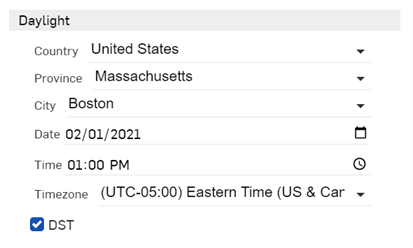
日光 - 编辑以下日光参数(适用于某些环境,例如 Preetham)。
-
国家/地区 - 从国家/地区列表中选择
-
省份 - 从所选国家/地区的省份列表中选择
-
城市 - 从世界主要城市列表中选择。
-
日期 - 通过直接单击月、日和年按数字选择年份和日期,或者单击日历图标从选择列表中选择日期。
-
时间 - 通过单击小时、分钟和上午/下午按数字选择时间,或者单击时钟图标从时间选择列表中进行选择。
-
时区 - 从 UTC 时区列表中进行选择。
-
DST - 选中后,会针对夏令时进行调整。
-
“日光”参数仅适用于某些环境(例如 Perez 和 Preetham)。请参阅编辑带有位置和时间的环境
若要调整面板宽度,请将光标悬停在面板边缘上。当光标变成双面箭头时,单击并拖动以调整面板大小。
有关更多信息,请参见 Render Studio 示例和资源。