“高级搜索”允许您在活动文件夹中搜索文档、零件、Part Studio、装配体或工程图。
若要了解有关高级搜索的更多信息,请参阅此处的技术简报文章:我的零件在哪里?(需要 Onshape 帐户)。

 视频示例
视频示例
视频字幕
在“文档”页面使用搜索功能,可通过名称或属性查找文档或文档内的对象。搜索框支持部分或完整名称匹配。单击零件名称可打开其 Part Studio。
搜索结果会通过独特的图标来区分零件、Part Studio、装配体、工程图、导入以及完整的文档。在 Onshape 对象名称旁边,会显示匹配的工作区或版本名称。使用列表视图查看搜索结果时,列表默认按相关度排序。选择列标题,按“名称”、“修改者”或“修改日期”对结果进行排序。
搜索仅在当前启用的筛选器范围内进行。例如,如果启用了“最近打开过的”筛选器,Onshape 将仅在最近打开的文档中查找。要搜索您有权访问的所有文档,请选择列表中的第一个筛选器。如上一个视频所述,第一个筛选器的具体名称取决于您的许可类型。
“高级搜索”允许您搜索其他 Onshape 零部件属性。您可以按“类型”、“类别”、“说明”、“零件编号”、“状态”、“修订版本”和其他条件进行筛选。选择要查找的对象类型:文档、零件、Part Studio、装配体、工程图或所有类型。如果您只对零件感兴趣,请使用“高级搜索”并将“类型”更改为“零件”。
您也可以按其他属性搜索。按“说明”搜索可以找到说明内容与搜索词匹配的对象。
要使用自定义属性进行搜索,请单击“添加标准”下拉列表并选择该属性。
最后,您可以使用“结果来源”功能确定 Onshape 的搜索范围。您可以设置在“工作区”、“版本”或“两者”中查找符合搜索条件的匹配项,也可以选择在“最新”或“全部版本”及“工作区”中搜索。例如,如果您明确需要查找零件的最新版本,则可将搜索范围限定为“版本”和“最新”以便缩小搜索范围。
由于 Onshape 是基于浏览器的,搜索条件和筛选器都会生成一个唯一的 URL。将浏览器中的结果页加入书签,以保存常用的搜索条件和筛选器以备将来使用。
使用高级搜索
使用文档页面顶部的搜索栏搜索活动文件夹内的特定 Onshape 图元。
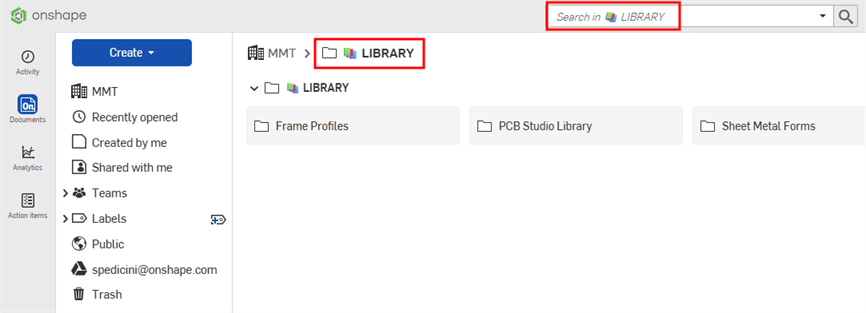
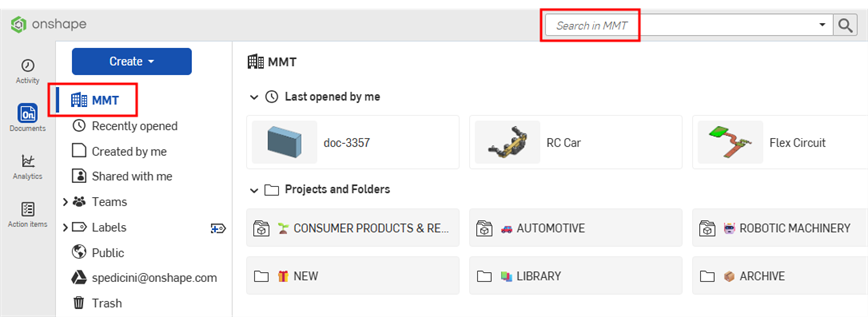
若要搜索公司中的所有文件夹,请在文件夹导航栏中单击公司名称,然后在搜索栏中单击。
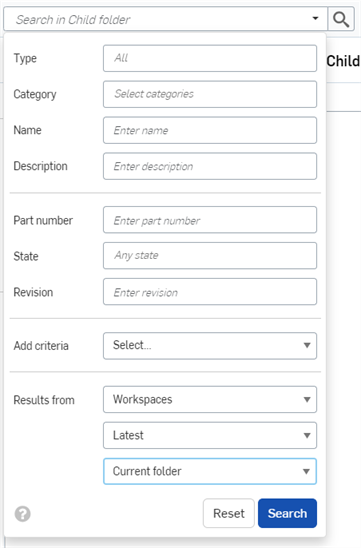
要执行高级搜索,请单击搜索栏中的下拉箭头,然后输入其他搜索条件:
搜索接受多个单词以及非字母数字字符,例如标点字符,例如“universal handle”和“universal-handle”。
- 类型 - 选择要搜索的类型。您可以搜索文档、零件、Part Studio、装配体、工程图、Feature Studio、Variable Studio、项目、文件夹和公布。选择“全部”可搜索所有类型。
- 类别 - 选择要搜索的类别。您可以搜索装配体、文档、工程图、Feature Studio、零件、Part Studio、公布或 Variable Studio。您可以在此输入框中选择多个选项。
- 名称 - 输入您正在搜索的图元类型的名称(文档、零件、Part Studio、装配体、公布或工程图的名称)。
- 说明 - 可以为每种类型指定一个说明。输入您正在搜索的 Onshape 图元的部分或全部说明。
- 零件编号 - 如果您正在搜索零件、装配体或工程图,则可以输入零件编号进行搜索。
- 状态 - 如果您正在搜索零件、装配体或工程图,则可以输入状态进行搜索,例如,进行中、等待中、已发布或已淘汰。
- 修订 - 如果您正在搜索零件、装配体或工程图,则可以输入修订编号进行搜索。
- 添加标准 - Free 帐户、Standard 帐户和 Education 帐户用户可以使用此输入框搜索默认输入框,包括所有者、创建者、供应商等。当自定义属性处于活动状态时,Company 和 Enterprise 帐户的用户可以为自定义属性指定标准。
如果选择了标准,则对话框的下一行会显示一个“添加标准”选择输入框,这样您就可以在搜索中选择多个标准。
有些标准需要额外的输入项。例如,选择日期条件会显示从中选择日期的日历,而选择“非修订管理”会显示“真”或“假”选项。
- 结果来源 - 从工作区、工作区和版本或版本中获取结果;仅获取最新版本和工作区或所有版本。在当前文件夹和所有子文件夹中搜索,或在不包括子文件夹的情况下在当前文件夹中搜索。
您输入其他搜索条件时,搜索栏会自动填充为完整的查询。
单击“重置”清除搜索栏和输入框。
在搜索栏和任何高级搜索输入框中使用通配符 (*) 指示符来包围缩小搜索范围的字符串片段。例如,在“零件编号”输入框中输入 *600* 以仅生成字符串中任意位置为 600 的零件的搜索结果(对于搜索一系列零件很有用)。
了解搜索结果
搜索结果列表指出了找到的标识符(零件名称、零件编号、文档名称等等)所在的位置。例如,使用以下搜索条件(红色箭头表示所使用的通配符):
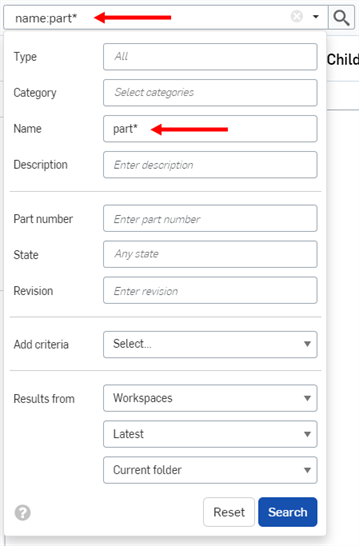
搜索结果如下:
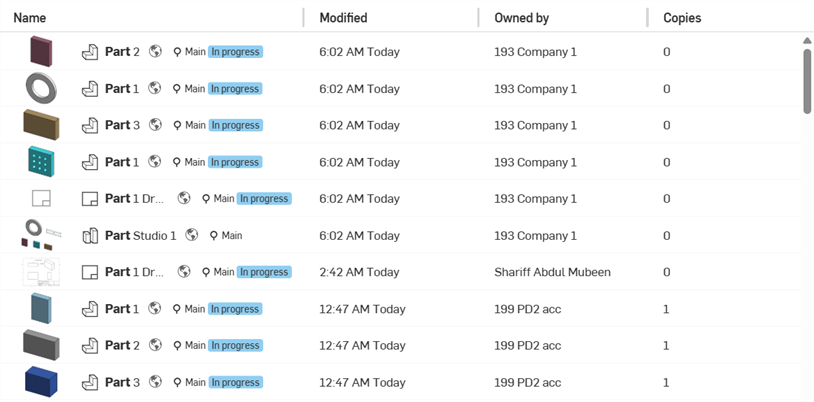
要对搜索结果进行排序,请单击“名称”或“修改日期”列标题以按该列进行排序。单击某个列标题后,列名称旁边会出现一个箭头,指示结果按该列进行排序。
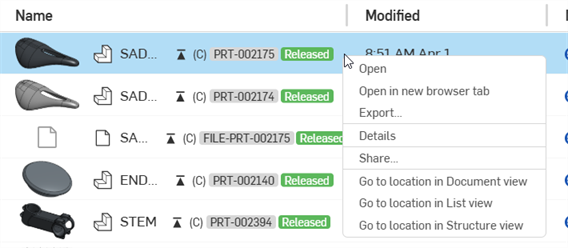
每个搜索结果都指出了满足搜索条件的图元类型,搜索条件首先是名称前面的图标,然后是图元的名称。在其右侧,是工作区或版本图标、文档名称和工作区名称(或版本名称,属于搜索条件的一部分时)、零件号和发布管理状态。
例如:

 - Part Studio 1 中名称为 Part 2 的零件(如“文档”页面右侧的详细信息窗格中所示)。
以下信息按顺序显示在项目名称的右侧(如上所示,以蓝色勾勒轮廓):
- 一个图标,指示该条目是工作区
 、版本
、版本 、修订
、修订 还是最新修订版
- 工作区或修订名称,显示在括号 中

- 零件号,以灰色
 突出显示(请注意,仅当条目在发布管理工作流程中时才会显示)
 - 物项的状态(已发布、待决中、进行中、已拒绝、已淘汰或已舍弃)
选择一个搜索结果,然后单击“详细信息”图标  以打开“详细信息”窗格,您将在其中找到该条目的更详细描述。
文档上的标签仅在“详细信息”窗格中可用。
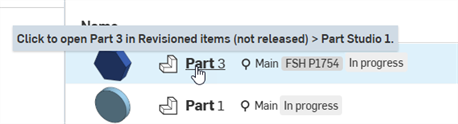
将光标悬停在不是文档(例如,零件)的搜索结果上时,选项卡名称将出现在显示的工具提示中:
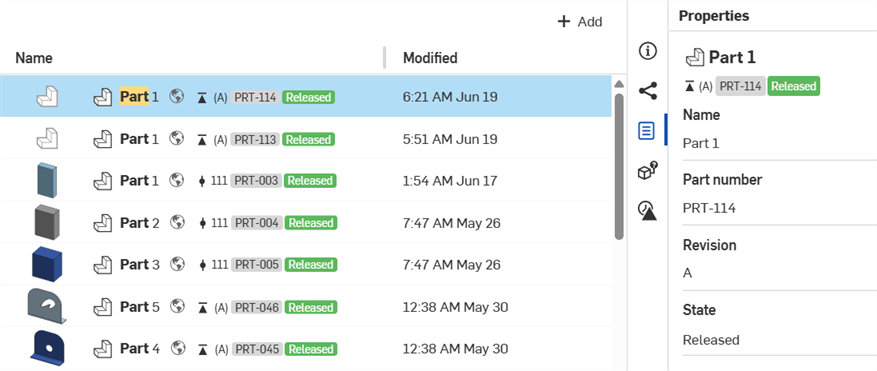
当搜索结果包含修订信息或搜索的图元定义了新属性时,“详细信息”浮出面板分别包括“修订历史记录”图标  和“属性”图标
  :
:
搜索结果环境菜单