 그래픽 기본 설정

이용 가능 플랫폼: Part Studio, 어셈블리
그래픽 영역에서 모델의 시각화 매개변수를 조정합니다. 일반 뷰포트, 음영 바디, 팬텀 모서리 및 메쉬 바디 매개변수는 물론 활성/비활성 스케치 선 굵기 및 색상, 보조선 간격 및 점선 길이를 변경할 수 있습니다.
이러한 옵션은 특히 표면 모델링 시에 유용합니다.
 그래픽 기본 설정에 액세스하기
-
카메라 및 음영처리 옵션을 선택한 다음, 그래픽 기본 설정을 선택합니다.
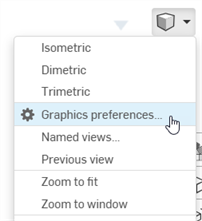
-
다음 대화상자가 열립니다.
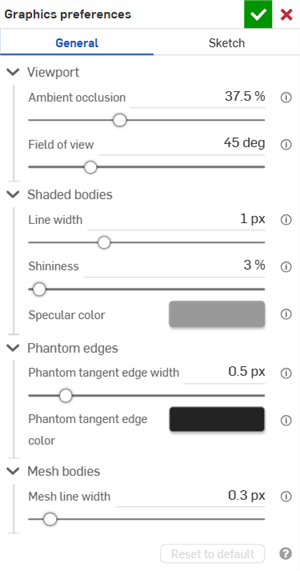
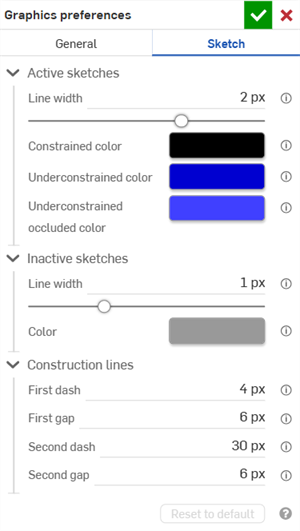
일반(왼쪽) 및 스케치(오른쪽) 설정
-
아래 섹션에 설명된 대로 설정을 조정합니다. 기본값으로 재설정 버튼을 클릭하면 모든 일반 및 스케치 대화상자 옵션이 기본값으로 되돌아갑니다.
일반 기본 설정
뷰포트
-
앰비언트 오클루전 - 앰비언트 오클루전 음영의 강도를 0%~100% 범위에서 조절합니다(기본값: 37.5%). 값이 높을수록 모서리, 가장자리, 틈새 및 파트가 만나거나 교차하는 부분에 부드러운 어두운 음영이 생성됩니다. 이 기능은 이러한 위치에서 실제 간접광의 영향을 시뮬레이션하는 데 도움이 됩니다. 값이 낮을수록 위치에서 음영이 줄어듭니다.
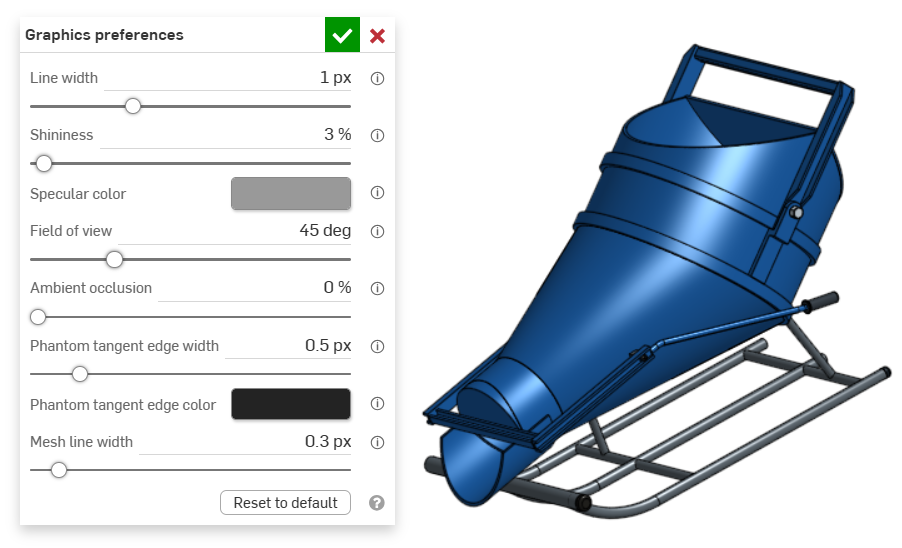
앰비언트 오클루전: 0%
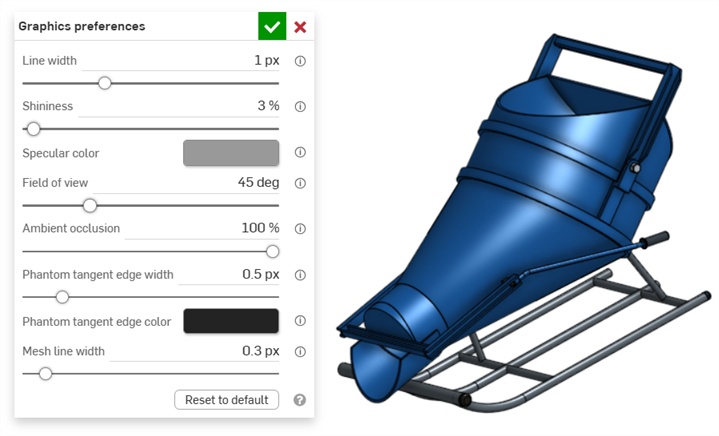
앰비언트 오클루전: 100%
-
시야각(원근 뷰가 활성화된 경우에만 사용 가능) - 원근 카메라의 시야각을 제어합니다. 수평 슬라이더를 사용하거나 20~120도 범위에서 숫자를 입력하십시오.
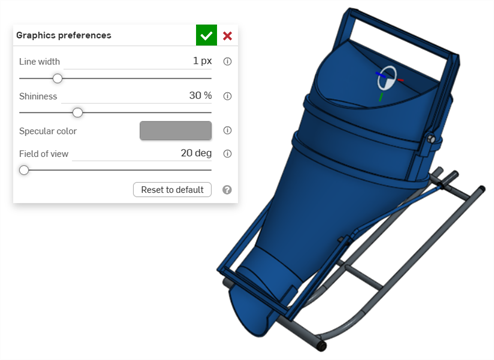
시야각: 20도
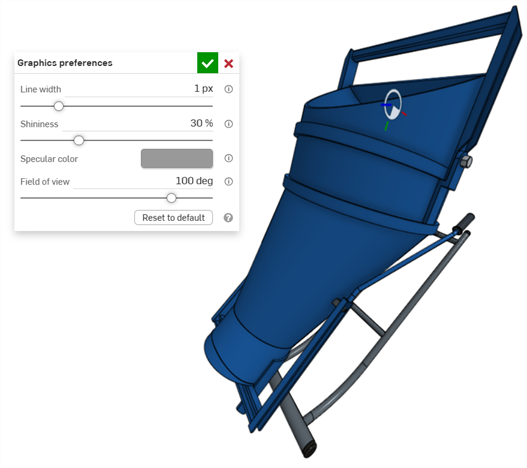
시야각: 100도
음영 바디
-
선 폭 - 표면과 모서리의 선 두께를 제어합니다. 수평 슬라이더를 사용하거나 0.1~3픽셀 사이의 숫자를 입력하십시오.
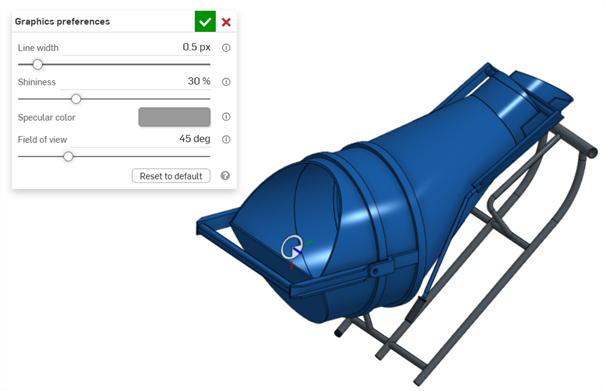
선 폭: 0.5픽셀
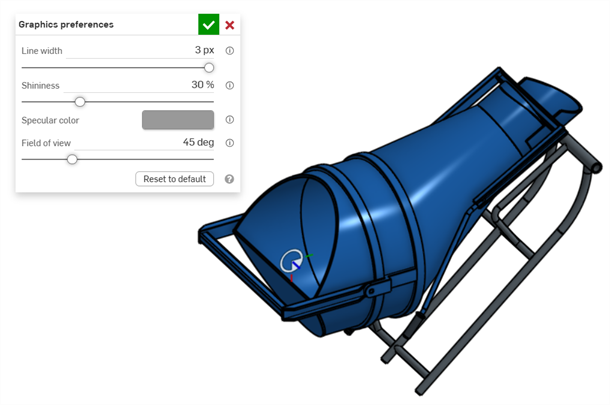
선 폭: 3픽셀
-
광택도 - 음영 처리된 표면의 기본 광택도를 제어합니다. 수평 슬라이더를 사용하거나 1~100% 사이의 숫자를 입력하십시오.
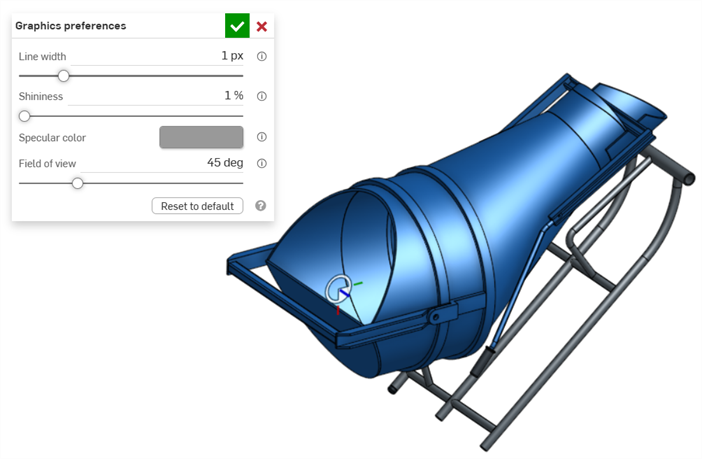
광택도: 1%
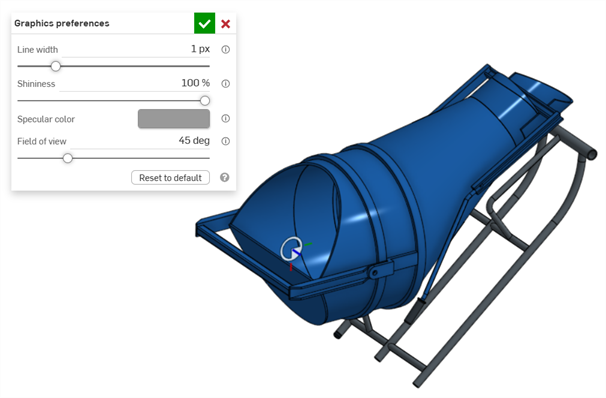
광택도: 100%
-
반사광 색상 - 음영 처리된 표면의 기본 정반사 색상을 제어합니다. 색상 견본을 클릭하여 색상 피커 대화상자를 열고 색상을 선택합니다.
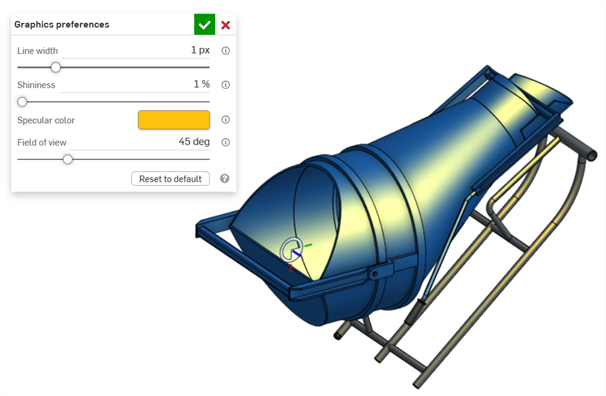
반사광 색상 예
팬텀 모서리
-
팬텀 접선 모서리 폭 - 접선 모서리가 팬텀으로 설정되면, 해당 모서리의 선 폭을 0.1~3픽셀(기본값: 0.5픽셀) 범위에서 제어합니다.
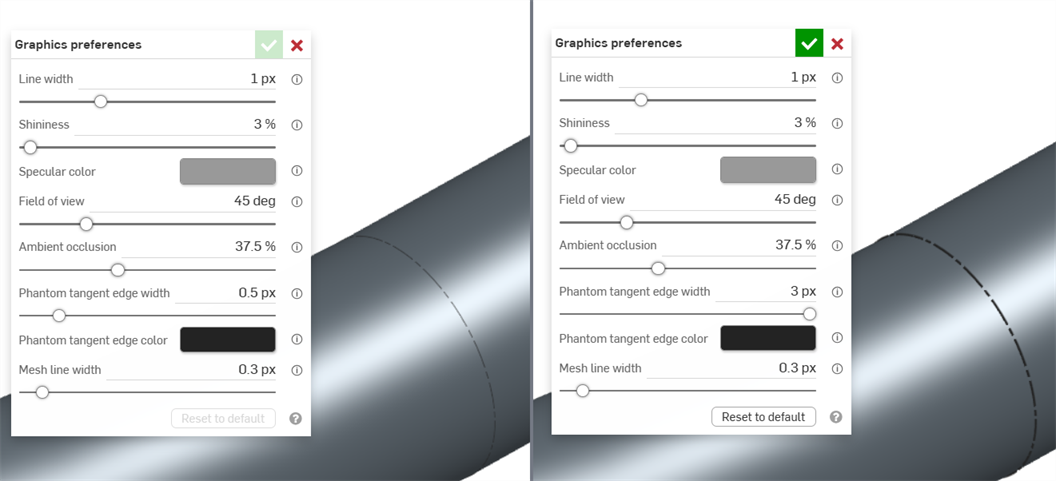
팬텀 접선 모서리 폭: 0.5 픽셀(왼쪽), 3픽셀(오른쪽)
-
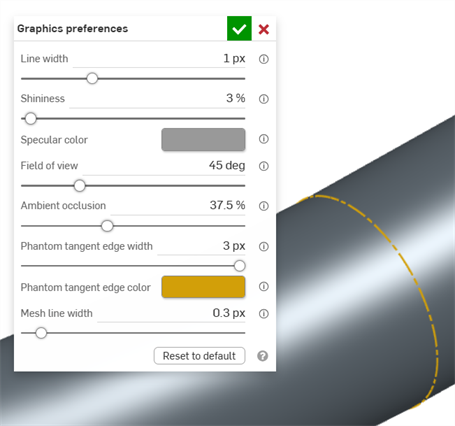
팬텀 접선 모서리 색상 - 접선 모서리가 팬텀으로 설정된 경우, 이 설정은 해당 모서리의 기본 색상을 제어합니다. 색상 견본을 클릭하여 색상 피커 대화상자를 열고 색상을 선택합니다.
메쉬 바디
-
메쉬 선 폭 - 메쉬 면 및 모서리의 선 폭을 0.1~3픽셀 범위에서 제어합니다(기본값: 0.3픽셀).
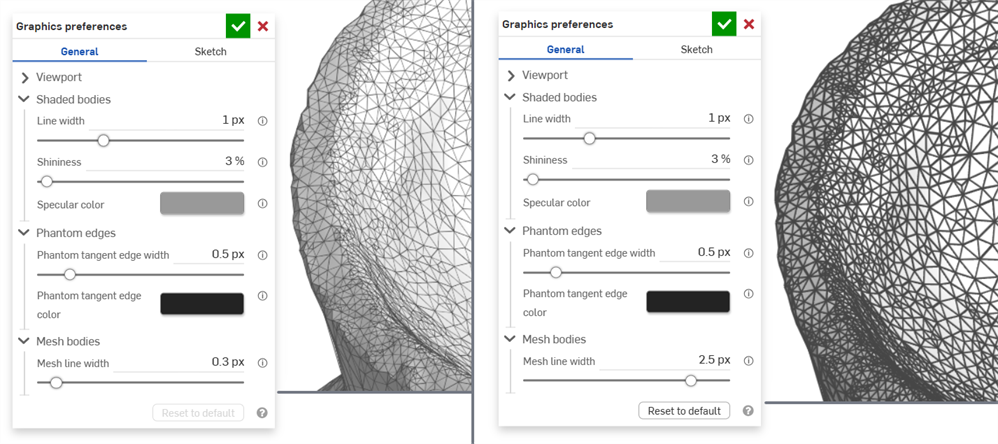
메쉬 선 폭: 0.3픽셀(왼쪽); 2.5픽셀(오른쪽)
스케치 기본 설정
활성 스케치
-
선 폭 - 활성 스케치의 선 폭을 조절합니다. 가로 슬라이더를 사용하거나 0.1~3픽셀 범위의 숫자를 입력하십시오.
-
구속된 선 색상 - 구속된 선 또는 점의 기본 색상을 제어합니다. 색상 견본을 클릭하여 색상 피커 대화상자를 열고 색상을 선택합니다.
-
구속이 부족한 색상 - 구속이 부족한 선과 점의 기본 색상을 제어합니다. 색상 견본을 클릭하여 색상 피커 대화상자를 열고 색상을 선택합니다.
-
구속이 부족한 가려진 색상 - 구속이 부족한 가려진 선과 점의 기본 색상을 제어합니다. 이는 그래픽 영역의 일부에 가려진 선과 점입니다. 색상 견본을 클릭하여 색상 피커 대화상자를 열고 색상을 선택합니다.
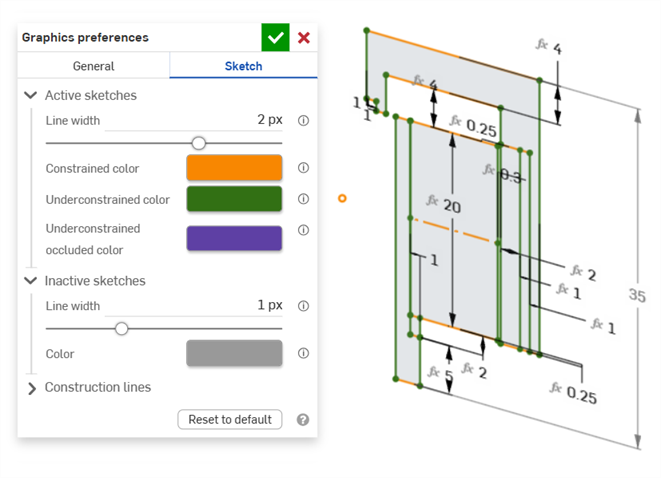
활성 스케치에서 구속된 선 색상과 구속이 부족한 선 색상을 보여주는 예시
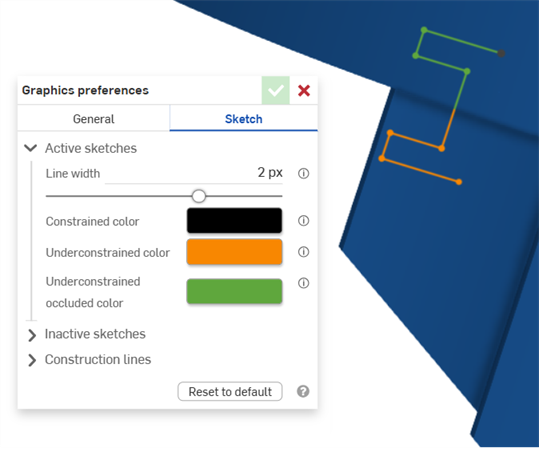
활성 스케치에서 구속이 부족한 선 색상을 보여주는 예입니다. 녹색은 그래픽 영역의 부품에 가려진 스케치 세그먼트를 나타냅니다.
비활성 스케치
-
선 굵기 - 비활성 스케치의 선 굵기를 조절합니다. 가로 슬라이더를 사용하거나 0.1~3픽셀 범위의 숫자를 입력하십시오.
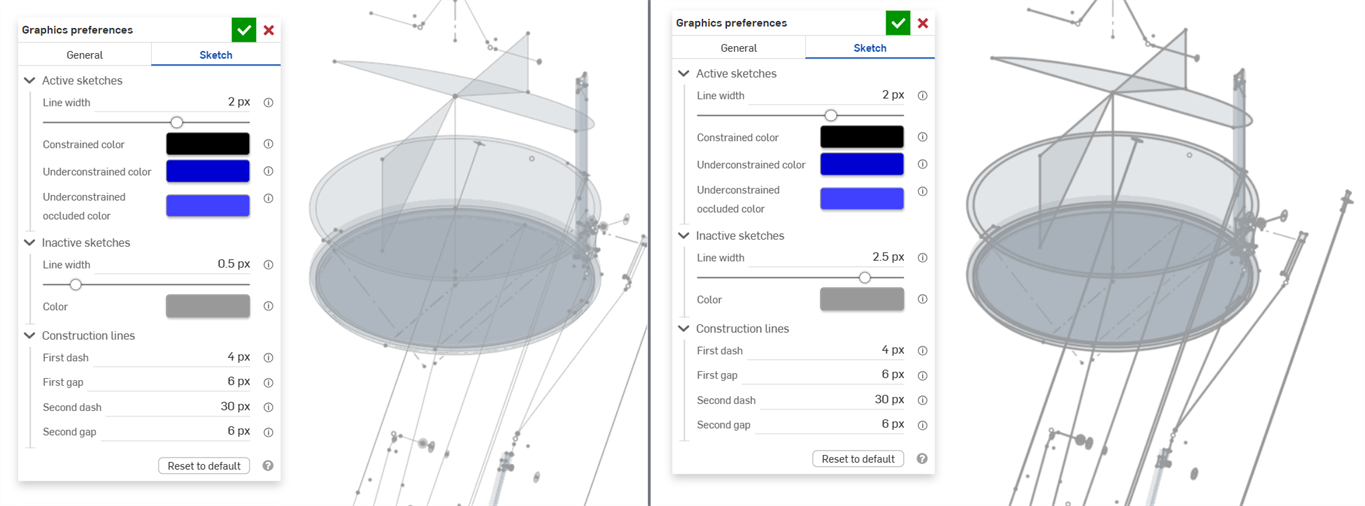
-
선 색상 - 비활성 스케치의 선과 점의 기본 색상을 제어합니다. 색상 견본을 클릭하여 선 색상 대화상자를 열고 색상 피커에서 색상을 선택합니다.
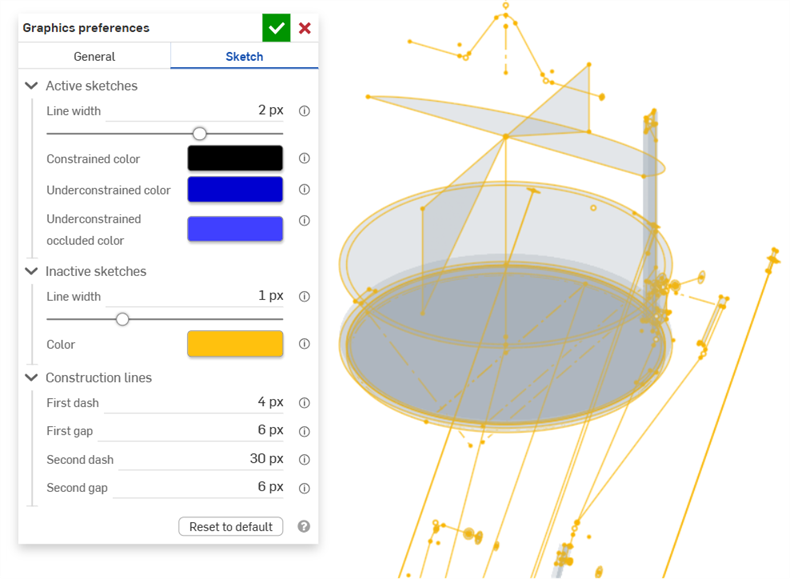
보조선
-
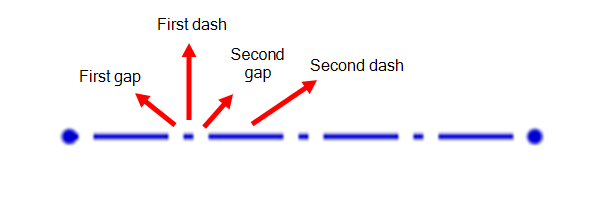
첫 번째 점선 - 보조선 점선 패턴의 첫 번째 점선의 길이를 제어합니다. 1~50픽셀 사이의 값을 입력하십시오(기본값은 4픽셀).
-
첫 번째 간격 - 보조선 스티플 패턴의 첫 번째 간격 길이를 제어합니다. 0~50픽셀 사이의 값을 입력하십시오(기본값은 6픽셀).
-
두 번째 점선 - 보조선 점선 패턴의 두 번째 점선의 길이를 제어합니다. 1~50픽셀 사이의 값을 입력하십시오(기본값은 30픽셀).
-
두 번째 간격 - 보조선 점선 패턴의 두 번째 간격 길이를 픽셀 단위로 제어합니다. 0~50픽셀 사이의 값을 입력하십시오(기본값은 6픽셀).