 Render Studio インターフェイス - 環境パネル

のみ利用可能
利用可能: Render Studio
ページの右側にある [環境] パネルには、シーン要素の編集可能なパラメータのリストが表示されます。選択した環境に応じて利用可能なパネルのパラメータが変わります。
環境パネルアイコン ( ) をクリックしてパネルを開きます。
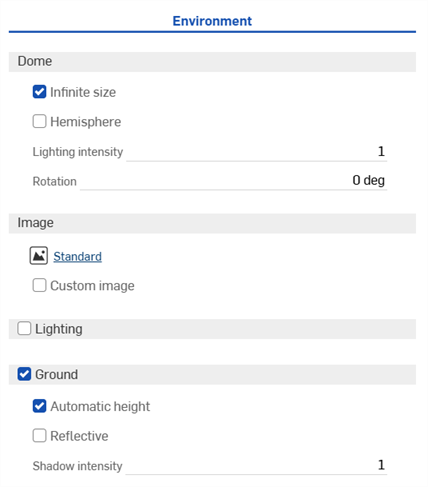
 環境パネルのパラメータ
環境パラメータの概要は以下のとおりです。
-
ドーム
-
無限サイズ - 環境を無限サイズのドームに設定します。この環境では、水平線が非常に離れているため、シーン内のカメラの位置は影響せず、カメラが向いている方向だけが影響します。これは屋外のシーンに適しています。無限環境を使用しない場合は、地平線までの距離 (水平距離) を指定する必要があります。これは、向きだけでなくカメラの位置が環境の表示に影響する内部シーンや内部を含む外部シーンに適しています。
-
水平距離 - 環境の中心から水平線までの距離。
-
-
半球 - 環境を半球形に設定します。半球状の環境では、照明環境から投影された半球の底面に地面があります。これは、シーンを環境内で浮かせるのではなく、地面に固定したい場合に便利です。有効にしたら、三脚の高さを仕様どおりに設定してください。
-
三脚の高さ - 環境画面をキャプチャしたときのカメラの高さ。これを使用して、環境ドームの下部を平らな地表平面に投影します。
-
-
照明強度 - 環境画像に含まれる照明の強度の乗数。1 未満の値では環境からの照明の明るさが低下し、1 より大きい値では明るさが増加します。
-
回転 - 垂直軸を中心とした環境ドームの回転。
-
-
画像
-
ライブラリ環境 (
 ) - カスタムイメージでオーバーライドされない限り、シーンを照らすために使用されるライブラリ環境。標準が既定の環境です。
 -
カスタム画像 - ユーザーが提供した HDri 環境画像で環境ドームをオーバーライドします。画像は緯度/経度が 360 度 / 180 度で、.hdr または .exr 形式が理想的です。詳細は、カスタム環境をシーンに追加するを参照してください。
-
画像 - カスタム HDRI ライティング環境画像。
-
-
-
ライティング (Render Studio Advanced のみ)
-
環境内には直接さまざまな形のエリア光源を配置でき、移動やサイズ変更も可能です。照明を有効にし、ラップされていない環境画像は 3D グラフィック領域の 2D 表現として表示されます。
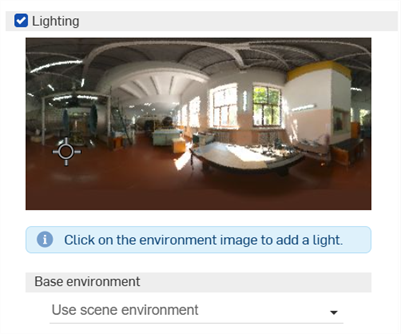
照明を配置したら、中間点を選択します。選択すると、形を変えることができます。照明を環境内の任意の場所に移動するには、クリックしてドラッグします。照明は必要な数だけ追加できます。
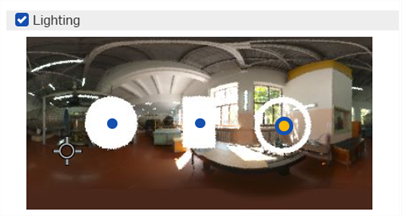
照明の 3 つの形の例: 円盤 (左)、長方形 (中央)、輪 (右)
カメラの方向インジケータ (十字線のマーカー) は、ビューポートの中心の位置 (カメラが向いている場所) を示します。これにより、グラフィック領域のモデルを基準に、照明を配置すべき場所を視覚的に判断できます。このマーカーは、ユーザーがグラフィック領域でモデルをナビゲートし、それによってカメラをナビゲートすると動的に更新されます。
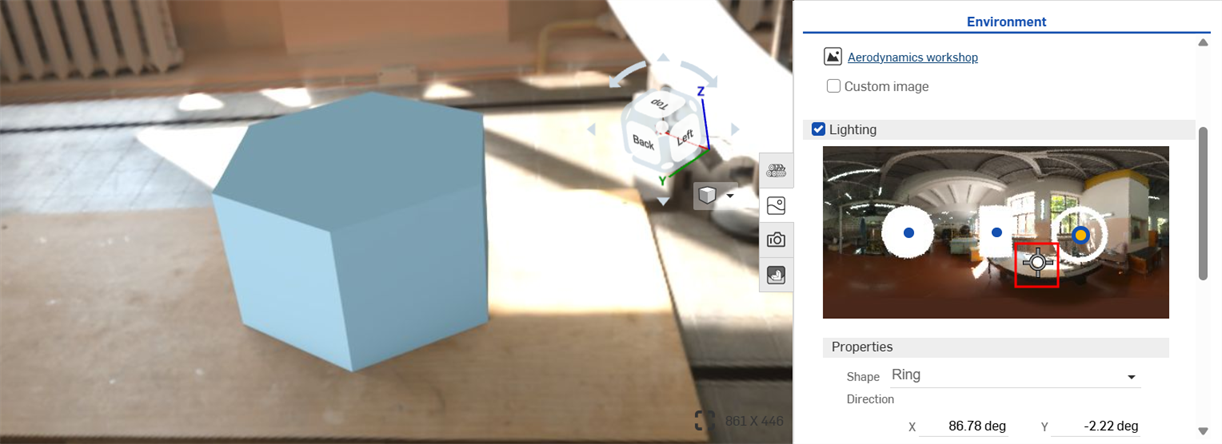
右側の展開されていない環境照明画像の中央の十字線マーカーは、左側のグラフィック領域の中心を示しています。
-
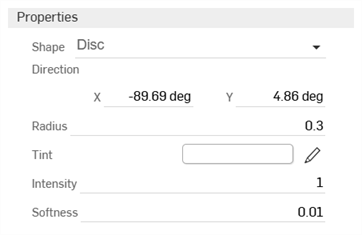
プロパティ
-
形状 - 照明の物理的な形状: 円盤、長方形、または輪。照明を当てるには、環境をクリックします。
-
方向 - 環境内の光の位置。シーンの水平線と右側は 0 度です。X と Y の値を度単位で入力します。
-
半径 (円盤または輪のみ) - 円盤または輪の照明の中心線の半径。
-
幅 (長方形のみ) - 長方形の照明の幅。
-
高さ (長方形のみ) - 長方形の照明の高さ。
-
厚さ (輪のみ) - 半径を中心とした輪の照明の幅。
-
色 - 放射される照明の色。鉛筆アイコンをクリックして、カラーピッカーから使用する色を編集します。色は、色領域をクリックするか、16 進数または RGB 値を入力するか、ピッカーの下部にある見本を選択することで視覚的に選択できます。
-
強度 - 放射される照明の強度 (単位なし)。
-
柔らかさ - 照明のエッジがソフトかハードかを決めます。値が大きいほど、光のエッジが柔らかくなります。値が低いほど、照明のエッジが鮮明になります。
-
-
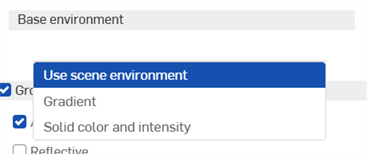
基本環境
-
シーン環境を使用 - シーンの環境を使用します。通常は環境ライブラリから選択し、その上に照明を追加します。
-
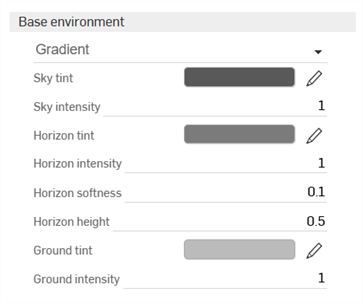
勾配 - グラデーション照明を追加します。照明が背景の環境に追加されます。
-
空の色 - 空から放射される光の色。鉛筆アイコンをクリックして、カラーピッカーから使用する色を編集します。色は、色領域をクリックするか、16 進数または RGB 値を入力するか、ピッカーの下部にある見本を選択することで視覚的に選択できます。
-
空の強度 - 空から放射される光の強度 (単位なし)。
-
地平線の色 - 地平線から放射される光の色。鉛筆アイコンをクリックして、カラーピッカーから使用する色を編集します。色は、色領域をクリックするか、16 進数または RGB 値を入力するか、ピッカーの下部にある見本を選択することで視覚的に選択できます。
-
地平線の強度 - 地平線から放射される光の強度 (単位なし)。
-
地平線の柔らかさ - 地平線のエッジがソフトかハードかを決定します。値が大きいほど、地平線のエッジが柔らかくなります。値が小さいほど、地平線のエッジが鮮明になります。値が 0 の場合、地平線は削除されます。
-
地平線の高さ - 環境内の地平線の位置。0.5 は地平線を中央に配置します。値が大きいほど、地平線は空に向かって高くなります。値が小さいほど、地平線は地面に向かって低くなります。
-
地面の色 - 地面から放射される光の色。鉛筆アイコンをクリックして、カラーピッカーから使用する色を編集します。色は、色領域をクリックするか、16 進数または RGB 値を入力するか、ピッカーの下部にある見本を選択することで視覚的に選択できます。
-
地面の強度 - 地面から放射される光の強度 (単位なし)。
-
-
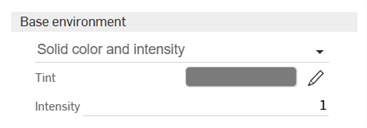
単色と強度 - 照明に単色を加え、強度を調整できます。照明が背景の環境に追加されます。
-
色合い - 環境から放射される光の色。鉛筆アイコンをクリックして、カラーピッカーから使用する色を編集します。色は、色領域をクリックするか、16 進数または RGB 値を入力するか、ピッカーの下部にある見本を選択することで視覚的に選択できます。
-
強度 - 環境から放射される光の強度 (単位なし)。
-
-
-
-
地面 - 位置と反射率を制御する仮想地表平面。
-
自動高さ - 最も低いオブジェクトに基づいて地面の高さを自動的に設定します。
-
反射 - 地表平面にシーンを反射させることができます。
-
反射率 - 地面の反射率。
-
粗さ - 地表平面の粗さ。数値が小さいほど、鏡のような反射になります。数値が大きいほど反射が鈍ります。
-
-
影の強度 - 地面の影の強度。値が 1 の場合、物理的に正しい結果が得られます。1 未満の値は明るい影になり、1 より大きい値は暗い影になります。
-
-
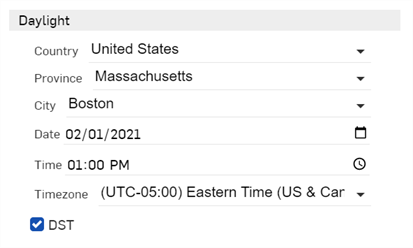
デイライト - デイライトパラメータを編集します (Preetham 環境などの一部の環境で使用可能)。
-
国 - 国のリストから選択します
-
都道府県 - 選択した国の都道府県のリストから選択します
-
都市 - 世界の主要都市のリストから選択します。
-
日付 - 年、月、日を直接クリックして年と日付を数値で選択するか、カレンダーアイコンをクリックして選択リストから日付を選択します。
-
時刻 - 時、分、午前/午後の指定をクリックして時刻を数字で選択するか、時計アイコンをクリックして時刻選択リストから選択します。
-
タイムゾーン - UTC タイムゾーンのリストから選択します。
-
DST - チェックすると、サマータイムに合わせて調整されます。
-
デイライトパラメータは特定の環境 (Perez や Preetham など) でのみ使用できます。場所と時刻で環境を編集するを参照してください。
パネル幅を調整するには、パネルの端にカーソルを合わせます。カーソルが両方向矢印に変わったら、パネルをクリックしてドラッグし、サイズを変更します。
詳細は、Render Studio の例とリソースを参照してください。