外観関数

のみ利用可能
利用可能: Render Studio
関数は、パーツの外観パラメータに対して特定のアクションを実行する特殊なタイプの外観です。シーンを作成すると、すべてのパーツに既定の外観パラメータが設定され、右側の [外観] パネルに表示されます。詳細は、右側の外観パネルを参照してください。
すべての関数は、最上位の外観関数のフォルダにあります。さらに、関数には外観サムネイルの左上隅に関数アイコン ( ) が表示されます。
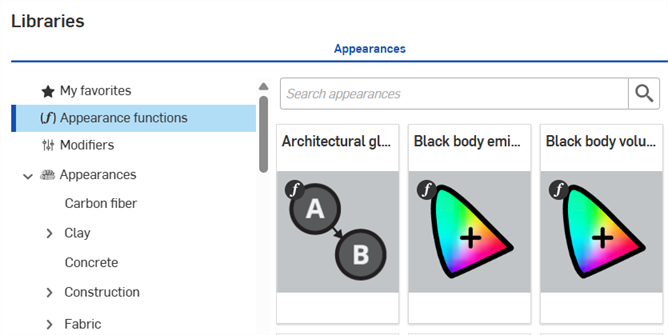
 外観関数テーブル
次のテーブルは、外観ライブラリのすべての外観関数の概要を示しています。
| 関数名 | 関数の小見出し | 説明 |
| 屈折のスペクトル指数 (ior) | Abbe 番号 ior | 色を受け入れるパラメータに屈折のスペクトル指数 (ior) を適用します。Abbe 数 (分散制御、0 = オフ、25-85 = 分散マテリアル)、ior (非金属マテリアルの反射率にも影響する体積屈折) パラメータを調整します。たとえば、ガラスや宝石に対応する Abbe 番号が提供されている場合は、この関数を使って入力できます。 |
| 建築用の光沢から粗さ | iRAY v2 Arch+Design の実装に従って、光沢パラメータを粗さパラメータ、セマンティクスに変換します | |
| 黒体放射 | どの色のパラメータにも適用できる黒体放射の色。ブレンド値、色温度 1 と 2 を調整します。放射的な外観に便利です。 | |
| カラーレイヤーのブレンド | 描画プログラムで知られる機能と同様のテクスチャレイヤー機能。2 つのテクスチャレイヤーをブレンドします。28 のユニークなブレンドモードから選択し、任意のベース、グローバル、または透過外観パラメータ (バンプ/法線を除く) に適用できます。ベースカラー、レイヤー (追加のカラー配列を追加してブレンド/重み付け)、モノソースパラメータを調整します。 | |
| 法線のブレンド | 2 つの法線を返す関数の出力をブレンドします。ベース法線マップに詳細な法線マップを適用したり、プロシージャルバンプ/法線マップ関数 (check_bump_texture など) を適用したりするステッカーのような状況で、2 つのテクスチャをブレンドするために使用できます。 | |
| 座標投影 | 投影関数に基づくテクスチャ座標系をグローバルバンプやその他の法線の外観パラメータに適用します。座標系 (UVW、ワールド、またはオブジェクト)、投影トランスフォーム (TRS またはマトリックス)、平行移動、回転、スケール、投影タイプ (9 種類)、およびテクスチャ空間のパラメータを調整します。 | |
| 座標ソース | ワールド座標やオブジェクト座標、定義したテクスチャ空間をグローバルバンプやその他の法線の外観パラメータに適用します。座標系 (UVW、ワールド、またはオブジェクト) とテクスチャ空間のパラメータを調整します。 | |
| バンプマップファイルのインポート | 高さフィールドスタイルの法線バンプマップの画像ファイルをグローバルバンプまたはその他の法線の外観パラメータに適用します。画像ファイルを選択してテクスチャを追加します。ラップ、バンプソース、アニメーション、クロップ、法線、B スプライン、ファクター、クリップ、テクスチャ座標のパラメータを調整します。 | |
| ビットマップファイルのインポート | 画像ファイルに保存されている 2D ビットマップテクスチャを、任意のベース、グローバル、または透過外観パラメータ (バンプ/法線を除く) に適用します。ファイルのコントラスト、明るさ、画像の反転、スカラーモードを調整します。 | |
| フレークノイズテクスチャのバンプマップ | グローバルバンプまたはその他の法線の外観パラメータに適用されるフレークノイズテクスチャのバンプマップ。最大サイズ、メトリック、ノイズタイプ、法線、スケール、強度、UVW パラメータを調整します | |
| フレークノイズパターン | 任意のベース、グローバル、または透過外観パラメータ (バンプ/法線を除く) に適用されるフレークノイズパターン。密度、強度、最大サイズ、メトリック、ノイズタイプ、スケール、UVW パラメータを調整します。 | |
| 3 色/位置のグラデーションのバンプマップ | バンプマップに 3 色/位置のグラデーションを適用します。グラデーションは、線形、正方形、ボックス、対角線、90/360 度、または放射状で、外観パラメータに適用されます。 | |
| 3 色/位置のグラデーションのテクスチャ | 外観パラメータに、直線、四角形、ボックス、対角線、90/360 度、または放射状のグラデーションの 3 色/位置のグラデーションを適用します。 | |
| 回転変換スケール | オイラーの回転、変換、スケーリングからのトランスフォームマトリックスを座標投影 > 投影トランスフォーム外観パラメータに適用します。回転、スケーリング、変換のパラメータを調整します。 | |
| スペクトル指数の屈折 | セルマイヤー係数を使用して、色 (スペクトル) ior を受け入れるパラメータに屈折スペクトルインデックスを適用します。セルマイヤー B とセルマイヤー C のパラメータを調整して、外観における光の分散を決定します。 | |
| 接線空間の法線テクスチャ | ビットマップファイルの色の値を、グローバルバンプやその他の法線の外観パラメータに適用される接線空間のベクトル値に変換します。画像ファイルを選択してテクスチャを追加します。ラップ (U、V)、アニメーション (ラップ、開始時間、クロップ、FPS)、クロップ (U、V)、反転接線 (U、V)、スケール、係数、クリップ、オフセット、UVW パラメータを調整します。 | |
| タイルテクスチャのバンプマップ | グローバルバンプまたはその他の法線の外観パラメータに適用されるタイルテクスチャのバンプマップ。グラウト (高さ、幅、粗さ)、特殊列 (高さ係数、インデックス、幅係数)、特殊行 (インデックス、幅係数)、法線、奇数行オフセット、数値 (列、行)、係数、欠損タイルの量、シード、ランダム行オフセット、タイルの明るさの変化、UVW パラメータを調整します。 | |
| タイルパターン | 任意のベース、グローバル、または透過外観パラメータ (バンプ/法線を除く) に適用されるタイルパターン。グラウト (色、高さ、幅、粗さ)、タイル (色、明るさの変化)、特殊列 (高さ係数、インデックス、幅係数)、特殊行 (インデックス、幅係数)、奇数行オフセット、数値 (列、行)、欠落タイルの量、シード、ランダム行オフセット、UVW パラメータを調整します。 | |
| 座標トランスフォーム | 座標マトリックスによるテクスチャトランスフォームをグローバルバンプやその他の法線の外観パラメータに適用します。座標 (位置、接線 U、接線 V)、トランスフォーム (TRS またはマトリックス)、移動、回転、スケールのパラメータを調整します。 | |
| 黒体体積放射 | どの色のパラメータにも適用できる加熱粒子フィールドの黒体放射強度。ブレンド値、色温度 1 と 2 を調整します。 | |
| 体積係数 | 距離と値に基づいて体積係数を計算します。これはどの色のパラメータにも適用できます。距離と色合いを調整します。 | |
| ウォーリーノイズテクスチャのバンプマップ | ウォーリーノイズテクスチャのバンプマップをグローバルバンプまたはその他の法線外観パラメータに適用します。サイズ、モード、法線、マーブルの適用、係数、メトリック、UVW、へこみの適用、ステップしきい値、ノイズ (歪み、バンド、高/低しきい値)、エッジパラメータを調整します。 | |
| ウォーリーノイズパターン | 任意のベース、グローバル、または透過外観パラメータに適用されるウォーリーノイズパターン (バンプ/法線を除く)。サイズ、2 色、モード、マーブルの適用、メトリック、UVW、へこみの適用、ステップしきい値、ノイズ (歪み、バンド、高/低しきい値)、エッジパラメータを調整します。 | |
| 青色の取得 | 青色コンポーネントを浮動小数点数で取得します (色から数値を取得)。どの色の入力にも使用できますが、テクスチャに関連付けた入力が一般的です。たとえば、異なるパラメータにルーティングできる 3 つの異なるスカラープロパティをエンコードするテクスチャがある場合などです。 | |
| 緑色の取得 | 緑色コンポーネントを浮動小数点数で取得します (色から数値を取得)。どの色の入力にも使用できますが、テクスチャに関連付けた入力が一般的です。たとえば、異なるパラメータにルーティングできる 3 つの異なるスカラープロパティをエンコードするテクスチャがある場合などです。 | |
| カラーコンポーネントの取得 | RGB (赤/緑/青) コンポーネントを浮動小数点数で取得します (色から数値を取得)。どの色の入力にも使用できますが、テクスチャに関連付けた入力が一般的です。たとえば、異なるパラメータにルーティングできる 3 つの異なるスカラープロパティをエンコードするテクスチャがある場合などです。 | |
| 色の強度 | 入力色の強度を返します | |
| 赤色の取得 | 赤色コンポーネントを浮動小数点数で取得します (色から数値を取得)。どの色の入力にも使用できますが、テクスチャに関連付けた入力が一般的です。たとえば、異なるパラメータにルーティングできる 3 つの異なるスカラープロパティをエンコードするテクスチャがある場合などです。 | |
| 色をベクトルに変換 | 色を float3 に変換 | |
| Cosine 1d | 1 + cos( ( input + modifier / 2 ) * 50.0)) / 2.0 を返します。たとえば、テクスチャ座標によって駆動される入力値の振動を生成するのに役立ちます。 | |
| ベクトルの長さ | 入力ベクトルの長さを返します。他の関数と併用して出力を変換し、他のタイプのパラメータと互換する値にします。 | |
| ベクトルを色に変換 | float3 を RGB (赤/緑/青) 色に変換します。他の関数と併用して出力を変換し、他のタイプのパラメータと互換する値にします。 | |
| ベクトルを浮動小数点数に変換 | float3 を 3 つの浮動小数点数に変換します。他の関数と併用して出力を変換し、他のタイプのパラメータと互換する値にします。 | |
| 色を反転 | 入力色の反転色を返します。 | |
| ケルビンを色に変換 | 入力をケルビンから色に変換します。 | |
| 色をスケーリング | 入力色をスケール RGB 色でスケーリングします。任意の色パラメータに適用します。色スケールを調整し、色のパラメータを入力します。 | |
| Sine 1d | 1 + sin( ( input + modifier / 2 ) * 50.0)) / 2.0 を返します。たとえば、テクスチャ座標によって駆動される入力値の振動を生成するのに役立ちます。 | |
| 色をブレンド | 2 つの色レイヤーを任意のベース、グローバル、または透過外観パラメータ (バンプ/法線を除く) にブレンドします。28 種類のブレンドモードのいずれかを使用して、2 つの色レイヤーをブレンドします。色 1 と 2、直線ブレンド、ブレンドモード、ブレンドの重みを調整します。 | |
| 法線のブレンド | 2 つの法線をブレンドするか、詳細な法線マップをグローバルバンプやその他の通常の外観パラメータに適用します。ベース法線と詳細な法線を適用し、それぞれの重みパラメータを調整します。 | |
| チェッカーテクスチャのバンプマップ | チェッカーテクスチャのバンプマップをグローバルバンプまたは他の法線外観パラメータに適用します。配置 (UV 空間インデックス、オブジェクト空間の使用、タイリング、オフセット、回転)、ぼかし、バンプ強度のパラメータを調整します。 | |
| チェッカーパターン | 3D テクスチャ | チェッカーパターン任意のベース、グローバル、または透過外観パラメータ (バンプ/法線を除く) に適用します。配置 (UV 空間インデックス、オブジェクト空間の使用、タイリング、オフセット、回転)、ぼかし、2 つのパターン色のパラメータを調整します。 |
| バンプマップファイルのインポート | ビットマップバンプテクスチャ | 画像ファイルに保存されている 2D バンプマップを、グローバルバンプやその他の法線外観パラメータに適用します。ファイルバンプモードとバンプ強度を調整します。 |
| ビットマップファイルのインポート | ビットマップテクスチャ | 画像ファイルに保存されている 2D ビットマップテクスチャを、任意のベース、グローバル、または透過外観パラメータ (バンプ/法線を除く) に適用します。ファイルのコントラスト、明るさ、画像の反転、スカラーモードを調整します。 |
| バンプマップ | フローノイズテクスチャ | フローノイズテクスチャのバンプマップをグローバルバンプまたは他の法線外観パラメータに適用します。配置 (タイリング、オフセット、回転)、プログレッシブ V オフセット/U スケール、レベルスケール、バンプ強度、ビロウィング、レベル、レベル強度ゲイン、位相オフセットのパラメータを調整します。 |
| パターン | フローノイズ | フローノイズパターンを、任意のベース、グローバル、または透過外観パラメーター (バンプ/法線を除く) に適用します。配置 (タイリング、オフセット、回転)、2 色、レベルプログレッシブ V モーション/U スケール、ビロウィング、レベル、レベル強度ゲイン、位相オフセットのパラメータを調整します。 |
| 法線マップ | テクスチャ | 接線スペースの法線マップをグローバルバンプまたはその他の法線の外観パラメータに適用します。UV スペースインデックス、タイリング、フリップ V、クリップ、オフセット、回転、強度、法線マップファイルを調整します (ファイル選択で)。 |
| バンプマップ | パーリンノイズテクスチャ | パーリンノイズテクスチャのバンプマップをグローバルバンプまたはその他の法線の外観パラメータに適用します。配置 (タイリング、オフセット、回転)、バンプ強度、ビロウィング外観、レベル、上限/下限パラメータを調整します。 |
| パターン | パーリンノイズ | パーリンノイズパターンを、任意のベース、グローバル、または透過外観パラメータ (バンプ/法線を除く) に適用します。配置 (タイリング、オフセット、回転)、2 パターン色、ビロウィング外観、レベル、上限/下限パラメータを調整します。 |
| バンプマップ | セルラーノイズテクスチャ | セルラーノイズテクスチャバンプマップをグローバルバンプまたはその他の法線の外観パラメータに適用します。配置 (UV スペースインデックス、オブジェクトスペースの使用、タイリング、オフセット、回転)、バンプ強度、セルの形状、上限/下限パラメータを調整します。 |
| パターン | セルラーノイズ | セルラーノイズパターンを、任意のベース、グローバル、または透過外観パラメータ (バンプ/法線を除く) に適用します。配置 (UV スペースインデックス、オブジェクトスペースの使用、タイリング、オフセット、回転)、セル (タイプ、シェイプ)、2 パターン色、上限/下限パラメータを調整します。 |
| データは有効です | ||
| データ検索色 | ||
| データ検索 float | ||
| データ検索 float2 | ||
| データ検索 float3 | ||
| データ検索 integer | ||
| データ検索 uniform color | ||
| データ検索 uniform float | ||
| データ検索 uniform float2 | ||
| データ検索 uniform float3 | ||
| データ検索 uniform integer | ||
| FFF 3D プリント | テクスチャ | フィラメント溶解製法 (FFF) 3D プリントのレイヤー線をシミュレートするテクスチャ。レイヤー線間の割れ目を暗くして、セルフシャドウのような印象を与えるために使用されます。ベースカラー、割れ目カラー、レイヤーの高さ、押し出し深さ幅、インフィルを調整します。 |
| FFF 3D プリント | バンプマップ | バンプマップを使用して、フィラメント溶解製法 (FFF) の 3D プリントのレイヤー線をシミュレートします。基本ジオメトリとは大きく異なる法線が生成されることがあります。シーンで [粗い影の円滑化] オプションを有効にすることをお勧めします。レイヤーの高さ、押し出し深さ幅、インフィルを調整します。 |
| 三方向平面 | テクスチャ | 画像ファイルに保存されている 3 つの 2D ビットマップテクスチャファイルを、任意のベース、グローバル、または透過外観パラメータ (バンプ/法線を除く) に適用します。各ファイルのタイリング、オフセット、回転、配置 (オブジェクト空間、原点点の回転)、共通パラメータ (ブレンド範囲、平均色) を調整します。 |
| 三方向平面 | 三方向平面の法線マップテクスチャ | 画像ファイルに保存されている 3 つの 2D 法線マップテクスチャファイルを、三方向平面関数の原点回転パラメータに適用します。各ファイルのタイリング、オフセット、回転、配置 (オブジェクトスペース、原点の回転を使用)、共通パラメータ (ブレンド範囲、強度) を調整します。 |
注記
-
関数の中にはパーツに直接割り当てることができないものがあります。外観サムネイルを右クリックしてもコンテキストメニューのオプションが表示されない場合、または外観サムネイルをシーン内のパーツにドラッグアンドドロップしてもコンテキストメニューが開かない場合は、その外観が関数であることを示します。
-
すべての関数の完全なリストとそれぞれの簡単な説明については、外観ライブラリ - 関数を参照してください。
-
一部の関数は外観パネルのパラメータにのみ適用でき、シーンリストで選択されている内容によって異なります。
-
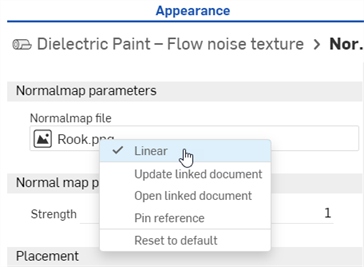
法線マップ — テクスチャ関数では、オプションでテクスチャリソースを直線カラーデータを含むものとして扱うことができます。テクスチャが色以外のもの (接線空間の法線マップやラフネスなどのスカラーデータなど) を表す場合は、カラーデータが正しく処理されるように直線として扱う必要があります。
特に法線マップテクスチャの場合、有効な結果が得られるように、直線オプションが自動的に選択されます。その他のパラメータについては、テクスチャリソースのコンテキストメニューの直線オプションを使用して色の解釈方法を選択できます (下記参照)。
-
外観ライブラリが右パネルにあるときに外観パラメータに外観機能を適用するには、外観機能を外観パネルアイコンの上にドラッグし、開くまでボタンを押したままにします。次に、外観機能をパネルのパラメータにドロップします。
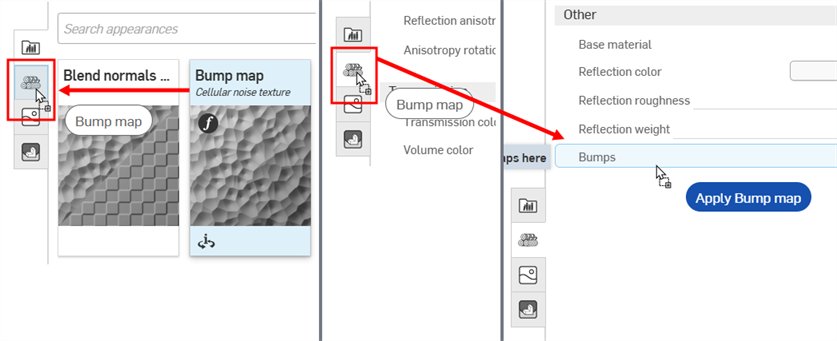
バンプマップの外観機能を、外観パネルアイコン (左) の上にドラッグします。外観パネル (中央) が開きます。ボタンを押したまま、バンプマップの外観機能を、外観パネル (右) のバンプパラメータの上にドラッグします。
例 1 : 3d チェッカーテクスチャと 3D チェッカーテクスチャ — バンプマッピング
パーツの外観パラメータに関数を適用するには、以下の操作を実行します。
-
シーンリストまたはグラフィック領域でパーツを選択します。外観パネルには、パーツの既定の外観パラメータが表示されます。
-
外観ライブラリ内の外観関数フォルダを選択します
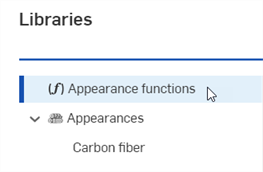
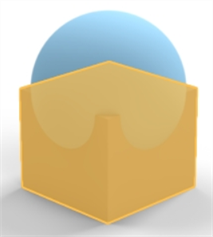
チェッカーパターン — 3D テクスチャとチェッカーテクスチャバンプマップ関数を検索します。この例では両方を使用しています。次のモデルの下側のボックスパーツを参考にします。
-
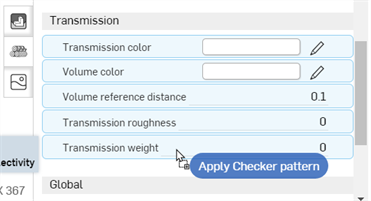
チェッカーパターン — 3D テクスチャを [外観] パネルにドラッグします。ドロップする前に、[外観] パラメータの多くが青色で強調表示されていることに注目してください。これは、この関数をこれらのパラメータのいずれにも適用できることを示しています。マウスカーソルを当てたパラメータに関数が適用されます。[透過] サブメニューの [透過のウェイト] パラメータにパラメータをドロップします。
-
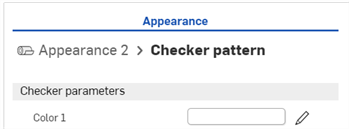
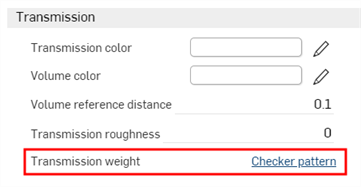
テクスチャ関数が適用され、[外観] パネルで自動的に開きます。これは、[外観] パネルの上部に表示される階層的なパンくずリストを見ると確認できます (下の 1 つ目の画像を参照)。このパンくずリストで [外観 2] リンクをクリックすると、パーツの [外観] が開き、[透過のウェイト] パラメータの横にテクスチャ関数へのリンクが表示されます (下の 2 番目の画像を参照)。
-
テクスチャ関数は、パーツを透過する光のマスキングとして機能します (チェッカーテクスチャは、パーツの外観の [透過のウェイト] パラメータに適用される関数です)。チェッカーパターンが白の部分はすべて、光が透けて見えます。チェッカーパターンが黒の部分はすべて、ベースパーツの色が透けて表示されます。チェッカーパターンは、パーツの光透過マスキングです。
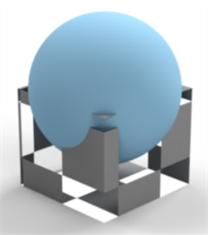
-
または、チェッカーテクスチャバンプマップ関数を [外観] パネルの [グローバル] サブメニューの [バンプ] パラメータにドロップします。[バンプ] パラメータだけが青色に変わり、このパラメータがチェッカーテクスチャバンプマップ関数を受け入れる唯一のパラメータであることを示します。
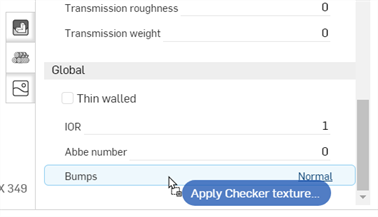
-
以下に示すように、チェッカーテクスチャバンプマップ関数が [バンプ] パラメータに適用されます。
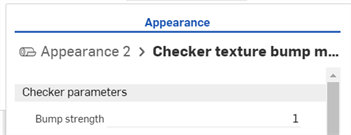
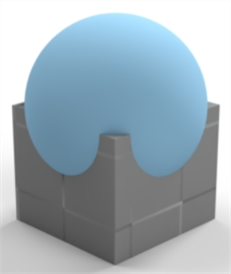
詳細は、バンプテクスチャを追加するとカスタムバンプテクスチャを追加するを参照してください。
例 2 : 反転色
次の例では、[色を反転] 機能をパーツのベースカラーに適用します。このメソッドを任意の外観の色パラメータに適用すると、その色が反転します。
-
パーツを選択します。この例では、球体が選択されています。
-
[外観] パネルのパーツの [ベース] サブメニューの [ベースカラー] に [色を反転] 機能をドラッグアンドドロップします。
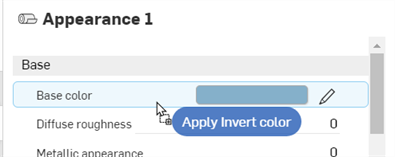
-
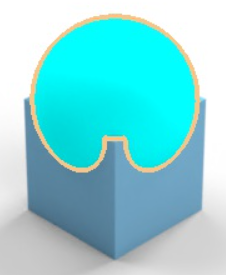
[外観] パネルの下に [色を反転] 機能が表示されます。入力色見本をクリックして色を選択します。その色の反転色が、パーツのベースカラーに使用されます。次の例では、赤を選択すると、シアンが赤の反転色であるためシアンのベースカラーが作成されます。
![[色を反転] 機能の使用](../Resources/Images/render-studio/using-functions-11-01.png)
例 3: サーフェスブレンダーと Gradient3-color/position テクスチャ
この例では、サーフェスブレンダー関数を使用して 2 つのサーフェスの外観をブレンドします。完了すると、追加の関数 (Gradient3-color/position テクスチャ) が最初の関数のパラメータ (サーフェスブレンダーのブレンドのウェイト) に適用されます。これは、関数の上に関数を構築できることを示しています。
-
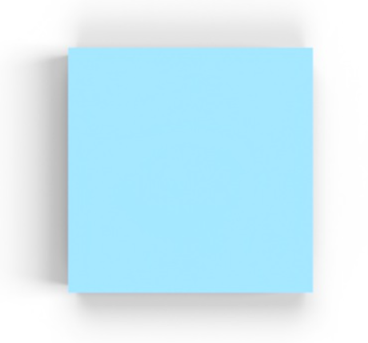
シーンリストでパーツを選択します。この例では、四角形のボックスを選択し、トップ平面から表示しています。参考までに、ボックスの寸法は長さ 0.5 m x 幅 0.5 m x 高さ 0.5 m です。
-
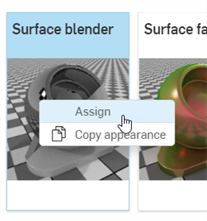
外観ライブラリで、サーフェスを検索します。サーフェスブレンダーのサムネイルを右クリックし、[割り当て] をクリックします (下の最初の画像に表示)。[外観] パネルの [グローバル] サブメニューには、サーフェスブレンダー関数のパラメータが表示されます (下の 2 番目の画像)。
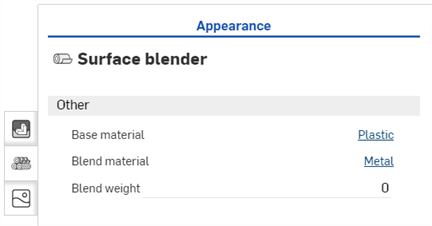
-
ベースマテリアル - ブレンドのベースとなる外観。
-
ブレンドマテリアル - ブレンドの外観サーフェスプロパティ。
-
ブレンド 重み - ブレンド重みまたはマスクテクスチャ。
-
-
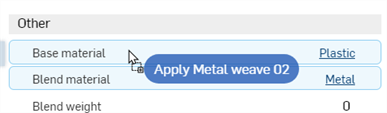
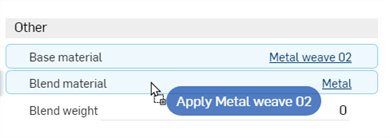
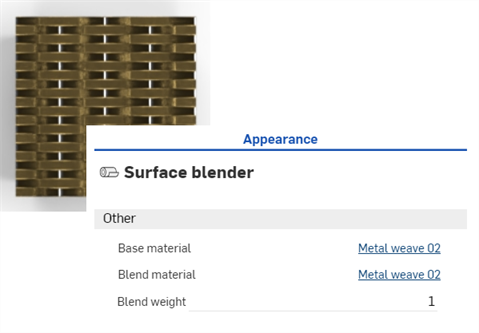
[金網 02 - 真鍮スチール] の外観を絞り込み、サムネイルを [ベースマテリアル] パラメータにドラッグアンドドロップします (下の 1 つ目の画像を参照)。次に、[金網 02 - 純銅] の外観を検索し、サムネイルを [ブレンドマテリアル] パラメータにドラッグアンドドロップします (下の 2 番目の画像を参照)。[ブレンドのウェイト] を 1 に調整します。これにより、2 つの外観 (ベースマテリアルとブレンドマテリアル) の色がブレンドされます。結果は下の 3 番目の画像に示されているとおりです。
-
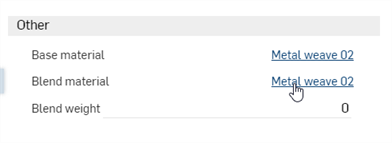
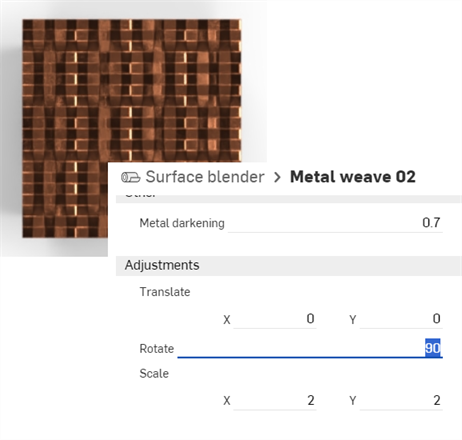
ブレンドマテリアルのリンクをクリックし、[外観] パネルでそのパラメータを開きます (下の 1 つ目の画像を参照)。[調整] サブメニューでマテリアルを 90 度回転させます。水平パターンが、新たに回転させた垂直パターンと組み合わされました (下の 2 番目の画像を参照)。これにより、この 2 つのブレンドがより視覚化されます。
-
親サーフェスブレンダーレイヤーに戻るには、[外観] パネルの上部にあるパンくずリストの [サーフェスブレンダー] リンクをクリックします。
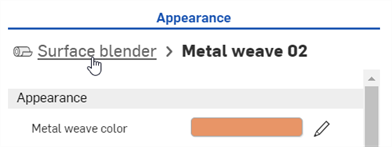
上記の手順で、任意の 2 つのサーフェスの外観をブレンドできます。上記の手順に基づき、勾配関数がサーフェスブレンダー関数の [ブレンドのウェイト] パラメータに適用され、2 つの外観がブレンドされます。
-
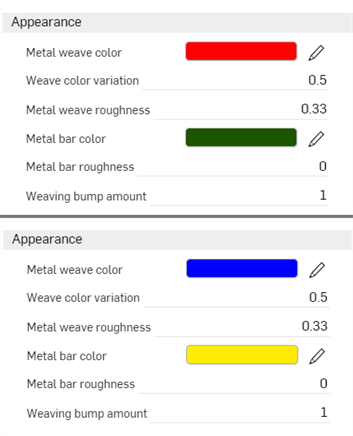
2 つの外観を開き、織りとバーの色をベースマテリアルは赤と緑、ブレンドマテリアルは青と黄色に変更します。これにより、後続の手順でブレンドがより見やすくなります。結果は下の 2 番目の画像に示されています。
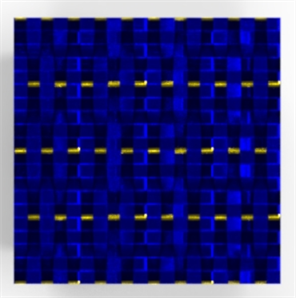
-
親のサーフェスブレンダーレイヤーに戻り、外観ライブラリで Gradient 3-color/position テクスチャ 関数を検索し、サムネイルを [ブレンドのウェイト] パラメータにドラッグアンドドロップします。
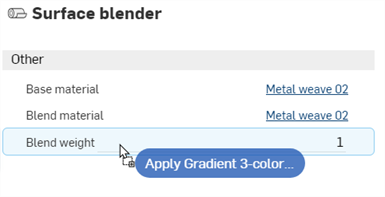
-
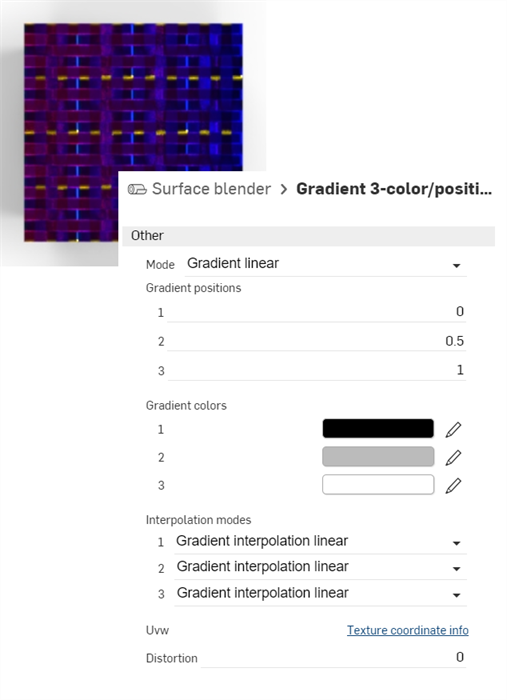
Gradient 3-color/position テクスチャ関数がサーフェスブレンダー関数のパラメータのブレンドのウェイトに適用されます。勾配は、ベースマテリアルの赤と緑 (左から開始) とブレンドマテリアルの青と黄色 (右で終端) の間のマスクとして使用されます。勾配が黒いところでは、ベースマテリアルが透けて見えます。勾配が白いところでは、ブレンドマテリアルが透けて見えます。
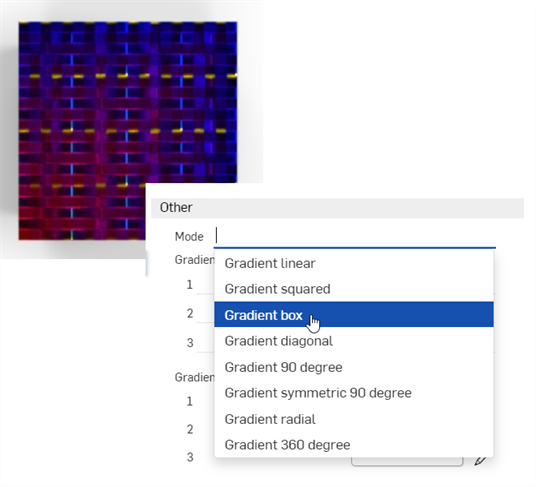
勾配パラメータを変更すると、2 つの外観をブレンドするさまざまな勾配の結果が生成されます。たとえば、下の画像は [モード] の [勾配ボックス] オプションを示しています (下の 2 番目の画像を参照)。
注記
-
2 つの色をブレンドする場合は、[色をブレンド] 関数を使用して、外観パネルまたは選択パネルで色パラメータが使用可能な場所に適用します。[色をブレンド] 関数を使用すると、Adobe Photoshop や GIMP などのアプリケーションにあるレイヤーブレンドモード (暗くする、スクリーン、乗算、オーバーレイなど) にアクセスできます。
-
2 つのバンプテクスチャをブレンドするには、[法線をブレンド] 関数を使用し、[外観] パネルまたは [選択] パネルの [バンプ] パラメータが使用可能な場所に適用します。
-
Gradient 3-color/position テクスチャ関数の代わりに、チェッカーパターンやバンプマップ — パーリンノイズテクスチャなどの他のテクスチャ関数を使用して 2 つの外観をブレンドしてください。
-
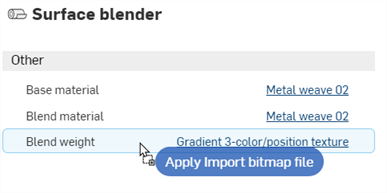
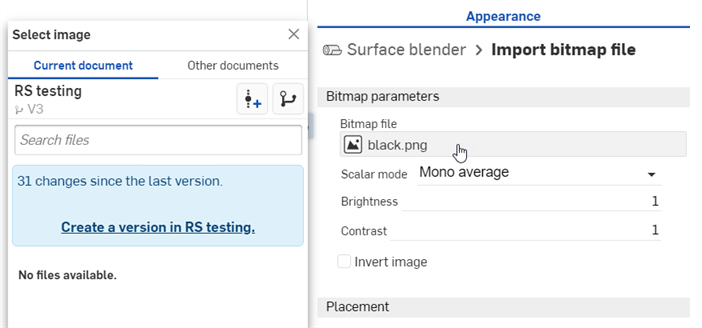
カスタムテクスチャを追加して、2 つの外観をブレンドします。[インポートビットマップファイル] 関数を [ブレンドのウェイト] パラメータにドラッグアンドドロップし (下の 1 つ目の画像を参照)、ビットマップファイルを開いて [画像を選択] ダイアログを開いて、カスタムテクスチャを読み込みます (下の 2 番目の画像を参照)。
ブレンドに関する技術的なヒントについては、Render Studio でのテクスチャとブレンドの使用を参照してください。
例 4 : ボリュームと体積係数の追加
この手順では、シーン内のパーツに特定のボリュームと体積係数関数を追加する方法を説明します。ボリュームはパーツに外観として追加され、体積係数は外観の [吸収係数] パラメータに追加される関数です。
この例では、発光する船オブジェクトが、水がボリュームとして機能する水中のシーンに配置されます。
-
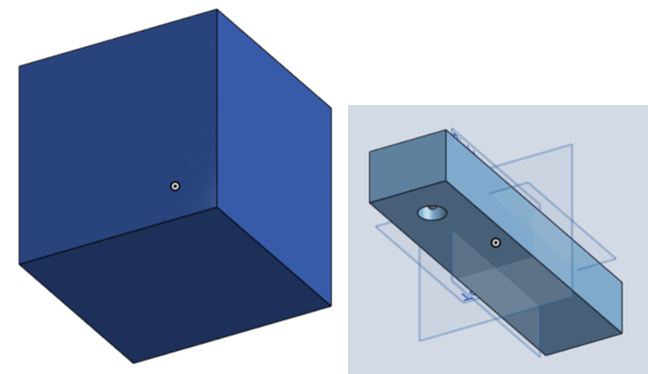
ボリュームを追加するには、シーンがボリューム自体に包含されている必要があります。船オブジェクトの四方を囲み、十分なスペースを確保できる大きさのパーツをモデリングします。
参考までに、この例の周囲のボックスは 5 m 立方体です。長方形の「船」は、長さ 0.6 m、幅 0.075 m、高さ 0.05 m です。長方形の正面前方に直径 0.025、深さ 0.03 m の穴が配置され、長方形から完全に突き出ていません。最後に、穴の内側に半径 0.004 m の球体が作成され、光源として使用されます。各エンティティ (パーツ) は、以下でボリューム、船、および光源と呼びます。
-
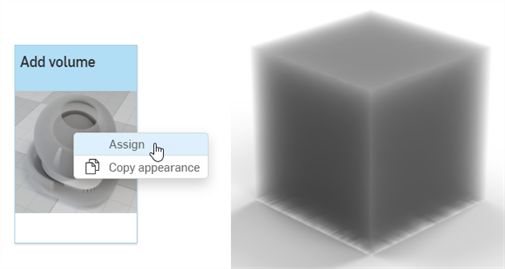
シーンリストで、ボリュームパーツを選択します。外観ライブラリでボリュームを検索し、[ボリュームを追加] サムネイルを右クリックして、コンテキストメニューから [割り当て] を選択します。これにより、周囲のパーツに厚みのあるボリュームの外観が適用されます。
-
ベースマテリアル - ボリュームが適用されるマテリアル。既定は透明です。
-
吸収係数 - 関与媒質に吸収される光の確率密度 (世界空間における 1 メートルあたり)。既定は白です (R: 255、G: 255、B: 255)。吸収値が高いほど、媒質を通過する際に吸収される光が多くなるため、媒質が暗くなります。
-
散乱係数 - 現在の方向から散乱する光の確率密度 (世界空間における 1 メートルあたり)。既定は白です (R: 255、G: 255、B: 255)。散乱値が高いほど、媒質全体に光がより多く分散されます。
-
方向性バイアス - 光の散乱方向への影響。値 0 を指定すると等方散乱、1 を指定すると前方散乱、-1 を指定すると後方散乱となります。既定は 0 です。
-
[外観ライブラリ] > [外観関数フォルダ] で、体積係数関数を検索して [外観] パネルの [吸収係数] パラメータの上にドラッグアンドドロップします (左下図を参照)。次に、係数の [濃淡] パラメータを R: 139、G: 179、B: 198 (右下図を参照) に調整します。これにより、船を含む水の体積が作成されます。
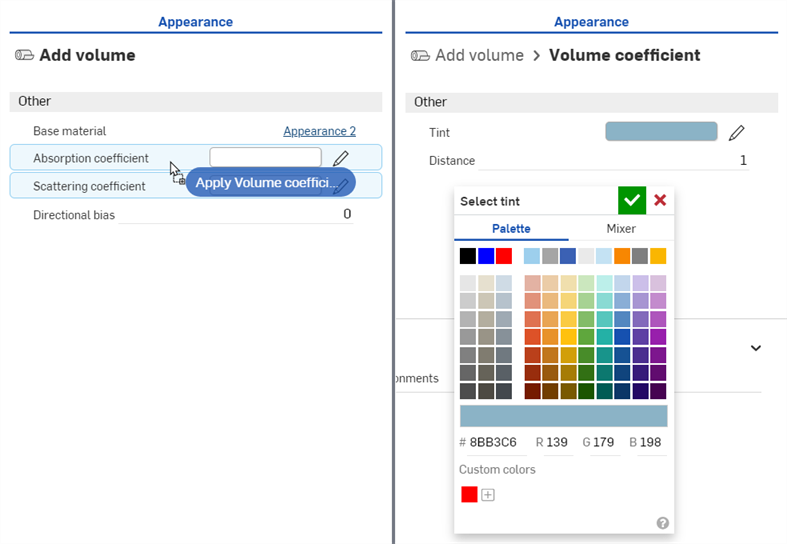
-
[ベースマテリアル] パラメータの横にある [透明度] リンクをクリックし、[透過色] を以下のように R: 189、G: 208、B: 231 に調整します。
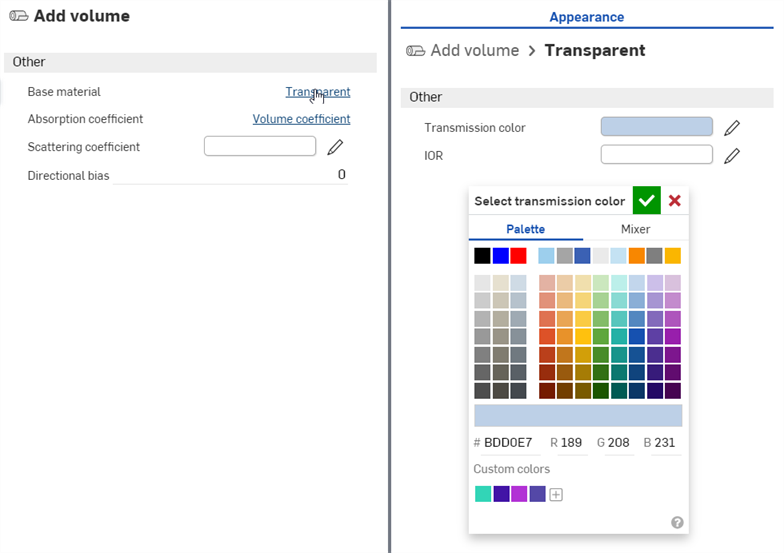
-
[外観] パネルの上部にある [ボリュームを追加] リンクをクリックして、ボリュームパラメータに戻ります。[方向バイアス] を 0.7 に設定します。これによりシーンが明るくなり、水中の船が見えます。
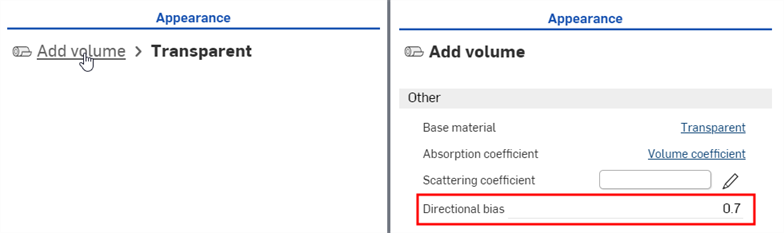
-
シーンリストで、ボリュームのパーツを選択解除し、船のパーツを選択します。外観ライブラリで [金属 - 擦り切れた酸化鉄] の外観を探し、サムネイルを右クリックして、コンテキストメニューから [割り当て] を選択します (左下図)。[外観] パネルで、次のパラメータを調整します。スケール: X: 2 by Y: 2、錆のバンプ強度: 0.4、錆の量: 0.1、錆の反射粗さ: 0.5、反射粗さ: 1。
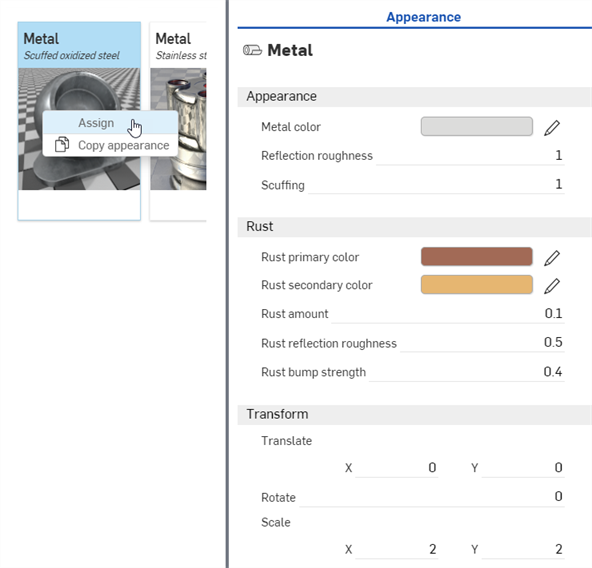
-
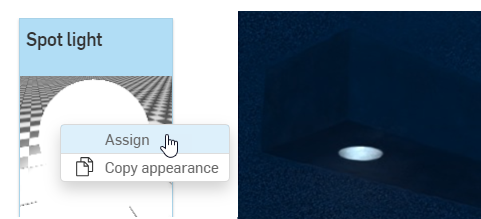
シーンリストで、船のパーツを選択解除し、ライトパーツを選択します。外観ライブラリで [スポットライト] の外観を探し、サムネイルを右クリックして、コンテキストメニュー (左下を参照) から [割り当て] を選択します。船を拡大表示して、下から上に表示します。ライトは点灯していますが、微光です (右下を参照)。
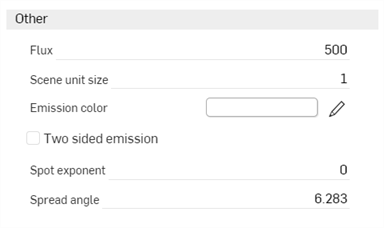
スポットライトパラメータは以下のとおりです。
-
発光色 - ライトの色。これは、光束に影響を与えないように再スケーリングされます。既定は白です (R : 255、G : 255、B : 255)。
-
光束 - ライトが放出する全光束 (ルーメン単位)。既定値は 500 です。一般に、シーンに応じてこの値を増やす必要があります。
-
シーン単位サイズ - m をシーン単位に変換します。たとえば、シーンの 1 が 1 フィート (米国の慣用単位) の場合、シーンの単位サイズは 0.30481 となります。既定値は 1 です。
-
スポット指数 - 指数が高いほど、発光の焦点が絞られます。既定値は 0 です。
-
拡散角度 - ラジアン単位の拡散角度。スポット拡散のハードリミット。既定値は 6.283 です。
-
両面放出 - 有効にすると、ジオメトリの前面と背面で放出が発生します。既定は無効です。
-
-
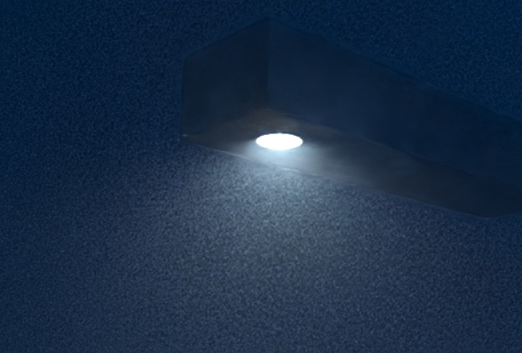
[光束] を 20000 に、[シーン単位サイズ] を 0.8 に設定します。これで、ライトからより高い強度の光が放出され、拡散し焦点が定まらなくなりました。
-
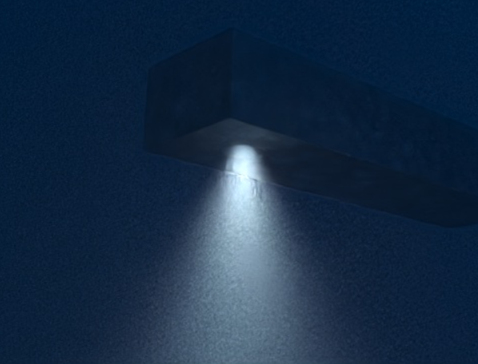
ライトを細いビームに絞るには、スポット指数を 15 に、拡散角度を 2.5 に設定します。
-
ライトの色を水になじませるために、[発光色] を R: 157、G: 189、B: 226 に変更します。また、これらのパラメータはどれも好みに合わせて独自に調整することができます。以下は、シーンレンダリングの 1 つのバリエーションです。
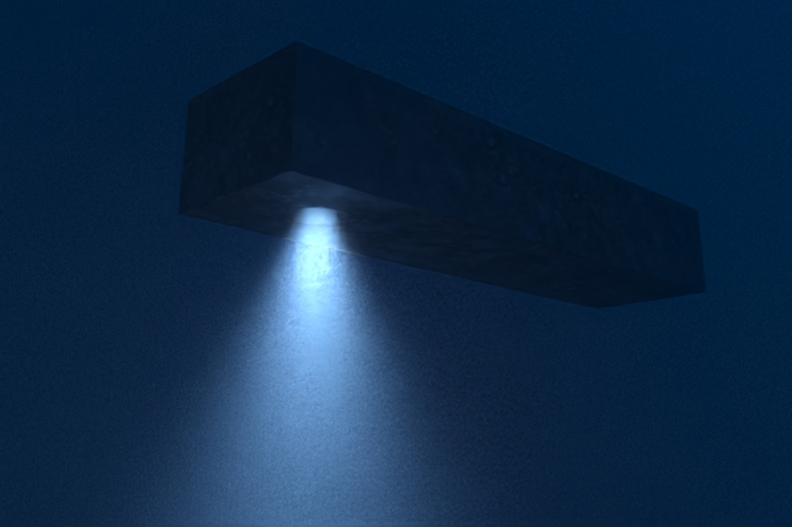
[ボリュームを追加] の [外観] パネルのパラメータの概要は次のとおりです。