Analyse de la réflexion

Disponible dans : Esquisse, Part Studio, Assemblage
L'analyse de la réflexion affiche le modèle dans la zone graphique avec un matériau réfléchissant et une image de l'environnement de votre choix.
 Étapes
-
Cliquez sur l'icône Afficher les outils d'analyse (
 ) dans le coin inférieur droit de l'interface. Dans le menu, sélectionnez Analyse de la réflexion. Cela ouvre la boîte de dialogue Analyse de la réflexion et applique l'image d'environnement par défaut au modèle dans la zone graphique :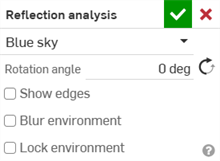
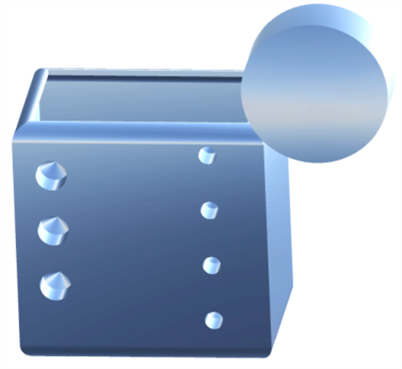
Boîte de dialogue Analyse de la réflexion (première image) ; exemple de l'image de l'environnement Blue Sky appliquée à un modèle dans la zone graphique (deuxième image)
-
Sélectionnez un type d'environnement dans la liste déroulante. Les options sont les suivantes :
-
Ciel bleu (par défaut)
-
Chromatique
-
Rayure horizontale
-
Tunnel éclairé
-
Rayures murales
-
Plafond carré
-
Plafond hexagonal
-
Tombée de la nuit
-
Route de jour
-
Station de métro
-
Passerelle pour piétons
-
-
Saisissez manuellement l'angle de rotation. Si vous le souhaitez, cliquez sur l'icône Direction opposée (
 ) pour inverser l'angle.
 -
Si vous le souhaitez, cochez la case Afficher les arêtes pour afficher les arêtes entre les faces de la pièce.
-
Si vous le souhaitez, cochez la case Environnement flou pour flouter l'image de l'environnement sur le modèle dans la zone graphique.
-
Si vous le souhaitez, cochez Verrouiller l'environnement pour verrouiller le reflet du modèle par rapport au monde ou à la caméra.
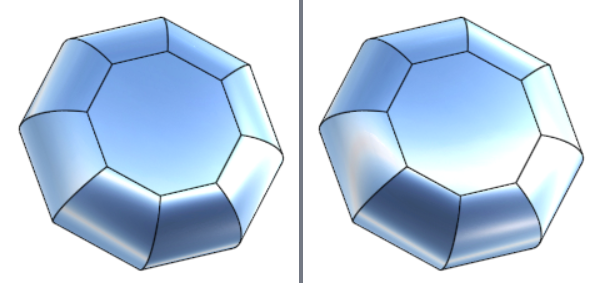
Verrouiller l'environnement désactivé (à gauche) et activé (à droite)