 Préférences graphiques

Disponible dans : Part Studio, Assemblage
Ajustez les paramètres de visualisation du modèle dans la zone graphique. Modifiez les paramètres généraux de ViewPort, des corps ombrés, des arêtes transparentes et des corps de maillage, ainsi que la largeur et les couleurs des lignes d'esquisse actives/inactives, l'écart entre les lignes de construction et la longueur des tirets.
Ces options sont particulièrement utiles pour modéliser des surfaces.
 Accès aux préférences graphiques
-
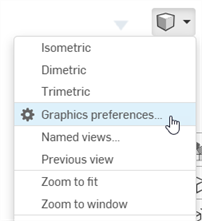
Sélectionnez Options de caméra et de rendu, puis Préférences graphiques :
-
La boîte de dialogue suivante s'ouvre :
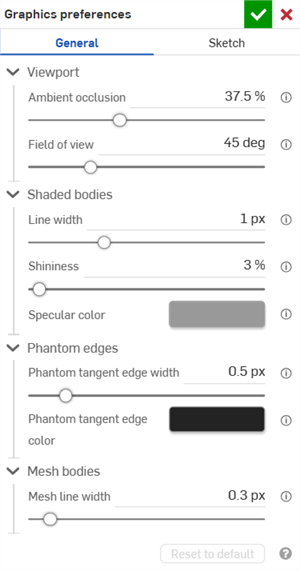
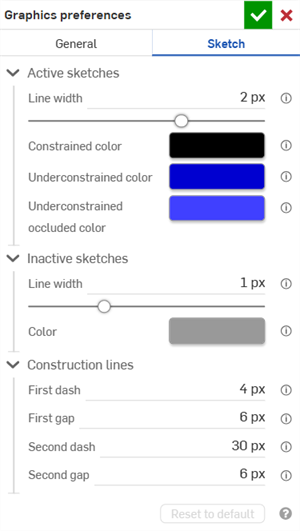
Préférences générales (à gauche) et d'esquisse (à droite)
-
Ajustez les paramètres comme indiqué dans les sections ci-dessous. Cliquez sur le bouton Réinitialiser à la valeur par défaut pour rétablir les valeurs par défaut de toutes les options générales et de la boîte de dialogue d'esquisse.
Préférences générales
ViewPort
-
Occlusion ambiante - Contrôle l'intensité de l'ombrage de l'occlusion ambiante, de 0 % à 100 % (par défaut : 37,5 %). Les valeurs les plus élevées créent des ombres légèrement foncées sur les arêtes, les coins, les crevasses et aux autres endroits où les pièces se rencontrent ou se croisent. Cela permet de simuler la couverture lumineuse indirecte dans le monde réel à ces endroits. Des valeurs plus faibles réduisent l'ombrage à ces endroits.
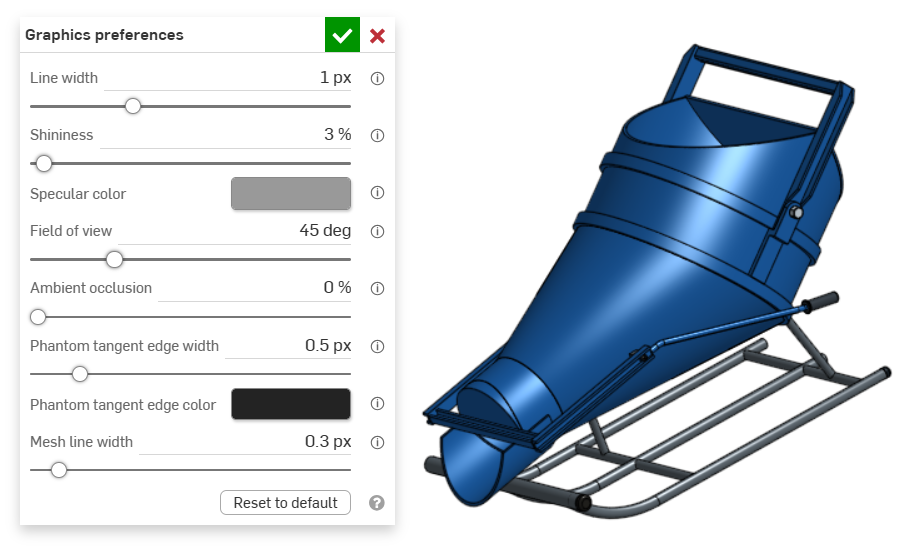
Occlusion ambiante : 0 %
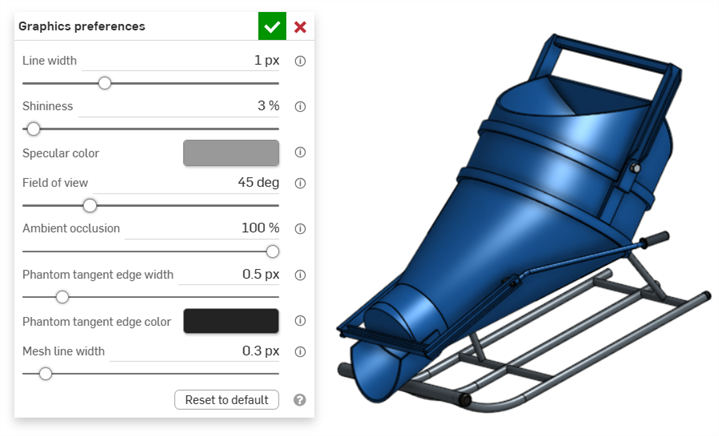
Occlusion ambiante : 100 %
-
Champ de vision (disponible uniquement lorsque la vue en perspective est activée) - Contrôle le champ de vision de la caméra en perspective. Utilisez le curseur horizontal ou saisissez une valeur numérique comprise entre 20 et 120 degrés.
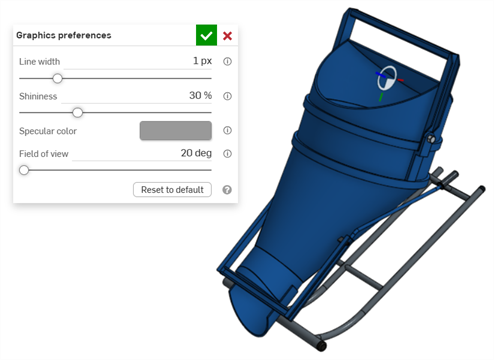
Champ de vision : 20 degrés
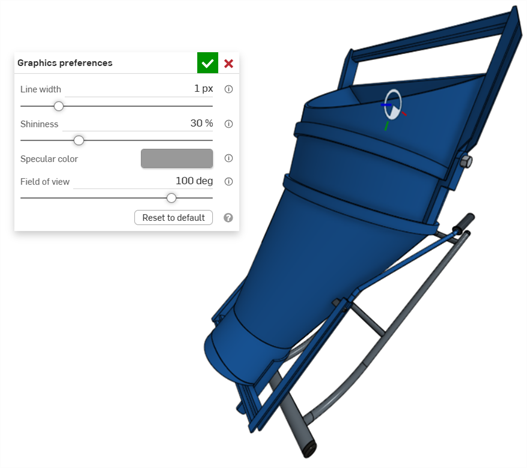
Champ de vision : 100 degrés
Corps ombrés
-
Largeur de ligne - Contrôle la largeur des lignes des surfaces et des arêtes. Utilisez le curseur horizontal ou saisissez une valeur numérique comprise entre 0,1 et 3 pixels.
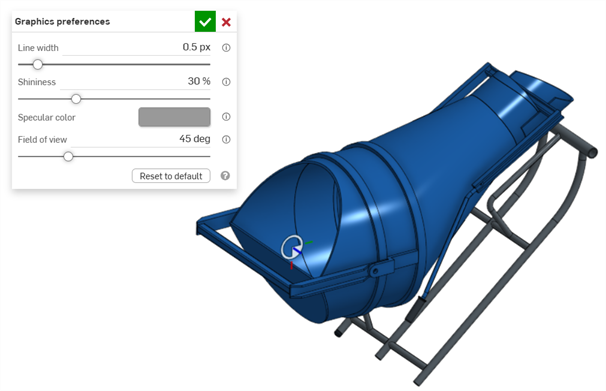
Largeur de ligne : 0,5 px
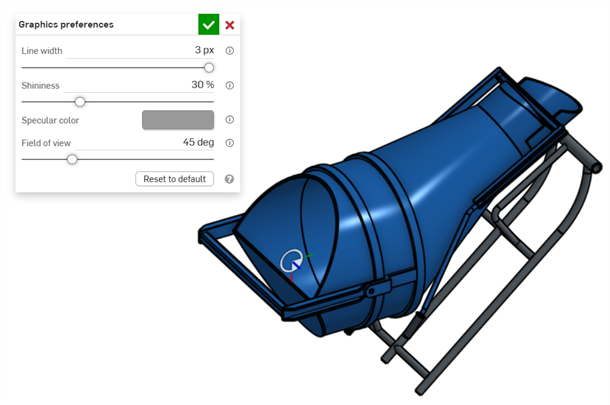
Largeur de ligne : 3 px
-
Lustre - Contrôle le lustre (la brillance) par défaut des surfaces ombrées. Utilisez le curseur horizontal ou saisissez un chiffre compris entre 1 et 100 %.
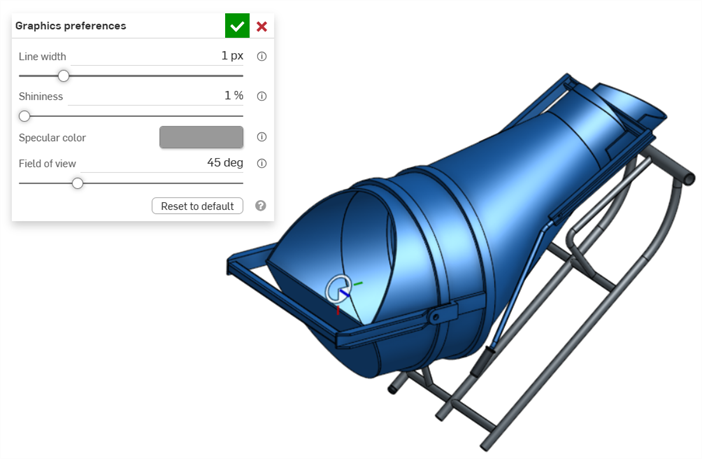
Lustre : 1 %
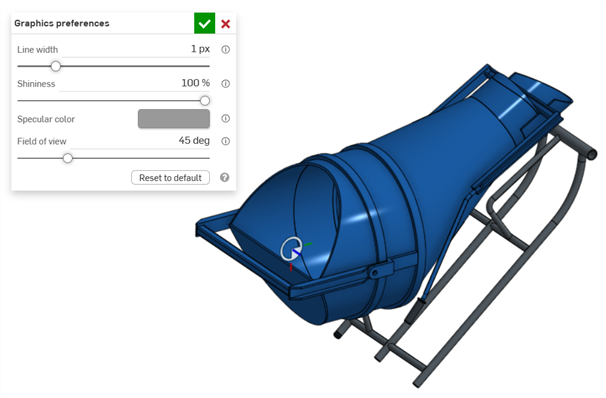
Lustre : 100 %
-
Couleur spéculaire - Contrôle la couleur spéculaire par défaut des surfaces ombrées. Cliquez sur l'échantillon de couleur pour ouvrir la boîte de dialogue Sélecteur de couleurs puis sélectionnez une couleur.
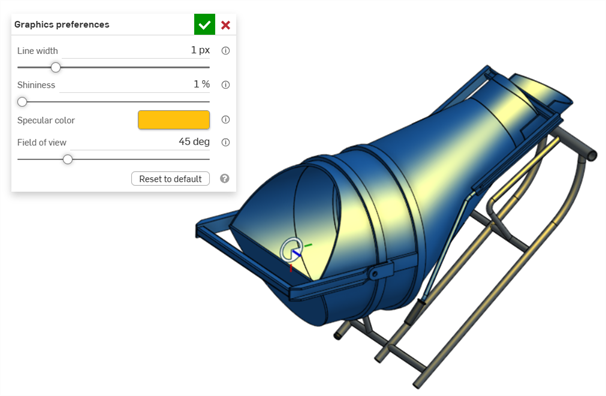
Exemple de couleur spéculaire
Arêtes transparentes
-
Largeur des arêtes tangentes transparentes - Si les arêtes tangentes sont définies sur transparentes, cela contrôle la largeur de ligne de ces arêtes, de 0,1 à 3 pixels (par défaut : 0,5 px).
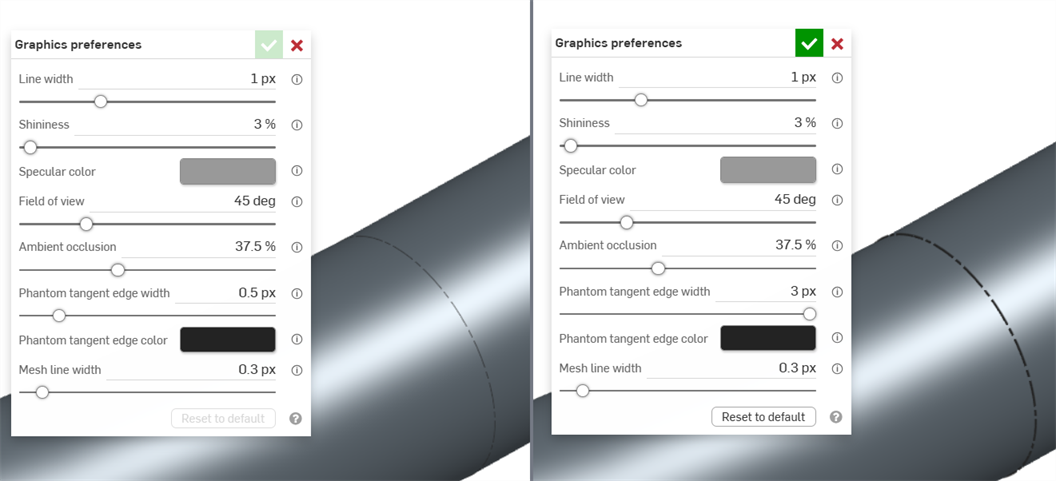
Largeur des arêtes tangentes transparentes : 0,5 px (gauche) ; 3 px (droite)
-
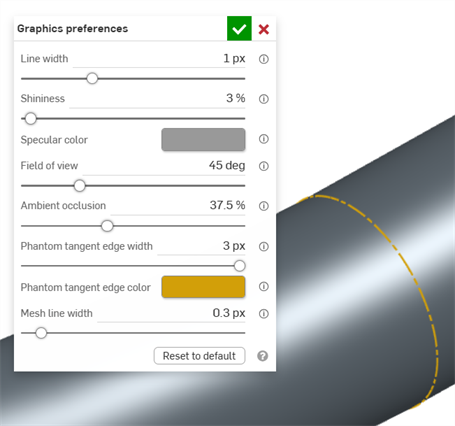
Couleur des arêtes tangentes transparentes - Si les arêtes tangentes sont définies sur transparentes, cela contrôle la couleur par défaut de ces arêtes. Cliquez sur l'échantillon de couleur pour ouvrir la boîte de dialogue Sélecteur de couleurs puis sélectionnez une couleur.
Corps de maillage
-
Largeur des lignes du maillage - Contrôle la largeur des lignes des surfaces et des arêtes du maillage, de 0,1 à 3 pixels (par défaut : 0,3 px).
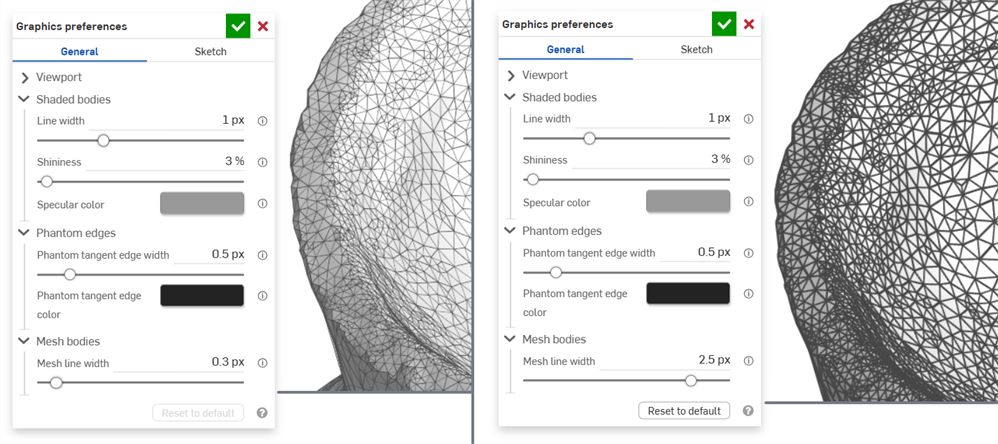
Largeur des lignes du maillage : 0,3 px (gauche) ; 2,5 px (droite)
Préférences d'esquisse
Esquisses actives
-
Largeur de ligne - Contrôle la largeur des lignes des esquisses actives. Utilisez le curseur horizontal ou saisissez une valeur numérique comprise entre 0,1 et 3 pixels.
-
Couleur de ligne contrainte - Contrôle la couleur par défaut des lignes ou des points contraints. Cliquez sur l'échantillon de couleur pour ouvrir la boîte de dialogue Sélecteur de couleurs puis sélectionnez une couleur.
-
Couleur sous-contrainte - Contrôle la couleur par défaut des lignes et des points sous-contraints. Cliquez sur l'échantillon de couleur pour ouvrir la boîte de dialogue Sélecteur de couleurs puis sélectionnez une couleur.
-
Couleur éléments bloqués sous-contraints - Contrôle la couleur par défaut des lignes et des points bloqués sous-contraints. Il s'agit de lignes et de points bloqués par des pièces dans la zone graphique. Cliquez sur l'échantillon de couleur pour ouvrir la boîte de dialogue Sélecteur de couleurs puis sélectionnez une couleur.

Exemple montrant des couleurs de trait contraintes ou sous-contraintes sur une esquisse active
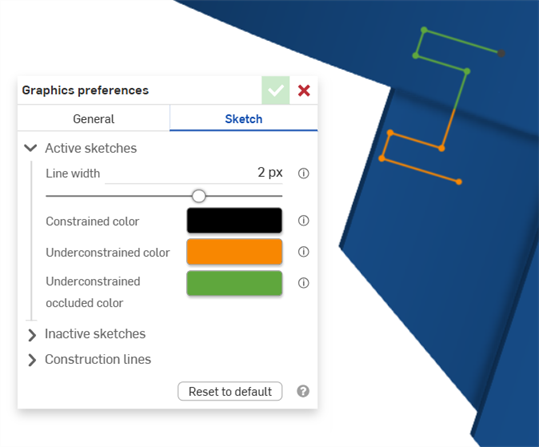
Exemple montrant des lignes dont la couleur est sous-contrainte sur une esquisse active. Le vert montre les segments d'equisse masqués par une pièce dans la zone graphique.
Esquisses inactives
-
Largeur de ligne - Contrôle la largeur de ligne des esquisses inactives. Utilisez le curseur horizontal ou saisissez une valeur numérique comprise entre 0,1 et 3 pixels.
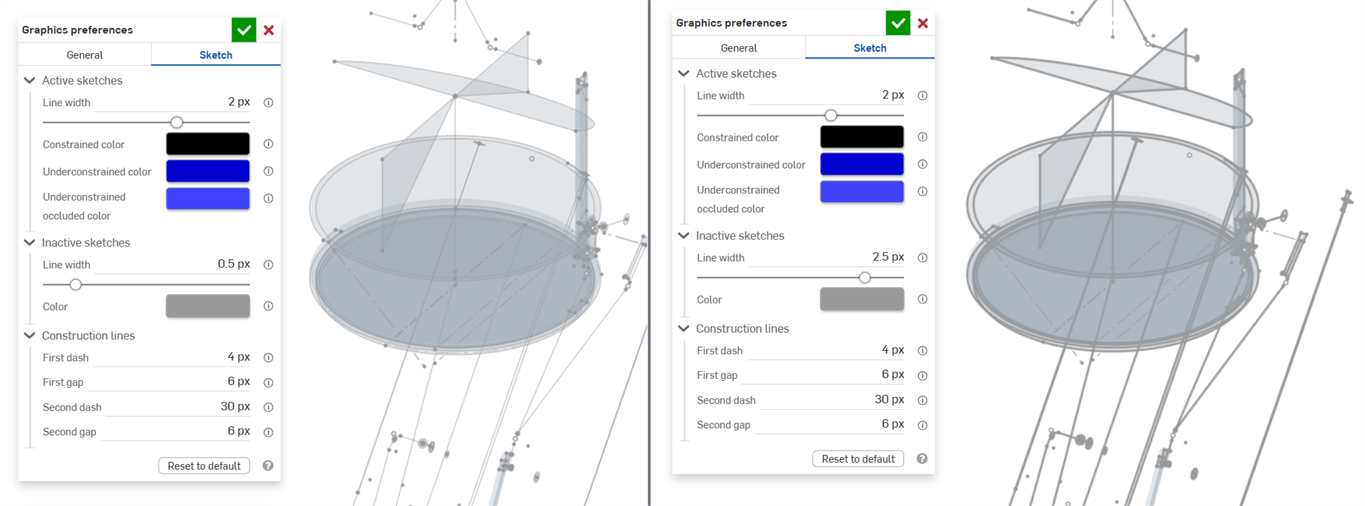
-
Couleur de ligne - Contrôle la couleur par défaut des lignes et points d'esquisses inactives. Cliquez sur l'échantillon de couleur pour ouvrir la boîte de dialogue Couleur de ligne et sélectionnez une couleur dans le Sélecteur de couleurs.
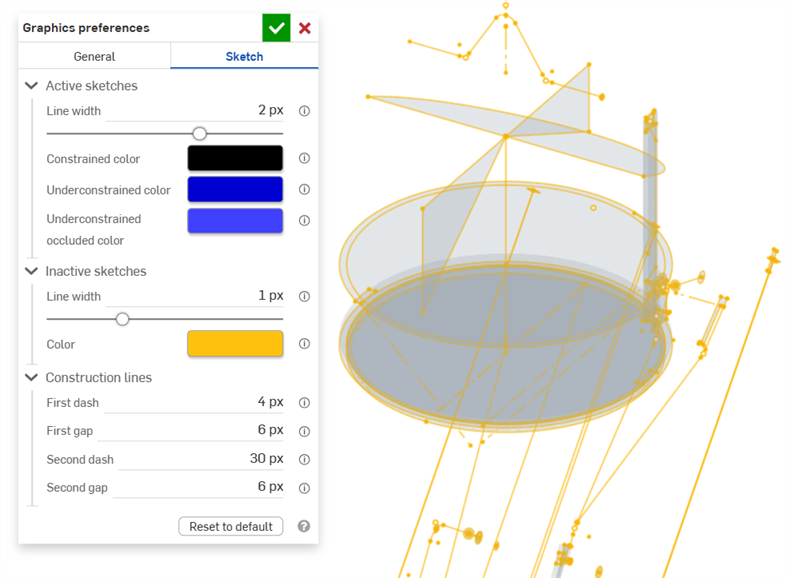
Lignes de construction
-
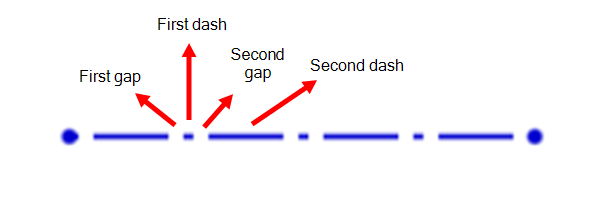
Premier tiret - Contrôle la longueur du premier tiret dans le motif de répétition des pointillés de la ligne de construction. Saisissez une valeur comprise entre 1 et 50 pixels (par défaut, 4 pixels).
-
Premier écart - Contrôle la longueur du premier écart dans le motif de répétition des pointillés de la ligne de construction. Saisissez une valeur comprise entre 0 et 50 pixels (par défaut, 6 pixels).
-
Deuxième tiret - Contrôle la longueur du deuxième tiret dans le motif de répétition des pointillés de la ligne de construction. Entrez une valeur comprise entre 1 et 50 pixels (par défaut, 30 pixels).
-
Deuxième écart - Contrôle la longueur, en pixels, du deuxième écart dans la répétition des pointillés de la ligne de construction. Saisissez une valeur comprise entre 0 et 50 pixels (par défaut, 6 pixels).