 Grafik-Voreinstellungen

Verfügbar in: Part Studios, Baugruppen
Passen Sie die Visualisierungsparameter des Modells im Grafikbereich an. Ändern Sie die Parameter für das allgemeine Ansichtsfenster, den schattierten Körper, die Phantomkante und den Netzkörper sowie die aktiven/inaktiven Skizzierlinienbreiten und -farben sowie die Abstand- und Strichlängen der Konstruktionslinie.
Diese Optionen sind besonders nützlich beim Modellieren von Oberflächen.
 Zugriff auf die Grafik-Voreinstellungen
-
Wählen Sie Kamera und Rendering-Optionen, dann die Grafik-Voreinstellungen aus:

-
Das folgende Dialogfenster wird geöffnet:
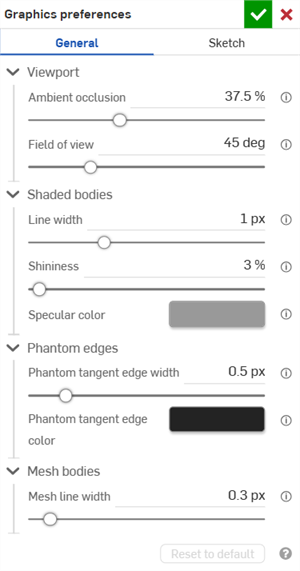
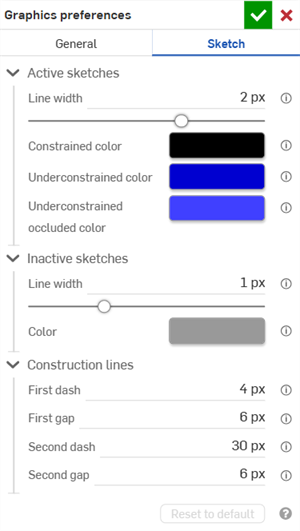
General graphics preferences (left) and Sketch graphics preferences (right)
-
Passen Sie die Einstellungen wie in den folgenden Abschnitten beschrieben an. Klicken Sie auf die Schaltfläche Au fStandard zurücksetzen, um alle allgemeinen und Skizzenoptionen im Dialogfenster auf ihre Standardwerte zurückzusetzen.
Allgemeine Voreinstellungen
Ansichtsbereich
-
Umgebungsverdeckung: steuert die Schattierungsintensität der Umgebungsverdeckung von 0 % bis 100 % (Standard: 37,5 %). Höhere Werte erzeugen eine weiche, dunkle Schattierung entlang von Kanten, Ecken, Spalten und anderen Stellen, an denen Bauteile aufeinandertreffen oder sich überschneiden. Das erleichtert die Simulation einer realistischen indirekten Beleuchtung an diesen Stellen, wobei niedrigere Werte weniger Schatten erzeugen.
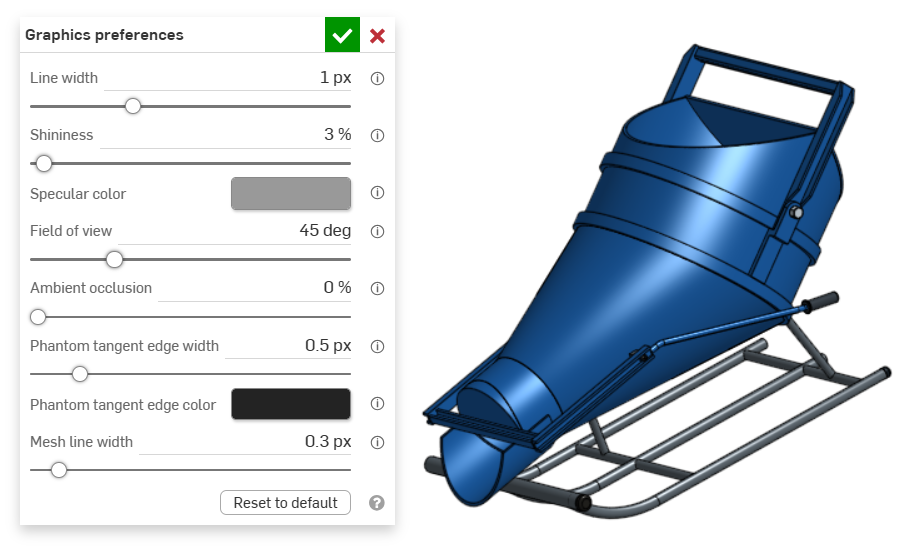
An example of an entity in the graphics area with Ambient occlusion at 0%
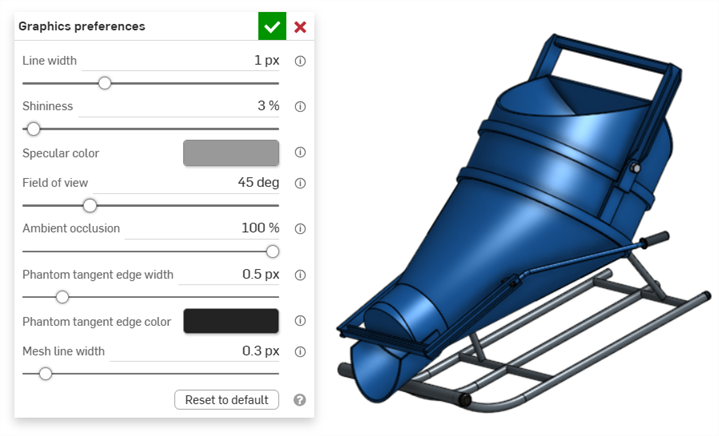
An example of an entity in the graphics area with Ambient occlusion at 100%
-
Sichtfeld (nur verfügbar, wenn die perspektivische Ansicht aktiviert ist): kontrolliert das Sichtfeld der perspektivischen Kamera. Verwenden Sie den horizontalen Schieberegler oder geben Sie einen Zahlenwert zwischen 20 und 120 Grad ein.
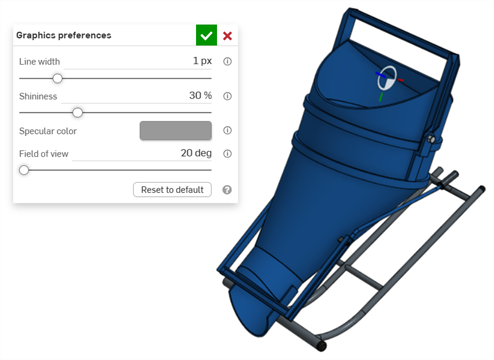
An example of an entity in the graphics area with Field of view set at 20 degrees
Schattierte Körper
-
Linienbreite: kontrolliert die Linienstärke von Oberflächen und Kanten. Verwenden Sie den horizontalen Schieberegler oder geben Sie einen Zahlenwert zwischen 0,1 und 3 Pixeln ein.
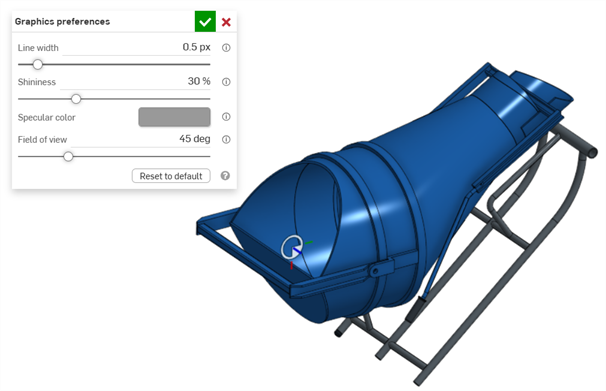
An example of an entity in the graphics area with Line width set at 0.5 px
-
Glanz: steuert den Standardglanz von schattierten Oberflächen. Verwenden Sie den horizontalen Schieberegler oder geben Sie einen Zahlenwert zwischen 1 und 100 Prozent ein.
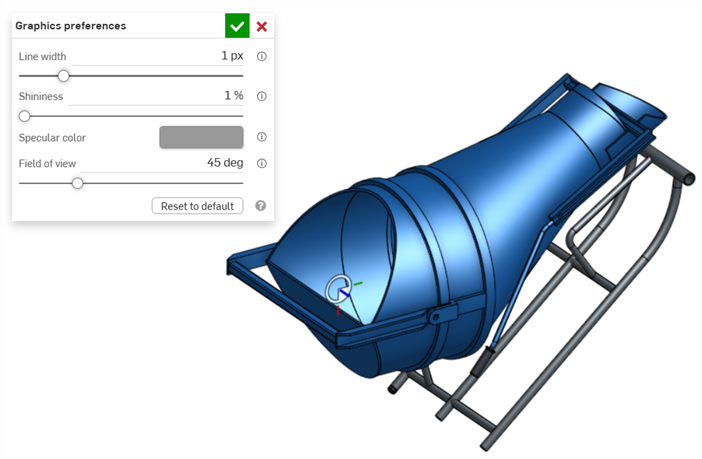
An example of an entity in the graphics area with Shininess set to 1%
-
Spiegelnde Farbe: steuert die standardmäßige Spiegelfarbe von schattierten Oberflächen. Klicken Sie auf das Farbfeld, um das Dialogfenster Farbauswahl zu öffnen und eine Farbe auszuwählen.
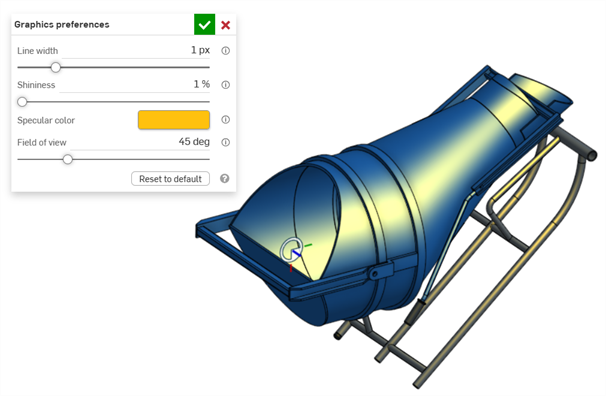
An example of Specular color being edited in the graphics area
-
Section interference color - Controls the default section interference color of overlapped parts or surfaces. Click the color swatch to open the Color picker dialog and select a color.
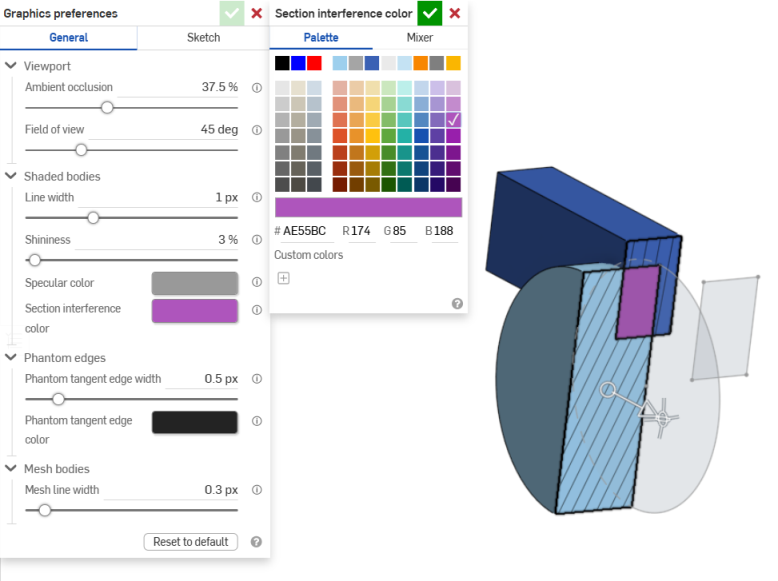
An example of Section interference color being edited in the graphics area
Phantom edges
-
Breite der tangentialen Phantomkante: Wenn Tangentialkanten auf „Phantom“ gesetzt sind, kann hiermit die Linienbreite dieser Kanten von 0,1 bis 3 px (Standard: 0,5 px) eingestellt werden.
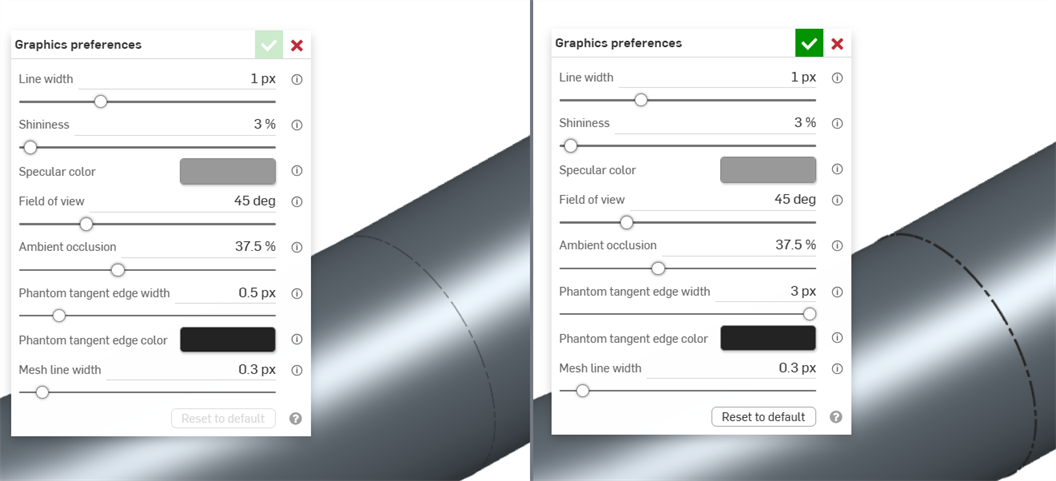
An example of an entity in the graphics area with Phantom tangent edge width set to 0.5 px (left) and 3px (right)
-
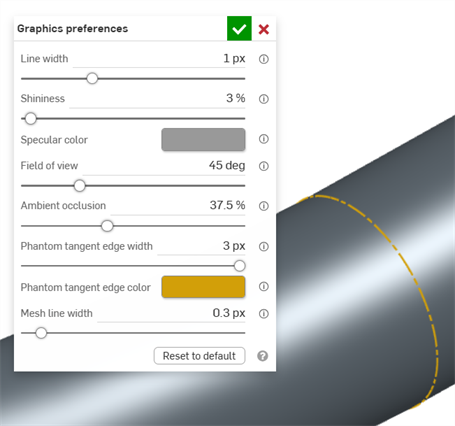
Farbe der tangentialen Phantomkante: Wenn Tangentialkanten auf „Phantom“ gesetzt sind, bestimmt dies die Standardfarbe dieser Kanten. Klicken Sie auf das Farbfeld, um das Dialogfenster Farbauswahl zu öffnen und eine Farbe auszuwählen.
Netzkörper
-
Breite der Netzlinie: steuert die Linienbreite von Netzoberflächen und -kanten von 0,1 bis 3 px (Standard: 0,3 px).
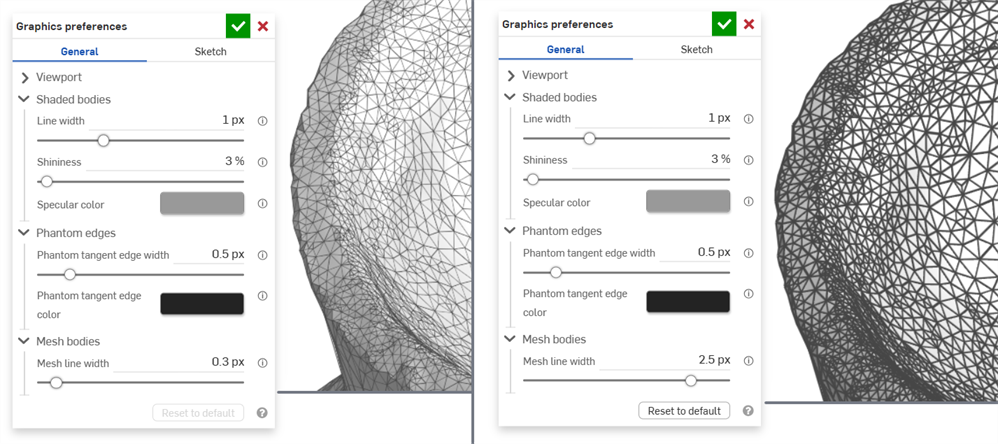
An example of an entity in the graphics area with Mesh line width set to 0.3 px (left) and 2.5 px (right)
Skizzen-Voreinstellungen
Aktive Skizzen
-
Linienbreite: Stärke der Linien in aktiven Skizzen. Verwenden Sie den horizontalen Schieberegler oder geben Sie einen Zahlenwert zwischen 0,1 und 3 Pixeln ein.
-
Farbe für beschränkte Linien: Standardfarbe für beschränkte Linien oder Punkte. Klicken Sie auf das Farbfeld, um das Dialogfenster Farbauswahl zu öffnen und eine Farbe auszuwählen.
-
Farbe für schwach beschränkt: Standardfarbe für schwach beschränkte Linien und Punkte. Klicken Sie auf das Farbfeld, um das Dialogfenster Farbauswahl zu öffnen und eine Farbe auszuwählen.
-
Farbe für schwach beschränkt und verdeckt: Standardfarbe für schwach beschränkte und verdeckte Linien und Punkte. Das sind Linien und Punkte, die durch Bauteile im Grafikbereich verdeckt werden. Klicken Sie auf das Farbfeld, um das Dialogfenster Farbauswahl zu öffnen und eine Farbe auszuwählen.
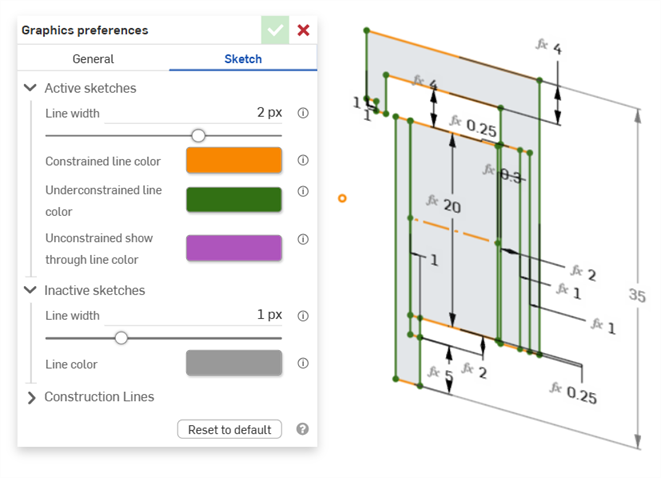
Beispiel, das die Farben für beschränkte und schwach beschränkte Linien in einer aktiven Skizze zeigt
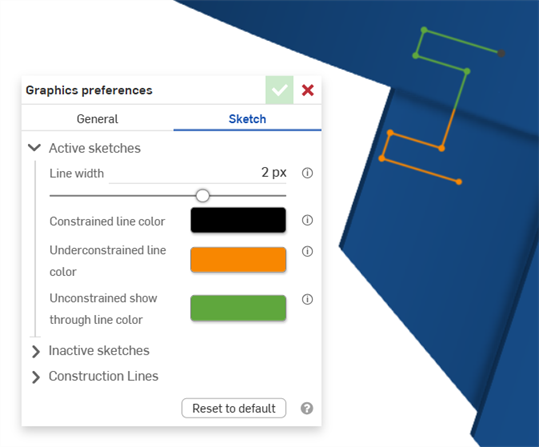
Beispiel, das die Farbe von schwach beschränkten Linien in einer aktiven Skizze zeigt. Grün zeigt die Skizzensegmente, die durch einen Bauteil im Grafikbereich verdeckt sind.
Inaktive Skizzen
-
Linienbreite: Stärke der Linien in inaktiven Skizzen. Verwenden Sie den horizontalen Schieberegler oder geben Sie einen Zahlenwert zwischen 0,1 und 3 Pixeln ein.
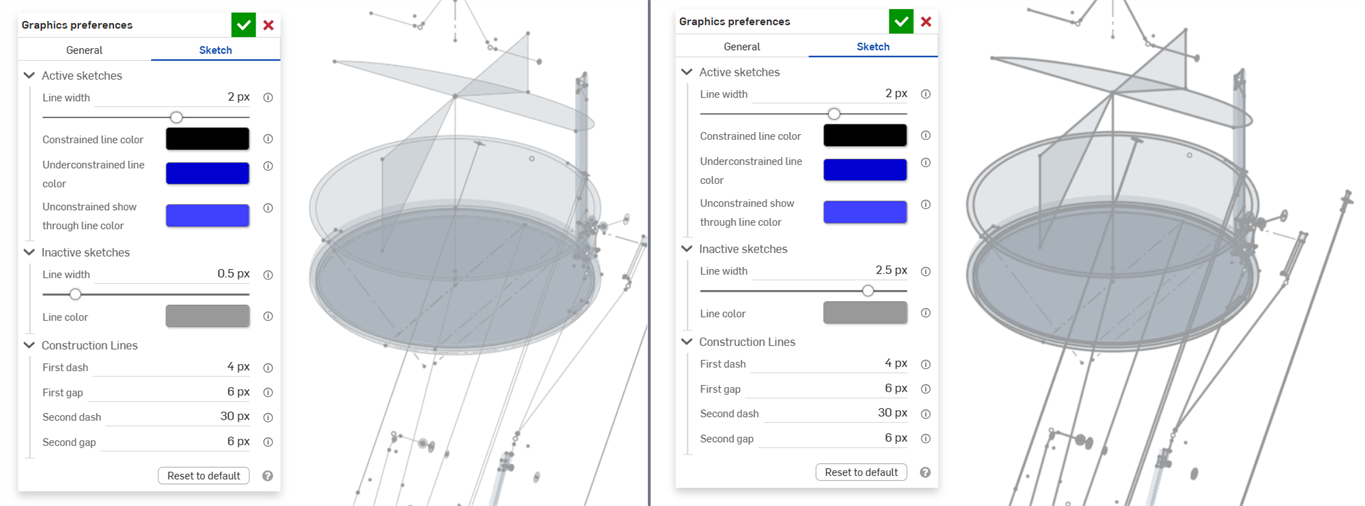
-
Linienfarbe: Standardfarbe für Linien und Punkte in inaktiven Skizzen. Klicken Sie auf das Farbfeld, um das Dialogfenster Linienfarbe zu öffnen und eine Farbe aus der Farbauswahl auszuwählen.
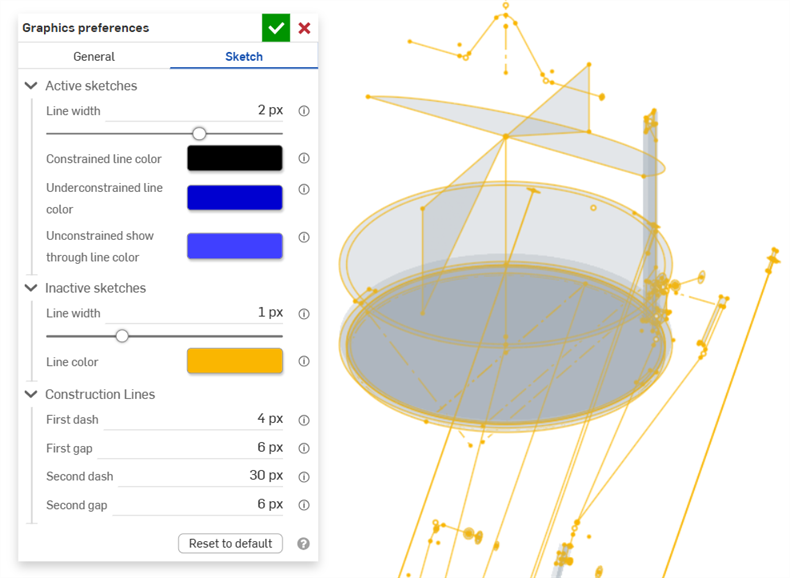
Konstruktionslinien
-
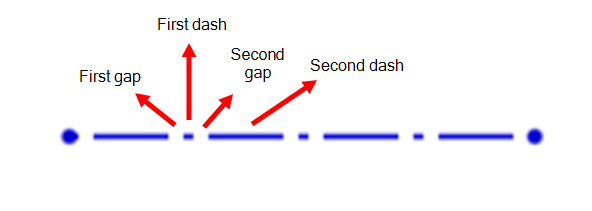
Erster Strich: Länge des ersten Strichs im Punktmuster der Konstruktionslinie. Geben Sie einen Wert zwischen 1 und 50 Pixeln ein (Standardwert: 4 Pixel).
-
Erster Abstand: Länge des ersten Abstands im Punktmuster der Konstruktionslinie. Geben Sie einen Wert zwischen 0 und 50 Pixeln ein (Standardwert: 6 Pixel).
-
Zweiter Strich: Länge des zweiten Strichs im Punktmuster der Konstruktionslinie. Geben Sie einen Wert zwischen 1 und 50 Pixeln ein (Standardwert: 30 Pixel).
-
Zweiter Abstand: Länge des zweiten Abstands im Punktmuster der Konstruktionslinie in Pixeln. Geben Sie einen Wert zwischen 0 und 50 Pixeln ein (Standardwert: 6 Pixel).