 Slot
Slot


Available in: Sketch
Create a slot around selected sketch curves (including splines, lines, arcs, chains of curves, and closed profiles).
 Steps
Steps
Pre-selecting sketch curves and then applying Slot creates slots of equal size across all curves, linked together with one dimension:
-
Select sketch curves (either individually or with box select):
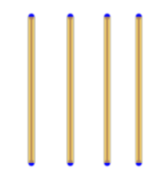
- Click
 .
.
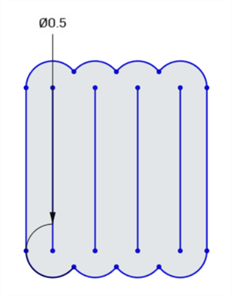
- Double-click the dimension to edit it.
The user has the option to either select the Slot tool itself first and then select the centerlines to create slots from, or select the centerlines first, followed by the Slot tool.
Diameter dimension controls the width of the slot and can be edited before or after the slot is finished being placed.
Chain selection
Individual sketch curves
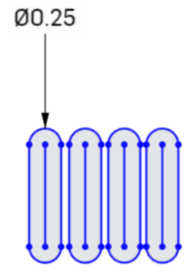
Applying the Slot command to individual sketch curves in sequence links the dimensions of the slots:
- Select one sketch curve:
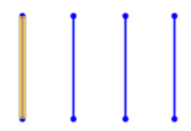
- Click
.
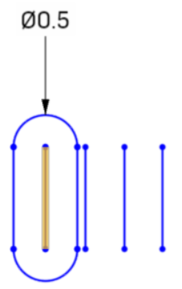
- With the Slot command still selected, click more sketch curves to apply the same (unlinked) dimension:
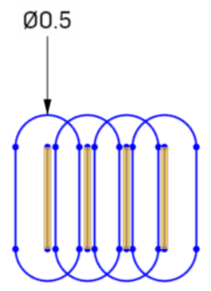
- When you edit the dimension, all slots are changed:
Multi-chained sketch curves
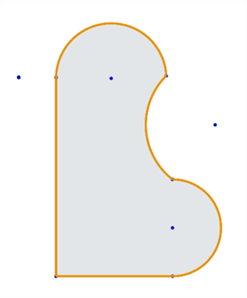
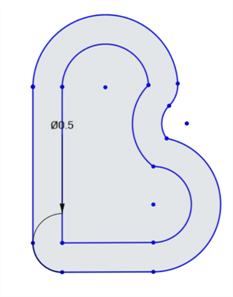
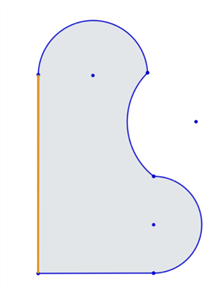
Selecting multi-chained sketch curves in a geometric shape and then applying Slot creates a slot in the same shape of the sketch curves:
-
Select the multi-chained sketch curves (either individually or with box select):
-
Click
.
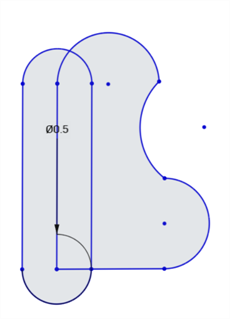
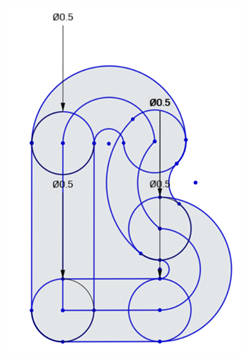
Selecting each individual sketch curve in the geometric shape creates separate slots:
-
Select an individual sketch curve in the geometric shape:
-
Click
.
-
With the Slot command still selected, click in an empty sketch area, then select another sketch curve. Repeat until the Slot command is applied to each sketch curve:
Examples
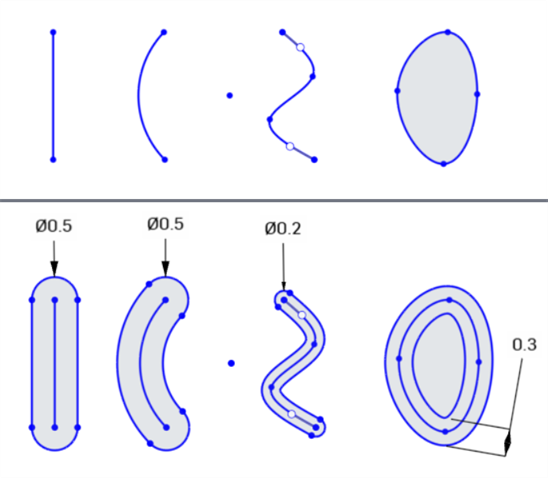
Slot examples from left to right: line, curve, spline, closed profile. Top image shows the sketch profile. Bottom image shows the sketch profile with surrounding slot profile (and slot dimension).
See the Learning center course Introduction to Sketching (Onshape account required) for more information.