 Transform Sketch


Available in: Sketch
Transform adjusts a sketch's location, orientation, and scale.
 Steps
Steps
- Click
 .
.
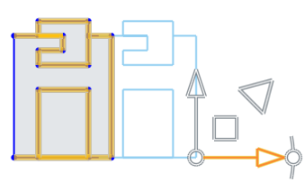
- Select the sketch entities you want to move.
- Use the manipulator to drag and orient the sketch.
- Click in space when the sketch is placed and oriented as desired.
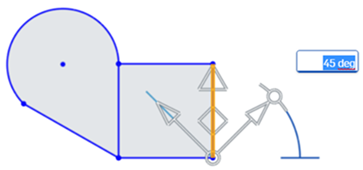
When rotating via the manipulator, an angle field activates. Enter an angle, press Enter, and click in space to set the angle:
Place the manipulator's ball point to orient a snap point for the sketch:
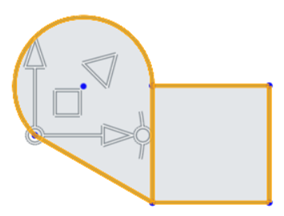
- Drag the ball point to a point on the sketch you wish to use as a snap point:
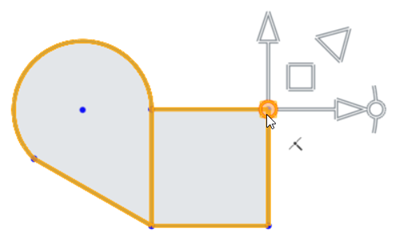
- Use the plane to drag the sketch ball point to the snap point on another sketch (in this case the lower-left point of the square):
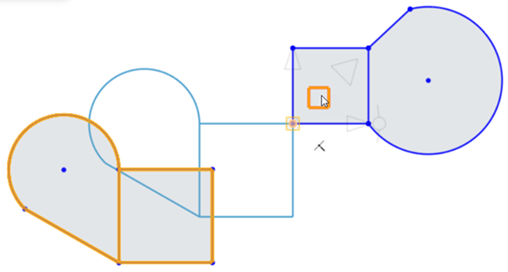
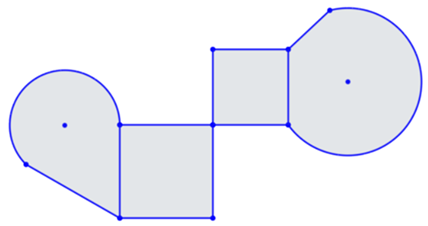
- Click off the sketch to set the transform:
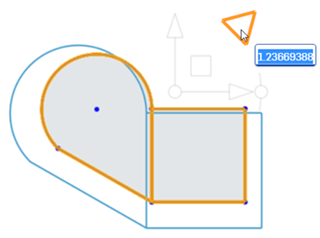
To scale the sketch entities click and drag the scale (triangle) manipulator outward or inward to scale up or down, respectively. Dragging activates the scale field. Enter a scale numerically, press Enter, and click in space to set the scale:
For more information, see Transforming sketches.
Notes
- Pre- and post-selection is supported; entities can be added and removed during the operation.
- Click off the sketch or press Enter to commit the transform and exit the operation. Press Esc to cancel the operation.
- In the case of no rotation or 180 degree rotation, internal constraints are unchanged.
- In the case of 90 degree or 270 degree rotation, horizontal and vertical constraints swap.
- In some cases, construction geometry may be added to maintain degrees of freedom.
- Directed dimensions are deleted, and may be replaced with construction geometry and minimum dimensions.
- Transform is also supported for images, text, DWG, and DXF.
See the Learning center course Introduction to Sketching (Onshape account required) for more information.