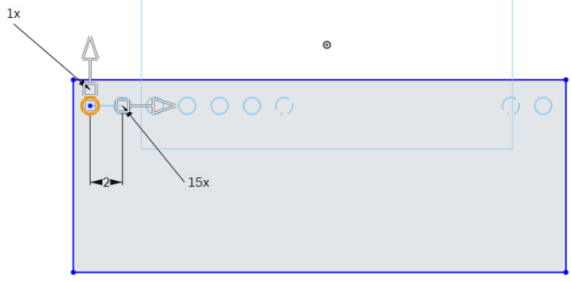
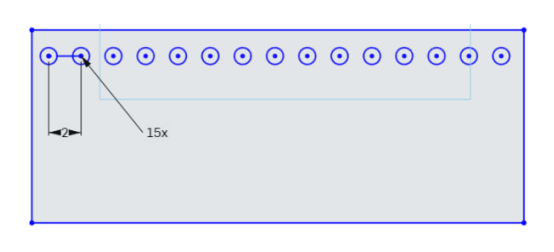
Linear Sketch Pattern


Available in: Sketch
Create multiple instances of sketch entities uniformly in one or two directions.
See Circular Sketch Pattern for additional sketch pattern options.

 Video example
Video transcript
To create multiple pattern instances of the sketch, first select the sketch, then click Linear pattern, and you'll now notice two arrows in the direction, both vertically and horizontally. If you want to create more instances, just double-click the number, enter a new number, press enter, and there will be more instances created. You can adjust the arrow to adjust the spacing between the instances.
Same here, you can double click the number, enter a new number for the number of instances, press enter, and now you have more instances created. If you'd like, you can also double click the number to enter the value numerically — let's say we want to have one inch spacing — we can just enter it there, and one inch spacing here, enter it here.
And you can also adjust the base of the arrow to adjust the angle of the pattern instances. This adjusts both the angle and the spacing value. When you're happy with the correct placement of all the instances, press the left mouse button. This makes all the instances take effect, and places them in place.
Steps
- Select the sketch entity or entities to pattern and then click
.
The initial pattern is created:
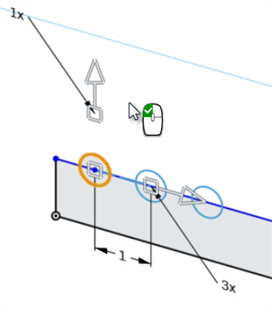
- Use the sketch pattern editing tools to adjust the pattern:

Double-click to enter the number of instances in the pattern.

Click and drag to specify the angle of an open pattern. The pattern stays open if the instance count changes. 
Double-click to enter an angle value of an open pattern (visible after clicking the arrow icon).

Double-click to specify the distance between entities.
- Move the mouse to white space and notice the icon is a mouse with a green button. Click to accept and set the sketch pattern.
Editing a pattern
-
Double-click the sketch in the Feature list to enter sketch editing mode.
-
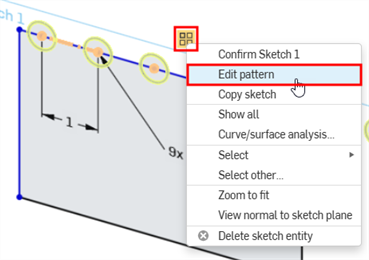
Hover over an instance in the pattern, and right-click the pattern icon that appears.
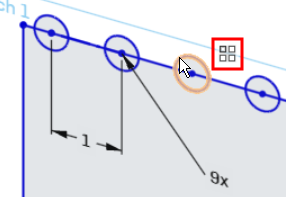
-
Click Edit pattern.
-
Make adjustments to the pattern as needed.
-
Click the green checkmark in the Sketch dialog to confirm your changes.
Notes
- You can delete any sketch entity in the pattern without affecting the integrity of the pattern. Changing the number of sketch entity occurrences does not reinstate a deleted entity; the space for that entity is left empty.
- In linear sketch patterns, drag the arrow manipulator's base to position the pattern at an angle.
- When you create more than ten pattern entities, the system shows only up to the first 10 to prevent dips in performance from generating the preview.