 Line
Line


Available in: Sketch
Sketch a line segment or series of line segments.
Shortcut: l

 Video example
Video transcript
Video example
Video transcript
The Line sketch tool creates single lines.
Click the Sketch feature on the feature toolbar to create a new sketch. Select a plane in the graphics area.
To create a single line, select the Line sketch tool on the sketch toolbar. Click to create the start point. Select a new location and double click to create the end point. Alternatively, click and drag from the start point to the end point. When you let go, the line is created.
To create multiple lines that form an open shape, click to create the start point. Click a new location to create the end point of the first line. Click a new location to create the end point of the second line. Repeat this process to create all required lines. When finished, double-click the last point to form the open shape.
Creating a closed shape is the same as an open one, except you click on the start point again to form the end point of your last line. This closes the shape. To toggle off the Line tool, press the Escape key on your keyboard or click the Line tool on the sketch toolbar.
As you enter lines into your sketch, a dimension box opens. To enter a precise dimension value, type the value using the number keys on your keyboard. Then press the Enter key.
Steps
- Click
 to begin and end line segments, continuing to create attached segments.
- Or, click and drag to start one segment and release to end.
- Optionally, immediately after the line is created, input a numerical value (or type "=#" to input a variable) for the line length and press enter. This dimensions the line without having to use the dimension tool.
To input a variable in any dimension field after the geometry is already sketched, the equal sign (=) is not required. Type "#" to input a variable.
Switching between Line and Tangent arc sketch tools
-
Click
and click the first point of the line.
-
Click the second point of the line to create the first line segment.
-
To start a tangent arc at the end of the line segment, either:
-
Click Shift+a to switch from the Line to the Tangent arc sketch tool.
-
Move the cursor near the end point until you see the line icon switch to a tangent arc icon (highlighted in red in the image below).
-
-
Click another location to set the end point of the tangent arc.
-
After the tangent arc is created, the sketch tool automatically switches back to Line. You can continue to create a new line segment starting from the end of the tangent arc, or press Shift+a again to start creating a new tangent arc from the end of the previous one.
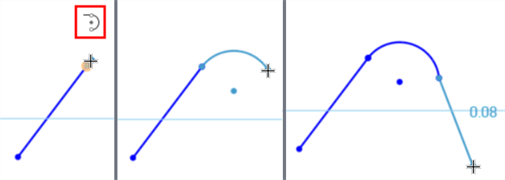
Creating the first line segment (left). Using Shift+a or hovering near the line's end point until the tangent arc icon appears switches from the Line to Tangent arc sketch tool (middle). The sketch tool switches back to Line after the tangent arc is created (right).