 Flow
Flow

Available in: Sketch
Create flow continuous transitions (G3) between sketch splines (and conics) and surrounding geometry. Position, tangency, curvature, and the rate of change of curvature all match where the curves join. Use Flow when you need a smoother transition than Curvature provides, for example on aesthetic surfaces or motion paths.
Toggle on constraints while you make selections. Each pair of entities selected are constrained to each other. Click to toggle off, or select another tool to toggle off automatically.
 Steps
Steps
To make two curves G3 (flow) continuous, do either of the following:
- Select the two curves, and then click
the Flow icon (
 ).
).
- Click
the Flow icon ( ), and then select the two curves.
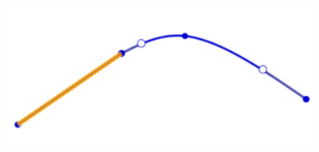
Before using the Flow constraint (line in yellow, spline in blue)
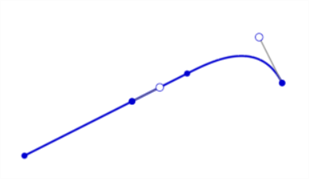
After using the Flow constraint
Notes
- One of the two curves must be a spline or conic with enough control points to satisfy the constraint.
- You can constrain two curves in the current sketch, or a curve in the current sketch and an external edge.
- Flow cannot be applied to an offset spline.
- Flow constraints are listed in the Constraint manager as Flow 1, Flow 2, and so on.
See the Learning center course Introduction to Sketching (Onshape account required) for more information.