 Aligned Rectangle

Available in: Sketch
Sketch a rectangle starting with a line and ending with the perpendicular distance of the aligned side.
 Steps
Steps
- Click
 to set start with a line, click again to set the end of the line.
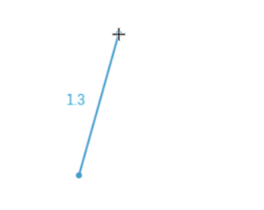
- Drag perpendicular to the line, and click at the desired distance perpendicular to the aligned side. The rectangle is created.
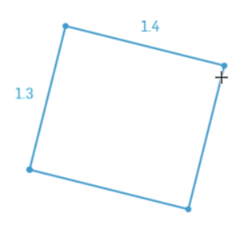
- Optionally, immediately after the rectangle is created, input a numerical value (or type "=#" to input a variable) for the length and press enter, then input a numerical value (or type "=#" to input a variable) for the width and press enter. This dimensions the rectangle without having to use the dimension tool.
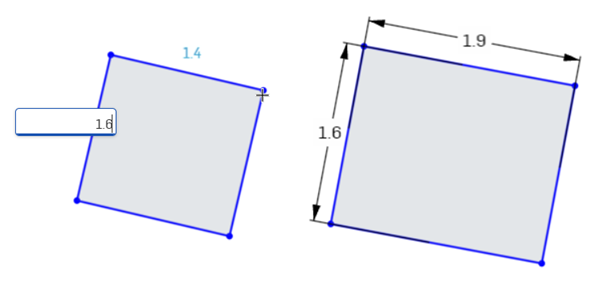
To input a variable in any dimension field after the geometry is already sketched, the equal sign (=) is not required. Type "#" to input a variable.
Hold the ALT key while sketching to constrain two rectangle sides to be equal (resulting in a square).
See the Learning center course Introduction to Sketching (Onshape account required) for more information.