AxF Appearance (Render Studio Advanced)

Only available for.
Available in: Render Studio
X-rite AxF appearances are a self-contained file format which are output by X-rite scanning devices such as the TAC-7, MA-T12 and MetaVue VS3200. Unlike a texture file these files completely describe an appearances properties and may include both uniform and spatially varying information.
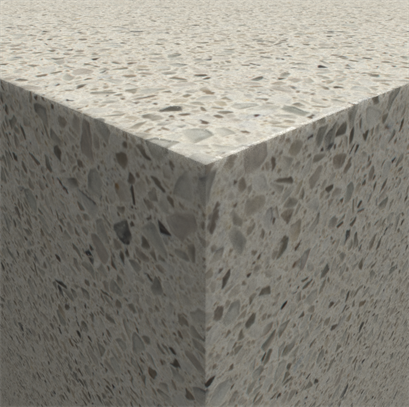
AxF Appearance example
 Steps
Steps
To apply an AxF appearance to a part or surface:
-
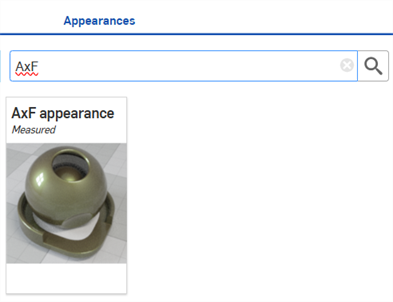
Search for AxF in the Appearances library's General folder:
-
Select the part(s) to which you want the AxF appearance applied.
-
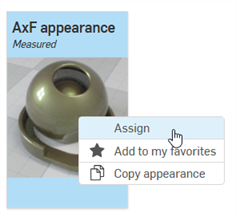
Right-click on the AxF appearance in the Appearances library and select Assign:
-
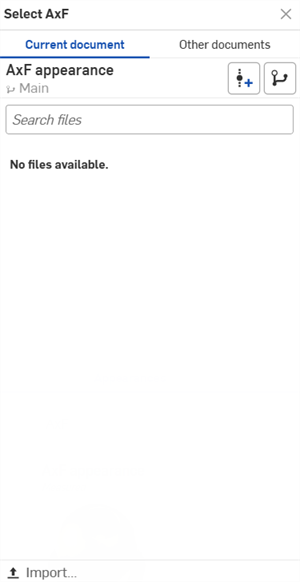
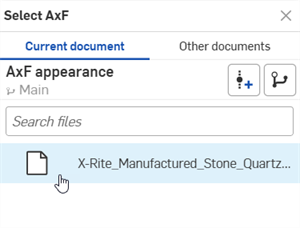
The Select AxF dialog opens (first image). Click Import and locate the AxF file on your local drive. Once this is imported, it can be selected from the dialog (second image below):
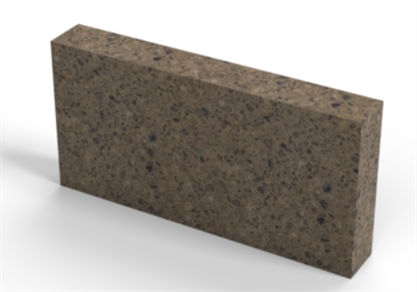
The AxF appearance is applied to the selected part:
-
Once an AxF appearance has been selected, the Appearance panel updates with a set of parameters relevant to the selected AxF appearance type. Click the Appearance panel icon to access the parameters.
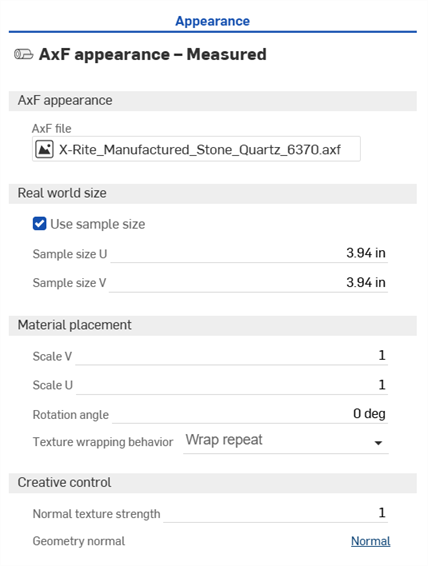
Currently there are only 3 such types: svbrdf, carpaint, and volumetric. The parameters that populate the appearance panel for the svbrdf (first image below) and carpaint (second image below) are shown. The volumetric type has no additional parameters.
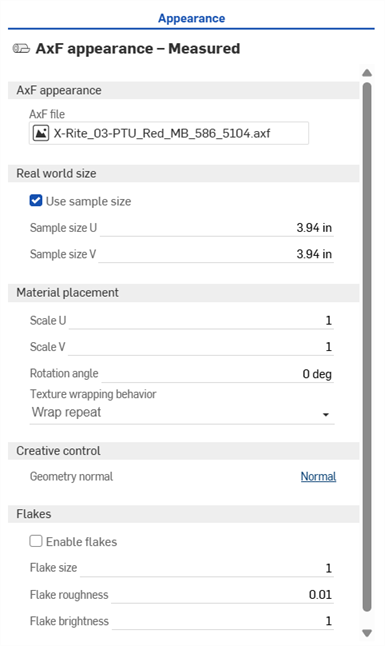
-
Edit the parameters as required:
-
AxF appearance
-
AxF file - File used for the AxF appearance.
-
-
Real world size
-
Use sample size - Enable if the real world measurements of the measured sample are known.
-
Sample size U - The size of the measured sample in meters, measured in the U direction.
-
Sample size V - The size of the measured sample in meters, measured in the V direction.
-
-
Material placement
-
Scale U - Scale factor in the U direction.
-
Scale V - Scale factor in the V direction.
-
Rotation angle - Changes the orientation of the textures on the object.
-
Texture wrapping behavior - Controls the wrapping behavior of the texutre if it fits multiple times on an object. Options are Wrap clamp, Wrap repeat (default), Wrap mirrored repeat, or Wrap clip.
-
-
Creative control
-
Normal texture strength - Can be used to edit the bumpiness of the appearance. At 1.0 it matches the measured bumpiness.
-
Geometry normal - Allows the use of an additional bump mapping effect.
-
-
Flakes
-
Enable flakes - Enables the additional Flakes parameter.
-
Flake size - Artistic control to modify flake size.
-
Flake roughness - Artistic flake reflection roughness control.
-
Flake brightness - Artistic flake brightness control.
-
-
-
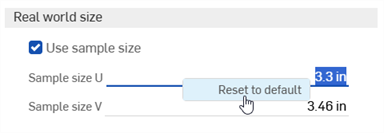
To reset any parameter after it has been set, right-click over the parameter in question and select Reset to default: