Enterprise Settings - Integrations

Only available for
Available to Enterprise administrators only; grant or remove access to Cloud storage integrations and integration users, and set up Collaboration integrations, such as Slack.
This page is where you set Company/Enterprise-wide Integrations. For information on setting your user account Integrations, see My account - Integrations.
To navigate to your Integrations settings in Onshape, click on your Account user icon ( ) in the top right corner of your Onshape window. This opens a dropdown menu. Click Enterprise settings.
Click Integrations in the list on the left side of the page:
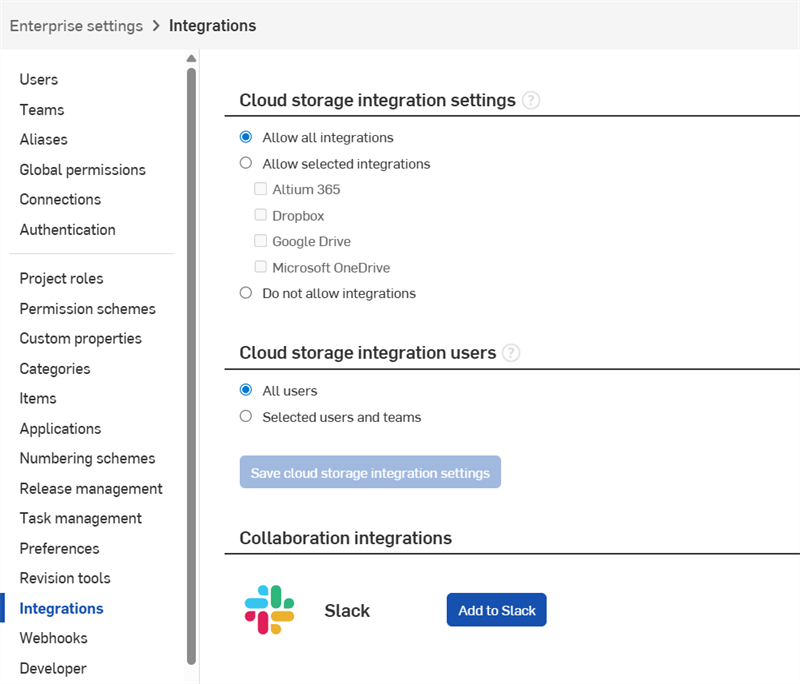
 Cloud storage integration settings
Select the corresponding radio button:
- Allow all integrations - Allows storage integrations with Altium 365, Dropbox, Google Drive, and Microsoft OneDrive.
- Allow selected integrations - Select which integrations you want from the list of available services.
- Do not allow integrations - Do not integrate with any of the available services.
Cloud storage integration users
Select the corresponding radio button:
- All users - Allow all users to integrate with the above-specified service.
- Selected users and teams - Allow only the specified users and/or teams to integrate with the above-specified service.
Collaboration integrations
Slack integration
Integration between Onshape and Slack allows users to share Comments, Tasks, and Releases between the two apps, as well as view the top 20 most recent documents and top 10 most recent task lists directly from Slack.
Setting up Slack integration (Administrators)
-
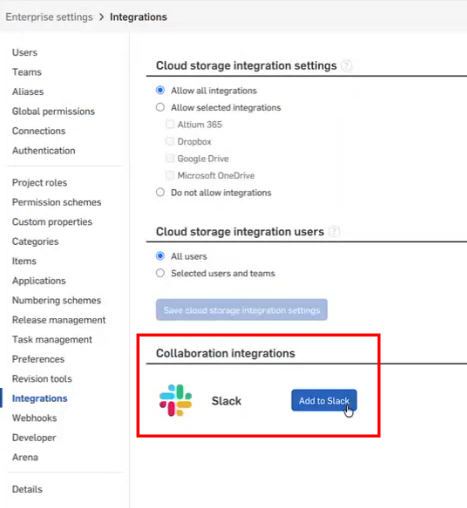
Navigate to the Enterprise settings > Integrations page and click the Add to Slack button:
-
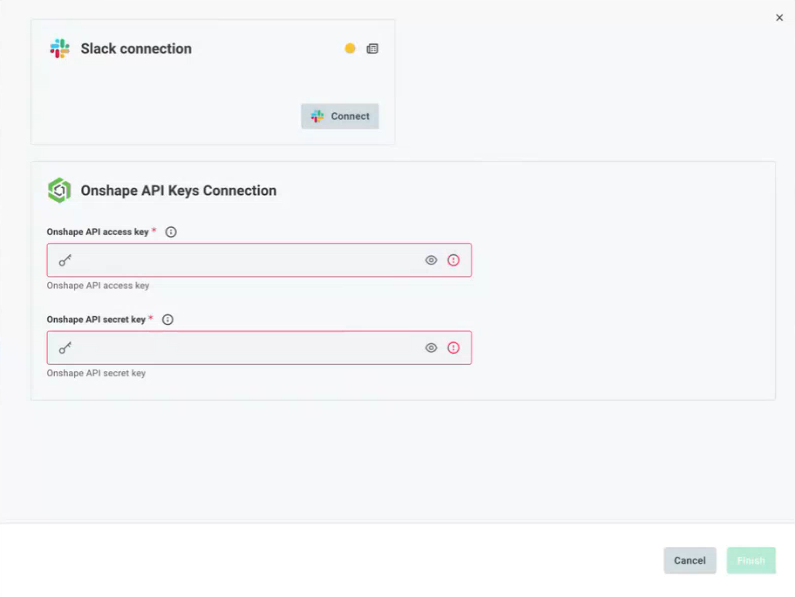
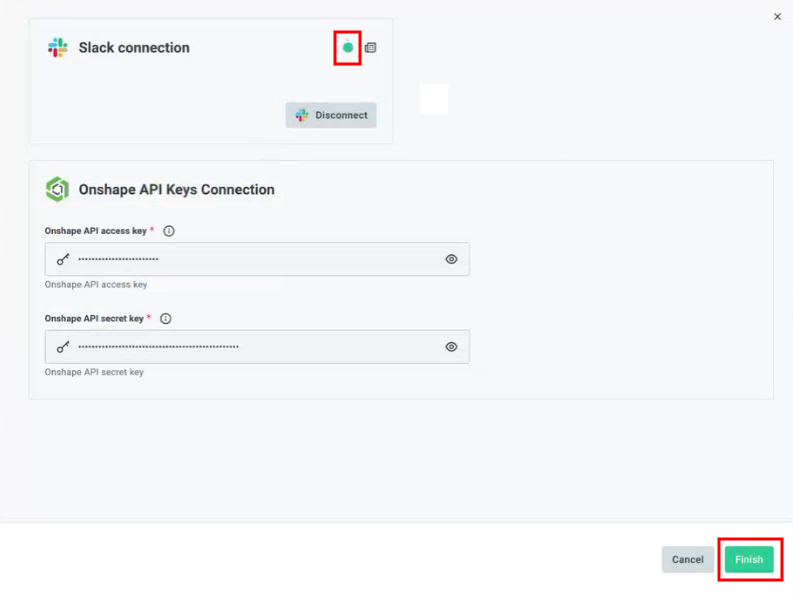
Enter the Onshape API access key and Onshape API secret key. Then click the Connect button under the Slack connection tile at the top:
-
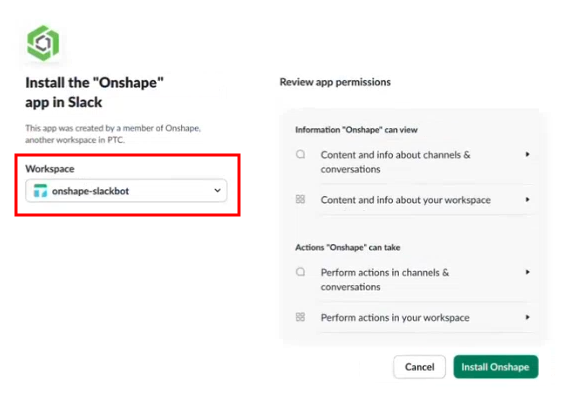
Next, install the Onshape app in Slack. If you have multiple instances of Slack, click the Workspace dropdown and select the Slack Workspace you would like connected to Onshape.
-
Review the app permissions. When done, click the Install Onshape button.
-
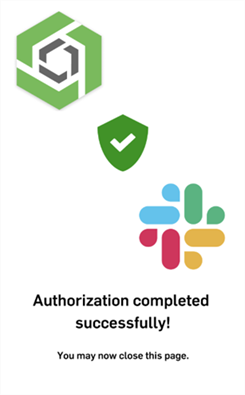
If authorization was successful, the following image is displayed briefly on-screen:
-
The image closes and the Slack connection screen is displayed with a green icon indicating a successful connection. Click the Finish button to complete the connection:
-
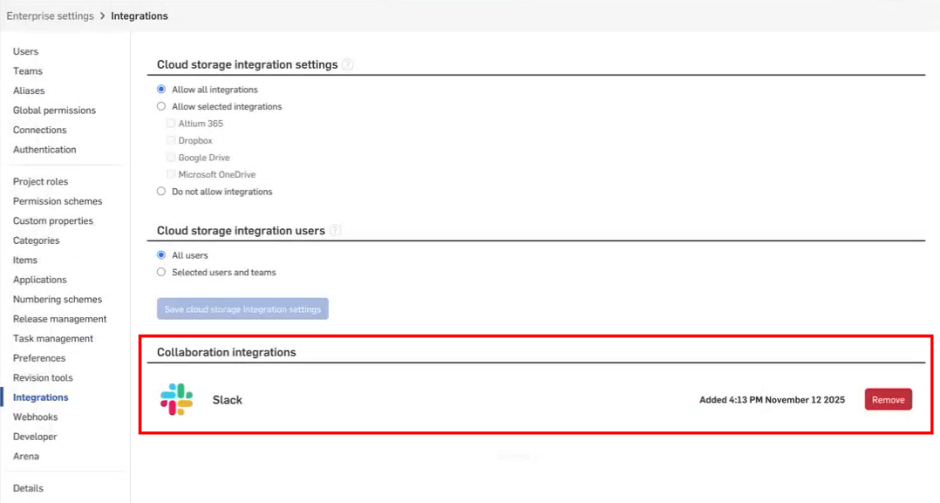
On the Enterprise settings > Integrations page, the Slack integration shows the date when the connection was created, along with a button should you want to remove the connection.
Using Slack integration (all users)
User OAuth Connection
When you first connect to Slack, each user must explicitly connect their account to Onshape:
-
In the Slack Onshape Workspace, enter
/onshape connect: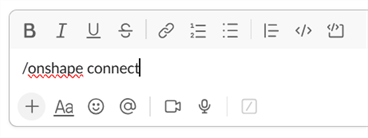
-
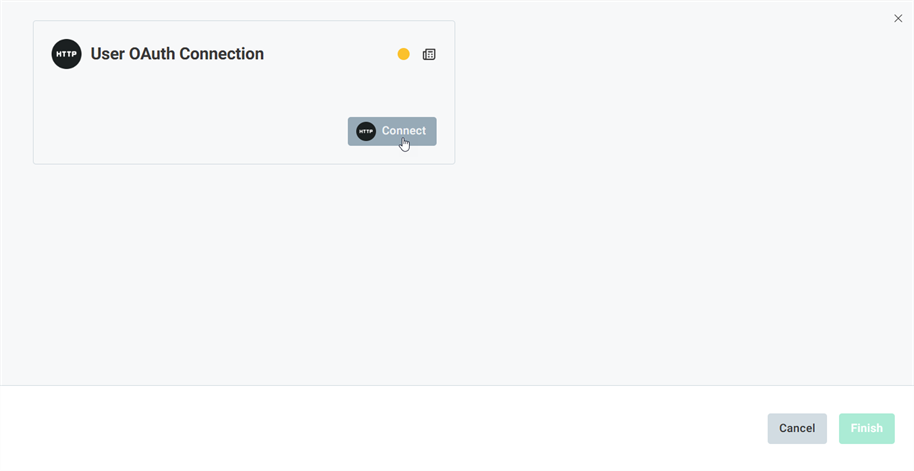
The User OAuth Connection screen opens. Click the Connect button:
-
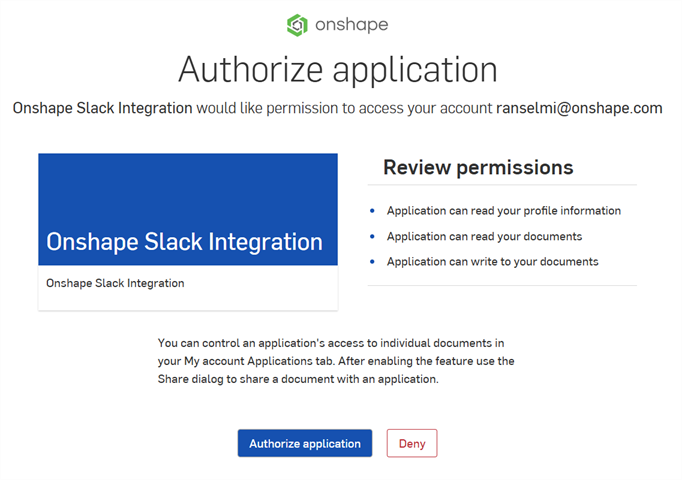
The Authorize application screen opens. Click the button:
-
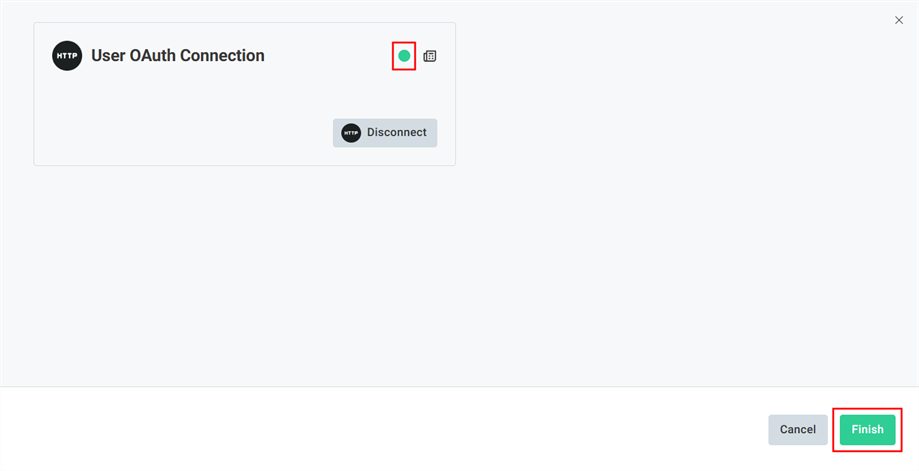
The User OAuth Connection screen opens. Click the Finish button:
-
You are now connected to Onshape in the Slack Workspace. To disconnect, enter
/onshape disconnect.
Slack user commands
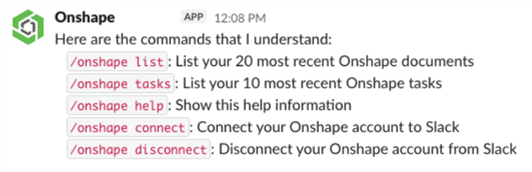
Once connected, you can use the following commands in Slack:
-
/onshape list- Lists your 20 most recent Onshape documents.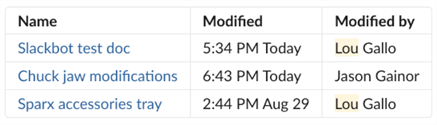
-
/onshape tasks- Lists your 10 most recent Onshape tasks (Action items).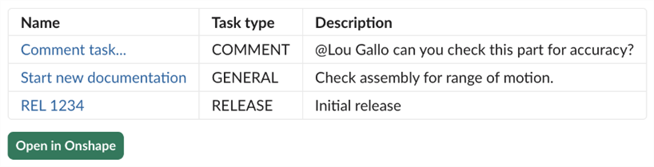
-
/onshape help- Shows this help information. -
/onshape connect- Connect your Onshape account to Slack. -
/onshape disconnect- Disconnect your Onshape account from Slack.
Slack notifications
Notifications are provided in Slack when the following is updated by a user in Onshape:
-
Comments - If a user is mentioned or assigned to a comment, this user receives a notification in Slack:
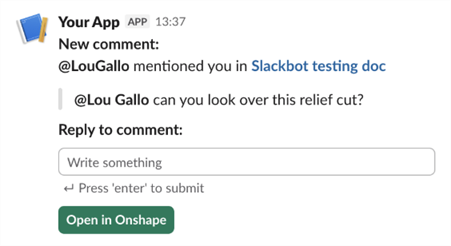
The user also receives a notification after their comment is replied to by another user:
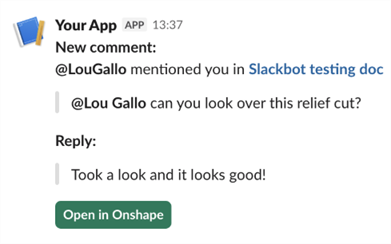
-
Releases - When an Observer or Approver is added to a Release, and when the release status is updated, those users receive a release notification in slack:
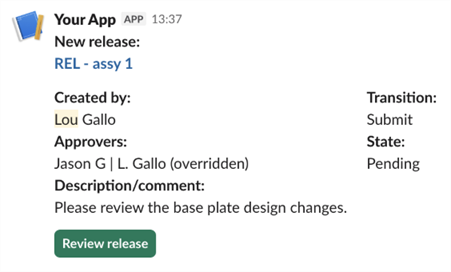
After the Administrator sets up Slack integration, users are notified on Slack if they are mentioned or assigned to a comment, or added to a Release as an Observer or Approver, even if that user has not yet set up their OAuth connection (or even after they have disconnected from the OAuth connection).
To reply to these comments directly from Slack, users must connect their Onshape account to Slack using the /onshape connect command.