 Mutual Trim


iOS and Android support for Mutual trim is limited to editing and viewing Mutual trims inserted from the desktop (browser) platform.
Available in: Part Studio
Trim two adjacent contiguous sets of surfaces by extending intersections to complete the trim. Each surface set can be flipped to select which side is kept, and all surfaces can be merged into a single surface or unmerged to keep all trimmed surfaces.

 Video example
Video transcript
The Mutual trim feature tool allows you to trim two adjacent surfaces by extending intersections to complete the trim.
Click the Mutual trim feature tool on the toolbar. Select the First surface in the graphics area. Click the Second surface in the graphics area. For each surface, click the Keep opposite side arrow to indicate which side is kept after the trim operation.
By default, with Merge checked, both surfaces are merged into one surface. Uncheck if you want to keep both surfaces.
Click the green checkmark to apply the trim and close the dialog.
Steps
- Click the Mutual trim icon (
 ).
).
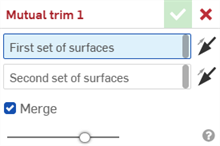
- Select the first set of surfaces.
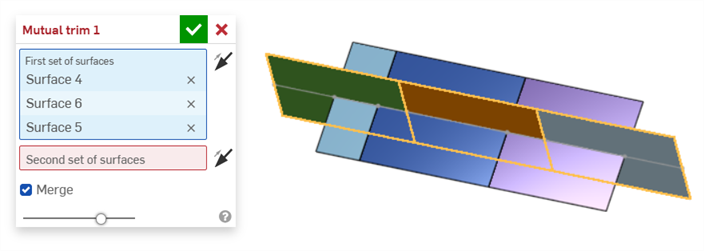
- Select the second set of surfaces.
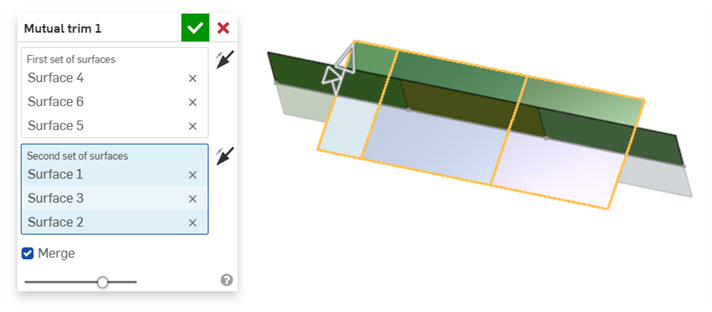
- For each set of surfaces, click the Keep opposite side arrow (
 ) to indicate which side is kept after the trim operation. Alternatively, click once on the arrowhead in the graphics area to flip the related surface set:
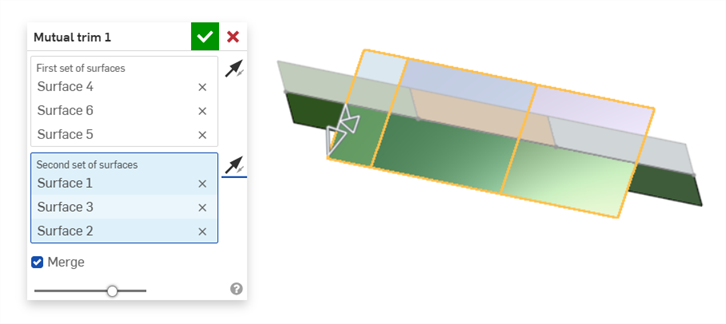
After both sets of surfaces are flipped
- By default, the Mutual trim operation merges all trimmed surfaces together into one surface. Optionally, click to uncheck Merge to keep all trimmed surfaces:
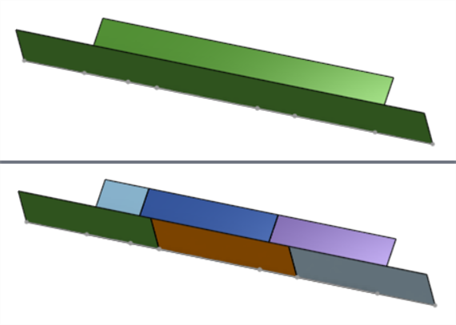
Surfaces merged (top) and unmerged (bottom)
-
Click the checkmark (
 ). The resultant surface (or surfaces) are listed in the Surfaces list.
Surfacing tools collection
This lists the collection of surface feature tools. This is not an exhaustive list. Additional Feature tools may be used when modeling surfaces. See Surfacing for additional information.
-
 Thicken - Add depth to a surface. Create a new part or modify an existing one by giving thickness to a surface and converting it to a solid, adding or removing material from an existing part or surface, or intersecting parts in its path.
 -
 Enclose - Create a part by selecting all boundaries surrounding an empty space to form a solid. Use any set of surfaces and solids (including planes and faces) that intersect each other or connect at a boundary to create a volume. Create a new part or modify an existing one by adding, removing, or intersecting parts.
 -
 Fillet - Round sharp interior and exterior edges and define as a standard constant radius, more stylized conic, or variable by selecting Edge fillet. Optionally apply a Full round fillet to create a seamless blend of one or more faces between two opposing sides.
 -
 Face blend - Round sharp connected or disconnected interior and exterior faces to create a seamless blend between the faces or detach the blend to create new faces, defining a radius or constant width. Further define the blend cross section (rolling ball or swept profile), symmetry, control, trim, constraints, and limits.
 -
 Delete face - Remove geometry from a part. Select whether to heal the surrounding faces (by extending until they intersect), cap the void, or leave the void open. This Direct Editing tool is especially convenient if you don't have the parametric history of the part, as is often the case with an imported part.
 -
 Move face - Translate, rotate, or offset one or more selected faces. This Direct Editing tool is especially convenient if you don't have the parametric history of the part, as is often the case with an imported part.
 -
 Replace face - Trim a face or extend a face to a new surface. This Direct Editing tool is especially convenient if you don't have the parametric history of the part, as is often the case with an imported part.
 -
 Offset surface - Create a new surface by offsetting an existing face, surface, or sketch region. Set offset distance to 0 to create a copy in place.
 -
 Boundary surface - Create or add a surface specified by its boundary profiles.
 -
 Fill - Create a surface (or a part from surfaces) by defining boundaries and refine the surface with boundary conditions (instead of requiring the use of reference surfaces).
 -
 Move boundary - Move boundary edges of a surface in order to extend or trim it.
 -
 Ruled surface - Create a ruled surface from an existing edge, sketch line, or curve.
 -
 Mutual trim - Trim two adjacent contiguous sets of surfaces by extending intersections to complete the trim. Each surface set can be flipped to select which side is kept, and all surfaces can be merged into a single surface or unmerged to keep all trimmed surfaces.
 -
 Constrained surface - Create a surface from a selection of points or mesh data within a specified tolerance. Display deviations and optimize for performance or smoothness.