


Available in: Sketch, Part Studio, Assembly, Drawing
Onshape helps you identify errors and potential issues with error indicators.
 Types of error indicators
- Color in the Feature list
- When there is a problem with a feature, you may see orange text in the Feature list and dialog title.
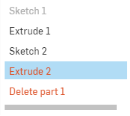
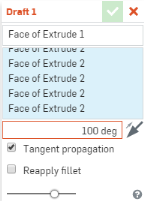
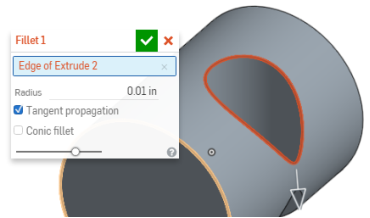
- When the problem lies with a single field, like an invalid entry in a numeric field, that field is outlined in red. If a selection is the problem, it is red in the selection list and the corresponding part entity or sketch entity is also red:
- Hover information
- When you see orange text in the Feature list, hover over it for a summary of the issue.

- Dimension highlighting
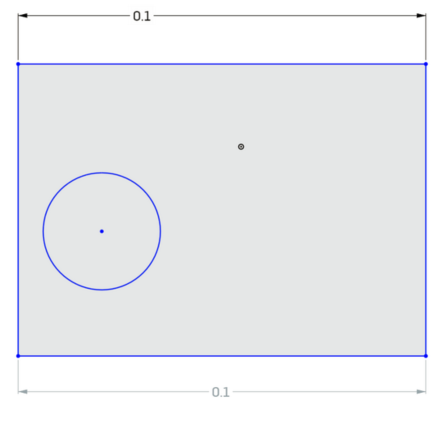
- Color is used to indicate the constraint status of dimension: black indicates a driving dimension, and light gray indicates a driven dimension. In the image below, the driving dimension is at the top of the sketch and the driven dimension is at the bottom.
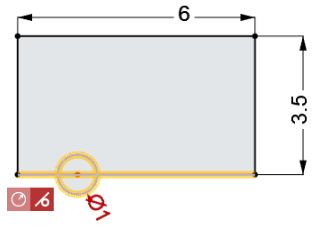
- Constraint colors
- Constraints normally appear as a gray square with a black icon inside. When there is a problem with a constraint, it will appear as a red square with a white icon.
- Notifications
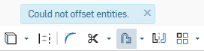
- When a general system error occurs, a notification appears in a bubble at the top of the user interface window.
- Dangling entities
- When an entity is in an error state, and red, selecting it is indicated by the entity turning a darker shade of red:

To ignore a faulty geometry warning and put the entity into a warning state: right-click on the faulty part, surface, or body in the Feature list to access the context menu. From there, select Ignore faulty part warning (for...). Note that this option is only available within the original Part Studio of the faulty geometry.
To re-show a faulty geometry warning, select Show faulty part warning (for...) from the context menu at any time.