 Descriptive Image Search


Available for all plans except Onshape Government.
Descriptive image search is an Onshape Labs feature that enables you to include the AI-generated descriptions of Public document thumbnails in your search.
 Using Descriptive image search
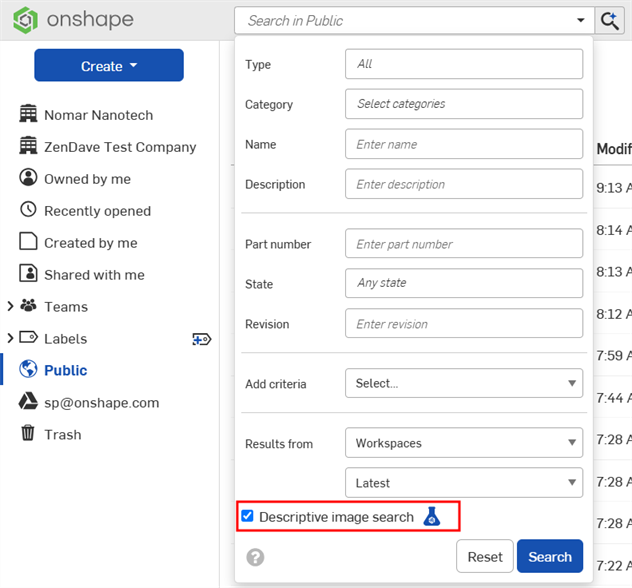
To include thumbnail descriptions in your Public document search:
-
On the Documents page, click Public in the left pane.
-
Enter your search text in the Search in Public field.
-
Click the Search in Public dropdown.
-
Fill out the rest of the search fields as needed.
-
Ensure the Descriptive image search box is checked. If unavailable, enable Onshape Labs in your settings.
-
Click Search.
Setting options
When Descriptive image search is checked in your account preferences, Descriptive image search is checked by default when searching Public documents.
When Descriptive image search is unchecked in your account preferences, Descriptive image search is unchecked by default when searching Public documents.
To change this setting:
-
Click your user icon (
 ) in the top right corner of the Onshape window, and select My account.
 -
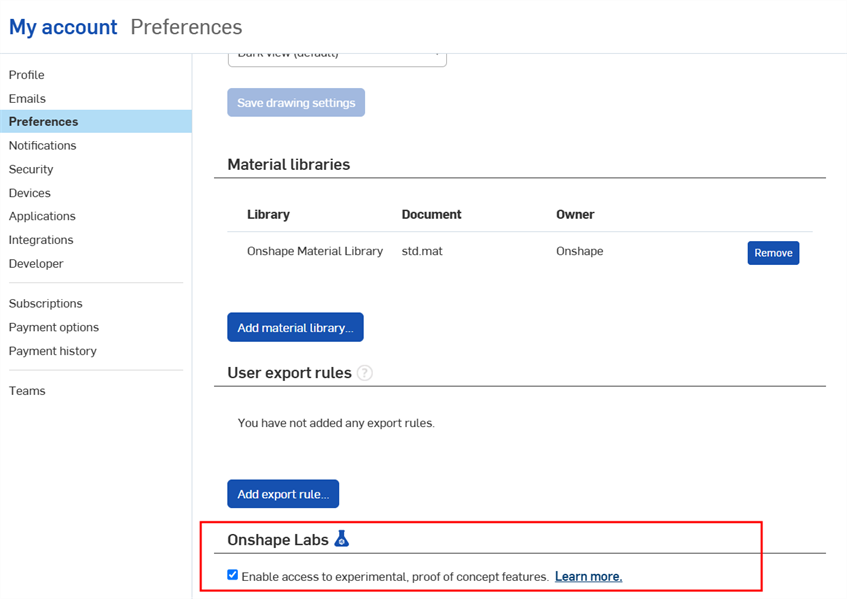
Click Preferences in the left side bar, and scroll to the Onshape Labs section.
-
Check the box to enable Onshape Labs if not already enabled.
-
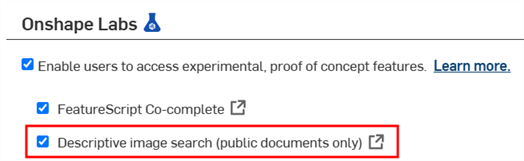
Check the Descriptive image search box to enable this setting by default.
iOS: Descriptive image search
On iOS, click the Advanced search filter icon ( ), scroll to the bottom of the dialog, and then toggle Descriptive image search on:
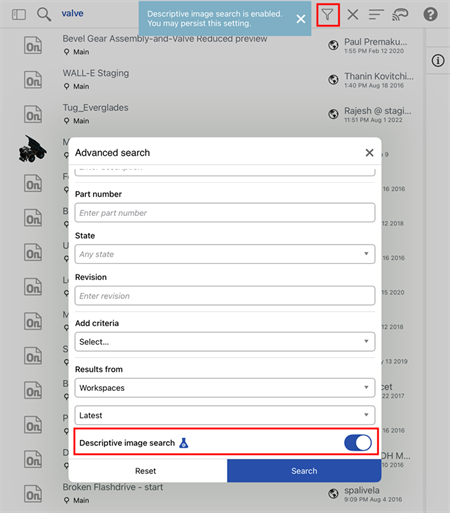
If this option is unavailable, from a desktop browser, enable Onshape Labs in your settings.