Documents Page Panels


Located on the right side of the Documents page, panels are where information for the selected document, folder, or publication is accessed.
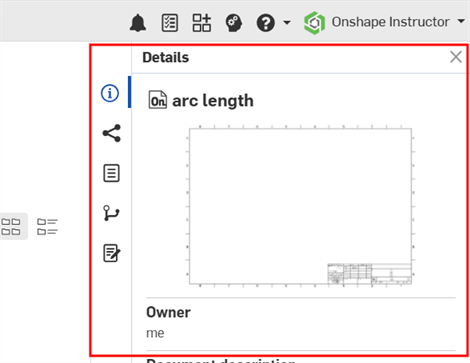
The following panels are available:
-
Details panel (
 )
- Displays more details about the document. It can be toggled off with the Details button. Click this icon to toggle the panel open and closed.
)
- Displays more details about the document. It can be toggled off with the Details button. Click this icon to toggle the panel open and closed. - Analytics panel (
 ) - Displays the Document Dashboard. This displays information about the selected document's modeling time, actions performed, tab types, modeling activity, and access locations.
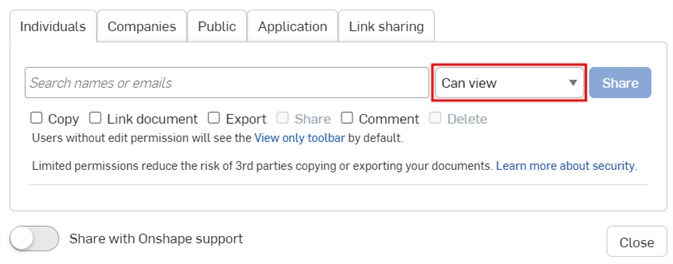
Anyone with View access to a document can view its Document Dashboard analytics. To share a document so the user can view its analytics, ensure the user is set to Can view in the Share dialog:
-
Share details panel (
 )
- Displays the permissions on the document and the folder or project (if any) within which it resides.
The Connection badge (
)
- Displays the permissions on the document and the folder or project (if any) within which it resides.
The Connection badge ( ) indicates the document is shared with an external enterprise. See Connections for details.
 -
Properties panel (
 )
- Displays properties (metadata) for documents, document elements, folders, and projects. Grayed-out properties are set by your company administrator and are not editable. Properties you edit are set throughout the company. See Properties (Metadata) for details.
)
- Displays properties (metadata) for documents, document elements, folders, and projects. Grayed-out properties are set by your company administrator and are not editable. Properties you edit are set throughout the company. See Properties (Metadata) for details. -
Versions and history panel (
 )
- Displays the versions and history of the document. This panel allows you to perform all actions available through the Versions and history panel in a document, right from this panel. For more information on how to use the Versions and history graph, see
Document Management. You can hover over any entry in the graph and see the description as entered into the properties for that Version. For more information on properties, see
Version Manager.
)
- Displays the versions and history of the document. This panel allows you to perform all actions available through the Versions and history panel in a document, right from this panel. For more information on how to use the Versions and history graph, see
Document Management. You can hover over any entry in the graph and see the description as entered into the properties for that Version. For more information on properties, see
Version Manager.
- Document notes panel (
 ) - Displays all notes associated with the document. For more information, see Document Notes.
Click the Document name in any of the panels (Details, Share Details, or Versions and history). The Document opens in a new browser tab.
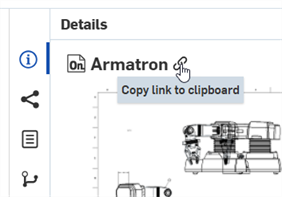
Hover over the Document name in any of the panels (Details, Share Details, or Versions and history). The Copy link icon ( ) becomes visible. Click it to copy the document link to your clipboard.
If the search criteria and results include any revision history information (such as State), the Detail panel for a selected document will include a Revision history icon ( ):
):
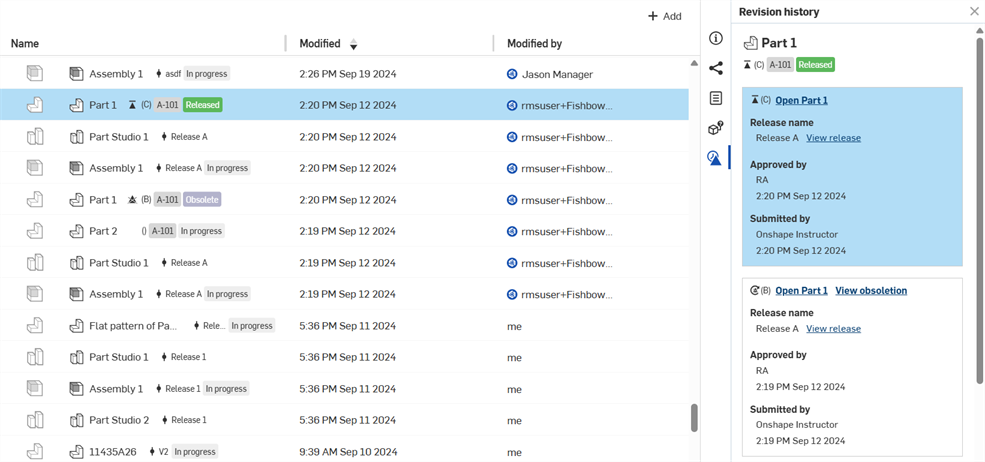
Click this icon to view Revision history information. The revision of the selected part (in the search results) is highlighted in blue in the Revision history panel.
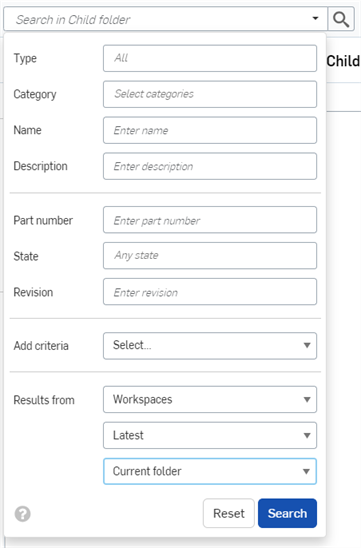
Any Categories added to the company or enterprise are also available in the Add criteria selection box in the Advanced search dialog (shown below).