


An advanced search allows you to search for a Document, Part, Part Studio, Assembly, or Drawing within the active folder.
To learn more about advanced search, see the technical briefing article here: Where Are My Parts? (Onshape account required).

 Video example
Video transcript
Use the search on the Documents page to find documents or objects within documents by name or properties. The search box searches for partial or full name matches. Click the name of the part to open its Part Studio.
The search displays results with unique icons for Parts, Part Studios, Assemblies, Drawings, imports, and entire Documents. Next to the name of the Onshape object is the name of the Workspace or Version that matches. The list is displayed by relevance when viewing search results with List view. Sort the results by either Name, Modified by, or Modified date by selecting the column headers.
The search only looks within the active filter. For example, if the Recently opened filter is active, Onshape only looks within the recently opened documents. Select the first filter in the list to search within all documents you can access. As discussed in a previous video, the first filter depends on your license type.
Advanced searches allow you to search other Onshape component properties. You can filter by Type, Category, Description, Part Number, State, Revision, and additional criteria. Choose the type of object you want to find: a Document, Part, Part Studio, Assembly, Drawing, or all types. If you are only interested in parts, use the Advanced search and change the Type to Part.
You can also search by other properties. Searching for a Description allows you to find objects whose Description matches the search term.
To search with a custom property, click the Add criteria dropdown and select the property.
Lastly, you can determine where Onshape searches by using the “Results from” feature. You can look for matches to the search criteria within workspaces, versions, or both. You can also search in the latest or all versions and workspaces. For example, if you know you are looking for the latest version of a part, you might narrow your search to Versions and Latest to match your criteria.
Since Onshape is browser-based, the search criteria and filters fall under a unique URL. Bookmark the results page in your browser to save commonly used search criteria and filters for future use.
Using Advanced search
Use the search bar at the top of the Documents page to search for specific Onshape entities inside the active folder.
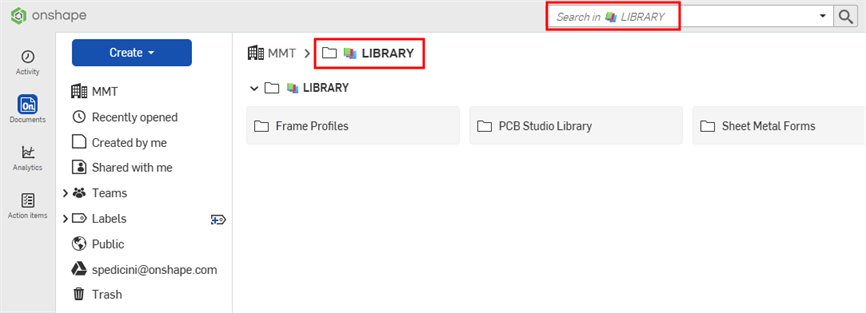
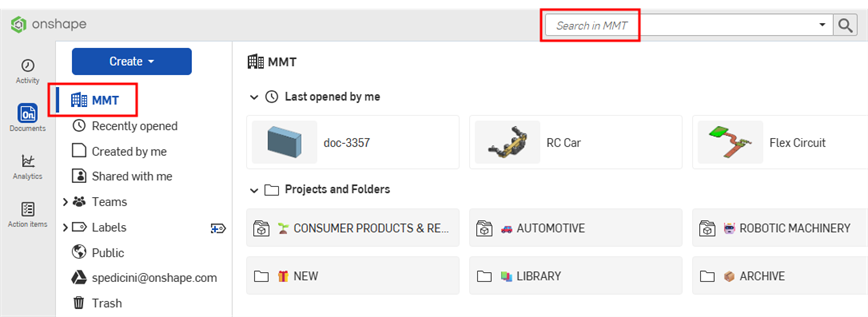
To search all folders in your company, click the company name in the folder breadcrumbs, then click in the search bar.
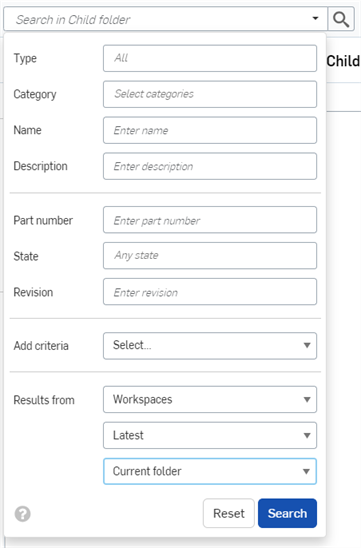
To perform an advanced search, click on the drop-down arrow in the search bar and enter additional search criteria:
Search accepts multiple words as well as non-alphanumeric characters, such as punctuation characters, for example "universal handle" and "universal-handle."
- Type - Select a type to search for. You can search for a Document, Part, Part Studio, Assembly, Drawing, Feature Studio, Variable Studio, Project, Folder, and Publication. Select All to search all types.
- Category - Select a category to search for. You can search for an Assembly, Document, Drawing, Feature Studio, Part, Part Studio, Publication, or Variable Studio. You can select more than one option in this field.
- Name - Enter the name of the type of entity you are searching for (the name of the Document, Part, Part Studio, Assembly, Publication, or Drawing).
- Description - Every type is able to have a description assigned to it. Enter some or all of the description of a Onshape entity you are searching for.
- Part number - If you are searching for a Part, Assembly, or Drawing, you can enter a Part number to search for.
- State - If you are searching for a Part, Assembly, or Drawing, you can enter a state to search for such as in progress, pending, released, or obsolete.
- Revision - If you are searching for a Part, Assembly, or Drawing, you can enter a revision number to search for.
- Add criteria
- Free, Standard, and Education account users can use this field to search for default fields including Owner, Creator, Vendor, and more. Users of Company and Enterprise accounts have the ability to specify criteria for custom properties when custom properties are active.
If a criteria is selected, an additional Add criteria selection field is exposed on the next line in the dialog so you can select multiple criteria in your search.
Some criteria require additional input. For example, selecting a date criteria exposes a calendar from which a date is selected, and selecting Not revision managed exposes a True or False option.
- Results from - Acquire results from Workspaces, Workspaces and Versions, or Versions; and just the latest versions and workspaces or all of them. Search in the current folder and all subfolders, or search in the current folder with subfolders excluded.
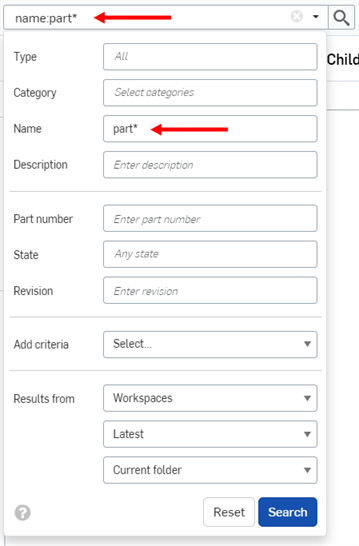
As you enter additional search criteria, the search bar auto-populates with the complete query.
Click Reset to clear the search bar and fields.
Use a wildcard (*) indicator in the search bar and any advanced search field to surround a segment of a string that narrows the search. For example, enter *600* in the Part number field to produce search results for only parts that have 600 anywhere in their string (useful for searching a series of parts).
Understanding search results
The search result list indicates where the found identifier (part name, part number, document name, etc) has been found. For example, with the search criteria as (the red arrow indicates the wildcard in use):
The search results appear as:
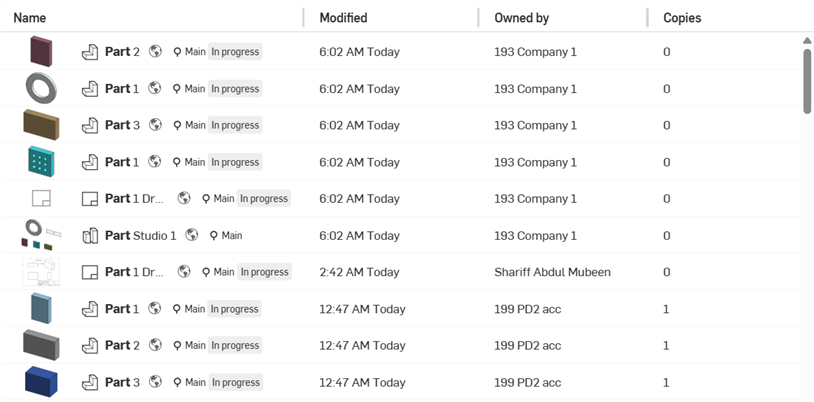
To sort the search results, click on Name or Modified column header to sort by that column. After clicking a column header, an arrow appears beside the column name to indicate the results are sorted by that column.
Each search result indicates which type of entity fulfills the search criteria by the icon preceding the name, followed by the name of the entity. To the right of that, the workspace or version icon, the document name and workspace name (or version name, when part of the search criteria), the part number, and the release management state.
For example:

 - A Part with the name Part 2, in Part Studio 1 (as seen in the details pane, on the right side of the Documents page):
The following information is displayed to the right of the item name (shown above, outlined in red) in this order:
- An icon indicating whether or not that item is a workspace
 , version
 , revision
 , or latest revision

- The workspace or revision name, shown in parentheses

-
The part number, highlighted in gray
 (note that this only appears when an item is in the Release management workflow)
- The state of the item (Released, Pending, In progress, Rejected, Obsolete, or Discarded)
Select a search result, then click the Details icon
 to open the Details pane, where you will find a more detailed description of that item.
Labels on documents are only available in the Details pane.
When hovering your cursor over a search result that is not a document (for example, a part) the tab name will be in the tool tip that appears:
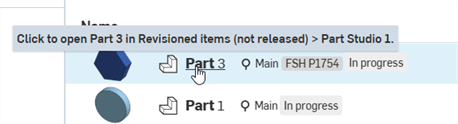
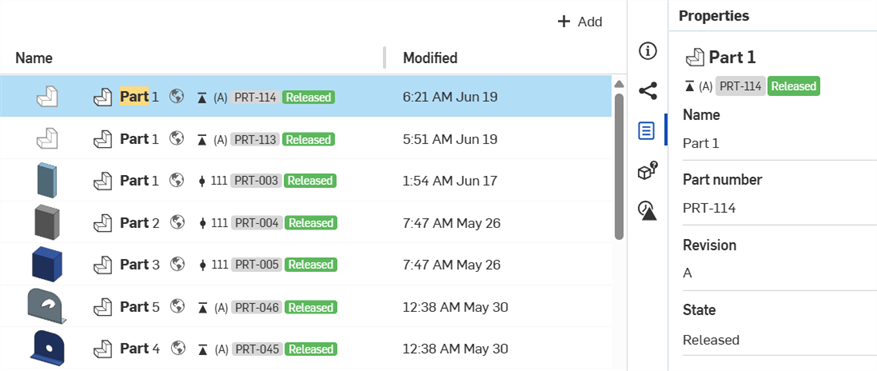
When the search result includes revision information or the searched for entity has a new property defined, the Detail includes a Revision history icon
 and a Properties icon
 , respectively:
Search result context menu
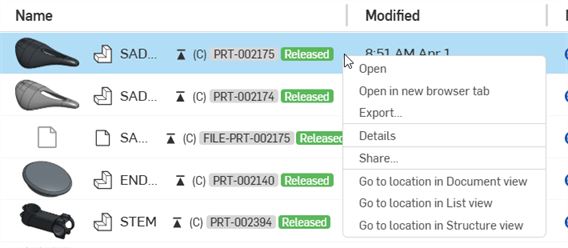
Once a search is performed, right-clicking on a search result provides the following options:
-
Open - Opens the current document in the current browser tab.
-
Open in new browser tab - Opens the current document in a new browser tab.
-
Export - Opens the current document's export dialog, where the current document can be exported. See Exporting files for more information.
-
Details - Opens the current document's Details panel on the left side of the screen.
-
Share - Opens the sharing options for the item. See Sharing and Collaboration for more information.
-
Go to location - Available for released items only. Navigates to the released item's location in the view selected:
-
Go to location in Document view - See Documents Page for more information.
-
Go to location in List view - See List View for more information.
-
Go to location in Structure view - See Structure View for more information.
-
-
Transfer ownership - Transfers the document to a new owner. See Transfer Ownership for more information.