View Only Mode


Onshape documents automatically open into a View only mode, allowing users to access and explore the document without making any changes or disturbing the contents of the document.
Click the Edit button in the You are in View only mode banner at the top of the graphics area (shown below outlined in red) to obtain normal editing permissions for the document:
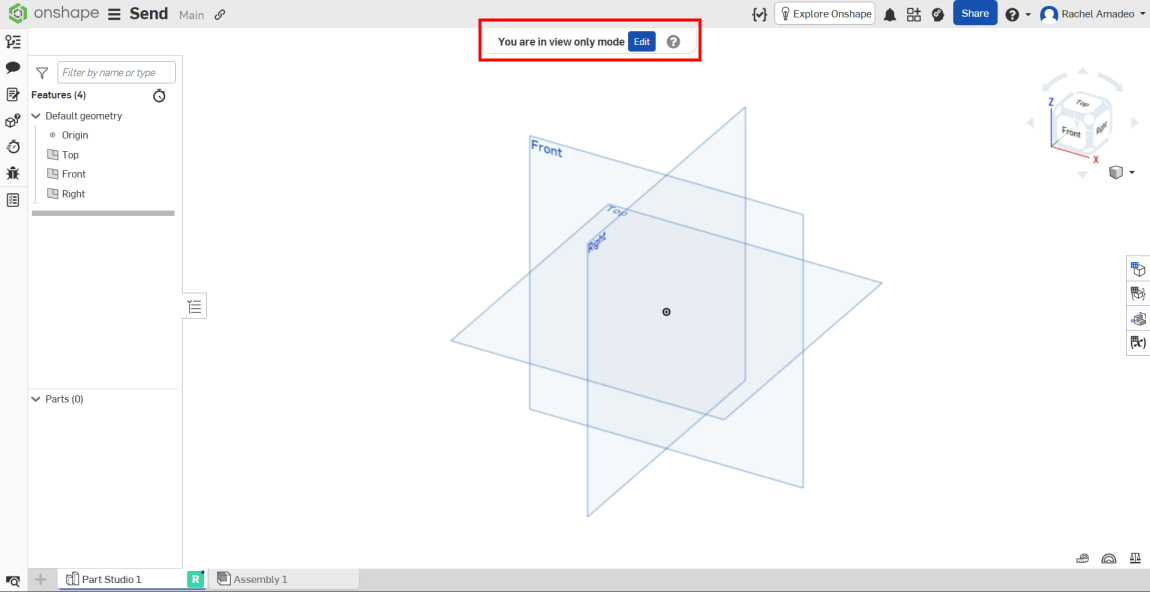
The toolbar appears, and you are able to edit the document normally.
To return to View only mode, click the menu in the top left of the interface, then click Switch to view only mode:
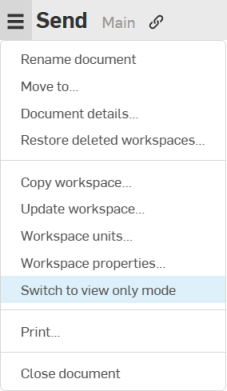
The toolbar disappears and you are back in View only mode.
The extent of your edit permissions depends on the specific global settings for your account, determined by the company administrator.
If you are the creator of a document, you will need to manually toggle on View only mode for your own documents, even if the Always open documents in View only mode company settings preference is enabled. Otherwise, documents will open in View only mode by default for all other users with edit permissions.