Share Documents


Share a document to collaborate with other designers, change permission levels, or make a document publicly available. You are also able to share the document with Onshape Support, if needed.
Access the Share dialog from either the Documents page or in a specific document:
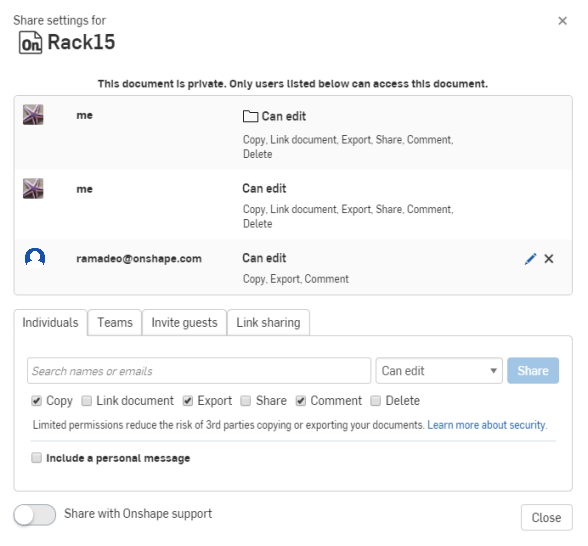
Note that the Teams and Companies tabs appear only when you are a member of team or a company. Members of Enterprises will see only Individuals, Teams, Invite guests, and Links tabs. All documents created in an Enterprise are automatically owned by the Enterprise. For more information on Enterprise guest users, see Company/Classroom/Enterprise Settings - Users.
 Sharing a document
- Do one of the following:
- On the Documents page, to the right of the document (in list view), click share (
 ).
).

From a specific document, click the Share button on the Document toolbar:

- On the Documents page, to the right of the document (in list view), click share (
- Select the appropriate tab (which may vary based on your subscription type):
- Individuals - Enter one or more individual user email addresses. You are also able to copy and paste a comma-separated list here. Onshape provides type-ahead support and records new email addresses as you enter them. Previously recorded emails appear in the list, along with a user image and email address.
- Teams - Teams of which you are a member appear in the drop down. Select a team to send a share message to all members of that team. For more information, see Teams (for Free, Standard, Professional, or Education subscriptions), or Teams (For Professional or Enterprise subscriptions).
- Companies - Companies of which you are a member appear in the drop down. Select a company to send a share message to all members of that company.
- Public
- Provides an option for non-enterprise users to make the document accessible to all Onshape users (users can view and copy— but not edit— the document). Click the Make public button on the tab to make the document public:
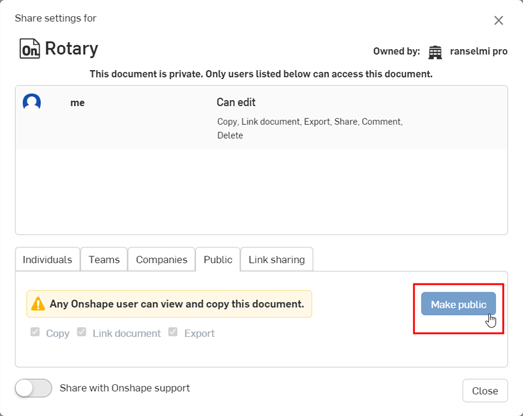
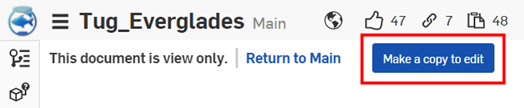
When a document is made public, the user can click the Make a copy to edit button in the top left corner of the graphics area, which duplicates the document:
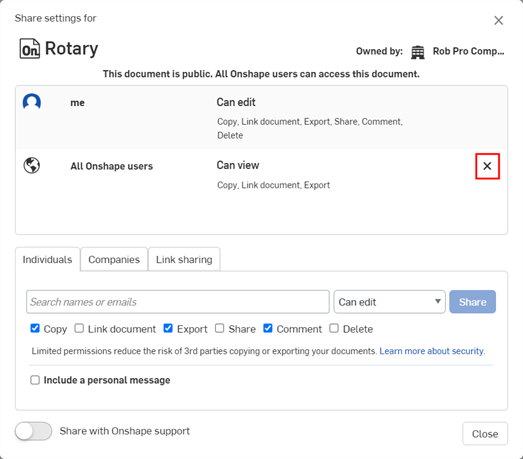
To subsequently make a public document private again, open the Share dialog for the document and click the "x" to the right of the All Onshape users listing in the dialog:
Enterprise users do not have a Public tab in the Share dialog, since enterprise documents cannot be public.
- Link sharing
- Copy a document-specific URL to the clipboard in order to send a link to another person. The link allows View-only access to this document alone, and does not require signing in to Onshape for viewing. Part Studios, Assemblies, and Drawing tabs are available, as are supporting data, such as PDF and image tabs. The recipient of the link can use an existing Onshape account to view the document, but is not required to have an Onshape account at all. The document is still viewable without an Onshape account.
To share a document through a link, select the Link sharing tab, then click Turn on link sharing, then click Copy to clipboard.
Paste the link into an email to another person (Onshape user or not) or otherwise send the link. Be aware that anyone with the link will have access to the document. To revoke all link sharing access to the document, open the Share dialog and click the X next to the Anyone with link entry. This action immediately revokes all access to that document through that link.
When you create a Share document link from within an active tab in a document, the link directs the recipient to the state of the document at the time the link was created, including the workspace or version open at the time, the specific tab selected, and the state of any properties, configurations and sheet metal panel. As long as the link recipient has access, they will see exactly what the person who copied the link saw at the time the link was created.
To enable an Onshape user to export the document once the link is shared with them, check Allow exporting from the link.
Connections - Share a document with approved users from a third-party enterprise.
These badges indicate connections outside the current enterprise:
 - User is from an external enterprise connection.
 - Enterprise is an external connection.
 - Content is shared with an external enterprise.
Documents, folders, or publications that are shared with an external connection display a badge or banner in the toolbar, Share dialog, Share details panel in the Documents list page, and Comments panel.
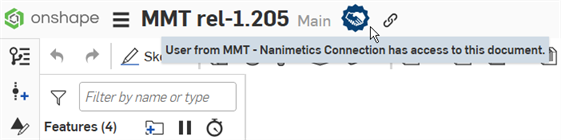
Badge indicates document is owned by current enterprise, shared with external enterprise
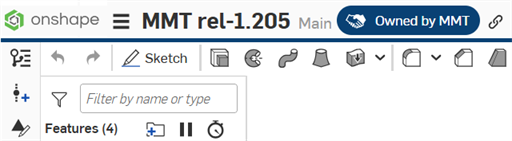
Badge and blue horizontal bar indicate document is owned by external enterprise, shared with current enterprise
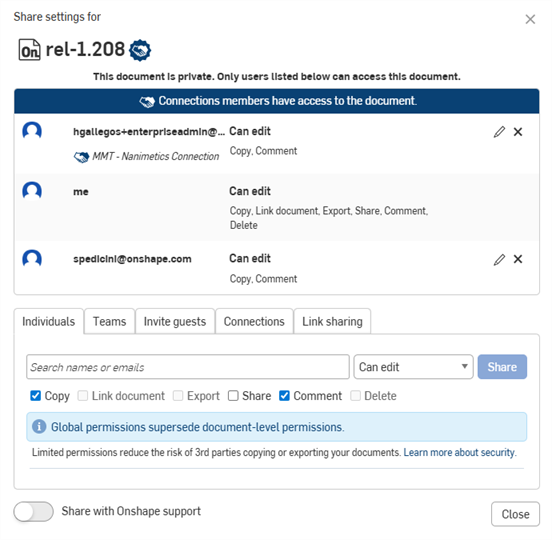
Connections banner and icons in the Share dialog
Users must be added to a connection by an enterprise admin before they can see the Connections tab in the Share dialog. See Connections for details on setting up a connection to an external enterprise and adding users to the connection.
- Enter the teams, companies, or individuals to share the document with in the search field.
- Set permissions below the email address field.
To enable other users to link to your document from their document (by linking to a part, assembly, FeatureScript, or custom feature, for example) check the Link document permission box. Link document is automatically selected if a user was granted Edit permission (with at least Copy/Export) prior to Release 1.54. Post-Release 1.54, this box must be checked manually.
Collaborators receive an email with your message, and a link to the document in Onshape. Onshape users can click the link to access the document. If the recipient is not an Onshape user, the email includes a link to create an account before accessing your document.
Unshare a document with a user at any time: click the 'x' beside the user name in the Share dialog. Users may also remove themselves from a shared document using the context menu on the Documents page, or through the Share dialog.
Document owner
Only owners of documents and those with Can edit & share permission are able to share a document with another user. Owners are able to be individual users or a company (for those with a Professional or Enterprise subscription account). There may be only one owner of a document. In the case of a company owning a document, the owner permissions are assigned to the owner of that company.
Ownership is the highest level of permissions, giving a user the right to transfer that ownership to another user or to a company. To learn more about transferring ownership in Onshape, see the Documents Page topic.
Listed users
This area lists all users, companies, and teams that the document has been shared with. The current permission is shown to the right of the email address and can be changed by the owner of the document (click the pencil icon). Use the small x further to the right to remove this user, team or company from the share permissions of this document.
Permissions
For each share operation, select the document permission level for each user or group of users:
- Can edit - Permission to edit, copy, link, export, share, and comment on a document.
- Can view - Permission to view, copy, link, export, and comment on a document. Users with this permission will be shared into the document in Getting Started as a Light User.
Keep in mind that Edit and View permissions include Comment permission. Use the individual check boxes below the email address field to include any of the following permissions:
- Copy - Ability to make a copy of the document
- Link document - Ability to link to this document from another document (via inserting an assembly, part, image, drawing, etc). This option requires the Export permission also be checked.
- Export - Ability to export the document
- Share - Ability to reshare the document with another user
- Comment - Ability to make comments within the document
- Delete - Ability to delete a document or a workspace on a branch within that document. Note that when deleting a workspace, a warning dialog displays and the action, if taken, cannot be undone. If there are versions on the branch, the branch will remain and you will be able to create a new workspace from any version on that branch, pending permissions.
All permissions allow users to collaborate in the same workspace. A user with view only permission may be in the same workspace as a user with edit permission. The view only user is unable to edit the workspace but they are able to see any changes made to workspace in real time.
Removing permissions
All documents with a company as the owner may be deleted only by the creator of the document or the company owner.
The creator of a document may share it with other users and assign permissions to the document at the time of sharing; permissions explained above.
The Admins of a company may remove the document creator as owner and, if desired, add that user as a collaborator with specific permissions. (By default, all creators of documents have complete permissions, including Delete, of that document.)
To remove a particular permission, simply click the pencil icon next to the Share entry in the Share dialog, then use the check boxes that appear to edit the permission, or remove them entirely.
Sharing with teams or companies
Share a document with a team or company you're a member of to collaborate with other members and allow them to access your document's contents:
- Select the document on the Documents page and click Share (or click it from the open document).
- Select the appropriate tab: Teams, Companies, or Connections.
- Select the team, company, or external enterprise name from the drop down list.
- Select permissions for the team or company (and all members of that organization), as described above.
- Optionally, add a personal message to be included in the notification email.
- Click Share.
- Repeat steps to share with additional teams or companies. Click Close when finished.
Unshare a document at any time by clicking the X next to its name.
Users must be added to a connection by an enterprise admin before they can see the Connections tab in the Share dialog. See Connections for details on setting up a connection to an external enterprise and adding users to the connection.
Removing yourself from a shared document
You can remove yourself from a shared document at any time, or from a group of shared documents:
- On the Documents page, select the Shared with me filter on the left.
- In the list of documents that appear, select the documents you wish to remove yourself from.
You can click to select as many documents are you want; select is additive. You can also Shift+select to select a contiguous group of documents.
- Right-click and select Unshare selected (x) with me.
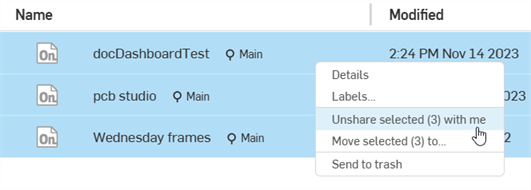
You are removed from the share, and the documents are removed from the Shared with me filter.
Sharing with a Free account user
Users with a Professional account may share documents with users of Free accounts. The following restrictions apply:
- Free users are only able to view private documents, regardless of permissions granted on the share action, including Edit permission. They are not allowed to edit private documents.
- Sharing a document with a Free account user does not make the document Public.
- Free account users are able to be granted and perform: Comment, Export, Copy, and Link. They are unable to Share or Edit.
Making a document public
If you don't belong to an enterprise, you have the ability to make a document Public. Making a document public makes it available to all Onshape users, so they can view and make a copy of the document and then edit that copy. However, they cannot edit the original document. Only the owner of the document can edit the original document.
For example, if you are on Free subscription plan and create a document, those documents are private and cannot be edited by anyone else. To allow others to edit your document, it must first be made public.
To make a document public, select the Public tab and click Make public.
To revoke public access of a document, click
 next to
All Onshape users
in the Share dialog.
next to
All Onshape users
in the Share dialog.
On the Documents page, public documents appear with a public badge ( ), and also in their title bar when open:

Sharing a document with Onshape support
If you would like help with a document or you have encountered a bug, opt to Share the document with Onshape support by clicking the Share with Onshape support toggle button at the bottom left of the dialog. When shared, the toggle button turns blue.
Unshare the document with Onshape support at any time by clicking the toggle link again.