Deviation Analysis
在草圖、Part Studio 中提供此功能
Display the minimum and maximum deviation between 2 curve chains in a Sketch or Part Studio, or 2 surfaces in a Part Studio.
步驟
-
From a Sketch or Part Studio, click the Show analysis tools (
) in the bottom right corner of the interface. -
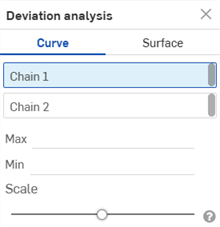
From the menu, select Deviation analysis to open the dialog:
-
在對話方塊中選取了連續 1 的情況下,於圖形區域中選擇一或多條相鄰的曲線。
-
在對話方塊中選取連續 2,然後於圖形區域中選擇一或多條相鄰的曲線。
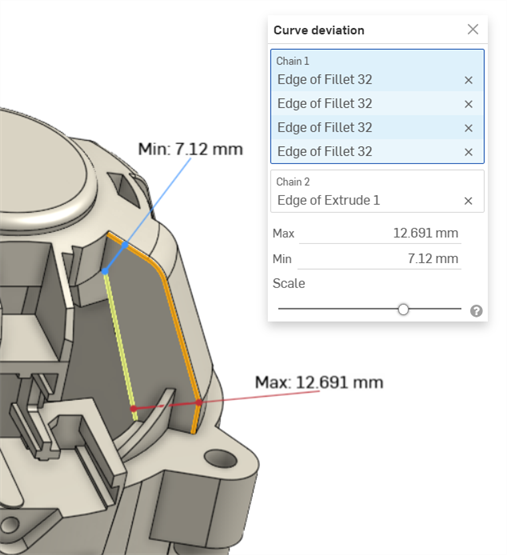
圖形區域中會顯示最小 (藍色) 與最大 (紅色) 偏差,並會有相對應的極端值點:
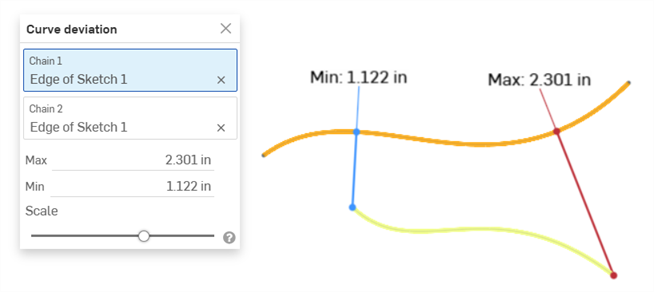
Example showing the Max/Min deviation between two curves.
Example showing the Max/Min curve deviation between chained curves in a fillet (Chain 1) and an extruded curve (Chain 2).
-
Optionally, adjust the Scale slider to move the Min and Max measurement labels in the graphics area. Adjusting the slider to the left moves the labels inward toward the selected curves. Moving the slider to the right moves the labels outward away from the selected curves.
Curve deviation calculation
如果所選的連續有重合端點,會根據兩個連續的全長來計算偏差。
如果所選的連續沒有重合端點,則所選連續的端點會根據其間的較小最小距離值來配對。
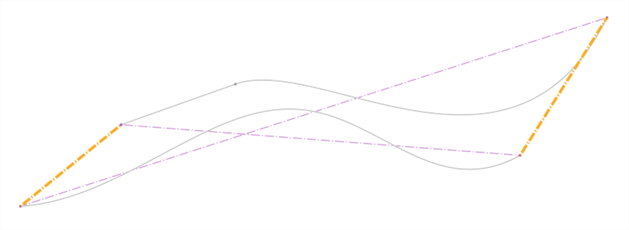
曲線偏差的計算如下:
-
對於每個端點配對組:
-
會計算每個端點到另一連續的最小距離。
-
會使用最低最小距離值的相交點來修剪偏差計算的範圍。
-
會為該範圍計算最大與最小的偏差。
-
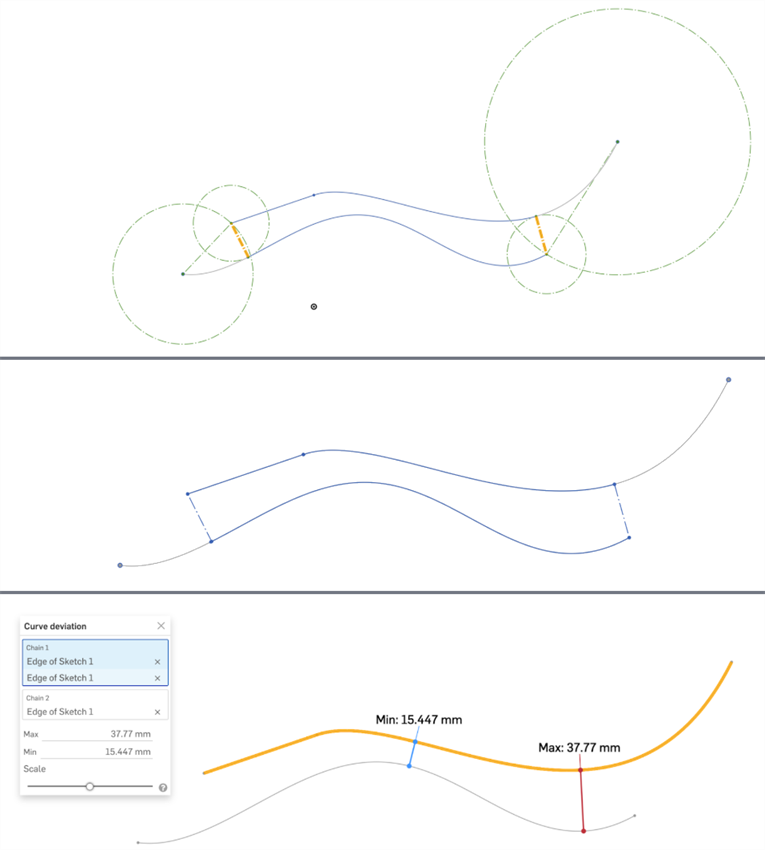
3 個圖片顯示的是同一曲線組。最上方的圖片中以鮮橘色顯示最小距離。可以在第二個圖片中清楚地看到經修剪的曲線 (右端的上方曲線和左端的下方曲線)。最下方的圖片顯示為上方兩個圖片中所示範圍計算出來的最大與最小偏差。
注意
-
為每個連續所選的曲線必須是連續的。
-
如果連續之間的多個極值點有相同的最大或最小偏差值,則僅會顯示一個。
-
如果您剛好就選擇 2 條曲線,接著開啟「曲線偏差」對話方塊,則會將第一條所選曲線自動放置在連續 1 欄位中,第二條選取的曲線則會放置在連續 2 欄位中,系統會自動計算兩條曲線間的最小/最大偏差。
步驟
-
From a Part Studio, click the Show analysis tools (
) in the bottom right corner of the interface. -
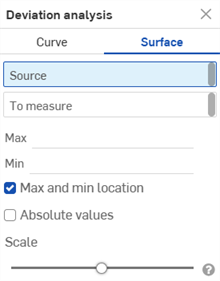
From the menu, select Deviation analysis to open the dialog:
-
Select Surface:
-
With Source selected in the dialog, select a surface in the graphics area.
-
Select a surface To measure in the graphics area.
-
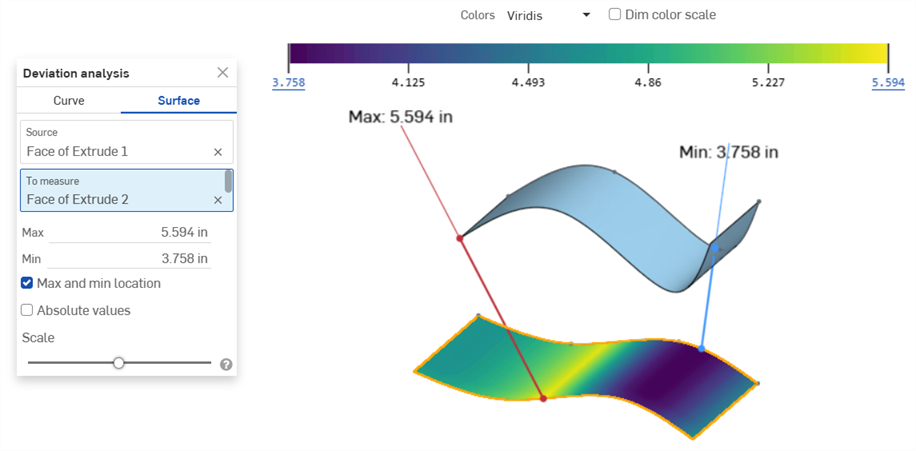
The minimum (blue line) and maximum (red line) deviations are displayed in the graphics area, along with corresponding extrema points. The surface being measured also displays a color scale, from dark blue (least deviation) to bright yellow (most deviation):
-
Optionally, if either of the Min or Max values are negative, click Absolute values to make them positive. See Surface deviation calculation.
-
Optionally, adjust the Scale slider to move the Min and Max measurement labels in the graphics area. Adjusting the slider to the left moves the labels inward toward the selected surfaces. Moving the slider to the right moves the labels outward away from the selected surfaces.
Surface color scale and legend
When results are loaded for a surface deviation analysis, the color scale and results appear at the top of the graphics area. The six tick marks along the bottom of the color band indicate the magnitude of deviation at each different hue:
Hover your mouse anywhere over the legend. When the cursor becomes a hand icon (
), you can drag and drop the scale to dock it to any side of the graphics area.
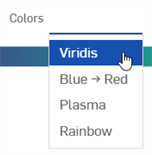
Click the Colors field to select a deviation color legend:
-
Viridis - Ranges from dark blue (least deviation) to bright yellow (most deviation), with cyan and green in the middle range. This is the default scale.
-
Blue → Red - Ranges from light blue (least deviation) to dark red (most deviation).
-
Plasma - Ranges from dark blue (least deviation) to bright yellow (most deviation), with purple and pink in the middle range.
-
Rainbow - Uses all values in the color spectrum; ranges from blue (least deviation) to Red (most deviation).
The lower (minimum) and upper (maximum) deviation values can be adjusted by the user to raise the minimum or lower the maximum values. Click the value and a field opens to enter the new value. Alternately, click and drag the minimum value upward or the maximum value downward.
An asterisk (*) is used to indicate that the original value was edited. Click the Reset button (
) to return to the original value:
Minimum deviation value being adjusted upward from 3.758 (first image) to 4.45 (second image). Clicking the lower limit value and then the Reset icon (third image) resets the minimum deviation back to 3.758 (fourth image).
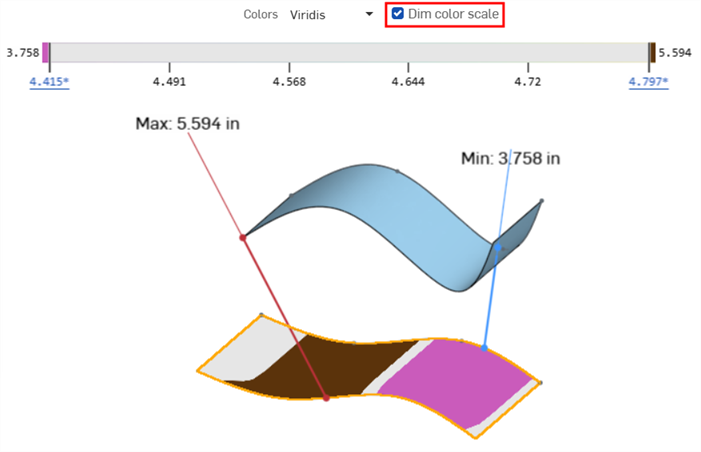
With Min/Max values that are adjusted, clicking the Dim color scale colors only the upper (brown) and lower (pink) values in the surface being measured:
Surface deviation calculation
Surface deviation calculation is similar to the Curve calculation, except:
-
Deviation is measured between 2 surfaces only, (Source) and (To measure). Multiple surfaces or surface chains cannot be calculated.
-
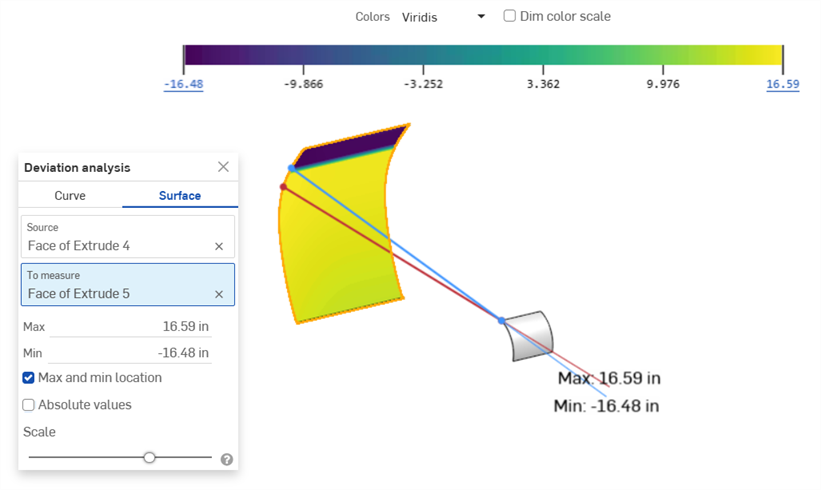
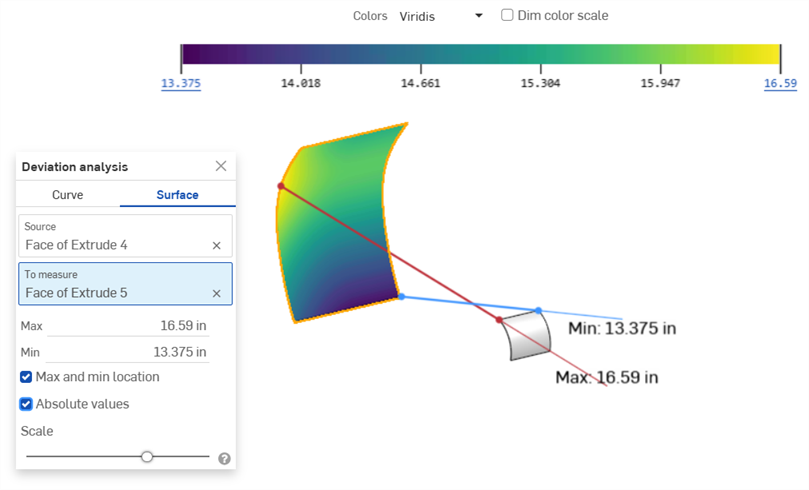
Surface calculation is single-sided. Depending on where the To measure surface is located with respect to the Source surface, the Min/Max values may be negative. Enable the Absolute values checkbox to adjust these values to positive:
Example showing a negative Min value (-16.48 in)
Enabling Absolute values adjusts the negative Min value to be positive (13.375 in)