 Volume (Render Studio Advanced)

僅為 提供。
在 Render Studio 中提供此功能
體積是指外觀的體積部分存在並被渲染的立方體區域。體積可以選擇性地是 OpenVDB 3D 紋理。非進階的使用者可以開啟包含體積的場景,但無法編輯其屬性。
對於建立體積效果的其他方式,請參考使用 OpenVDB volume 外觀建立體積效果。
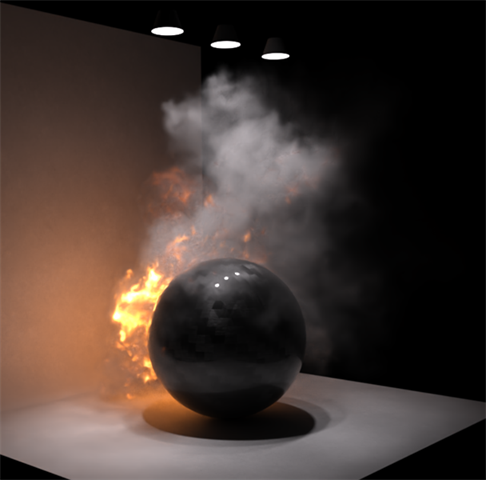
使用體積來顯示煙霧和火焰的範例輸出
 步驟
步驟
建立與編輯體積:
-
按一下工具列上的 Volume 圖示 (
 ):
):
-
Volume 對話方塊開啟。根據需要從下列選項中選擇 (並非所有「Volume」類型都提供所有選項):
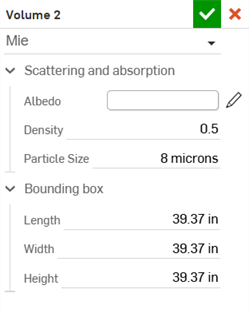
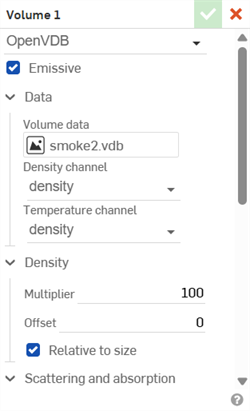
Mie 體積類型 (左圖) 與 OpenVDB 體積類型 (右圖) 的範例
-
Volume type - 從下列 3 種 Volume 類型中選擇:Mie、Anistotropic、與 OpenVDB。
-
Emissive - 透過選擇與體積溫度相對應的通道,讓體積能夠發光。
-
Data
-
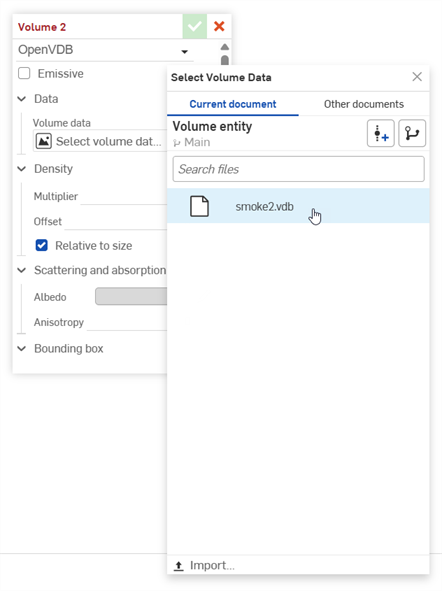
Volume data - OpenVDB 體積資料。按一下這個欄位來開啟 Select Volume data 對話方塊,可在其中從目前文件或其他文件中找出 OpenVDB 資料。按一下對話方塊底部的 匯入按鈕來在您裝置上找出並開啟 OpenVDB。在匯入之後,可在 Render Studio 中為體積選擇及使用它:
-
Density 通道 - 在體積通道中控制不透明度的資料。較低的值會產生較薄的透明體積。較高的值會產生較厚的不透明體積。
-
Temperature channel - 僅在啟用了 Emissive 時可用。來自這個通道的黑體溫度 (以克耳文為單位) 會設定發射的色彩和亮度,隨著溫度升高,色彩範圍會從暗紅色變為亮藍色。 使用溫度的 Multiplier 與 Offset 參數來將來源資料轉換為克耳文。
-
-
Density
-
Multiplier - 縮放體積密度。
-
Offset - 從整個體積中加上或減去密度。
-
Relative to size - 在啟用時,體積密度會隨體積的物理尺寸縮放。
-
-
Scattering and absorption
-
Albedo - 體積散射出光的色彩。按一下 Select albedo 圖示 (
 ) 來開啟 Select albedocolor picker 對話方塊。選擇反照率的色彩,然後按一下核取記號圖示 (
 )。
)。 -
Density - 控制體積的不透明度。較低的值會產生較薄的透明體積。較高的值會產生較厚的不透明體積。
-
Particle size - 體積內顆粒的平均直徑。
-
Anisotropy - 光源方向對散射的影響。值的範圍從 -1 的指定後向散射,0 是指定等向散射,1 則是指定前向散射。
-
-
Temperature (僅在啟用了「Emissive」時才能使用的參數)
-
Multiplier - 將溫度轉換為克耳文溫度。例如,如果體積的 Temperature channel 使用千克耳文,則將 Multiplier 設定為 1000 來轉換為克耳文。
-
Offset - 加上或減去溫度來轉換為克耳文。例如,如果體積的 Temperature channel 使用攝氏,則將 Offset 設定為 273.15 來轉換為克耳文。
-
Tint - 發射色彩的色調。按一下 Tint 圖示 (
) 來開啟 Select tintcolor picker 對話方塊。選擇色調的色彩,然後按一下核取記號圖示 ()。 -
Use density - 將密度套用於發射,以及散射和吸收。
-
-
Bounding box
-
Measurement - 從 Centimeter、 Foot、Inch、Meter (預設)、Millimeter、Yard、或 Custom 中選擇。
-
Scale - 如果為 Measurement 選取了 Custom,這樣會在所有方向上一致縮放體積邊界框的物理尺寸。
-
-
Length - 邊界方塊長度。
-
Width - 邊界方塊寬度。
-
Height - 邊界方塊長高度。
-
-
-
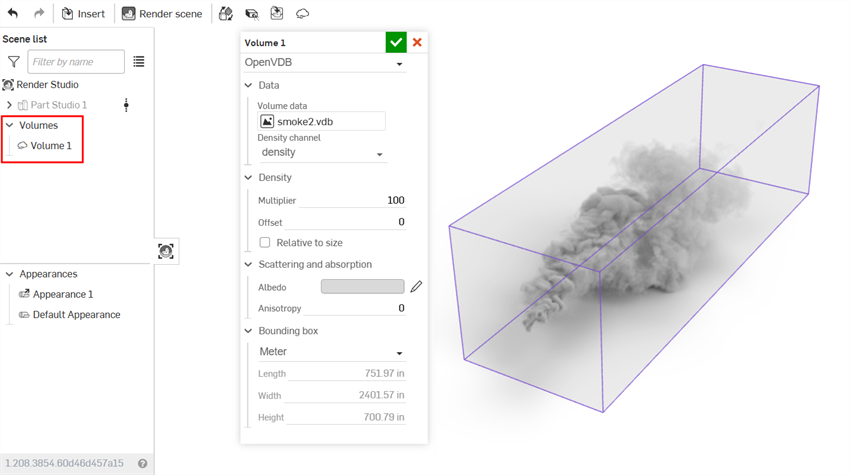
當您編輯時邊界方塊會顯示在圖形區域中,並有紫色的輪廓線環繞在體積周圍。同時會將「 Volume」加入到左側 Scene list 中的 Volumes 下拉清單中內:
-
當完成編輯時,按一下核取記號 (
) 來套用體積。邊界方塊隨即消失但體積仍留在圖形區域中: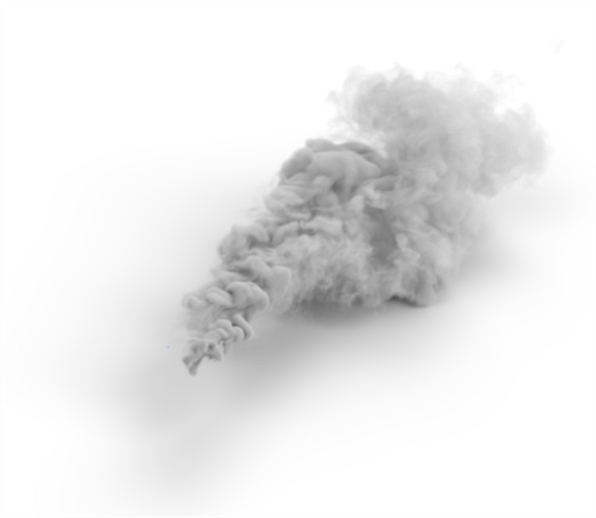
-
在套用體積之後若要隨時編輯它,請連按兩下 Scene list 中的體積來開啟體積對話方塊。
注意
-
可用與其他圖元一樣的方式來變換體積。
-
可以在 Scene list 中的體積上按右鍵,然後從環境選單中選擇 Duplicate volume 來一次複製一個體積。會將副本直接放置在目前所選的體積之下。