Variable Studio


可用于:Variable Studio
本主题介绍使用 Variable Studio 创建变量的功能和机制,这些变量可在创建它们时所在的文档以及其他文档中使用。您只能通过 Onshape 的浏览器平台创建 Variable Studio,但可以在所有移动平台上查看和使用变量。
Variable Studio 是在文档中创建的,其中的变量可立即在该文档工作区的所有 Part Studio 和装配体中使用。
另请参见:Variable Studio 配置。
 创建 Variable Studio
-
在文档中,单击左下角的“插入新页签”图标 (
 ),然后选择“创建 Variable Studio”: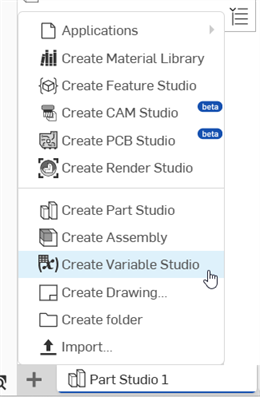
-
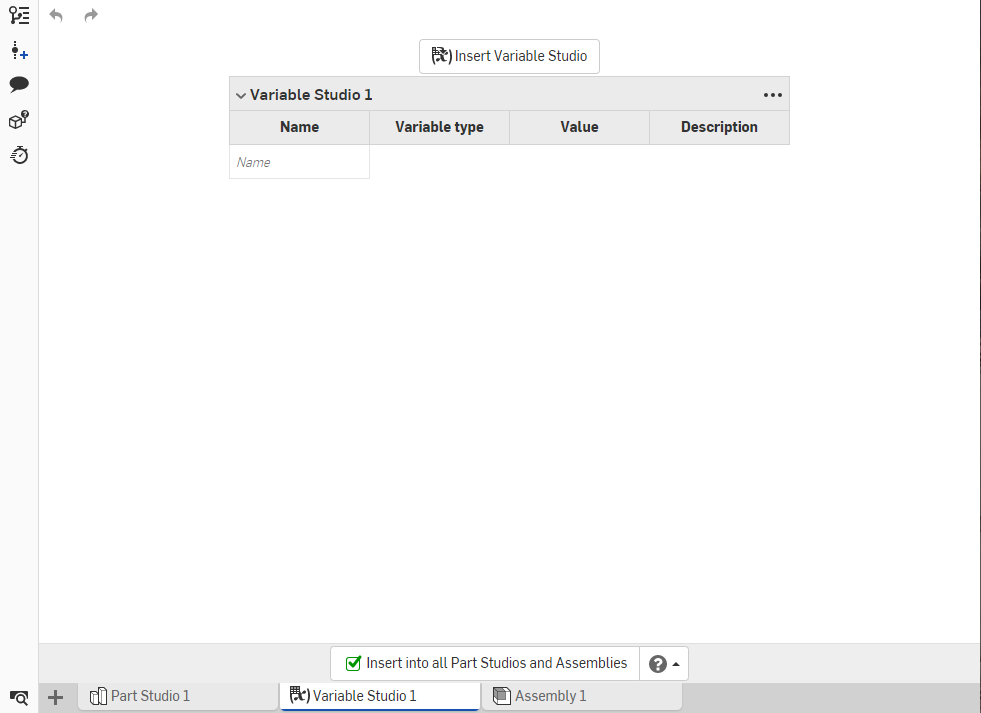
Variable Studio 将打开,其中一个变量表可用于输入:
-
在 “名称” 列中键入第一个变量的名称。(仅允许使用字母数字字符。)
-
按 Tab 键可移至下一行。系统会为变量输入默认长度类型,若要更改类型,请使用下拉箭头,并选择一种新类型。
要从 CSV 文件导入变量,请选择“来自导入”选项并按照以下说明操作:从 CSV 表格导入变量。
-
输入变量的默认值和可选说明。
要对表格中的输入重新排序,请右键单击并选择向上移动或向下移动。您也可以拖动输入以对其进行重新排序。
使用 Variable Studio 标题左侧的插入符号来折叠或展开该章节。要同时折叠(或展开)所有表格,请单击标题块右侧的三点菜单,然后选择折叠(或展开)所有表格。
可以使用之前在表中定义的变量,稍后在该表中定义其他变量的值。例如:
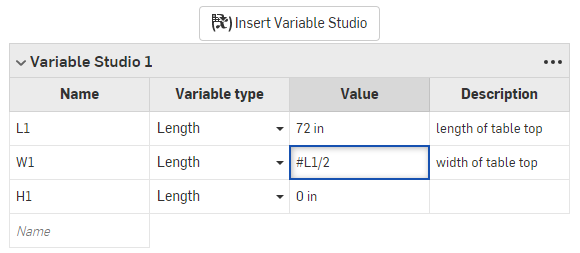
L1 变量(桌边的长度)用于计算 W1 变量(桌面的宽度)。
要使变量可用于工作区中的所有 Part Studio 和装配体,请选中“Variable Studio”选项卡底部边缘的框:

取消选中此框可移除在此文档的工作区中的 Part Studio 和装配体中使用变量的功能。(如果变量处于草稿状态,则保持此框为取消选中;如果变量可供使用,则选中此框。)
从 CSV 表格导入变量
“来自导入”变量类型允许用户创建一个变量,用于存储从导入的 CSV 表格中选取的子集(行和列)。“行”选项用于筛选行,并决定变量的“结果类型”(单值、数组或映射)。然后,“列”选项用于筛选每一行,并决定最终变量中每个条目的类型。
- 在表格中,单击“变量类型”箭头并选择“来自导入”。
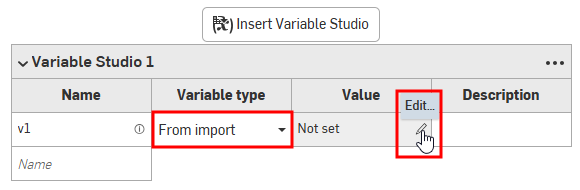
- 在“值”单元格中,单击“编辑”铅笔图标。“变量”对话框打开,并选中了“来自导入”页签:
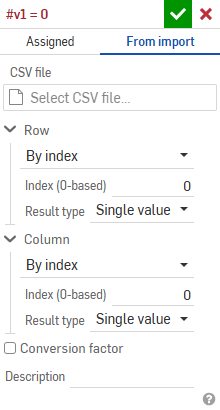
- 选择要列入物料清单中的主体项。您可以搜索主体项,也可以按类别筛选(单击类别“全部”旁边的向下箭头)。
- 在“CSV 文件”下,单击“选择 CSV 文件”输入框以打开对话框:
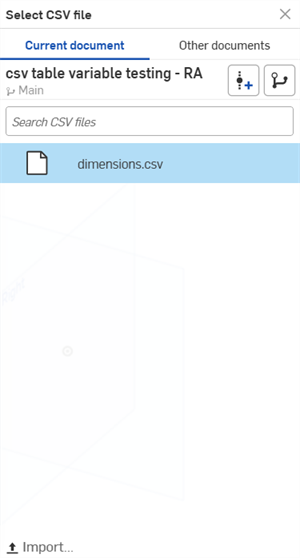
从“当前文档”、“其他文档”中选择 CSV 文件,或单击对话底部的“导入”按钮,从您的设备中选择 CSV 文件。
选择后,单击该文件。文件将加载到“选择 CSV 文件”输入框中。
- 根据您的需求填写“行”和“列”输入框:
- 访问类型 - 选择“根据索引”、“根据索引范围”、“根据标签”或“所有值”。
- Index - If By index is selected, enter a single Index value.
- 最小/最大索引 - 选择“根据索引范围”时,请输入最小和最大索引值。
- 值 - 如果选择“根据标签”,请输入标签的字符串值。
- 正则表达式 - 选中此项以对一组目标字符串进行模式匹配。
- 结果类型 - 选择“单一值”、“数组”或“映射”。
- 标签列/行索引 - 如果“结果类型”为“映射”,请输入数字索引值或变量。
- 访问类型 - 选择“根据索引”、“根据索引范围”、“根据标签”或“所有值”。
- 选中“转换系数”,若需进行不同测量单位之间的转换(例如,若表格中数值单位为英寸,而您希望将其转换为厘米),请在此处输入一个带测量单位的值。
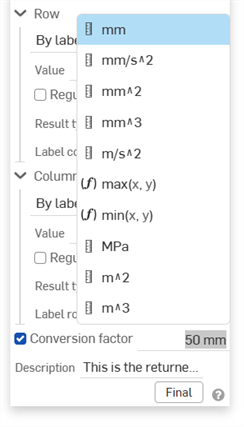
- 或者,输入“说明”以提供有关正在使用的变量或 CSV 文件的一些详细信息。
- 在“CSV 文件”下,单击“选择 CSV 文件”输入框以打开对话框:
- 单击
 。
。
另请参见:变量:来自导入示例。
在其他文档中参考变量表
要在定义变量表的文档以外的文档中使用它(以及其中定义的变量):
-
打开您要在其中将在 Variable Studio 中定义的变量用于其他文档的文档。
-
单击左下角的“插入新页签”图标 (
),然后选择“创建 Variable Studio”。 -
在新的 Variable Studio 中,单击顶部的插入 Variable Studio按钮。“插入 Variable Studio”对话框将会打开:
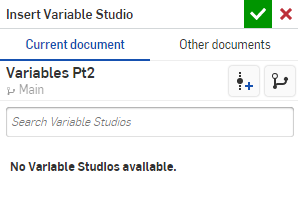
-
在要查找变量表的对话框的顶部选择两个选项卡中的一个:“当前文档”或“其他文档”。
如果在当前文档中有任何 Variable Studio,它们将在“当前文档”下列出。要在其他文档中找到 Variable Studio,请选择“其他文档”选项卡:
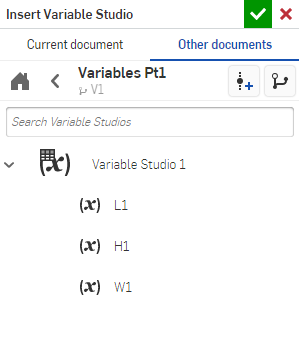
可以选择整个 Variable Studio 表(上图显示为 Variable Studio 1),也可以从列表中选择一个或多个不同的变量。您所做的选择在当前文档中立即可用。如果从其他文档插入变量表或变量,该文档必须具有包含这些变量的版本。如果版本不存在,系统会提示您创建一个,然后再继续。
成功选择变量和/或变量表后,您会在当前文档的 Variable Studio 中看到所选的图元:
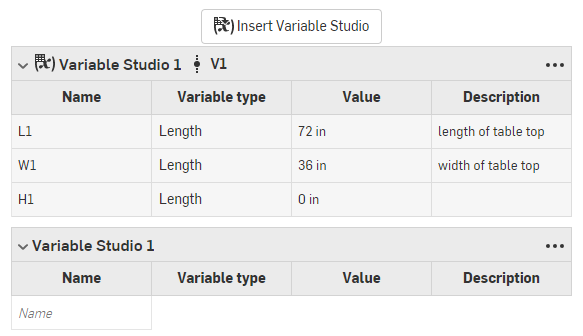
从其插入表的 Variable Studio 的名称和版本会显示在表的顶部,在上图中显示为 Variable Studio 1 V1。
已配置 Variable Studio 必须在插入时设置其配置。请参见“参考已配置 Variable Studio”。
发布 Variable Studio
右击 Variable Studio 选项卡并选择“发布”:
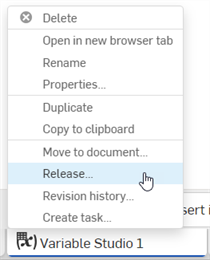
无法发布已配置的 Variable Studio。
如需其他学习中心资源,请注册以下课程:变量和表达式(需要 Onshape 帐户)。