变换草图
变换可调整草图的位置、方向和比例。
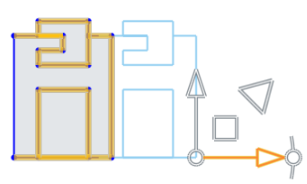
本视频将为您介绍如何使用“变换”草图工具。“变换”会调整草图的位置和方向。您可以先选择所有图元,然后再选择“变换”工具,也可以先选择“变换”工具,然后再选择图元。在本例中,我们先选择草图工具栏中的“变换”工具,然后再选择要移动或定向的图元。为了移动它们,您可以使用箭头,这会将它们移至新位置。对位置感到满意后,单击鼠标左键,图元即会移动。您还可以向上、向下、向左或向右以任意方向移动图元。
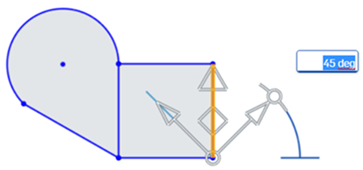
要更改任何图元的方向角度,请先选择图元。然后,选择草图工具栏中的“变换”工具,接下来即可使用角度操纵器以负向或正向调整旋转角度。如果要输入精确测量值,您可以使用键盘来输入,然后按 Enter 键,再按鼠标左键以接受更改。
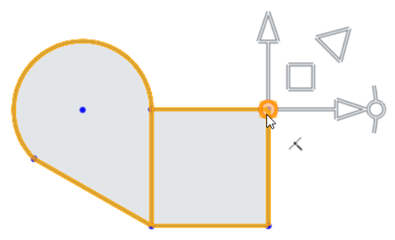
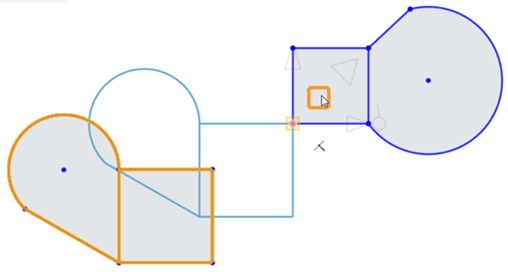
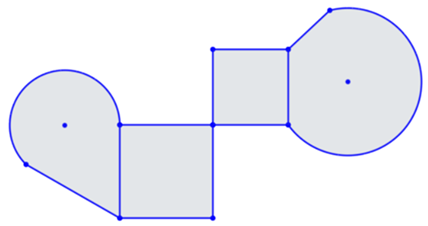
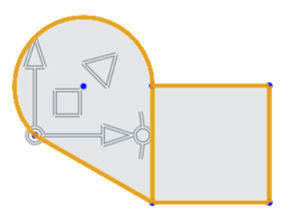
您还可以使用“变换”工具将两个闭合图元形状连接在一起。首先,单击“变换”工具。选择第一个闭合形状中的图元。放置操纵器的球点以定向草图的捕捉点,在此例中为方形的右上角捕捉点。接下来,使用平面将草图球点拖动到另一草图上的捕捉点,在此例中为方形左下角的点。单击鼠标左键以接受更改。
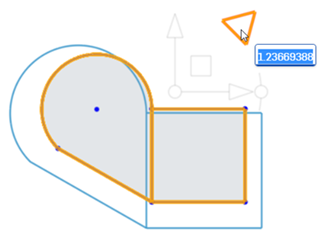
变换工具也可用于放大或缩小图元。为此,首先选择草图工具栏中的变换工具。选择要缩放的图元,然后使用比例操纵器向上拖动以创建更大的比例,或向下拖动以创建更小的比例。当您有了想要的比例大小时,单击鼠标左键以接受更改。
步骤
- 单击
。 - 选择要移动的草图图元。
- 使用操纵器拖动并定向草图。
- 根据需要放置并定向草图后,在空白处单击。
通过操纵器旋转时,会激活角度输入框。输入一个角度,按 Enter 键,在空白处单击以设置角度:
放置操纵器的球点以定向草图的捕捉点:
- 在草图上将球点拖动到您希望用作捕捉点的点:

- 使用平面将草图球点拖动到另一个草图上的捕捉点(在本例中是正方形左下角的点):

- 单击关闭草图以设置变换:

要缩放草图图元,请单击比例(三角形)操纵器并将其向外或向内拖动,以分别放大或缩小。拖动操作会激活比例输入框。输入一个用数字表示的比例,按 Enter 键,然后在空白处单击以设置比例:
有关更多信息,请参阅变换草图。
提示
- 支持预选和后选,可以在操作期间添加和移除图元。
- 单击关闭草图或按 Enter 键可提交变换并退出操作。按 Esc 键可取消操作。
- 如果不旋转或旋转 180 度,内部约束保持不变。
- 如果旋转 90 度或 270 度,水平约束和竖直约束会互换。
- 在某些情况下,可能会添加构造几何图元来保持自由度。
- Directed dimensions are deleted, and may be replaced with construction geometry and minimum dimensions.
- Transform is also supported for images, text, DWG, and DXF.
Transform adjusts a sketch's location and orientation.
Steps
- With the sketch opened for editing, select the sketch entities you want to move.
- In the Feature tool area, tap
. - Use the manipulator to drag and orient the sketch.
- Click in space when the sketch is placed and oriented as desired.
When rotating via the manipulator, an angle field activates. Tap in the numeric field, enter an angle, tap the checkmark, and tap in space to set the angle:
Place the manipulator’s ball point to orient a snap point for the sketch:
- Drag the ball point to a point on the sketch you wish to use as a snap point:

- Use the plane to drag the sketch ball point to the snap point on another sketch (in this case the lower-left point of the square):

- Click off the sketch to set the transform:

Tips
- Pre- and post-selection is supported; entities may be added and removed during the operation.
- Tap off the sketch or tap the checkmark to commit the transform and exit the operation.
- In the case of no rotation or 180 degree rotation, internal constraints are unchanged.
- In the case of 90 degree or 270 degree rotation, horizontal and vertical constraints swap.
- In some cases, construction geometry may be added to maintain degrees of freedom.
- Directed dimensions are deleted, and may be replaced with construction geometry and minimum dimensions.
- Transform is also supported for images, text, DWG, and DXF.
Transform adjusts a sketch's location and orientation.
Steps
- With the sketch opened for editing, select the sketch entities you want to move.
- In the Feature tool area, tap
. - Use the manipulator to drag and orient the sketch.
- Click in space when the sketch is placed and oriented as desired.
When rotating via the manipulator, an angle field activates. Tap in the numeric field, enter an angle, tap the checkmark, and tap in space to set the angle:
Place the manipulator’s ball point to orient a snap point for the sketch:
- Drag the ball point to a point on the sketch you wish to use as a snap point:

- Use the plane to drag the sketch ball point to the snap point on another sketch (in this case the lower-left point of the square):

- Click off the sketch to set the transform:

Tips
- Pre- and post-selection is supported; entities may be added and removed during the operation.
- Tap off the sketch or tap the checkmark to commit the transform and exit the operation.
- In the case of no rotation or 180 degree rotation, internal constraints are unchanged.
- In the case of 90 degree or 270 degree rotation, horizontal and vertical constraints swap.
- In some cases, construction geometry may be added to maintain degrees of freedom.
- Directed dimensions are deleted, and may be replaced with construction geometry and minimum dimensions.
- 图像、文本、DWG 和 DXF 也支持变换。