变换
变换


可用于:Part Studio
在 3D 空间内调整零件(如果需要,也可以调整其嵌合连接器或轴)的位置和方向,并且提供了原位复制零件的选项。变换零件时,您也可以选择其嵌合连接器(推断或现有)或轴,以使嵌合连接器与零件在一起。

 视频示例:按直线平动
视频字幕
“变换”特征工具允许您在 3D 空间中调整一个或多个零件的位置和方向,并可以选择将原地复制零件。变换零件时,选择其嵌合连接器,使其与零件保持一致。单击工具栏上的“变换”特征工具。选择要变换或复制的零件。请注意,您可以通过几种不同的方式进行变换: 按直线、距离、XYZ 轴、嵌合连接器、旋转、原地复制和缩放。现在使用的是默认的“按直线平动”。接下来,单击对话框中的“线或点”输入框,然后在图形区域中选择用作变换基础的一条或多条直线。如果选择一条直线,则需要提供一条线。如果选择一个点,则需要提供两个点。选中“复制零件”以创建所选零件的副本。然后单击绿色复选标记以接受变换。
视频示例:其他变换选项
视频字幕
该视频探讨了各种变换选项。单击工具栏上的“变换”特征工具。选择要变换或复制的零件。选择“按距离平动”。选择方向,然后在对话框中输入距离或使用箭头指定距离。或者,选择“按 XYZ 平动”。变换操纵器出现。使用图形区域中的箭头,或者在 X、Y 和 Z 轴上输入平动值。选择“按嵌合连接器变换” ,然后选择出发和到达的嵌合连接器来进行零件变换。若要旋转零件,请选择“旋转”。选择一条轴并在对话框中输入角度,或使用箭头调整图形区域中的角度。选择“原地复制”,在与原件相同的位置创建零件的副本。最后,选择“缩放”,然后确定是否要均匀缩放。输入比例值,然后选择要缩放的点或嵌合连接器。单击绿色复选标记以接受变换。
步骤
- 单击
 。
。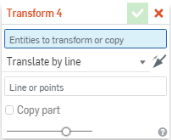
- 选择要移动的零件(如果需要,也可以选择其嵌合连接器或轴)。
- Select the method of moving the part (transform type):
- Translate by line - Move the part along a selected line: such as a part edge.
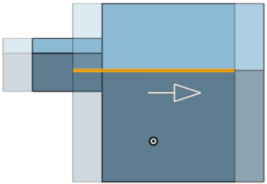
- Translate by distance - Move the part by a specified value and in a direction indicated by the selection of an entity or Mate connector.
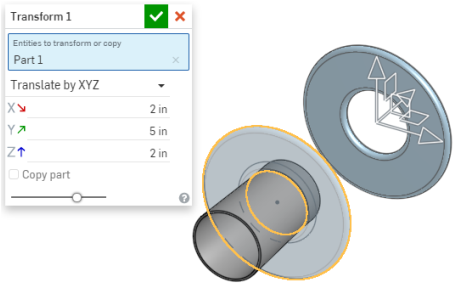
- Translate by XYZ - Move the part along an axis by a specified value. Optionally, use the drag manipulator that appears to position the part along axis.
- Transform by Mate connectors - Specify two Mate connectors (implicit or explicit), or axis, by which to reorient the placement of the part. Use the directional arrows to flip the orientation:
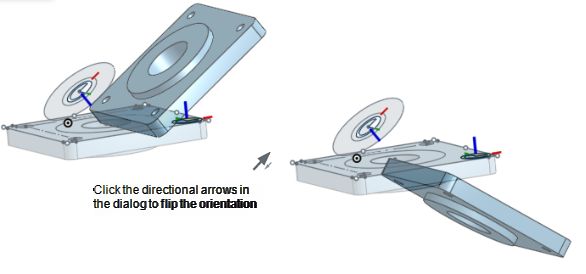
- Rotate - Move the part about an axis or Mate connector (implicit or explicit) specified by selecting an entity.
- Copy in place - Make a copy of the part at the same location; this creates a separate and independent part enabling you to:
- Make changes to one part and use both to create different parts during a later operation.
- Make a copy of a part prior to a series of operations enabling you to reference the original state for ancillary operations.
- Create multiple copies of a part in order to create multiple variants.
If you need to create multiple copies of a part at once, use the Pattern feature with a distance of 0 (zero).
- Scale - Scale a part by a specific factor and select a point to scale about; selecting Scale presents a Scale Uniformly checkbox. Uncheck this box to specify your own scale for X, Y, and Z axes, and also select a point or Mate connector (implicit or explicit) to scale about. Using a Mate connector (implicit or explicit), or axis, to scale about changes the coordinate system to be relative to the Mate connector or axis.
- Optionally, select Copy part to duplicate the part.
- 单击
 。
。
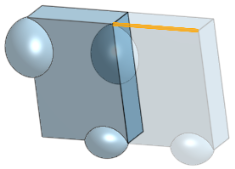
按直线平动
在按直线平动之前:
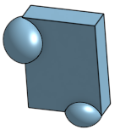
沿由零件的边指定的选定直线平动之后:
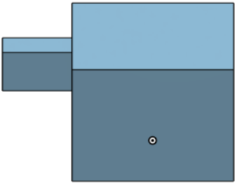
按距离平动
在按距离平动之前:
通过指定值和方向平动之后:
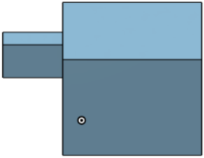
按 XYZ 平动
在选中“复制零件”选项的情况下按指定的距离沿轴平动之后:
按嵌合连接器或轴变换
在按嵌合连接器或轴变换之前:
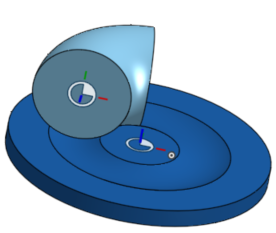
从一个嵌合连接器到另一个嵌合连接器变换之后:
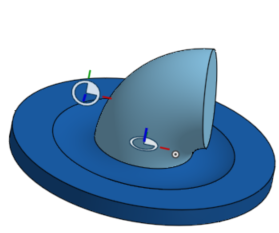
旋转
在旋转之前:
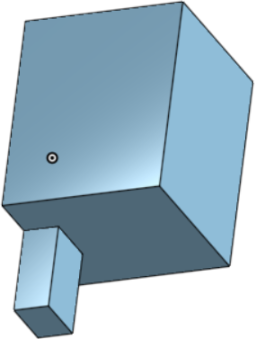
在旋转之后:
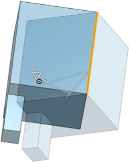
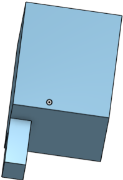
原位复制
副本就放在零件原来所在的位置。请注意,零件清单会反映新的零件和零件计数。
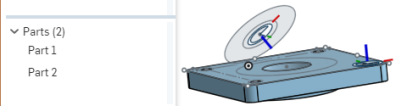
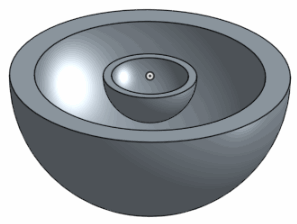
均匀缩放
在均匀缩放之前:
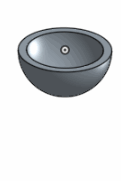
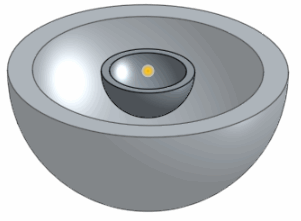
在均匀缩放之后:
比例不统一
缩放前:
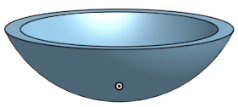
缩放后: