可用于:Part Studio、装配体
您可以为定义的每个配置输入和选项配置属性(元数据)。您可以配置零件属性、外观属性和装配体属性。管理员还可以配置自定义属性。
 配置特性
配置特性
图像来自已配置的 Part Studio。已配置的装配体的功能是相同的。
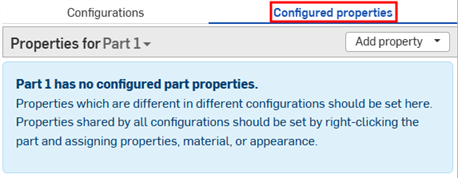
- 在配置面板中已有配置输入的情况下,单击面板顶部的“已配置属性”(或“已配置的装配体属性”)。
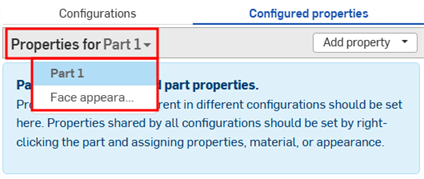
- 单击“特性”下拉列表选择要配置的零件或外观。
包含已配置属性的零件、外观和装配体在列表中以复选标记显示: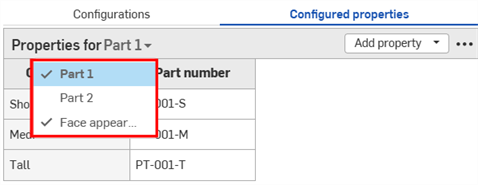
- 单击“添加特性”。
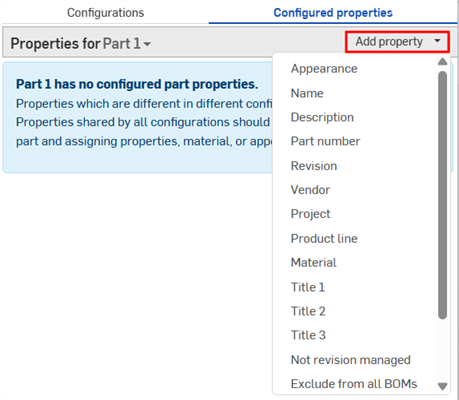
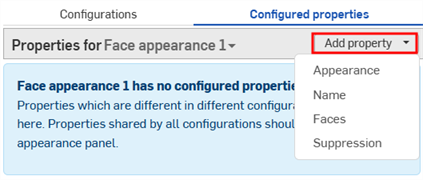
-
选择您要配置的属性;属性可用于零件、外观和自定义属性。所有配置输入都将添加到表中。
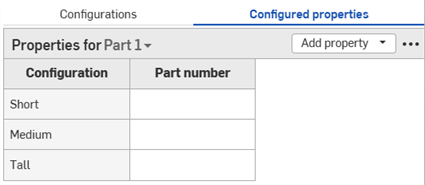
- 双击“特性”列中的单元格进行编辑。按 Tab 键移至下一行。
- 要编辑一个值,请键入新值并按 Enter 键接受。
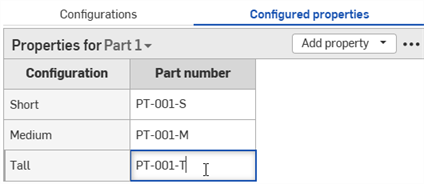
- 要编辑对话框选择,请在对话框中进行新选择,然后单击
 关闭对话框。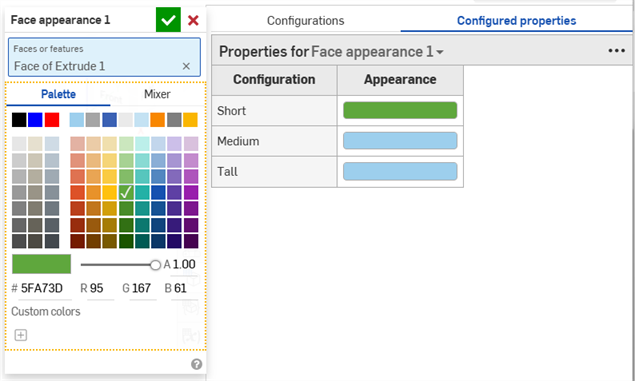
- 要编辑一个值,请键入新值并按 Enter 键接受。
-
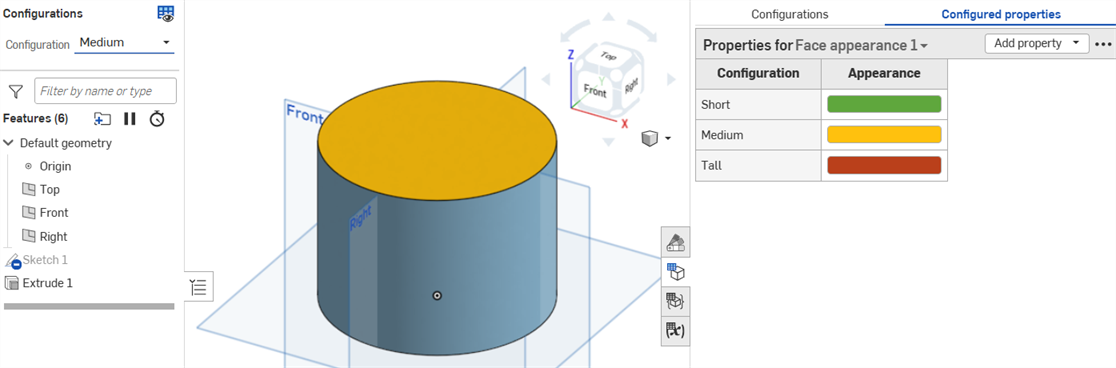
根据需要重复操作以配置其他特性。以下示例均配置了零件编号和面外观特性。
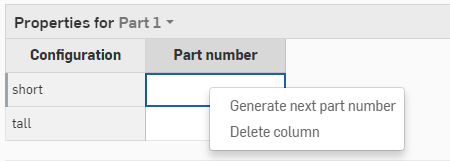
如果您启用了自动生成零件编号的功能(通过您的 Professional Company 或 Enterprise 编号方案),则可以在“零件编号”属性列中右键单击,然后选择“生成下一个零件编号”:
如果表中的任何属性设置为只读,则无法删除表、向表中添加属性或删除只读属性列。您仍可以修改可编辑属性的单元格值。
排除影响特性的配置
(仅限零件和 Part Studio)
某些配置表可以从属性中排除。当您不想重复已配置的属性表中的配置输入时,这很有用。
排除的配置被视为具有其默认值。发行包和修订参考使用这些默认值。若可见性条件阻止使用默认值,则采用首个可见值。
例如,以弹簧为例。弹簧的直径和高度均有配置可供选择。
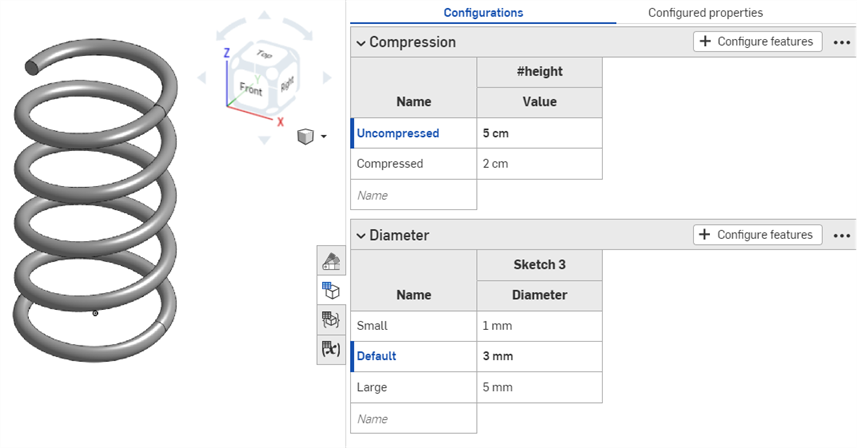
弹簧是否压缩会影响几何图元,但不会影响零件编号;压缩和未压缩时弹簧是同一个零件。若要指定无论弹簧高度如何都应分配所有零件编号,必须将每个配置选项添加到配置特性表中,并为每个配置选项指定零件编号。
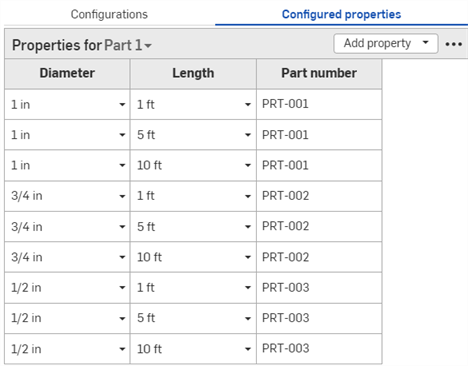
为每种配置可能性设置零件编号。
如果改为从特性中排除压缩配置表,您可以根据直径指定零件编号:
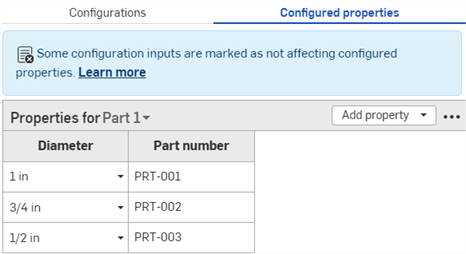
压缩配置表不包括在配置的特性表中。无论弹簧高度如何,都应设置零件号。
步骤:从特性中排除配置输入
-
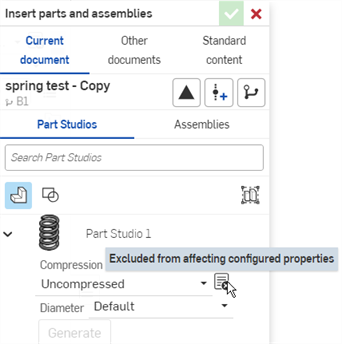
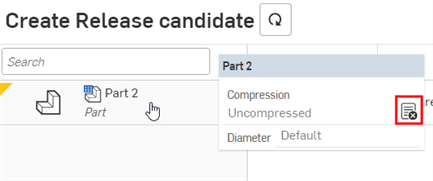
在“配置”面板中,单击配置的三点按钮,然后从菜单中选择 “从特性中排除”。“从特性中排除”图标
 显示在配置名称旁边。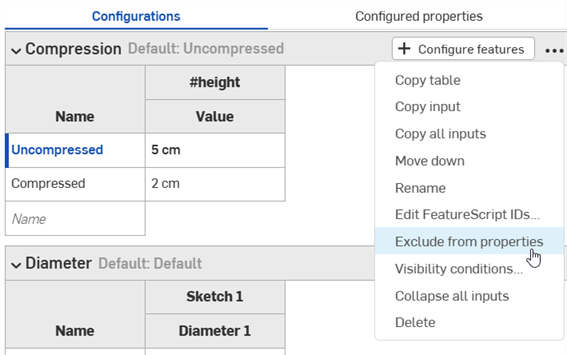
步骤:将排除的配置添加回特性中
-
在“配置”面板中,单击配置的三点按钮,然后从菜单中选择 “包含在特性中”。