 Altium 365 集成

仅适用于.
可用于:PCB Studio
Altium 365 集成可将用户的 Altium 帐户链接到其 Onshape 帐户。集成后,用户可以直接浏览 Altium 工作区,并将 Altium 电路板直接导入 PCB Studio,而无需使用文件。导入 Altium 电路板后,可以使用与导入 IDF 等文件格式的电路板相同的工具,在 Onshape 中创建该电路板。
Altium 365 集成是双向的。对电路板外形轮廓或零部件位置的更改可以在 Onshape 中进行,重新导入到 PCB Studio,然后再推送回 Altium。
与 IDF 文件不同,从 Altium 导入到 PCB Studio 的电路板在创建时会附带贴花,用于显示电路板的铜、阻焊层和丝印层。Altium 中存在的任何关联的 3D 零部件模型都会被导入并添加到 PCB Studio 的零部件映射库中。
 Altium 要求
要将 Altium 365 与 Onshape 配合使用,需要满足以下条件:
-
Altium 帐户(登录)
-
访问 Altium 工作区
-
电路板项目的编辑权限
在 Altium 中进行协作是通过 Altium 的 MCAD CoDesigner 扩展程序实现的。
设置 Altium 365 以与 Onshape 一起使用
在 PCB Studio 能够访问每个 Altium 工作区之前,必须先在相应的 Altium 工作区中启用“Onshape PCB Studio 连接器应用”。完成此过程需要 Altium 工作区管理员权限。
-
登录 Altium。
-
从左侧菜单中选择“管理员 > 应用”。
-
选择“Onshape PCB Studio 连接器”应用:
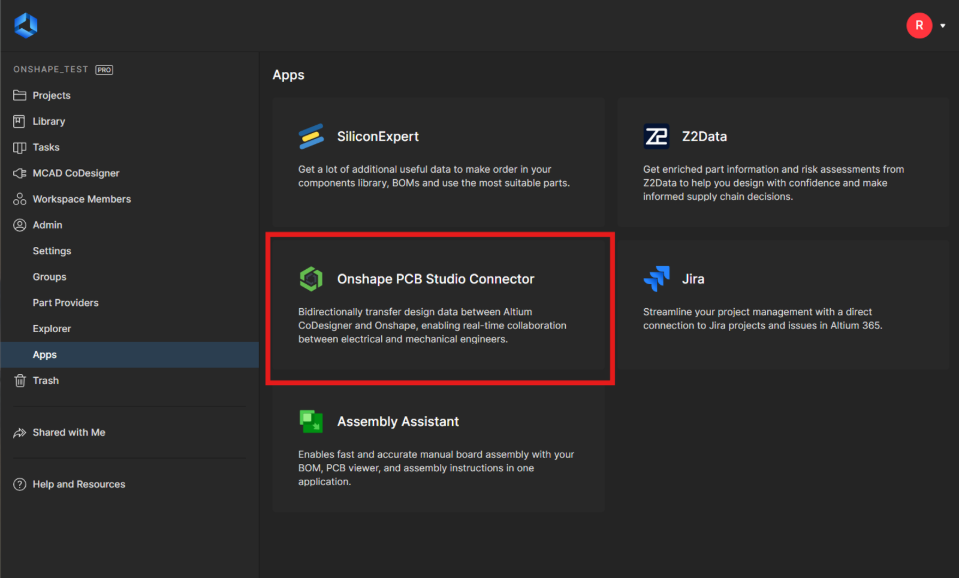
-
单击“激活”:
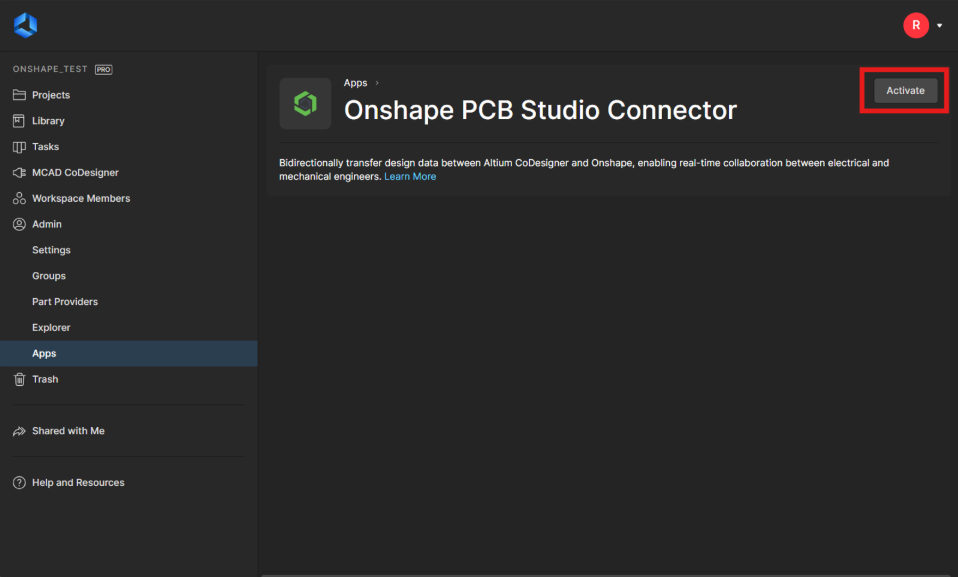
-
在确认对话中再次单击“激活”,将应用添加到 Altium 工作区。如果需要,可以随时将集成从工作区中移除,方法是返回同一屏幕并单击“停用”。
将 Altium 365 帐户与 Onshape 集成
您的 Altium 365 集成可能由您的企业或公司管理员管理。如果您正在为企业或公司管理 Altium 365,请参见“Enterprise 设置 - 集成”。
要集成您的 Altium 365 帐户,以便在 PCB Studio 页签中访问 Altium 工作区项目,请执行以下操作:
-
单击 Onshape 窗口右上角的“帐户用户 > 我的帐户”:
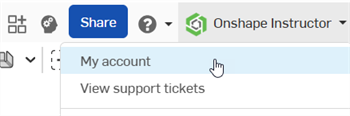
-
单击页面左侧列表中的“集成”:
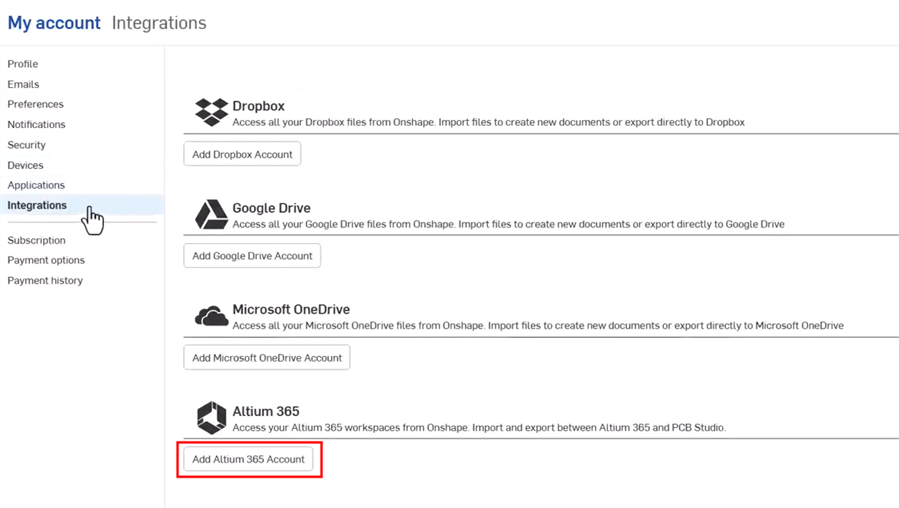
-
单击“添加 Altium 365 帐户”按钮。
-
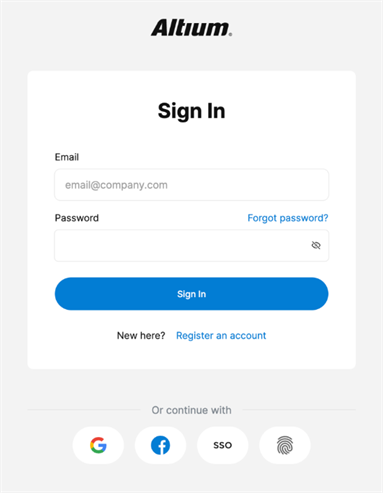
如果您尚未登录,则会显示 Altium 登录页面。输入您的凭据,然后单击“登录”按钮。您的 Altium 电子邮件不必与您的 Onshape 电子邮件相同。
-
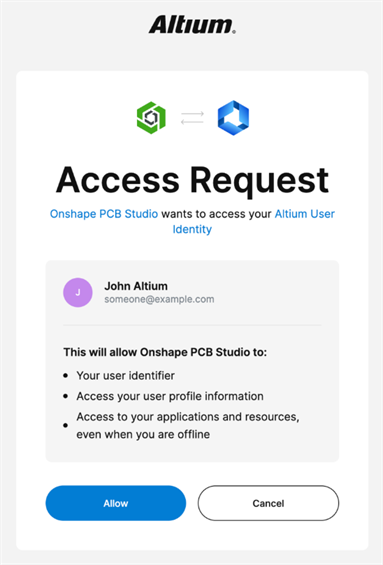
“访问请求”对话随即显示。单击“允许”按钮,接受将 Onshape PCB Studio 连接到 Altium 用户身份的请求:
您将被重定向回 Onshape 集成页面,该页面现已添加 Altium 集成:

单击“移除”可移除集成,或单击“刷新”进行更新。
将 Altium 工作区项目下载到 PCB Studio 页签中
在您将 Altium 365 帐户与 Onshape 集成之后(如上所述):
-
在文档页面,创建一个新文档(“创建 > 文档”)。
-
创建一个新的 PCB Studio 页签。请参见“在 Onshape 中创建 PCB Studio”。
-
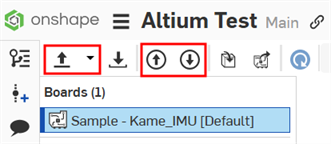
PCB Studio 页签的左上角有以下 3 个图标:
-
导入 ECAD 文件(
 )——从 Altium 365 云服务导入您的电路板。使用下拉菜单按钮(
 )选择“从 Altium 365 导入”。
 -
将电路板推送到云服务(
 )——将电路板推送到 Altium 365 云服务。
 -
从云服务拉取电路板(
 )——从 Altium 365 云服务拉取电路板。
单击下拉菜单按钮 (
) 并选择“从 Altium 365 导入”: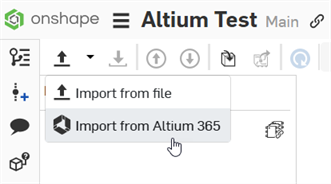
-
-
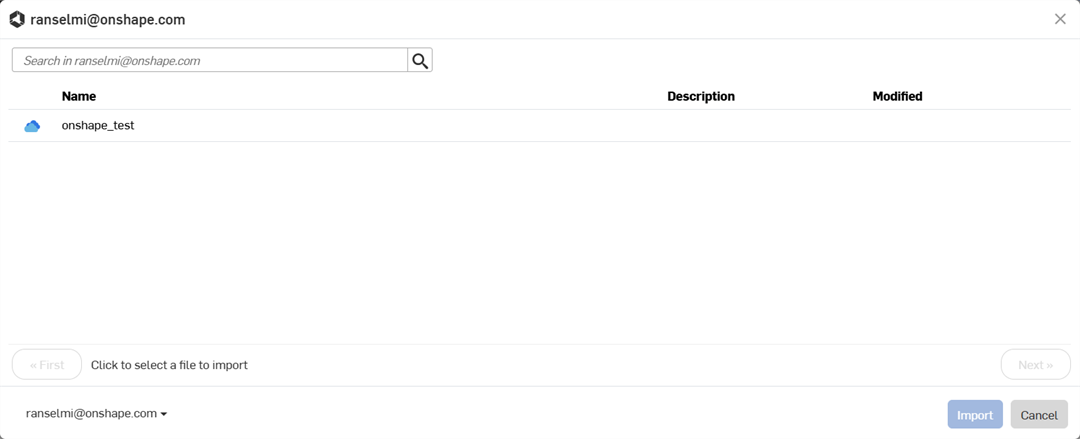
将打开一个对话,显示您是其成员的所有 Altium 工作区。单击所需的工作区(在下例中只有一个:onshape_test)。或者,单击“取消”按钮退出对话而不选择工作区。
-
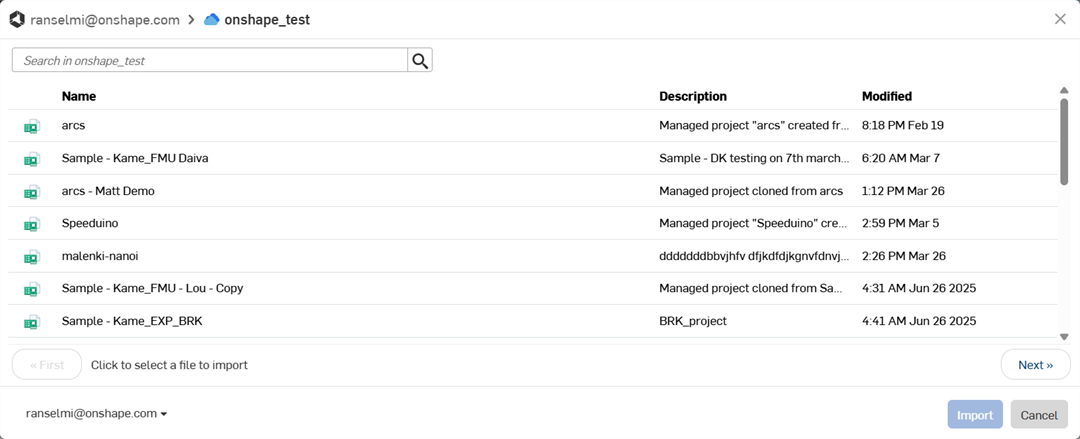
将打开一个对话,显示该工作区中的所有项目。单击列表中的一个项目以将其选中。单击列表下方的“下一页”按钮可导航至工作区中项目的下一页,或单击“第一页”按钮可导航回第一页。
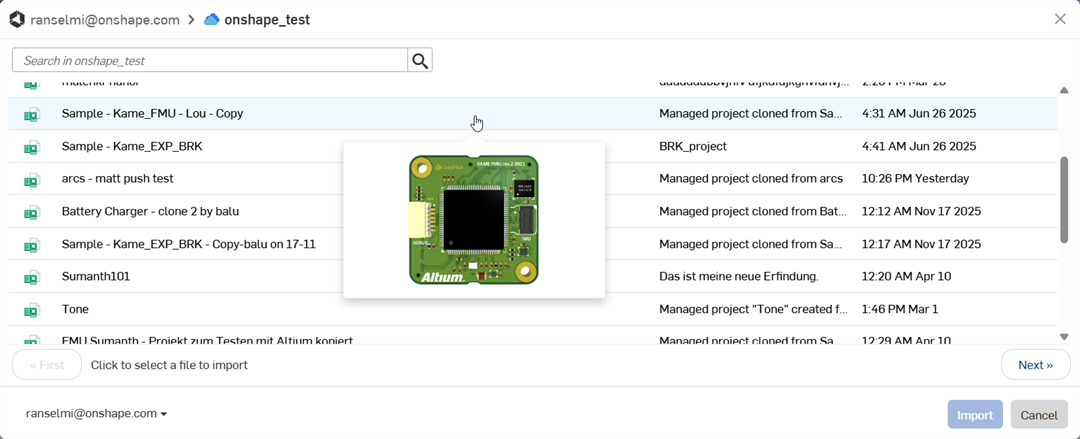
当您将鼠标悬停在一个项目上时,光标下方会出现一个缩略图,以提供该项目的可视化预览:
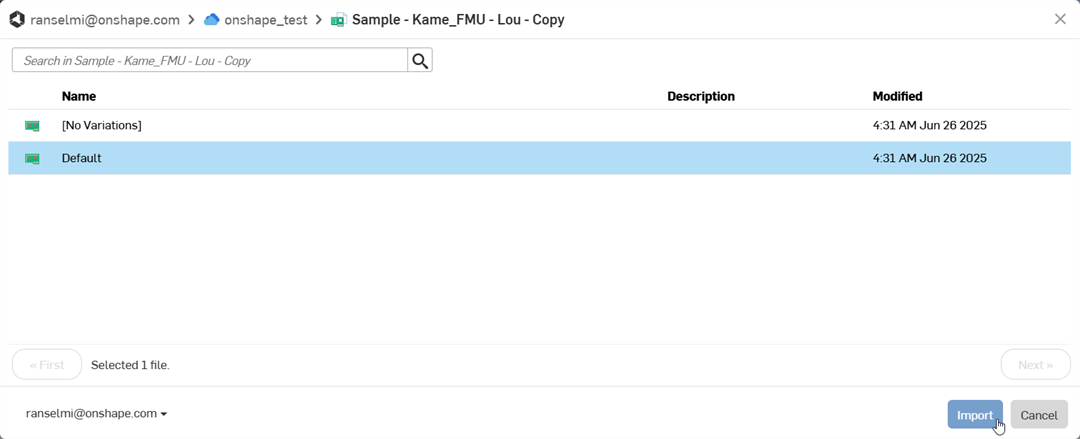
选择一个项目后,将打开一个对话,显示该项目所有的变体。单击以选择项目变体。然后单击“导入”按钮。或者,单击“取消”按钮退出对话而不选择项目变体:
-
如果有多个详细的模型零部件正在下载,即使在初始项目显示在屏幕上之后,这也可能需要额外的时间。这些零部件是通过后台进程下载的。所有零部件都导入后,单击工具栏右上角的“更新”图标 (
 ),将库文档更新到最新版本: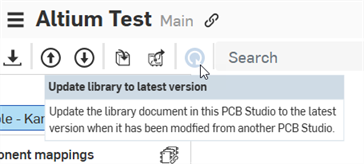
导入后,该项目将下载到 PCB Studio 页签中:
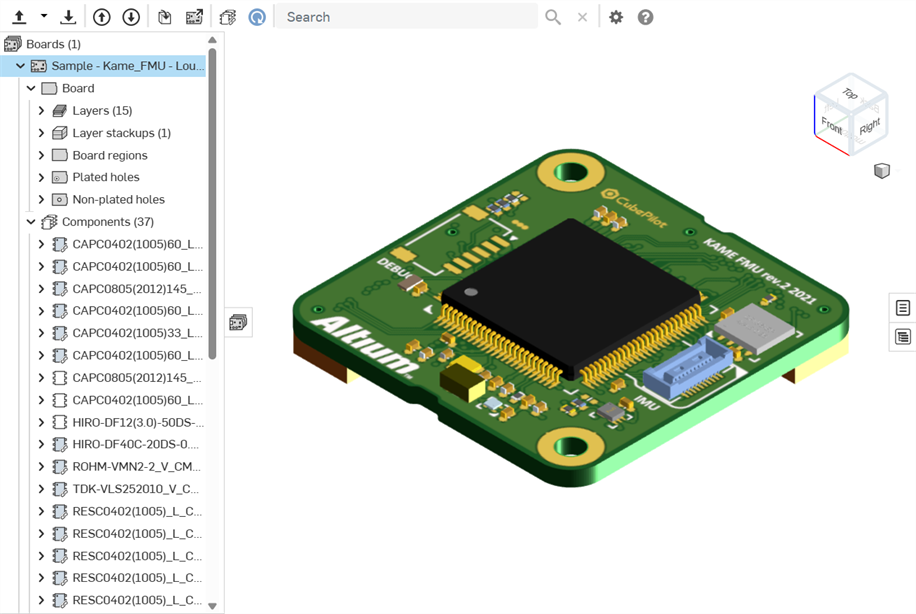
此时,您可以从这个 PCB Studio 电路板创建一个装配体。请参见“将 CAD 数据转换为 ECAD”。
将电路板推送到 Altium/从 Altium 拉取电路板
当您在 Onshape Part Studio 和装配体中对电路板进行编辑,并将其与 PCB Studio 同步后,就可以将这些更改推送回 Altium 了:
-
单击“将电路板推送到云服务”按钮 (
)。
-
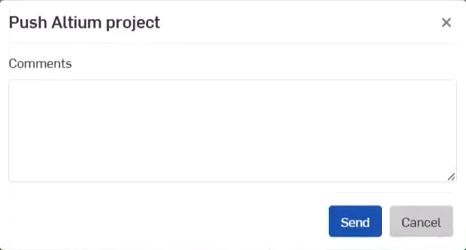
“推送 Altium 项目”对话打开。在“评论”输入框中添加任何评论,以向 ECAD 用户提供信息。这些信息可以是在 Onshape 中编辑电路板期间对电路板所做的任何更改。
-
单击“发送”按钮。或者,单击“取消”按钮退出对话,而不将电路板推送到 Altium。
-
在 Altium 中,ECAD 用户:
-
查看消息以及对电路板所做的所有更改
-
决定是否将这些更改应用到电路板
-
对电路板进行其他更改
-
单击“推送到 MCAD”按钮:
-
向 MCAD 用户添加消息
-
单击“发送”按钮
-
-
-
在 PCB Studio 中,MCAD 用户单击“从云服务拉取电路板”按钮 (
)。电路板将从 Altium 拉取到 PCB Studio 中,并根据 ECAD 用户在 Altium 中所做的更改进行更新。
这个过程可以重复任意多次,直到 MCAD 和 ECAD 用户之间最终确定电路板为止。
注释
-
将 CAD 数据转换为 ECAD 时,会在文档中单独的页签中创建额外的电路板贴花。这些贴花会映射到电路板模型的曲面。
-
铜信息和丝印信息是单向传输的。它们会从 Altium 导入到 Onshape 中,但不会从 Onshape 发送回 Altium。
-
PCB Studio 支持从 Altium 365 导入刚柔结合 PCB:
-
在 Altium 中,确保折弯线与整个区域相交。
-
同步到 Onshape 后,贴花不会显示在折弯区域上:
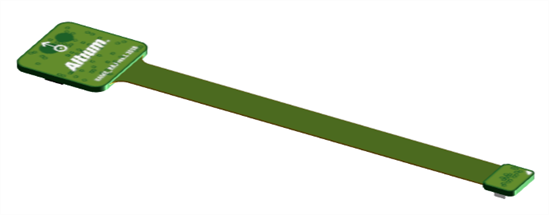
同步到 Onshape 之前(在 PCB Studio 页签中显示为绿色的贴花)
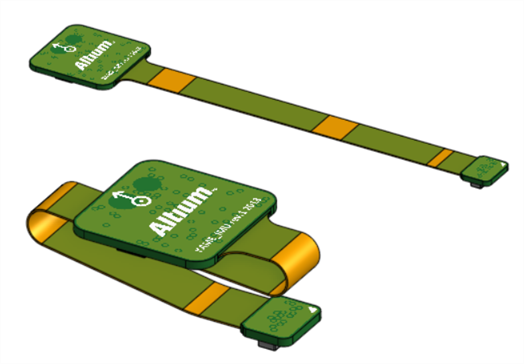
同步到 Onshape 后,在装配体中:展开的(顶部);折叠的(底部)。(装配体页签中的)橙色折弯区域上缺少贴花。
-