Company/클래스룸/엔터프라이즈 설정 - 개발자

다음 용도로만 사용 가능
엔터프라이즈 및 프로페셔널 관리자는 Onshape에 새 애플리케이션을 등록하고, 애플리케이션을 관리 및 사용자에게 배포하고, 사용자의 API 키를 관리할 수 있습니다.
이 페이지의 단계는 Company, 클래스룸 또는 엔터프라이즈 관리자에게만 적용됩니다. 개인 사용자는 개발자 포털 단계를 따라야 합니다.
All applications created in the Company/Classroom/Enterprise Settings count towards the company's API Limits. All applications created in the Developer Portal count toward the individual user's API Limits.
Onshape 애플리케이션 생성 및 관리에 대한 자세한 내용은 Onshape 개발자 문서를 참조하십시오.
Onshape 창 오른쪽 위 코너에 있는 사용자 아이콘( )을 클릭하고 드롭다운 메뉴에서 Company/클래스룸/엔터프라이즈 설정을 선택합니다.
왼쪽 창에서 개발자를 클릭합니다.
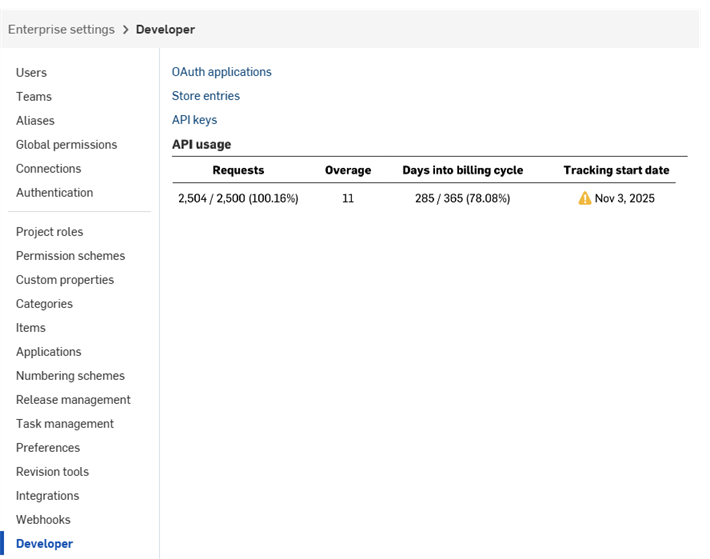
-
Onshape에 새로운 OAuth 애플리케이션 등록
-
Company 내 사용자, 별칭 및 팀과 애플리케이션 공유
-
인증이 완료된 앱을 Onshape 앱 스토어에 제출
-
Company 내 모든 구성원의 API 키를 조회, 생성 및 삭제
-
Company의 API 사용량 보기
- API 사용에 대한 자세한 내용은 API 제한을 참조하십시오.
-
관리자 전원에게 사용량이 25%, 50%, 75%, 100%에 도달할 때마다 알림 이메일이 발송됩니다.
이 페이지의 단계는 Company, 클래스룸 또는 엔터프라이즈 관리자에게만 적용됩니다. 개인 사용자는 개발자 포털 단계를 따라야 합니다.
All applications created in the Company/Classroom/Enterprise Settings count towards the company's API Limits. All applications created in the Developer Portal count toward the individual user's API Limits.
 앱 개발 워크플로우
내부 사용 또는 테스트를 위해 Onshape UI에서 열리는 앱을 만들려면 다음 단계를 따르십시오.
최종 사용자를 위해 Onshape 앱 스토어에 앱을 게시하려면 다음 단계를 따르십시오.
- OAuth2로 인증합니다.
- 앱 스토어 항목을 생성합니다.
- 출시 체크리스트 완료하기
OAuth 애플리케이션 생성 및 등록
-
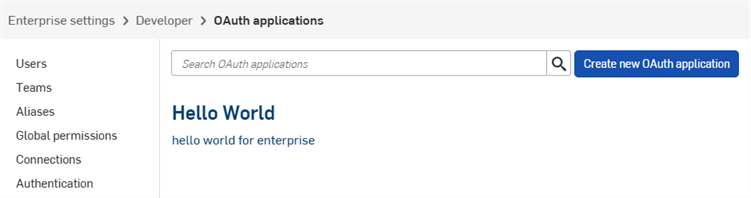
개발자 페이지에서 OAuth 애플리케이션 링크를 클릭하면 모든 앱 목록을 볼 수 있습니다.
-
새 OAuth 애플리케이션 생성 버튼을 클릭합니다.
-
다음 양식을 작성해 주십시오.
-
이름 - 사용자에게 표시되는 애플리케이션의 이름.
-
기본 형식 - 애플리케이션을 고유하게 식별하고 Onshape 서버에 저장할 수 있는 데이터에 대한 마커 역할을 하는 문자열입니다(예: com.example.example). 애플리케이션 등록 후에는 변경할 수 없습니다. 사용자에게는 표시되지 않습니다.
-
요약 - 사용자가 애플리케이션에 데이터 액세스 권한을 부여하도록 요청받을 때 표시되는 애플리케이션 설명입니다.
-
리디렉션 URL - 인증 후 리디렉션되는 URL, 즉 애플리케이션의 랜딩 페이지입니다.
- 애플리케이션은 OAuth 프로토콜 교환에 사용되는 URL을 하나 이상 지정해야 합니다.
-
이 URL은 SSL(https로 시작하는 URL)을 사용해야 하며, 설치된 데스크톱 애플리케이션에 적용되는 두 가지 예외는 http://localhost:<port> 및 urn:ietf:wg:oauth:2.0:oob입니다.
-
유형 - 애플리케이션 유형: 통합 클라우드 앱, 연결된 클라우드 앱 또는 연결된 데스크톱 앱.
-
OAuth URL - 사용자를 인증하기 위한 OAuth2 프로세스를 시작하는 데 사용되는 URL입니다. 자세한 내용은 개발자 문서: OAuth2를 참조하십시오.
-
배포된 애플리케이션의 URL이 포함되어야 합니다.
-
이 URL은 Onshape 애플리케이션 페이지에서 호출되는 첫 번째 URL입니다.
-
이 URL에 호스팅된 페이지에서 OAuth 인증을 처리해야 합니다. 애플리케이션 서버가 사용자를 대신하여 인증을 완료하면 해당 사용자는 애플리케이션 콘텐츠로 리디렉션되어야 합니다.
-
아직 앱을 배포하지 않았다면 로컬 작업용으로 이 필드를 비워두고 나중에 업데이트할 수 있습니다.
Onshape 앱 스토어에 공개적으로 제출되는 모든 애플리케이션은 OAuth2를 사용하여 올바르게 인증되어야 합니다. 자세한 내용은 개발자 문서: OAuth2를 참조하십시오.
-
-
설정
-
협업 지원 - 애플리케이션을 개발할 때 다른 사용자와 협업할 것인지 선택합니다.
-
- 권한 - 아래 권한 범위를 참조하십시오.
-
-
애플리케이션 생성을 클릭합니다.
-
창에서 OAuth 비밀 키를 복사합니다.
이 비밀 키는 다시 액세스할 수 없습니다. 이 비밀 키는 사용자와 사용자의 앱에 고유한 것입니다. 다른 중요한 비밀번호처럼 보호해야 하며 소스 코드에 절대 포함해서는 안 됩니다.
-
앱의 OAuth 애플리케이션 항목은 세부사항 탭이 활성화된 상태로 표시됩니다. 이제 OAuth 애플리케이션 페이지에서 앱 이름을 선택하면 이 화면으로 이동합니다.
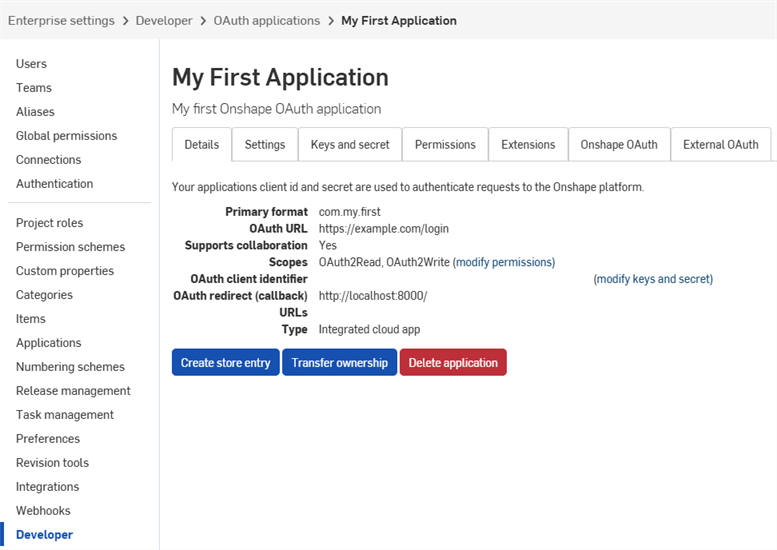
이 화면의 탭을 사용하여 다음을 수행하십시오.
-
세부사항:
-
설정: 앱 설정 관리
- 키 및 비밀 키:
- OAuth 클라이언트 식별자 키 복사
- 새로운 OAuth 클라이언트 비밀 키 재생성
-
권한: 앱 권한 범위 수정
-
확장 프로그램: 앱 확장 프로그램 관리
-
Onshape OAuth: Onshape 인증 관리
-
외부 OAuth: 타사 인증 관리
자세한 내용은 Onshape 개발자 문서를 참조하십시오. OAuth2를 사용한 올바른 인증 및 출시 체크리스트 완료가 포함되어 있습니다. 작동 예시는 Hello World 튜토리얼을 참조하십시오.
확장 프로그램 만들기
-
개발자 페이지에서 OAuth 애플리케이션을 클릭한 다음 애플리케이션을 선택합니다.
-
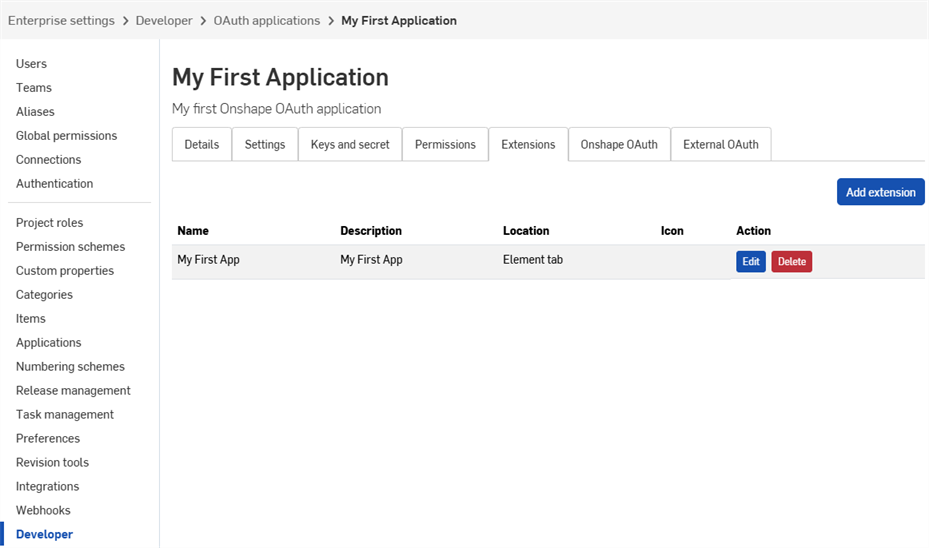
확장 프로그램 탭을 클릭합니다.
-
확장 프로그램 추가를 클릭합니다.
-
다음 양식을 작성해 주십시오.
-
이름: 너무 길면 UI에서 잘릴 수 있습니다.
-
설명 (선택 사항): Onshape UI에는 표시되지 않지만 인증 권한 부여 프로세스에 표시될 수 있습니다.
-
위치: Onshape UI에서 확장 프로그램이 존재하는 위치입니다.
-
개발자 문서에서 지원되는 위치 및 컨텍스트를 참조하십시오.
-
애플리케이션당 하나의 요소 탭 확장 프로그램만 만들 수 있습니다.
-
-
컨텍스트: 일부 위치는 Part Studio 내부와 같이 선택 항목의 컨텍스트에서 작동합니다.
-
개발자 문서에서 지원되는 위치 및 컨텍스트를 참조하십시오.
-
-
작업 URL: UI를 포함하는 위치는 작업 URL을 사용하여 표시할 페이지의 주소를 정의합니다. 작업 URL은 위치가 작업(컨텍스트 메뉴, 툴바 항목, 대화상자의 작업 등)이고 작업 유형이 GET 또는 POST인 경우 REST 엔드포인트를 지정하는 데 사용됩니다. 위치가 작업이고 작업 유형이 '새 창에서 열기'인 경우 작업 URL은 새 창에서 열 때 사용할 URL입니다.
-
이 필드에서 사용할 수 있는 매개변수 목록은 개발자 문서의 작업 URL 매개변수를 참조하십시오.
-
-
작업 유형: UI를 포함하지 않는 위치에 적용됩니다. 지원되는 작업 유형은 다음과 같습니다.
-
GET - 이 코드는 작업 URL을 사용하여 GET API 호출을 수행합니다. 매개변수 대체는 작업 URL에서 이루어집니다.
-
POST - 이 코드는 작업 URL과 작업 바디를 POST 바디로 사용하여 POST API 호출을 수행합니다. 매개변수 치환은 작업 URL과 작업 바디 모두에서 수행됩니다.
-
새 창에서 열기 - 이 옵션을 선택하면 액션 URL이 새 브라우저 창에서 열립니다. 매개변수 치환은 액션 URL에서 수행됩니다.
-
-
작업 바디: POST 작업 유형에만 적용됩니다. 작업 바디는 POST API 호출 시 전달되며 유효한 JSON 형식이어야 합니다.
-
응답 표시: 이 옵션은 작업 유형이 GET 또는 POST인 경우에만 적용됩니다. 이 옵션을 선택하면 UI는 응답을 기다린 후 UI의 대화상자에 응답을 표시합니다. 응답은 유효한 JSON 형식이어야 합니다.
-
아이콘: 아이콘은 확장 프로그램이 있는 위치에 표시됩니다. 여기에는 정보 패널, 컨텍스트 메뉴 작업, 툴바 버튼, 대화상자의 작업 버튼 또는 기타 지원되는 위치의 아이콘이 포함될 수 있습니다.
-
-
확인을 클릭합니다.
Onshape 애플리케이션 생성 및 관리에 대한 자세한 내용은 Onshape 개발자 문서를 참조하십시오. 작동 예시는 Hello World 튜토리얼을 참조하십시오.
앱에 내부 사용자 추가하기
관리자는 Onshape 앱 스토어에 제출하기 전에 테스트할 수 있도록 내부 사용자를 애플리케이션에 추가할 수 있습니다. 이렇게 추가된 사용자는 앱 스토어를 통해 구독하지 않아도 Onshape UI에서 관련 앱 확장 프로그램을 자동으로 볼 수 있습니다.
-
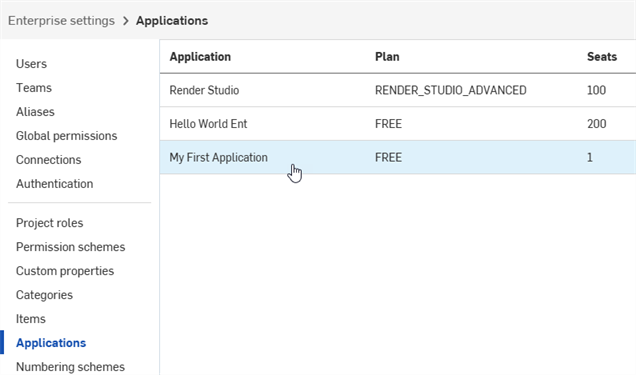
앱 등록이 완료되면 왼쪽 창에서 애플리케이션을 클릭합니다.
-
목록에서 해당 애플리케이션을 선택합니다.
-
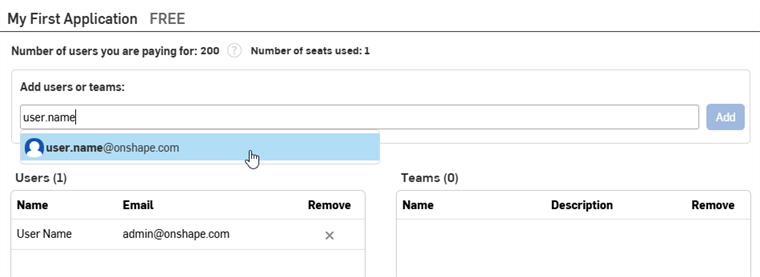
사용자 또는 팀 추가 필드에 사용자, 팀 또는 별칭의 이름이나 이메일을 입력하고 목록에서 결과를 선택합니다. 앱을 만든 관리자는 사용자 목록에 자동으로 표시됩니다. 계속해서 이름이나 이메일을 추가합니다.
-
추가 버튼을 클릭합니다.
라이트 유저는 애플리케이션에 추가할 수 없습니다.
앱에서 사용자, 별칭 또는 팀을 제거하려면 제거 열에서 해당 X 아이콘을 클릭합니다.
앱 소유권 이전
- 개발자 설정에서 OAuth 애플리케이션을 클릭합니다.
- 이전할 앱 이름을 클릭합니다.
- 세부사항 탭에서 소유권 이전 버튼을 클릭합니다. 이전 대화상자가 열립니다.
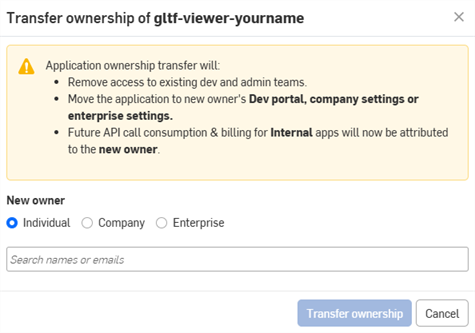
- 앱을 개인, Company 또는 엔터프라이즈로 이전하는 옵션을 선택하십시오.
- 개인에게 소유권을 이전하려면 검색 필드에 새 소유자의 이름 또는 이메일을 입력합니다. Company 또는 엔터프라이즈로 소유권을 이전하려면 드롭다운 메뉴에서 옵션을 선택합니다.
- 소유권 이전을 클릭합니다. 그러면 애플리케이션이 OAuth 앱 목록에서 제거됩니다.
- 앱이 개인 계정으로 이전되면 해당 사용자는 이메일 알림을 받고 Onshape 개발자 포털에 앱이 표시됩니다.
- 앱이 Company/클래스룸/엔터프라이즈 내 다른 사용자에게 이전되면 모든 관리자에게 이메일 알림이 전송되고 개발자 설정에 앱이 표시됩니다.
향후 API 호출 사용량 및 청구는 새 소유자에게 귀속됩니다. 자세한 내용은 API 제한을 참조하십시오.
Onshape 앱 스토어 항목 관리
Onshape 앱 스토어에 앱을 제출하기 전에 Onshape 개발자 문서를 참조하여 OAuth2를 사용한 올바른 인증 및 출시 체크리스트 완료를 포함한 요구 사항을 확인하십시오.
기존 Onshape 앱 스토어 항목을 검토, 편집 또는 삭제하려면 개발자 설정에서 스토어 항목을 클릭한 다음 수정할 항목을 선택합니다.
OAuth 애플리케이션에 대한 새 스토어 항목을 생성하려면 다음 단계를 따르십시오.
-
개발자 설정에서 OAuth 애플리케이션을 클릭합니다.
-
목록에서 앱 이름을 클릭합니다.
-
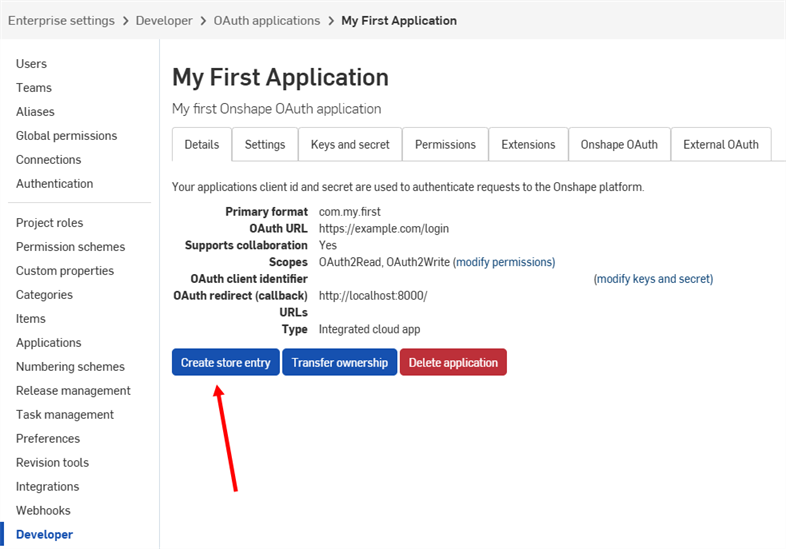
앱의 세부사항 페이지에서 스토어 항목 생성을 클릭합니다.
-
다음 양식을 작성해 주십시오.
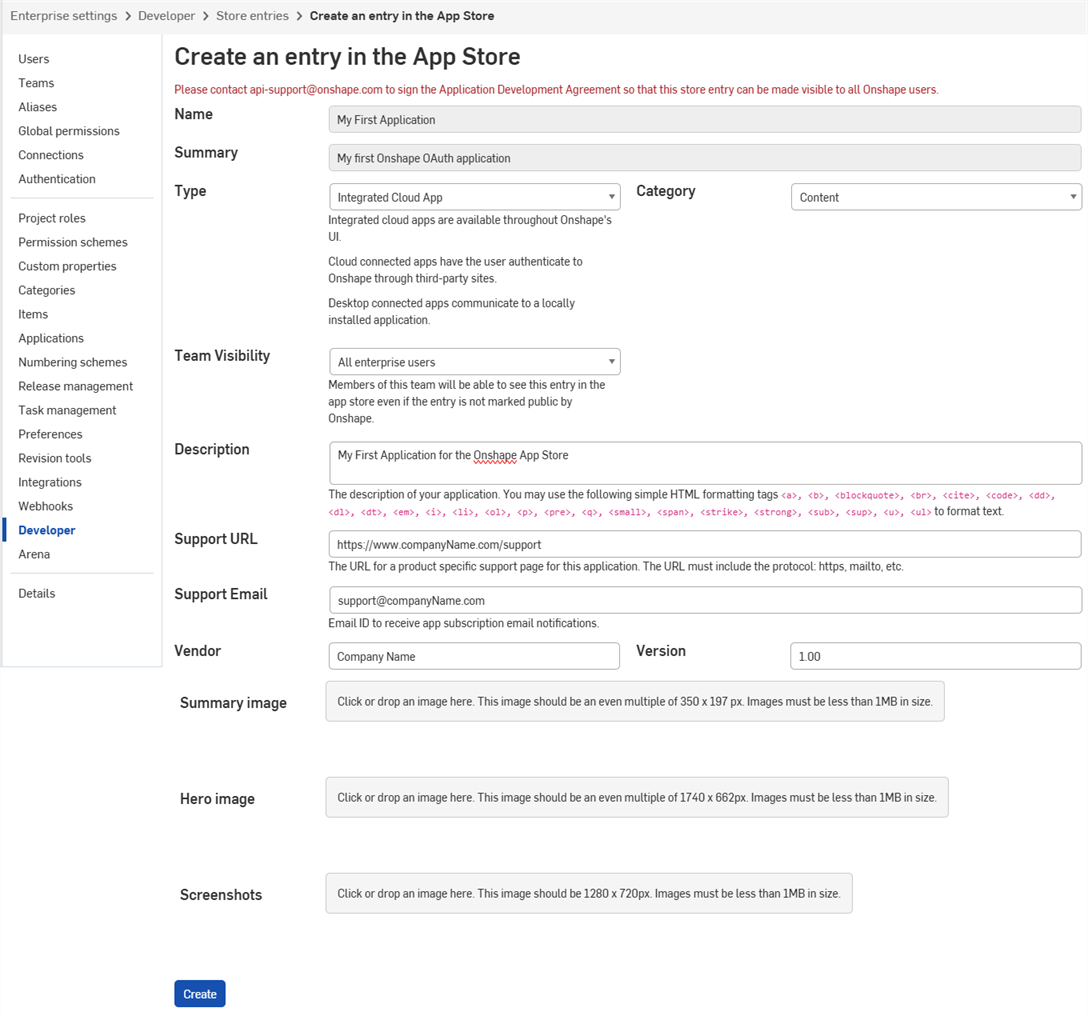
- 이름 - 등록 시 제공된 앱 이름에서 자동으로 설정됩니다.
-
요약 - 등록 시 제공된 요약에서 자동으로 설정됩니다.
-
유형 - 애플리케이션 유형: 통합 클라우드 앱, 연결된 클라우드 앱 또는 연결된 데스크톱 앱. 이는 OAuth 애플리케이션 등록 시 선택한 유형과 일치해야 합니다.
-
카테고리 - 앱에 적합한 카테고리를 선택합니다.
-
팀 표시 유형 - 비공개 앱 스토어 항목을 내부 사용자에게 표시하지 않도록(기본값), 모든 내부 사용자에게 표시하도록, 특정 팀에 표시하도록 선택할 수 있습니다.
-
설명 - 애플리케이션에 대한 사용자 표시 설명입니다. 제한된 서식만 허용됩니다.
-
지원 URL - 앱 사용자가 지원을 받을 수 있도록 안내할 URL 또는 이메일 주소입니다. 이 주소는 적극적으로 모니터링해야 합니다.
-
지원 이메일 - 앱 구독 알림을 수신할 이메일 주소입니다. 이 주소는 적극적으로 모니터링해야 합니다.
-
공급업체 - 사용자의 Company 이름입니다.
-
버전 - 이 애플리케이션의 현재 버전입니다.
-
이미지 - 선택적으로 요약 이미지, 대표 이미지 및 기타 이미지를 업로드할 수 있습니다.
-
생성을 클릭합니다.
이 애플리케이션은 Onshape 앱 스토어에 비공개로 표시됩니다. 사용자 본인과 팀 표시 유형 설정에 지정된 내부 팀만 볼 수 있습니다. 앱을 공개하려면 다음 출시 체크리스트를 참조하십시오.
애플리케이션 삭제하기
- Company 설정의 왼쪽 창에서 개발자를 클릭합니다.
- 앱에 Onshape 앱 스토어 항목이 있는 경우 먼저 해당 항목을 삭제하십시오.
- 개발자 페이지에서 항목 저장을 클릭하십시오.
- 삭제하려면 해당 스토어 항목을 클릭하십시오.
- 스토어 항목 삭제를 세부사항 탭에서 클릭하십시오.
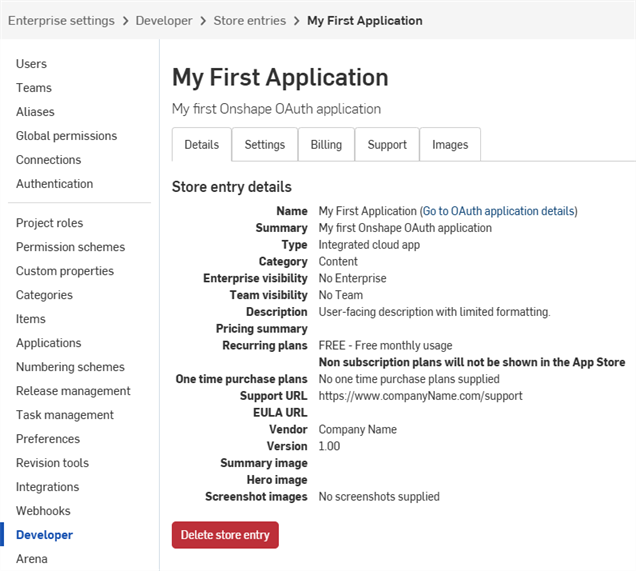
- 삭제하려면 삭제를 다시 클릭합니다.
- 왼쪽 창이나 이동 경로에서 개발자를 클릭하여 개발자 랜딩 페이지로 돌아가십시오.
- 개발자 설정에서 OAuth 애플리케이션을 클릭합니다.
- 삭제하려면 해당 애플리케이션을 클릭합니다.
- 세부사항 탭에서 애플리케이션 삭제를 클릭합니다.
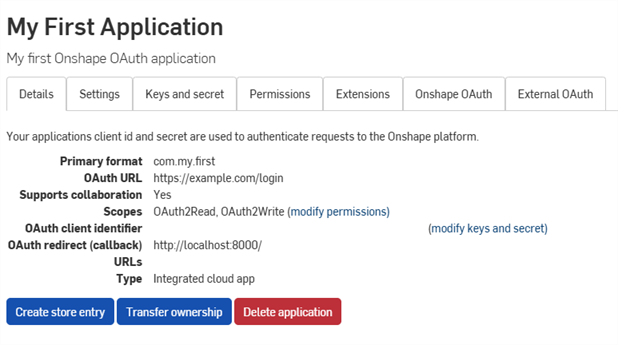
- 삭제하려면 삭제를 다시 클릭합니다.
API 키 관리
Onshape 앱 스토어(Onshape 앱)에 제출한 모든 애플리케이션은 API 가이드: OAuth2 페이지의 지침을 따르고 인증을 위해 OAuth2를 사용해야 합니다. 자동화 스크립트(또는 Onshape 앱 스토어용이 아닌 애플리케이션)는 인증에 OAuth2 또는 API 키를 사용할 수 있습니다. OAuth2를 사용하면 애플리케이션이 애플리케이션 사용자를 대신하여 Onshape API를 호출할 수 있습니다. API 키는 API 키를 생성한 Onshape 사용자를 대신해서만 작업을 수행합니다.
API 키는 개발자들이 OAuth 워크플로우의 오버헤드를 피할 수 있게 개인적인 용도의 작은 애플리케이션을 생성하는 데 유용합니다.
API 키는 애플리케이션을 인증하는 데 사용되며, 사용자를 인증하는 데는 사용되지 않습니다. (OAuth2는 사용자가 Onshape에 접근할 권한이 있는지 확인하여 애플리케이션 및 애플리케이션 사용자를 함께 인증합니다.) API 키를 생성하면, 해당 키는 생성된 스택에서만 유효합니다. companyName.onshape.com에서 생성된 API 키는 cad.onshape.com에서는 작동하지 않습니다.
Company나 엔터프라이즈와 관련 없는 API 키는 내 계정 - 개발자 페이지에서 관리할 수 있습니다.
API 키 보기
- Company/클래스룸/엔터프라이즈 개발자 설정에서 API 키를 클릭합니다
- Company에서 사용할 수 있는 API 키를 검토합니다.
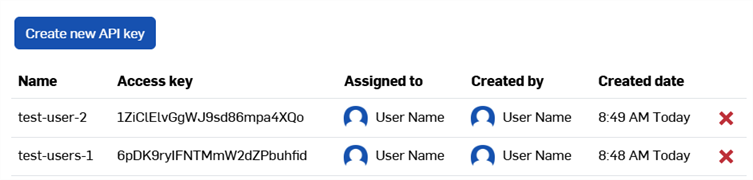
API 키 생성
- Company/클래스룸/엔터프라이즈 개발자 설정에서 API 키를 클릭합니다
- 새 API 키 생성을 클릭합니다.
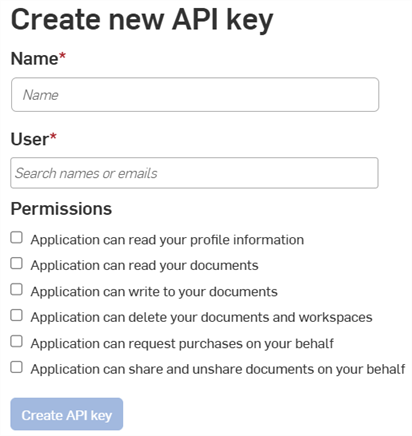
- 이름 필드에 API 키 이름을 입력합니다.
-
Company 내 사용자에게 API 키를 할당합니다. 사용자 필드에서 이름이나 이메일로 검색할 수 있습니다.
- 키에 대한 권한을 선택합니다. 아래권한 범위를 참조하십시오.
- API 키 생성 버튼을 클릭합니다.
-
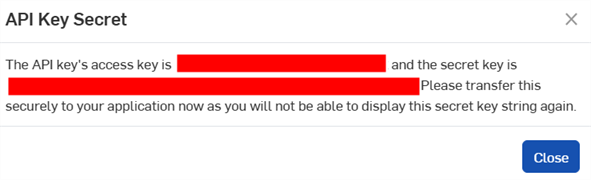
팝업 창에서 표시된 API 키와 비밀 키를 복사하여 어딘가에 저장한 다음 닫기 버튼을 클릭합니다.
이 비밀 키는 다시 액세스할 수 없습니다. 이 비밀 키는 사용자와 사용자의 앱에 고유한 것입니다. 다른 중요한 비밀번호처럼 보호해야 하며 소스 코드에 절대 포함해서는 안 됩니다.
- API 키로 애플리케이션을 인증하는 방법에 대한 자세한 내용은 API 가이드: 인증을 참조하십시오.
API 키 삭제
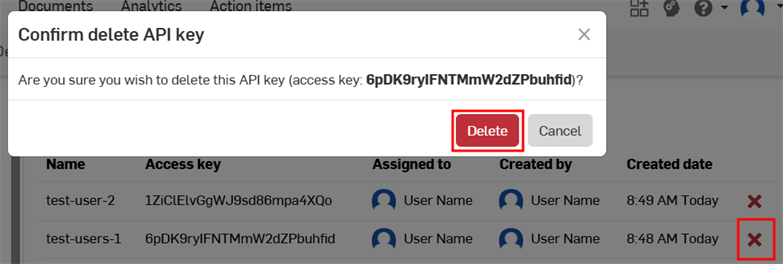
- 삭제하려는 API 키 오른쪽에 있는 “X” 아이콘을 클릭합니다.
- 모든 사용자에 대해 이 API 키를 삭제할지 확인합니다. 이 작업은 취소할 수 없습니다. 삭제를 클릭하여 확인합니다.
권한 범위
OAuth 애플리케이션을 만들 때 사용할 수 있는 권한 범위는 다음과 같습니다.
-
애플리케이션에서 프로필 정보를 읽을 수 있음(OAuth2ReadPII) - 애플리케이션이 프로필의 정보에 액세스할 수 있도록 허용하려면 체크합니다.
-
애플리케이션에서 통합문서를 읽을 수 있음(OAuth2Read) - 애플리케이션에 통합문서에 대한 읽기 액세스를 허용하려면 체크합니다.
-
애플리케이션이 통합문서에 쓸 수 있음(OAuth2Write) - 애플리케이션에 통합문서에 대한 쓰기 액세스를 허용하려면 체크합니다.
-
애플리케이션이 통합문서 및 작업 공간을 삭제할 수 있음(OAuth2Delete) -애플리케이션이 통합문서 및 작업 공간을 삭제할 수 있도록 허용하려면 체크합니다.
-
애플리케이션이 사용자를 대신하여 구매를 요청할 수 있음(OAuth2Purchase) - 애플리케이션이 사용자를 대신하여 구매할 수 있도록 허용하려면 체크합니다.
-
애플리케이션이 사용자를 대신하여 통합문서를 공유하고 공유 취소할 수 있음(OAuth2Share) - 애플리케이션이 사용자의 통합문서를 공유하고 공유 취소할 수 있는 권한을 허용하려면 체크합니다.