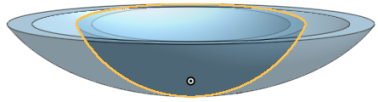
トランスフォーム


利用可能: Part Studio
パーツをその場でコピーするオプションを使用して、3D 空間でパーツ (および必要に応じて合致コネクタまたは軸) の場所と方向を調整します。パーツをトランスフォームする場合、その合致コネクタ (暗黙的または明示的) または軸を選択することもできます。これにより、合致コネクタはパーツとともに維持されます。

 動画の例: 線で平行移動する
動画のトランスクリプト
トランスフォームフィーチャーツールを使用すると、3D 空間内の 1 つまたは複数のパーツの位置と向きを調整できます。また、パーツをその場でコピーすることもできます。パーツを変換するときは、その合致コネクタを選択してパーツと固定します。ツールバーのトランスフォームフィーチャツールをクリックします。変換またはコピーするパーツを選択します。なお、トランスフォームには、線での平行変換や、距離、XYZ 軸、合致コネクタ、回転、その場でのコピー、スケーリングなど、さまざまな方法があります。ここでは、既定の [線で平行移動する] が使用されます。次に、ダイアログで [線] または [点] のフィールドをクリックし、グラフィック領域で変換の基礎となる線または点を選択します。線を選択した場合は、1 本の線が必要です。点を選択した場合は、2 つの点が必要です。選択したパーツのコピーを作成するには、[パーツをコピーする] をオンにします。次に、緑色のチェックマークをクリックして変換を確定します。
動画の例: その他の変換オプション
動画のトランスクリプト
この動画では、さまざまな変換オプションについて説明します。ツールバーのトランスフォームフィーチャツールをクリックします。変換またはコピーするパーツを選択します。[距離で平行移動する] を選択します。方向を選択し、ダイアログに距離を入力するか、矢印を使用して距離を指定します。または、[XYZ で平行移動する] を選択します。トランスフォームマニピュレータが表示されます。グラフィック領域の矢印を使用するか、X、Y、Z 軸に平行移動の値を入力します。[合致コネクタによるトランスフォーム] を選択し、次にパーツを変換する合致コネクタの始点と終点を選択します。パーツを回転させるには、[回転] を選択します。軸を選択してダイアログに角度を入力するか、グラフィック領域で矢印を使用して角度を調整します。元のパーツと同じ場所にパーツのコピーを作成するには、[その場でコピーする] を選択します。最後に、[スケール] を選択し、均等にスケーリングするかどうかを決定します。スケール値を入力してから、拡大縮小する点または合致コネクタを選択します。緑色のチェックマークをクリックして変換を確定します。
手順
-
 をクリックします。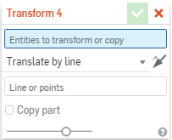
- 移動するパーツ (および必要に応じてその合致コネクタまたは軸) を選択します。
- Select the method of moving the part (transform type):
- Translate by line - Move the part along a selected line: such as a part edge.
- Translate by distance - Move the part by a specified value and in a direction indicated by the selection of an entity or Mate connector.
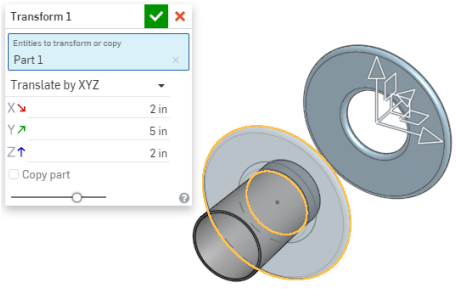
- Translate by XYZ - Move the part along an axis by a specified value. Optionally, use the drag manipulator that appears to position the part along axis.
- Transform by Mate connectors - Specify two Mate connectors (implicit or explicit), or axis, by which to reorient the placement of the part. Use the directional arrows to flip the orientation:
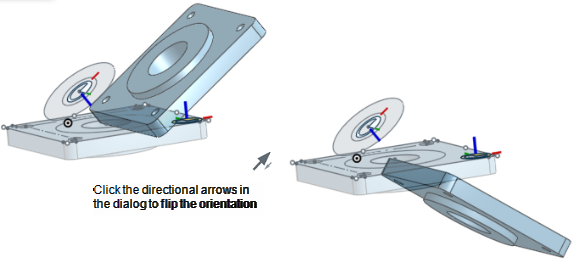
- Rotate - Move the part about an axis or Mate connector (implicit or explicit) specified by selecting an entity.
- Copy in place - Make a copy of the part at the same location; this creates a separate and independent part enabling you to:
- Make changes to one part and use both to create different parts during a later operation.
- Make a copy of a part prior to a series of operations enabling you to reference the original state for ancillary operations.
- Create multiple copies of a part in order to create multiple variants.
If you need to create multiple copies of a part at once, use the Pattern feature with a distance of 0 (zero).
- Scale - Scale a part by a specific factor and select a point to scale about; selecting Scale presents a Scale Uniformly checkbox. Uncheck this box to specify your own scale for X, Y, and Z axes, and also select a point or Mate connector (implicit or explicit) to scale about. Using a Mate connector (implicit or explicit), or axis, to scale about changes the coordinate system to be relative to the Mate connector or axis.
- Optionally, select Copy part to duplicate the part.
-
 をクリックします。
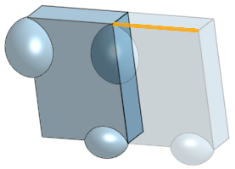
行で移動する
線で平行移動する前:
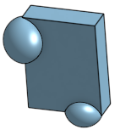
パーツエッジで指定した選択線に沿って平行移動した後:
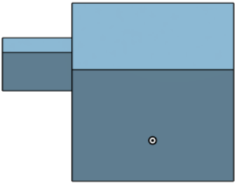
距離で移動する
距離で平行移動する前:
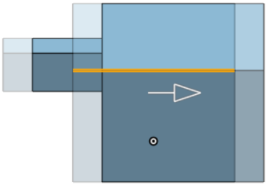
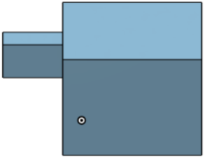
値や方向を指定して平行移動した後:
XYZで移動する
[パーツをコピーする] オプションをオンにして、指定した距離だけ軸に沿って平行移動した後:
合致コネクタまたは軸によるトランスフォーム
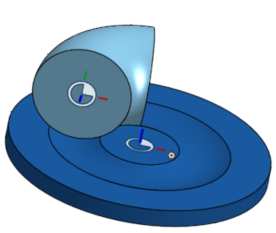
合致コネクタまたは軸によるトランスフォーム前は、次のようになります。
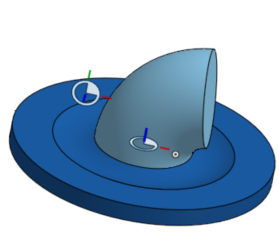
ある合致コネクタから別の合致コネクタへのトランスフォーム後は、次のようになります。
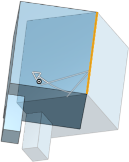
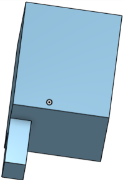
回転させる
回転前:
回転後:
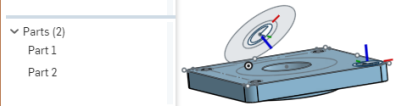
その場でコピー
コピーはパーツがあった元の場所に正確に配置されます。パーツリストには、新しいパーツとパーツ数が反映されます。
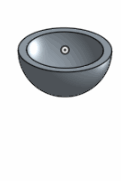
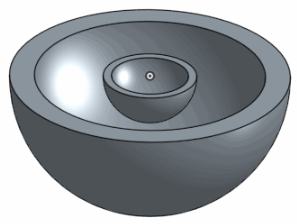
均一にスケール
均一にスケールする前:
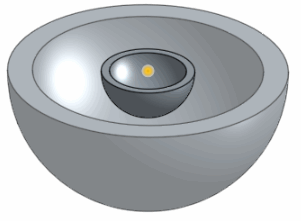
均等にスケールした後:
不均一スケール
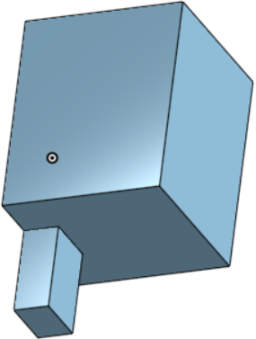
スケール前:
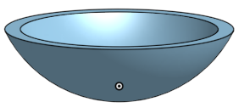
スケール後: