 Preferenze grafica

Disponibile in: Part Studio, Assieme
Regola i parametri di visualizzazione del modello nell'area grafica. Modifica i parametri generali del riquadro di visualizzazione, del corpo ombreggiato, del bordo fittizio e del corpo mesh, nonché lo spessore e i colori della linea degli schizzi attivi/inattivi, il gap e le lunghezze dei trattini delle linee di costruzione.
Queste opzioni sono particolarmente utili durante la modellazione delle superfici.
 Accesso a Preferenze grafica
-
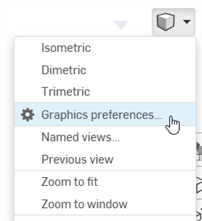
Seleziona Opzioni fotocamera e rendering, quindi Preferenze grafica:
-
Si apre la seguente finestra di dialogo:
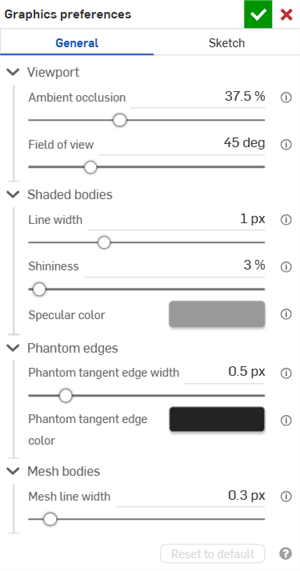
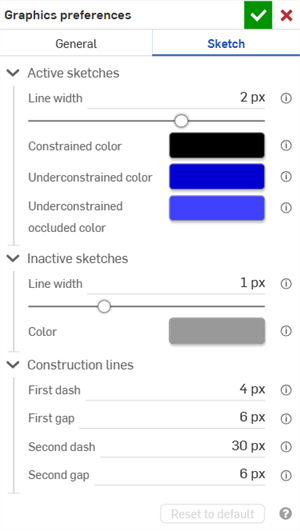
Preferenze Generali (scheda sinistra) e Schizzo (scheda destra)
-
Regola le impostazioni come indicato nelle sezioni seguenti. Fai clic sul pulsante Ripristina ai valori predefiniti per reimpostare i valori predefiniti di tutte le opzioni generali e dello schizzo della finestra di dialogo.
Preferenze Generali
Riquadro di visualizzazione
-
Occlusione ambientale: controlla l'intensità dell'ombreggiatura dell'occlusione ambientale, dallo 0% al 100% (impostazione predefinita: 37,5%). Valori più alti creano ombre scure morbide lungo i bordi, gli angoli, le fessure e altri punti in cui le parti si incontrano o si intersecano. Questo aiuta a simulare la copertura della luce indiretta nel mondo reale in questi luoghi. Valori più bassi creano meno ombreggiature in queste posizioni.
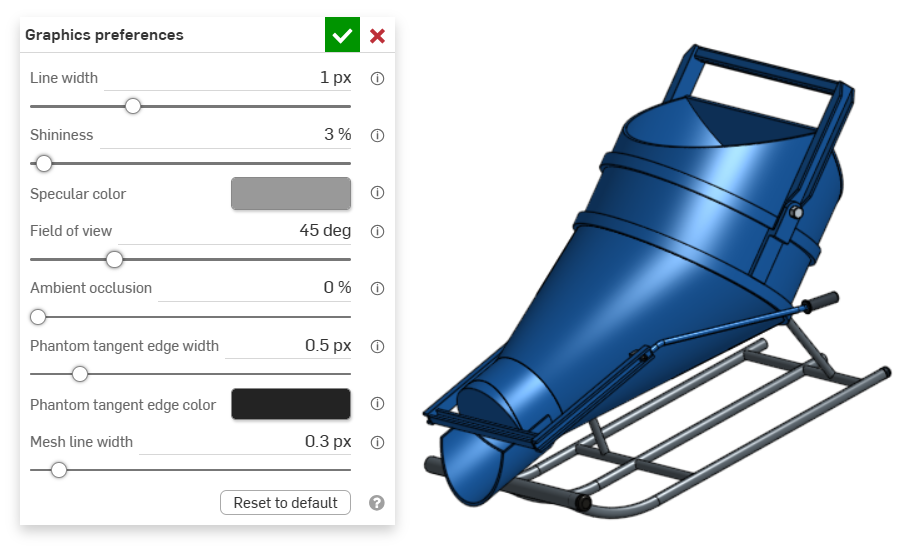
Occlusione ambientale: 0%
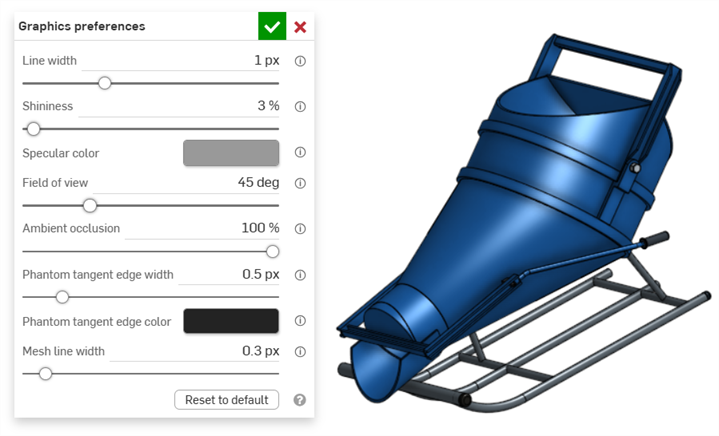
Occlusione ambientale: 100%
-
Campo visivo (disponibile solo quando la Vista prospettiva è abilitata): determina il campo visivo della telecamera prospettica. Usa il cursore orizzontale o inserisci un dato di configurazione numerico compreso tra 20 e 120 gradi.
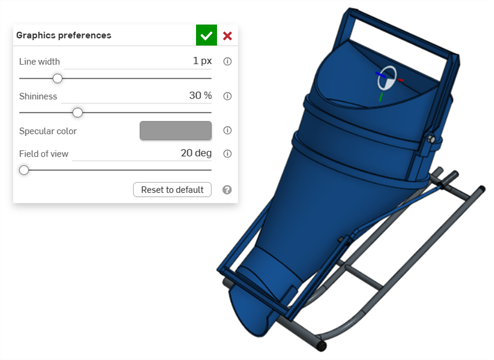
Campo visuale: 20 gradi
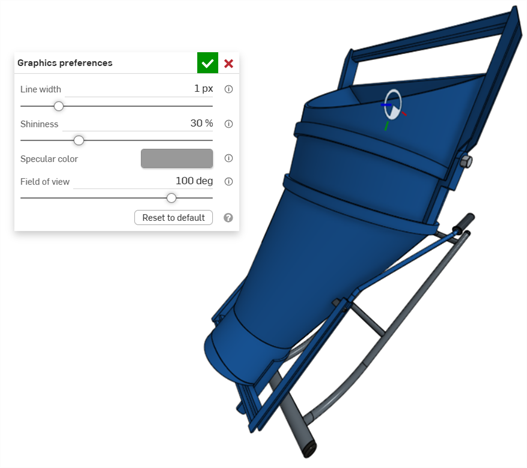
Campo visuale: 100 gradi
Corpi ombreggiati
-
Spessore della linea: determina lo spessore della linea di superfici e bordi. Usa il cursore orizzontale o inserisci un dato di configurazione numerico da 0,1 a 3 pixel.
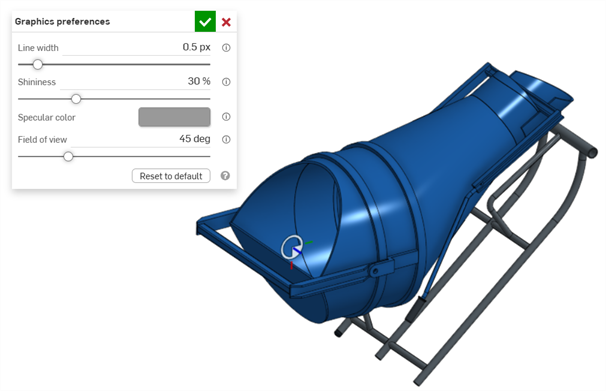
Spessore della linea: 0,5 px
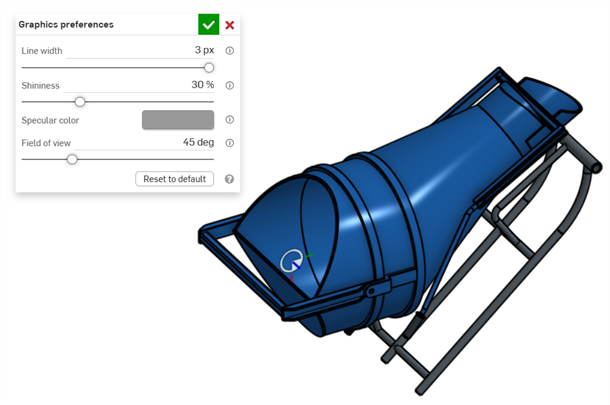
Spessore della linea: 3 px
-
Brillantezza: controlla la brillantezza predefinita delle superfici ombreggiate. Usa il cursore orizzontale o inserisci un dato di configurazione numerico compreso tra 1 e 100 percento.
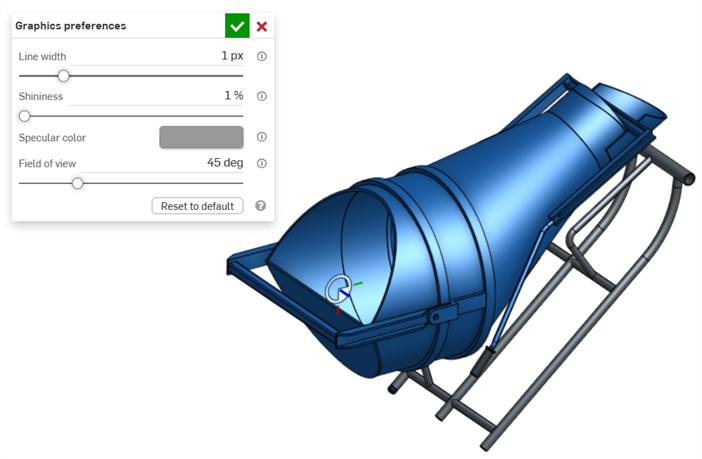
Brillantezza: 1%
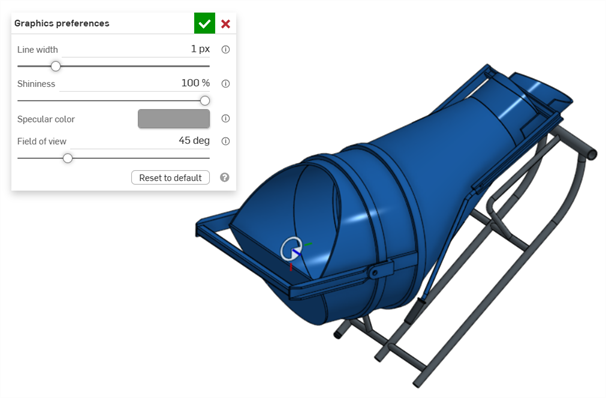
Brillantezza: 100%
-
Colore speculare: controlla il colore speculare predefinito o le superfici ombreggiate. Fai clic sul campione di colore per aprire la finestra di dialogo Selettore colori e seleziona un colore.
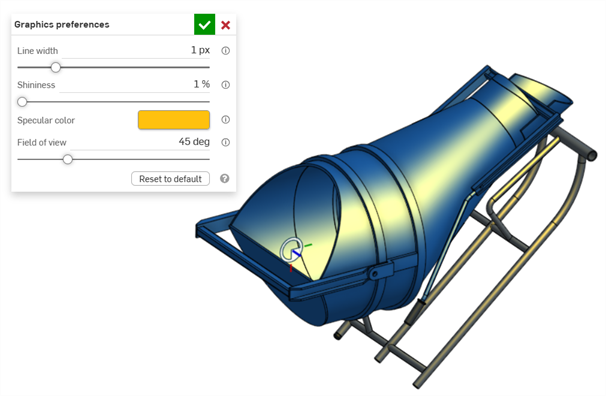
Esempio di Colore speculare
Bordi fittizi
-
Larghezza del bordo tangente fittizio: se i bordi tangenti sono impostati su fittizio, questa opzione determina lo spessore della linea di tali bordi, da 0,1 a 3 px (impostazione predefinita: 0,5 px).
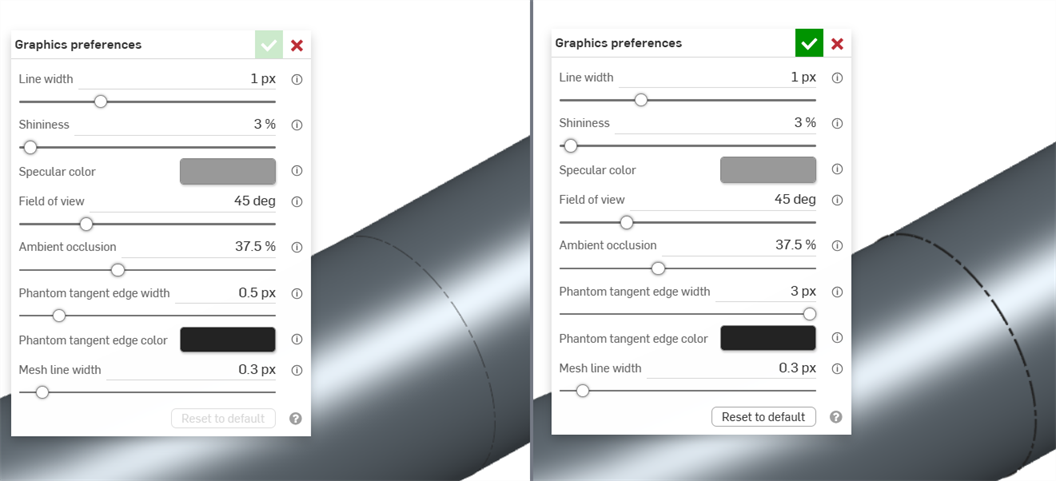
Spessore del bordo tangente fittizio: 0,5 px (a sinistra); 3 px (a destra)
-
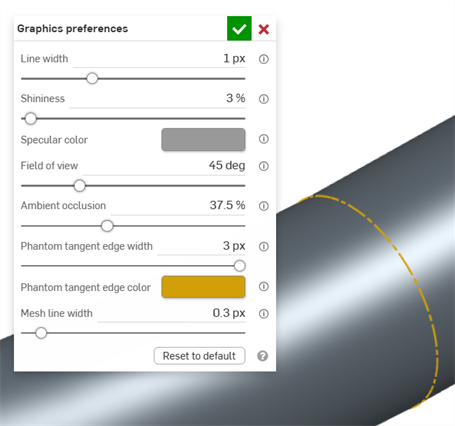
Colore bordo tangente fittizio: se i bordi tangenti sono impostati su fittizio, questo determina il colore predefinito di tali bordi. Fai clic sul campione di colore per aprire la finestra di dialogo Selettore colori e seleziona un colore.
Corpi mesh
-
Spessore della linea mesh: determina lo spessore della linea delle superfici e dei bordi mesh, da 0,1 a 3 px (impostazione predefinita: 0,3 px).
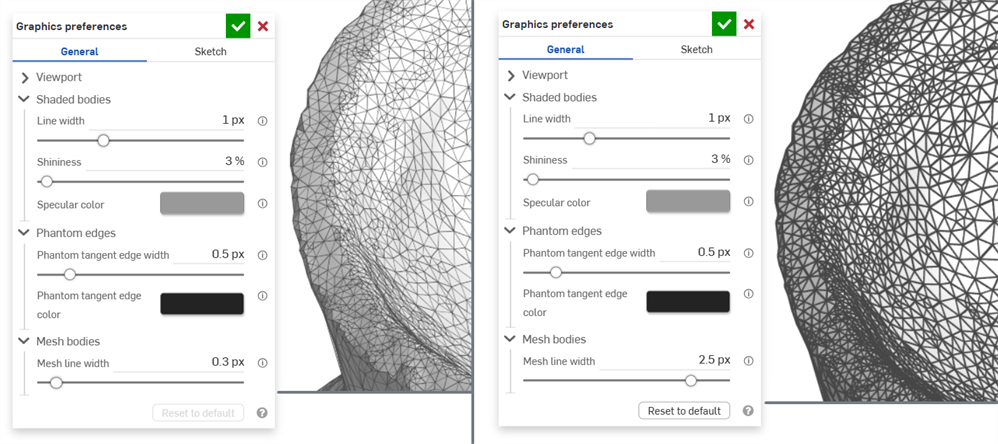
Larghezza della linea mesh: 0,3 px (sinistra); 2,5 px (destra)
Preferenze Schizzo
Schizzi attivi
-
Spessore linea: determina lo spessore della linea degli schizzi attivi. Usa il cursore orizzontale o inserisci un dato di configurazione numerico da 0,1 a 3 pixel.
-
Colore linea vincolato: determina il colore predefinito di linee o punti vincolati. Fai clic sul campione di colore per aprire la finestra di dialogo Selettore colori e seleziona un colore.
-
Colore sottovincolato: determina il colore predefinito di linee e punti sottovincolati. Fai clic sul campione di colore per aprire la finestra di dialogo Selettore colori e seleziona un colore.
-
Colore occluso sottovincolato: determina il colore predefinito di linee e punti occlusi sottovincolati. Si tratta di linee e punti oscurati da parti nell'area grafica. Fai clic sul campione di colore per aprire la finestra di dialogo Selettore colori e seleziona un colore.
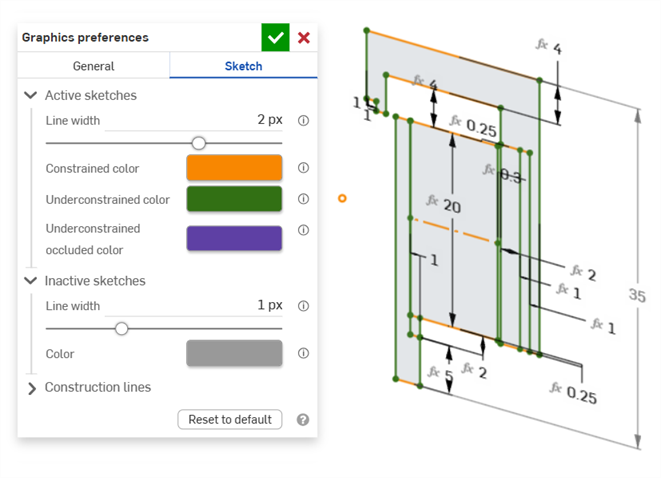
Esempio di colori linea vincolati e sottovincolati in uno schizzo attivo
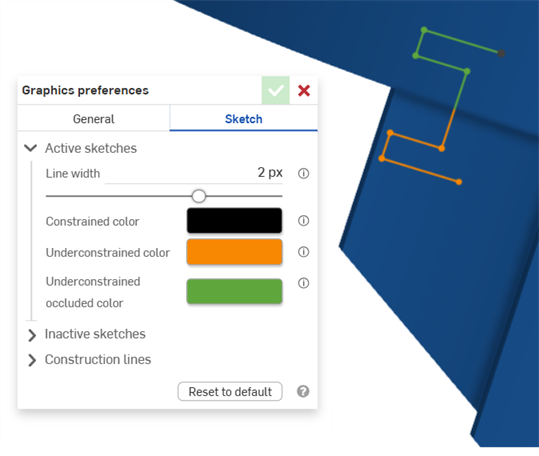
Esempio di colori linea sottovincolati in uno schizzo attivo. Il verde indica i segmenti dello schizzo oscurati da una parte nell'area grafica.
Schizzi inattivi
-
Spessore linea: determina lo spessore della linea degli schizzi inattivi. Usa il cursore orizzontale o inserisci un dato di configurazione numerico da 0,1 a 3 pixel.
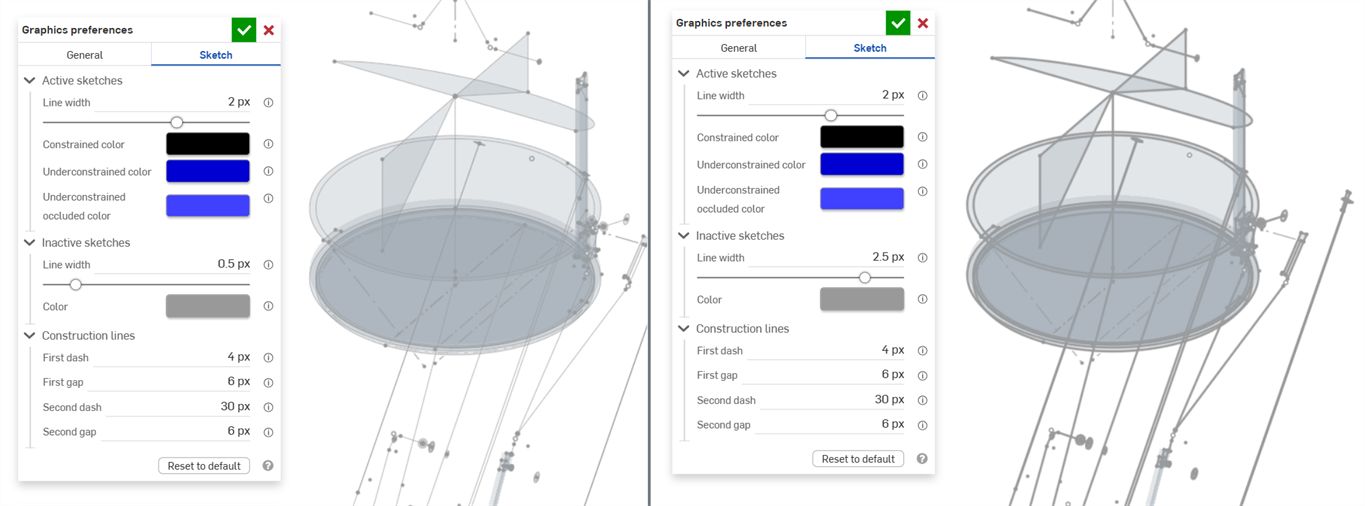
-
Colore linea: determina il colore predefinito di linee e punti di schizzi inattivi. Fai clic sul campione di colore per aprire la finestra di dialogo Colore linea e seleziona un colore dal Selettore colori.
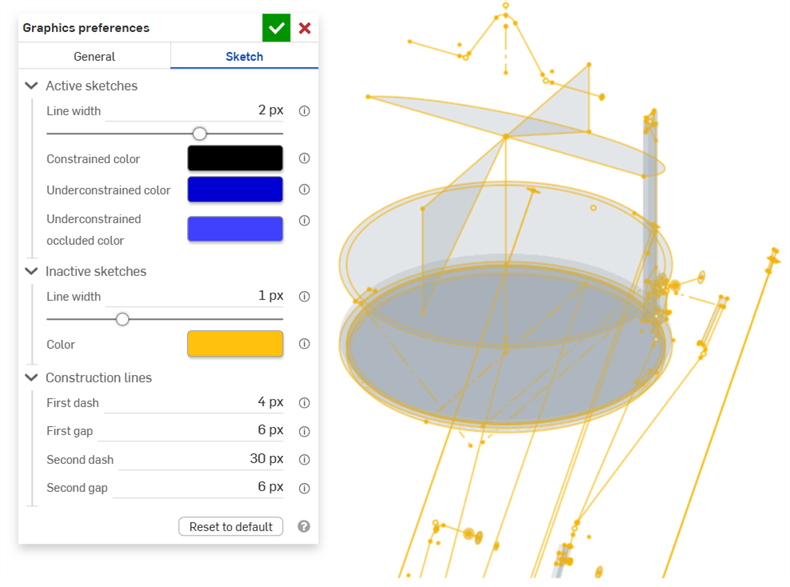
Linee di costruzione
-
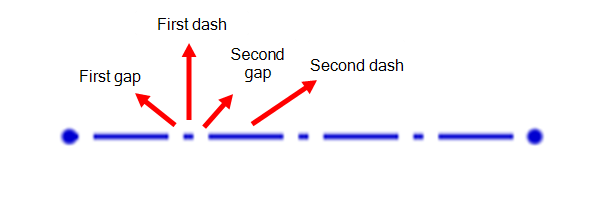
Primo trattino: determina la lunghezza del primo trattino nella ripetizione a puntini della linea di costruzione. Inserisci un valore compreso tra 1 e 50 pixel (l'impostazione predefinita è 4 px).
-
Primo gap: determina la lunghezza del primo gap nella ripetizione a puntini della linea di costruzione. Inserisci un valore compreso tra 0 e 50 pixel (l'impostazione predefinita è 6 px).
-
Secondo gap: determina la lunghezza del secondo trattino nella ripetizione a puntini della linea di costruzione. Inserisci un valore compreso tra 1 e 50 pixel (l'impostazione predefinita è 30 px).
-
Secondo gap: determina la lunghezza, espressa in pixel, del secondo gap nella ripetizione a puntini della linea di costruzione. Inserisci un valore compreso tra 0 e 50 pixel (l'impostazione predefinita è 6 px).