Appearance Set (Render Studio Advanced)

Disponibile solo per.
Disponibile in: Render Studio
The Appearance set is an Appearance modifier that is assigned to an entity (Part Studio, Assembly, part, face). Once assigned, multiple appearances can be added to the set in the Appearance panel. Switching between appearances in the set provides a quick and easy method to experiment with appearance variations.
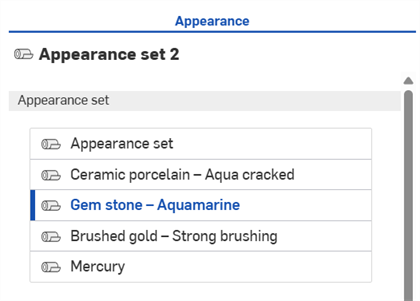
Appearance set with multiple appearances in the Appearance panel
 Passaggi
To create an Appearance set:
-
Create and import a model (Part Studio or Assembly) into a Render Studio scene.
-
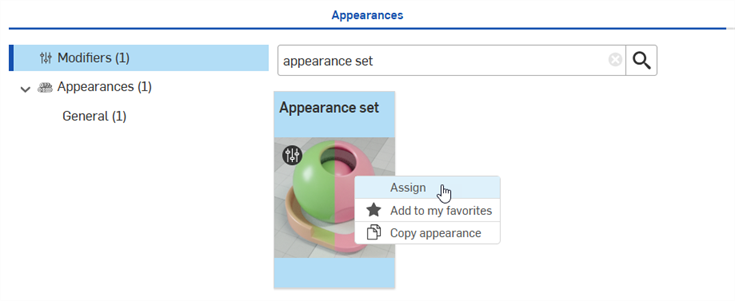
In the Appearances library, locate and assign the Appearance set to the Part Studio, Assembly, part, or face:
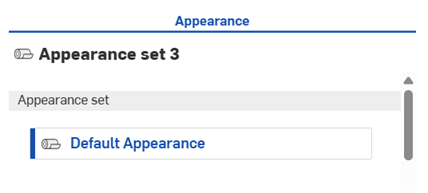
The Appearance set is added at the top of the Appearance panel, with the Default Appearance listed in the set:
-
Drag and drop as many appearances as you like from the Appearances library into this Appearance set (drop on top of the Default Appearance label):
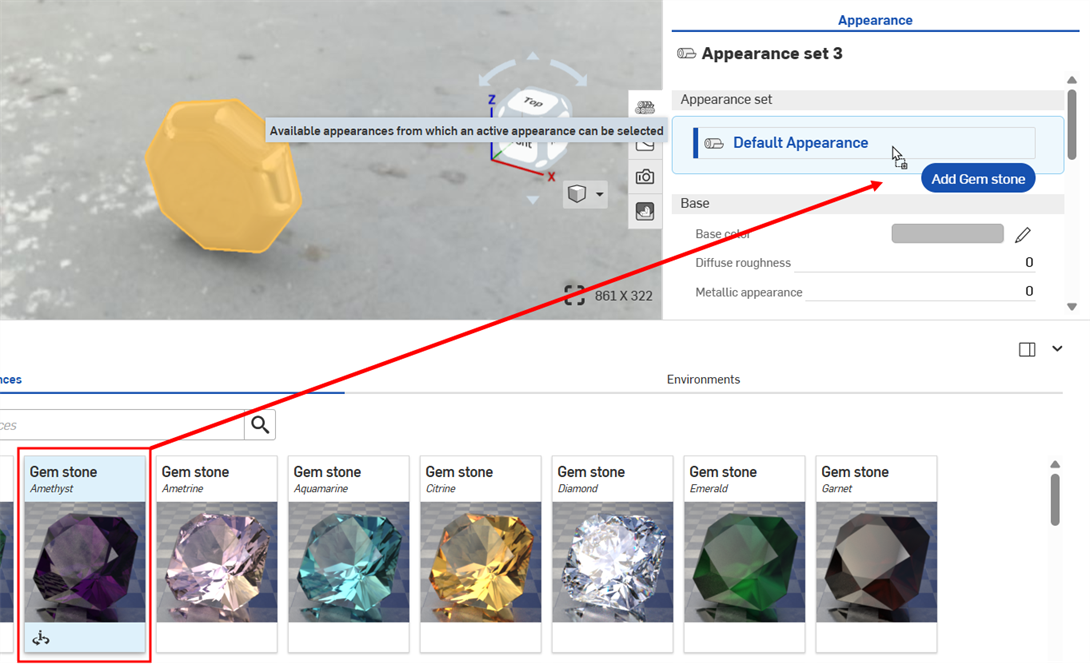
-
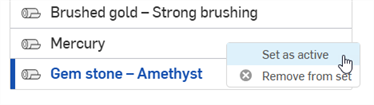
Only one appearance in the list can be active at a time. This is indicated by the dark blue appearances label, with a blue line to the left of its entry. To set another appearance in the set to active, click it or right-click and select Set as active from the context menu:
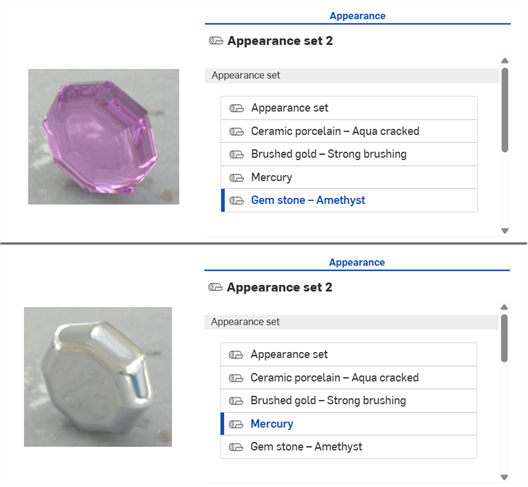
Example switching between the "Gem stone - Amethyst" and "Mercury" appearances in the Appearance set.
-
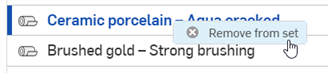
To remove an appearance from the Appearance set, right-click over the Appearance and select Remove from set. If the deleted appearance is the active one, the next appearance below is assigned to the entity. If the removed appearance is the active one, and is the last one in the list, the next appearance above is assigned to the entity.
If the Appearance set (Default appearance) is the last remaining appearance in the list, it cannot be removed.