Détection des interférences

Disponible dans : Part Studio, Assemblage
La détection d'interférences détecte et affiche toutes les interférences dans un Part Studio ou un assemblage.
 Étapes
- Lorsque plusieurs pièces se trouvent dans l'Atelier des pièces ou l'Assemblage, cliquez sur le menu Afficher les outils d'analyse dans le coin inférieur droit de l'interface.
- Dans le menu, sélectionnez Détection des interférences pour ouvrir la boîte de dialogue.
- Sélectionnez deux ou plusieurs pièces parmi lesquelles vous voulez afficher toute masse interférante.
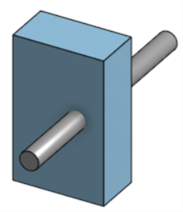
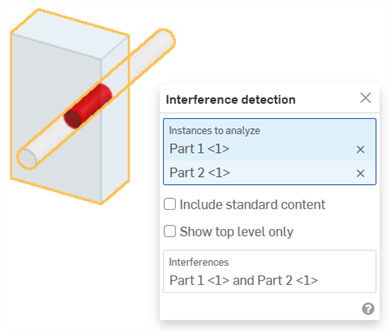
L'interférence est affichée en rouge, comme ci-dessus, et les pièces impliquées sont répertoriées dans la section Interférences de la boîte de dialogue.
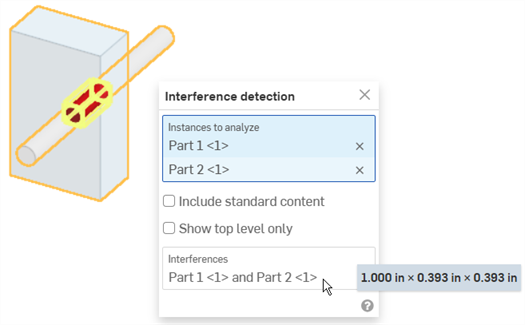
Passez le curseur au-dessus du nom de la pièce dans la boîte de dialogue pour voir le surlignage croisé dans la zone graphique. Lorsque l'accent est mis sur le champ Interférences de la boîte de dialogue, la zone graphique zoome pour s'adapter aux interférences sélectionnées. Passez le curseur au-dessus du champ Interférences de la boîte de dialogue et un cadre de délimitation apparaît dans la zone graphique, entourant les interférences dans le modèle. Dans la boîte de dialogue, la longueur/largeur/hauteur du cadre de délimitation apparaît également lorsque vous passez le curseur au-dessus :
Vous pouvez utiliser la case select pour sélectionner des entités pour la détection des interférences : glissez du haut à gauche vers le bas à droite pour inclure uniquement les pièces ou les corps entièrement englobés par la zone. Faites glisser du bas à droite vers le haut à gauche pour inclure les pièces ou les corps touchés par la zone de sélection.
-
(Facultatif) Sélectionnez Inclure le contenu standard pour vérifier s'il n'y a pas d'interférence avec le contenu standard.
-
(Facultatif) Sélectionnez Afficher le niveau supérieur uniquement pour masquer les interférences internes aux sous-assemblages sélectionnés.