Analyse diédrique

Disponible dans : Esquisse, Part Studio
Raccourci : maj+d
L'analyse diédrique affiche l'angle diédrique des arêtes sélectionnées dans les Part Studios.
En mode esquisse ou lors de la modification d'une esquisse, vous pouvez utiliser le raccourci Shift+D pour ouvrir automatiquement la boîte de dialogue d'analyse dièdre. Shift+D agit comme une bascule : ouvre et ferme la boîte de dialogue tant que les sélections persistent.
Toutes les modifications apportées aux sélections seront conservées la prochaine fois que vous appellerez l'outil. Si vous effectuez une présélection avant d'ouvrir l'outil, celui-ci s'ouvre uniquement avec cette sélection, effaçant ainsi toutes les autres sélections effectuées précédemment.
 Étapes
-
Dans un Part Studio, cliquez sur l'icône Afficher les outils d'analyse (
 ) dans le coin inférieur droit de l'interface.
 -
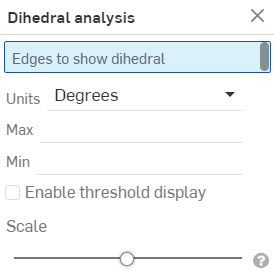
Dans le menu, sélectionnez Analyse dièdre pour ouvrir la boîte de dialogue :
-
Sélectionnez une ou plusieurs arêtes pour afficher l'angle dièdre.
-
Sélectionnez l'unité de mesure de votre choix.
-
Max : lorsqu'une arête (ou plusieurs) est sélectionnée, l'angle dièdre maximal est affiché.
-
Minimum - Lorsqu'une arête (ou plusieurs) est sélectionné, l'angle dièdre minimal est affiché.
-
-
Le cas échéant, sélectionnez Activer l'affichage des seuils pour activer les champs de seuil haut et bas personnalisables.
-
Vous pouvez éventuellement utiliser la glissière Échelle pour régler la longueur des peignes dièdres.
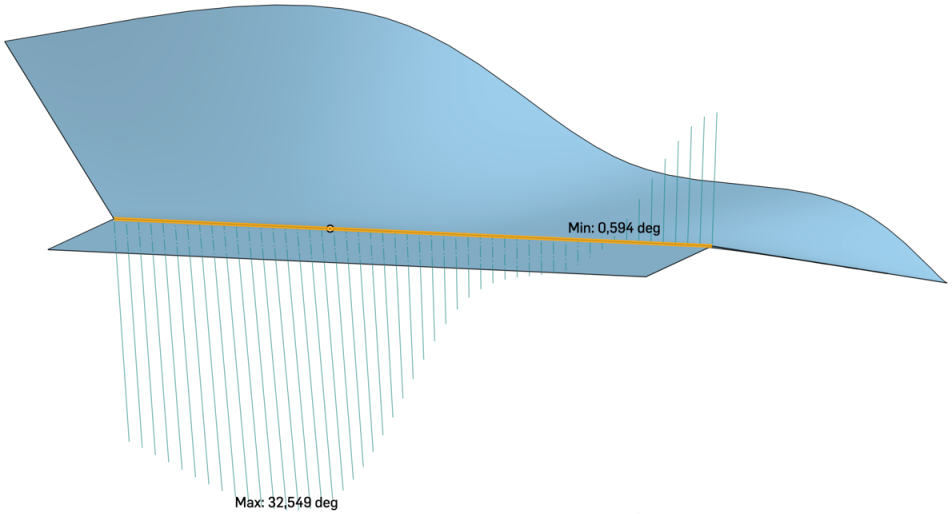
L'image ci-dessus montre un exemple d'arête sur une entité de la zone graphique avec l'outil d'analyse dièdre appliqué.