Enterprise Settings - Job Queue

Only available for
Provides a list of all Arena PLM BOM and Release candidate sync jobs and their statuses. For more information see Syncing a BOM.
To navigate to the Job queue in Onshape, click the Account user icon ( ) in the top right corner of your Onshape window. This opens a dropdown menu. Click Enterprise settings.
Click Job queue in the list on the left side of the page:
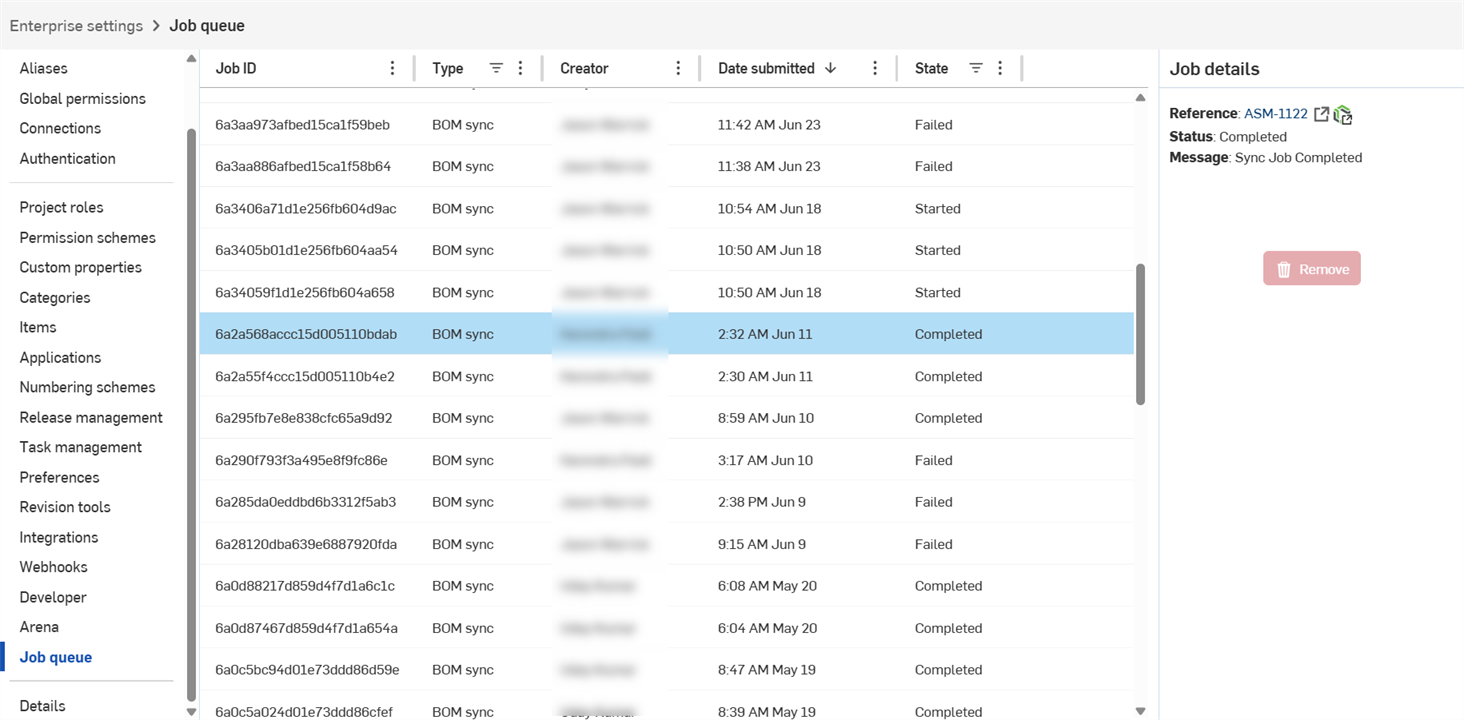
 Job queue table
The Job queue table lists all jobs that are run as part of a BOM or Release candidate sync:
-
Job ID - Unique ID for the job run.
-
Type - Job type. Options are BOM sync or Release candidate sync. Click the header and check (or uncheck) a type to display or hide all jobs in the table that match this type.
-
Creator - The user that submitted the job.
-
Date submitted - Time and date when the job was submitted.
-
State - Status of the job. Options are Completed, Failed, Pending, or Started. Completed jobs are not displayed by default. Click the header and check (or uncheck) a status to display or hide all jobs in the table that match this status.
Job queue details
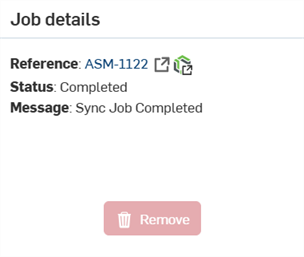
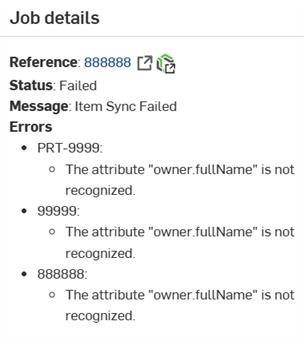
The details panel shows any details related to the currently selected job:
-
Reference - Onshape part number for the part or Assembly.
-
Status - Job status. Options are Completed, Failed, Pending, or Started.
-
Message - Job message. For example, if the job failed, the message is Item sync failed.
-
Errors (Failed jobs only) - Reports and explains all job errors.
-
Remove (button) - Administrators can click this button to remove the currently selected job from the job queue table.